





Tuerlich
Members
-
Joined
-
Last visited
-
Danke, das du nicht fragst... ;-) Also das Hauptnetz macht meine Fritzbox 4060 (IP Bereich 192.168.22.x) dahinter ist als Mesh Repeater noch eine 4060 und daran hängt ein Xiaomi AX3000T mit OpenWRT (IP 192.168.23.x), dieser soll für die Smarthome Geräte sein. Mein IOB Docker läuft als Host... was brauchst du noch für Infos?
-
Hi, ich bin gerade dabei meine ganzen Tasmota und Shelly Sachen in einem separaten IP Bereich zu verschieben. Das funktioniert soweit auch ich kann von jedem Netzwerk auf jedes Gerät zugreifen, jedoch klappt MQTT bei den Geräten im anderen IP Bereich nicht. Hat dort jemand einen Tipp wie ich das wieder binden kann? Bin nicht wirklich der Netzwerkprofi.... Gruß und Danke
-
Hi, bei mir läft EVCC auch jedoch bekomme ich keine Verbindung zu meinem Auto hin, dachte erst es liegt an Evcc da IOB auf das Auto zugreifen kann aber evcc nicht. Hab dann ein Issue bie evcc aufgemacht und sollte nslookup prd.eu-ccapi.kia.com das Ergbniss ist wie folgt: /app # nslookup prd.eu-ccapi.kia.com Server: 8.8.8.8 Address: 8.8.8.8:53 Non-authoritative answer: prd.eu-ccapi.kia.com canonical name = apigw-eu-lb-kia-prd.eu-central.hmgmobility.com apigw-eu-lb-kia-prd.eu-central.hmgmobility.com canonical name = apigw-eu-lb-kia-prd.eu-central-1.hmgmobility.com Non-authoritative answer: prd.eu-ccapi.kia.com canonical name = apigw-eu-lb-kia-prd.eu-central.hmgmobility.com apigw-eu-lb-kia-prd.eu-central.hmgmobility.com canonical name = apigw-eu-lb-kia-prd.eu-central-1.hmgmobility.com Name: apigw-eu-lb-kia-prd.eu-central-1.hmgmobility.com Address: 103.187.35.97 Verstehe aber nicht warum IOB drauf zugreifen kann aber nicht EVCC hat jemand eine Idee?
-
Hi, gibt es eine Möglichkeit ein Pi Image , in diesem Fall Solarassistant, in ein Docker Image umzuwandeln? Villeicht hat jemand einen Link oder kann mich etwas dabei Unterstützen. Ich denke den ein oder anderen würde es auch freuen dieses als Docker zunutzen und dann nur den RS232 Adapter durchzuschleifen. Danke
-
@cz13 DANKE! Der Hinweis hat mir gefehlt ...Sorry gerade frisch am einrichten, da sind noch nicht alle Sachen so klar!
-
Hi, Wo genau finde ich denn den Punkt Userscripts?
-
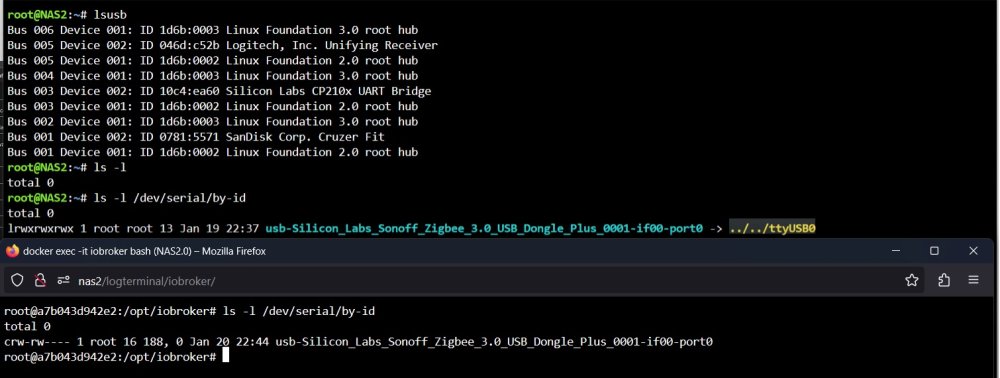
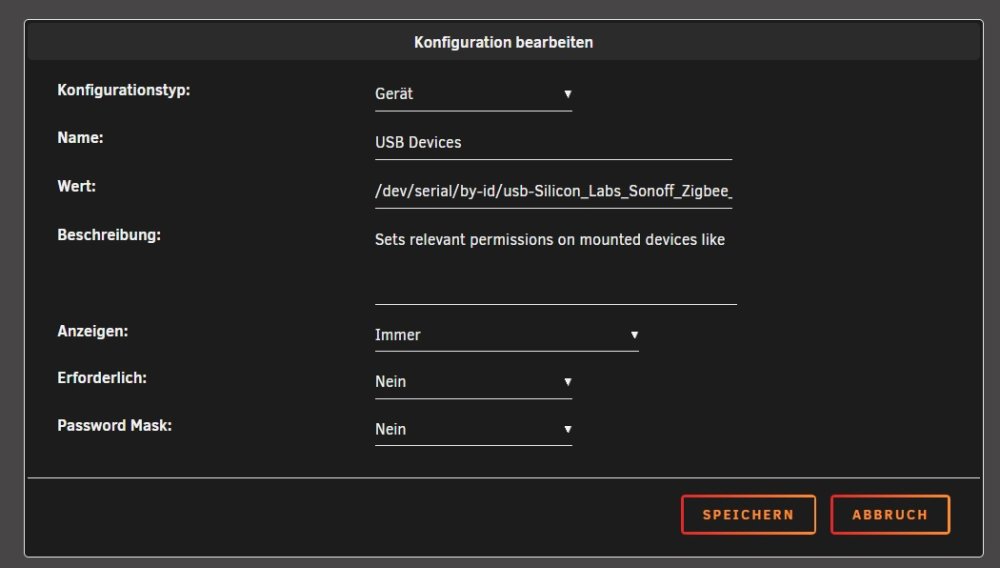
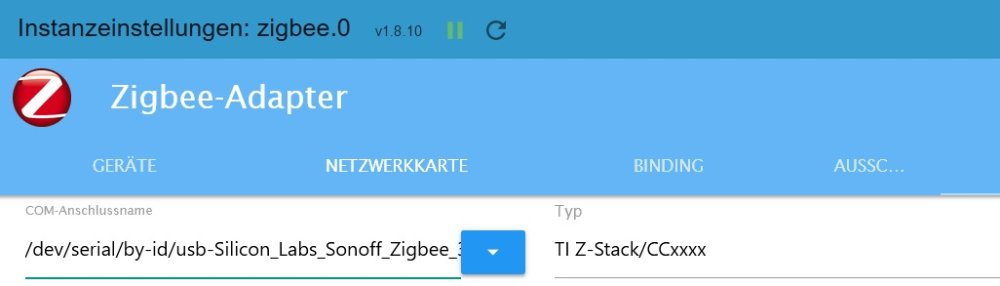
Hi, würde mich hier gleichmal einklinken, weil ich meinen Stick irgendwie gar nicht zum laufen bekomme. Es handelt sich um einen Sonoff Zigbee Stick 3.0. Ich habe ich (würde ich behaupten) durchgereicht und er wird auch im Docker erkannt aber im Zigbee Adapter würd er nicht erkannt IoBroker meldet mir permission denied USB Device, die Permissions sind auch eingeschränkt ...was habe ich denn falsch gemacht? Meine Einstellungen Auswertung von ls Einstellung Zigbee Adapter. Gruß Problem ist jetzt gelöst und der Adapter läuft *Nach einer Neuinstallation des Dockers wurde alles sofort erkannt*

-
Hi, bin gerade dabei mir meinen kleinen Heimserver aufzusetzten und wollte die Temperaturen auslesen um die Lüfter äbhängig der Temperatur zusteuern. Leider kann ich nicht die Mainboardtemp und CPU Temp auslesen von Dynamix hab ich schon die System Temp und System Informationund alle Treiber installiert, sowie die Nerdtools (alle installiert) jedoch passiert immer noch nichts. folgende Ausgaben bekomme root@NAS2:~# sensors it8655-isa-0290 Adapter: ISA adapter in0: 273.00 mV (min = +0.76 V, max = +2.45 V) ALARM in1: 2.51 V (min = +2.33 V, max = +2.76 V) in2: 2.01 V (min = +0.10 V, max = +2.00 V) ALARM in3: 2.00 V (min = +2.50 V, max = +1.06 V) ALARM in4: 2.00 V (min = +0.60 V, max = +2.06 V) in5: 1.95 V (min = +1.12 V, max = +2.71 V) in6: 2.00 V (min = +1.61 V, max = +0.98 V) ALARM 3VSB: 3.27 V (min = +1.02 V, max = +2.07 V) ALARM Vbat: 3.18 V +3.3V: 3.29 V fan1: 706 RPM (min = 10 RPM) fan2: 534 RPM (min = 11 RPM) temp1: +17.0°C (low = -25.0°C, high = -11.0°C) ALARM temp2: +20.0°C (low = -31.0°C, high = +127.0°C) sensor = thermistor temp3: +16.0°C (low = -41.0°C, high = -73.0°C) ALARM sensor = thermistor temp4: +16.0°C (low = -6.0°C, high = +102.0°C) sensor = thermistor temp5: +16.0°C (low = -2.0°C, high = +76.0°C) sensor = thermistor temp6: +16.0°C (low = +39.0°C, high = -33.0°C) ALARM sensor = thermistor intrusion0: ALARM k10temp-pci-00c3 Adapter: PCI adapter Tctl: +17.8°C amdgpu-pci-0700 Adapter: PCI adapter vddgfx: 1.24 V vddnb: 999.00 mV edge: +15.0°C PPT: 6.00 mW root@NAS2:~# sensors-detect # sensors-detect version 3.6.0 # Board: ASUSTeK COMPUTER INC. PRIME A320M-A # Kernel: 5.19.17-Unraid x86_64 # Processor: AMD Ryzen 5 5600G with Radeon Graphics (25/80/0) This program will help you determine which kernel modules you need to load to use lm_sensors most effectively. It is generally safe and recommended to accept the default answers to all questions, unless you know what you're doing. Some south bridges, CPUs or memory controllers contain embedded sensors. Do you want to scan for them? This is totally safe. (YES/no): YES Silicon Integrated Systems SIS5595... No VIA VT82C686 Integrated Sensors... No VIA VT8231 Integrated Sensors... No AMD K8 thermal sensors... No AMD Family 10h thermal sensors... No AMD Family 11h thermal sensors... No AMD Family 12h and 14h thermal sensors... No AMD Family 15h thermal sensors... No AMD Family 16h thermal sensors... No AMD Family 17h thermal sensors... No AMD Family 15h power sensors... No AMD Family 16h power sensors... No Hygon Family 18h thermal sensors... No Intel digital thermal sensor... No Intel AMB FB-DIMM thermal sensor... No Intel 5500/5520/X58 thermal sensor... No VIA C7 thermal sensor... No VIA Nano thermal sensor... No Hat da jemand vielleicht eine Lösung zu?



