





sihorrocks
Members
-
Joined
-
Last visited
Everything posted by sihorrocks
-
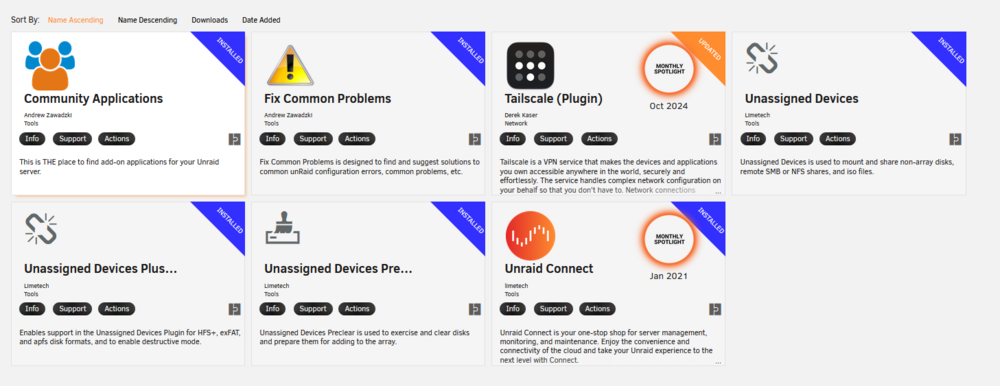
disk3 disk4 These are the other apps installed, but not disabled as not on the docker?


-
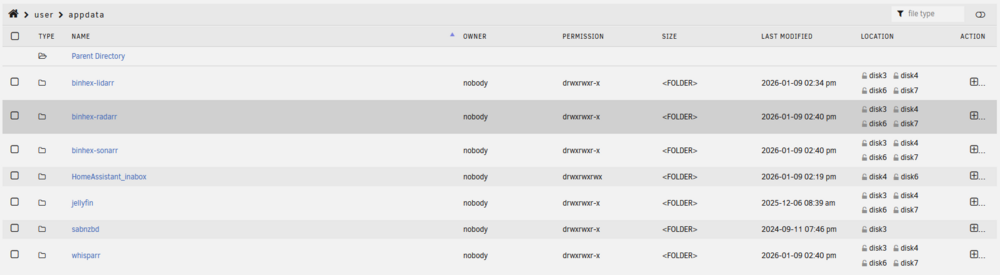
That looks good and a good place to start. Cache empty and no (existing) shares currently configured to use it. You have some .cfg files for nonexistent shares cluttering your diagnostics though. You can clean that up by going to Shares - User Shares and clicking the CLEAN UP button. Done. Found seven shares to remove, none were actually removed from the GUI though? Since you know how to use File Manager, give me screenshots that show if docker.img exists ( at /mnt/user ) Couldn't see the file in /user if your HA vdisk exists ( at /mnt/user/domains/Home Assistant ) Domains looks empty? the contents of appdata (at /mnt/user/appdata ) HA_inabox is in here, to note, I just followed the setup instructions from spaceinvader
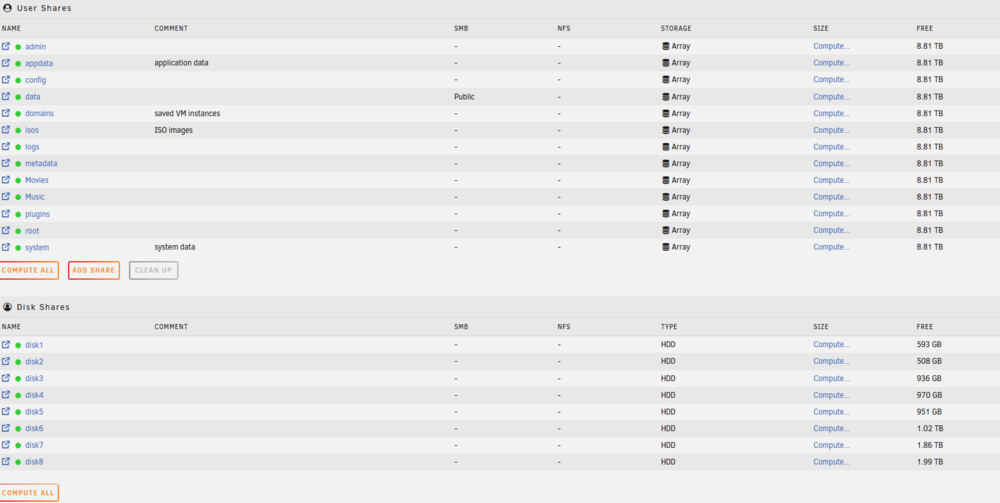
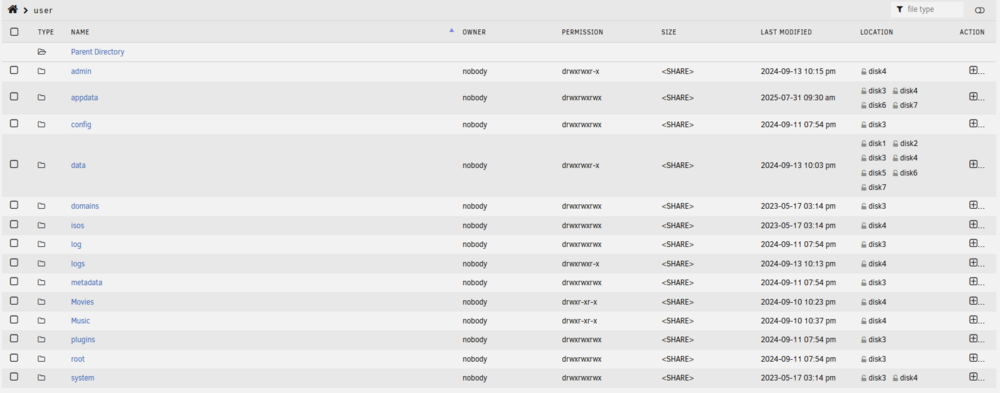

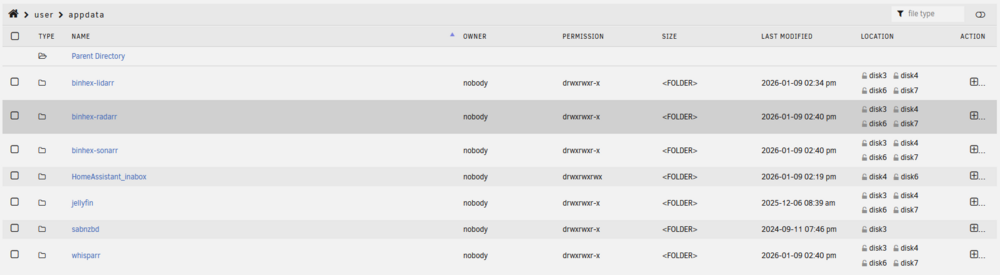
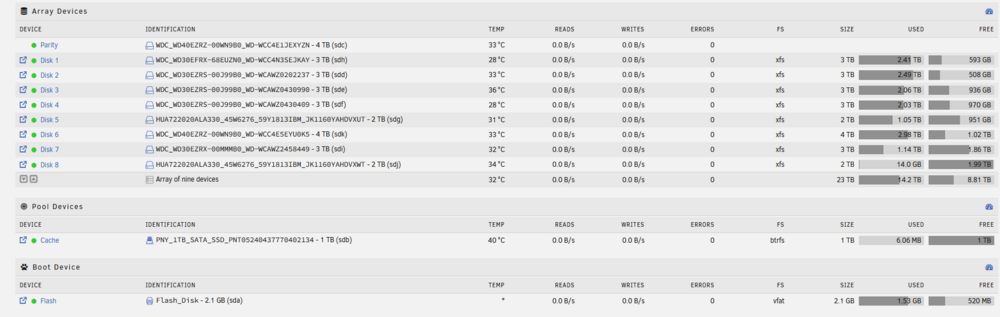
 Here's the new main with cache working
 Apologies on New Zealand time, so we might have difficulty connecting at the same time! happy to try a discord server if that would be better? This is the part I'm trying to understand. How did you access cache and other drives? I just navigated into the cache, then moved changed the disk location of the files as per screenie below - or copied and pasted to the folder on the relevant disk was faster I think So just change from 'cache' to 'disk X' This may seem obvious to you but I can think of several different ways to do that. Same as above, used the browse option in the gui via main to naviaget into the folders then move or copy/paste - I think it might be a plugin (i did check) to give you folder style access like this (can't recall) You seem to think cache wasn't used and was actually empty when it failed. I think some stuff was still running from cache until it failed. You're the expert not me! What do you get from command line with this? root@Tower:~# ls /mt/user ls: cannot access '/mt/user': No such file or directory Post new Diagnostics. New diagnostics attached. Thanks heaps! tower-diagnostics-20260110-1802.zip
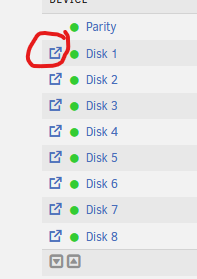
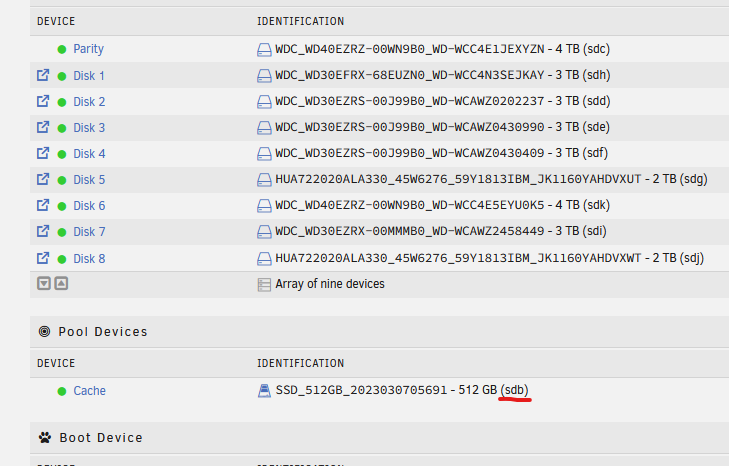
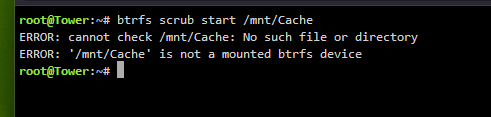
 Great thanks - I have loaded the new SSD. Its setup as cache and formatted to btfrs. Very happy to rebuild docker apps and VM. Let me know when you're around to help. "Still trying to understand this. How did you move things off cache?" I may not be explaining myself using the correct language, I changed the settings for my shares, such as 'downloads', 'appdata', 'plugins' and 'domains' from cache to array. That's all. I manually moved media files off of cache to other drives.i just used the shares settings to change storage settings to array (I can't replicate it right now as there is no cache and everything has defaulted to array). Sorry it's been a long while since i looked at it so can't recall exactly why or howI changed every setting, iirc I was trying to diagnose why mover wasn't working, and seeing if a change to what was on the cache would start it working, so I experimented with moving things off the cache to see if mover would work, it didn't. In the end, i just gave up trying to get mover to work and set all shares to array - I haven't thought about it in a long time tbh. I had sort of come to the conclusion that i would need to rebuild to get it working, and so just went with it working without a cache drive doing anything - and future me can rebuild when I am motivated. I installed mover tuner as an attempt to try and get the mover to work. It didn't make any difference. I have removed the plugin for now as directed. I will install the new SSD and get it setup as the cache and come back to you. Thanks for helping.yeah everything was working fine (well good enough noting mover never worked) until the cache died and I posted this thread. I don't know how to look for the vdisk in a domains share. I just followed the space invader setup instructions - it worked and I have been using HA ever since.I moved everything off cache because it just kept filling up - mover wouldn't work, i couldn't fix my issue with it.No agent setup for additional alerts, def seen the odd smart error but I thought only on the array itself not cache - but tbh I built it from HDDs I have had knocking around for years so I was expecting errors with an expectation of them slowly giving out. The server is for media storage (that I don't care about losing) and to recycle/reuse all my old drives until death, so i expect them to die at some point - but the SSD was bought new for the build.As we've discussed, pretty much everything is on the array proper, if I lose some app settings I can rebuild them (not ideal but only a couple of hours work) and i have a nicer 1tb SSD in the packaging here that I would happily swap out for. It was a cheap chinese drive so I am not totally surprised.I added in the '1' and got the output (begin a dumbass here) - copied to notepad file ref mismatch on [700186624 16384] e.txtroot@Tower:~# btrfs check --readonly /dev/sdb Opening filesystem to check... No valid Btrfs found on /dev/sdb ERROR: cannot open file system root@Tower:~# The disk number is three digit code in parenthesis on the array devices list yeah?
 Thanks for the advice - much appreciated!Results of the check filesystems attached - I am no expert but looks like a lot or errors there. Ran in maintenance mode. Scrub wouldn't run - no btrfs drive mounted. Ran in normal mode. parent transid verify failed on 307.txt
 Thanks mate - I will run through all of that, and come back to you. Re apps - yeah I moved them off cache, as I noted earlier, it was filling up with files and mover would not automatically move them off, so just ended up with my apps switching off all the time because the cache was full. In the end, having functioning apps (running not on the cache) than apps that weren't functioning was more important. I could not get to the bottom of why my mover wasn't doing anything, so just left them off - performance didn't ever seem impacted for what I needed. The VM is for running Home Assistant from the Space Invader all in one package, don't recall if I manually made that setting change to the user share or if i was just following his instructionals.No - a power extension to get the SSD's power cable around the large case to the SSD mounting slot. Reconnected the original cables, and it has removed the cache from unassigned devices now. So that is an improvement. But looks like all application data has been lost, and my VM won't start. See Screenies. Still getting the unmountable no File System error on the cache in main. Attached - VM error, cache in main, cache details and exported logs following a reboot and restart of the array (not in maintenance mode). tower-diagnostics-20260109-1436.zip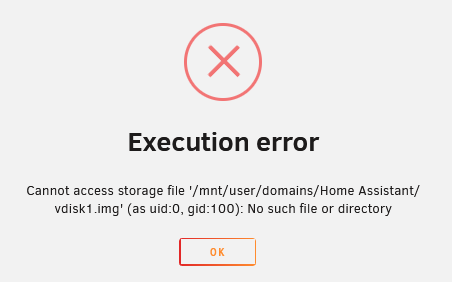
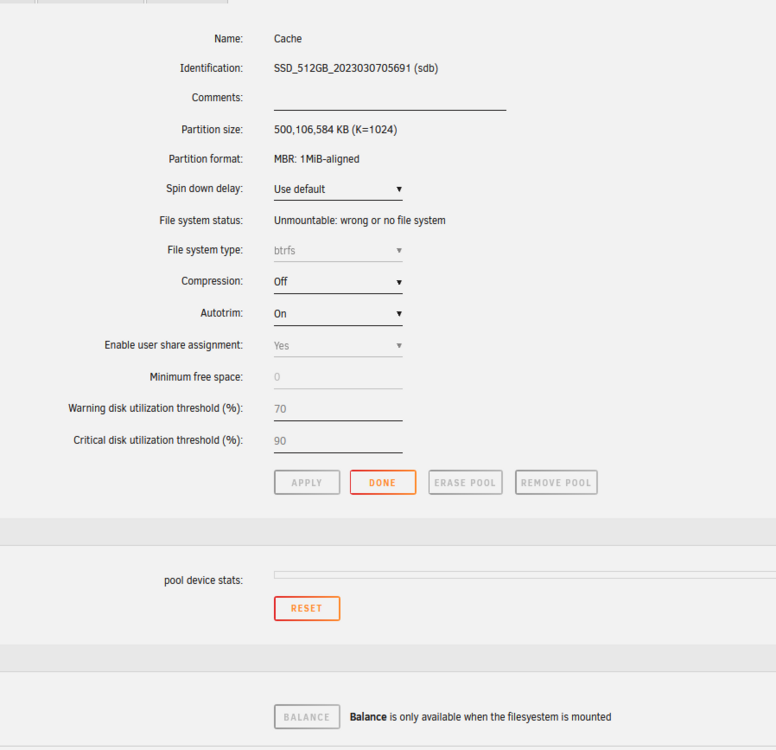
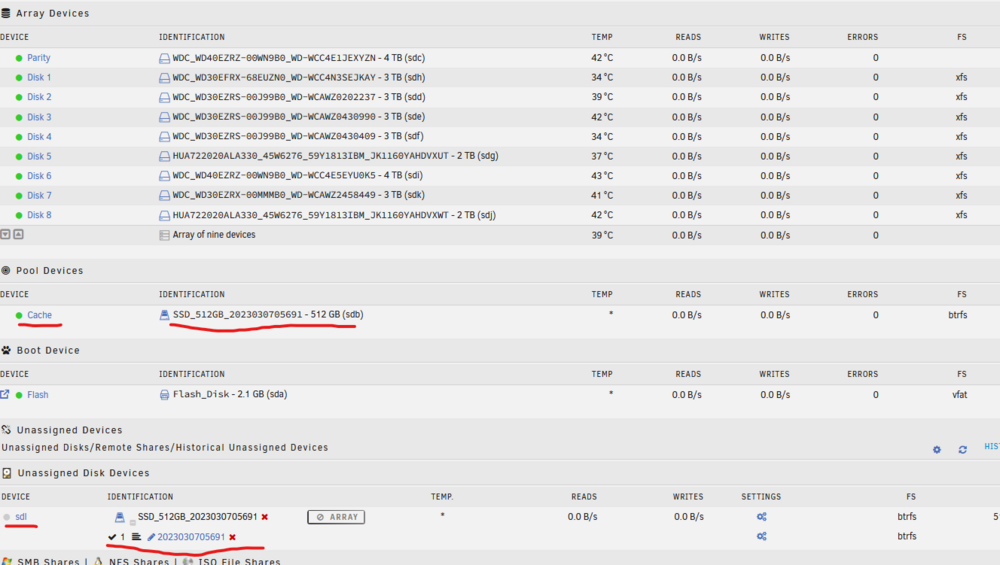
 Thanks heaps. Don't have a spare SATA cable to hand, will take me a day or two to find one, and I am all out of spare HDD power connectors on the PSU - so can't replace that cable realistically without purchasing a brand new PSU. However, the SSD is on an adaptor - this could be the source of issues. Though the other HDDs daisy chained off this were not affected. Any other options to test? For instance, I could replace the existing SSD with a brand new one I have to hand (using the same cables)Thanks - can you specify which two cables? Power / Ethernet / HDD?For the record, I have since tried to remove the partitions in main - this had no effect. I have also tried to 'format the unmountable disk' also did nothing. Just refreshed the GUI. I have also tried toggling the auto-mount option from the gears menu in unassigned disk drives - no change.So apps stopped working one by one today, so I jumped into main to take a look - and my cache / SSD has been moved to read only and to unassigned devices, though still shows as cache. See attached screenie. I have rebooted with no discernible change (and restarted the array). I have since moved the array to maintenance mode and tried check filesystem status - just receiving the following error - ERROR: not a regular file or block device: /dev/ ERROR: cannot open file system Opening filesystem to check... Clicking on the pencil icon in main on the unassigned device and it will throw up an option to rename the device as follows - Disk Label: Changing the Mount Point will also change the disk label on all disks and the pool name on a ZFS disk. But been a bit wary there. It wasn't the world's greatest SSD - so it could be corrupt or dead - but to note, it wasn't heavily used as for whatever reason I couldn't get arr suite to download to the cache and the automatic mover to move the files to the array, (it just slowly filled up and I had to manually move to the array) so it wasn't heavily trafficked or used barely at all for many months. Screenie of main and logs attached. Any help in a fix or confirmation of dead drive appreciated, I do have a brand new 1TB SSD ready to go. tower-diagnostics-20260108-1530.zip
 I replaced my misfunctioning chance drive with a bigger SSD to prevent it filling up again and going RW, and was able to rebuild the array and maintain all my data. However, putting the apps back on and setting them up with the trash guide is proving a challenge, getting duplicate mount errors when trying to point my new installed apps to the share - is it possible wipe all appdata and install them fresh? docker run -d --name='binhex-lidarr' --net='bridge' -e TZ="America/Los_Angeles" -e HOST_OS="Unraid" -e HOST_HOSTNAME="Tower" -e HOST_CONTAINERNAME="binhex-lidarr" -e 'UMASK'='000' -e 'PUID'='99' -e 'PGID'='100' -l net.unraid.docker.managed=dockerman -l net.unraid.docker.webui='http://[IP]:[PORT:8686]/' -l net.unraid.docker.icon='https://raw.githubusercontent.com/binhex/docker-templates/master/binhex/images/lidarr-icon.png' -p '8686:8686/tcp' -v '/mnt/user/appdata/data':'/data':'rw' -v '/mnt/user':'/media':'rw' -v '/mnt/user/data/usenet/complete/music/':'/data':'rw' -v '/mnt/user/appdata/binhex-lidarr':'/config':'rw' 'binhex/arch-lidarr' docker: Error response from daemon: Duplicate mount point: /data. See 'docker run --help'. After this error it removes the app from the docker and has to be reinstalledFairly new user, built my first array, had some problems, see previous posts. The advice from the mods here was to start over, in addition, II have also bought a larger cache drive to replace my current and also want to remove a HDD with errors and put a replacement in. So it's near enough a new build. I've backed up the data I want to keep to a windows machine, and want to start again with the new cache drive and replacement HDDs from what is currently in the array. Dont need to keep anything at all. Broken array is still active. What's the best way to start over? Can I just make a new Boot USB key and start from scratch, or do I need to do something within the existing broken array to clear the drives? I hadn't bought my reg key yet, but will on the new array, so no need to transfer.Thanks for your time on it, much appreciated. I might back the data up via the windows share to another device and nuke it, start again, copy it over. Bummer.


