





dee31797
Members
-
Joined
-
Last visited
Everything posted by dee31797
-
Auto-comskip doesn't convert the video to a different codec so I didn't implement any GPU functionality. The first task of detecting the commercials is all CPU anyway, and the second task of removing the commercials from the video uses FFMPEG to copy the existing video minus the portions marked as commercials. I tried it with an Nvidia GPU and it didn't change how fast it completed. Edit: correction, from the comskip developer it can GPU decode during commercial detection, but the benefit comes from having a slow CPU and much faster GPU. Makes sense why I didn't see any improvement.
-
SUCCESS!!! Thank Goodness! This one was kicking my butt. There's a ton of changes to get this working. One of the biggest is moving from Ubuntu 18.04 to 19.10 which caused that last error that made me ask you to manually enter that command (why did they remove /bin/sh?!? 😡). I build two other containers that go into this one to make it work. It's going to take me some time to make this go from :dev to the current build so please stay on :dev for awhile. Hopefully Nvidia preset still works but once it's all tested and vetted out I'll let you know.
-
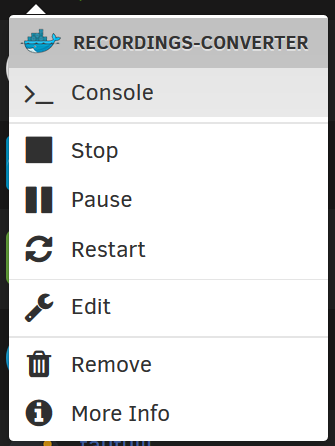
Let's try a quick test to avoid rebuilding it again. Connect to the console of the container and enter: ln -s /usr/bin/dash /bin/sh && ln -s /usr/bin/bash /bin/bash then just delete failed_conversions and lastly restart container Left click the docker icon to get the menu below for console and container restart
-
Fresh :dev build is up, give it a shot a let me know. A quick way to get it is to go to Docker tab and change basic view to advanced view, then click force update next recordings-converter, and don't forget to delete failed_conversions file.
-
well darn 😥 Everywhere I looked that error was associated with out-of-date intel drivers. After finding that I checked the container and it has an intel driver that's 10+ months older than the 9th Gen CPUs. That Dev image you just tried has the latest driver so now I'm stumped. I test this container on a Intel 8700 and Intel N4000 both with iGPUs. If you have the patience I can continue to tweak the :dev image. Just let me know if you don't mind the repeated tests
-
Great! It's live now, should work *fingers-crossed* In the docker container config change the repository to "djaydev/recordings-converter:dev" just adding :dev on the end. To test the same files already in the watch folder delete the "failed_conversions" file first.
-
Alright I found the issue. The container is based on Ubuntu 18.04 LTS, and that base has an slightly older Intel driver that doesn't support Intel 9th Gen. I'm going to push a new image for testing, but I don't have a 9th Gen to test it with so do you mind trying it out?
-
Thank you. The template is usually where the issue is but yours looks good. Within the /mnt/user/appdata/recordings-converter/log folder there should be some postProccessXXX.log files, please send me the most recent 1 or 2 if they are there. Lastly, the container logs will be useful. You can get them from the docker tab in the Unraid UI using the paper icon on the far right, or by CLI using "docker logs recordings-converter".
-
Yes that display is only real-time, so right at that moment of the screenshot the iGPU wasn't in use. Add a .ts file to the watch folder, and within 15 secs you should see bars move left to right to show percent of utilization. If there's a .ts file already in there, go to the /config folder and delete the file "failed_conversions". If not, send me your template for recording-converter and we'll get this figured out.
-
To tell if the iGPU is in use for transcoding or anything else I use Intel-GPU-Tools. You can find it in CA Apps.
-
User 0 allows the use of "/root/.ssh/known_hosts" file. If it's still prompting for the password I assume it's opening multiple SSH connections. I think it can be fixed but I'm still looking for it.
-
golli53, can you try to change the user ID and group ID to 0 and let me know if that helps? thanks
-
Hi golli53, I haven't run into that issue but I'm looking into it. Once I nail it down I'll push an update and let you know to try it out.
-
If you're happy with the container then I'm happy 🙂 I can't figure it out from what you've sent so far but something isn't working with your setup with this container. If you have any issues in the future let me know and we'll dig a bit further.
-
I think the second screenshot with the error "/dev/dri no such file..." means that the iGPU module is not loaded. You can check from Unraid's CLI: root@unraid:~# ls /dev/dri by-path/ card0 renderD128 root@unraid:~# If you don't see that, that means Unraid hasn't loaded it as a video device even though it shows up as a PCI device in the first screenshot. I think there's an issue with Unraid's 6.7.2 version and 9th Gen GPU, you might want to try out the RC 6.8. Also, the container doesn't require privileged mode to use the iGPU.
-
Hi scubieman, From those log messages it appears the container doesn't have access to your Intel iGPU. You have to map the Intel iGPU device to the container. Go to the container config where you took that screenshot, click "Add another Path, Port, Variable, Label or Device" config type select "Device" Value: /dev/dri click ADD click APPLY Lastly, you have to boot-up Unraid to load the iGPU with the Go file. Details at here (best answer in the comments). Let me know if it still doesn't work.
-
Hi scubieman thanks for inquiring. It's a very simple app, it's just a bunch of bash scripts. The files it converts are logged in the config directory in the " successful_conversions " file as well as in the docker logs. You can view the docker logs from the Unraid cli with "docker logs recordings-converter" and of course from the Unraid WebGUI. I never really considered adding additional software to it for notifications because it converts every single file after I record it (if it's in the /watch folder and a .ts file). I'm not sure if there's a program out there you can try that can monitor a file for new entries and notify you once there's new text in the file? In this case it would monitor the text file /config/successful_conversions.
-
Thanks for the feedback. Glad its working out for you.
-
I rebuilt the image just now with the proper change ( I hope! ). Please grab the new build and let me know if it works for you. Go to the Docker tab and change basic view to advanced view, then click force update next to auto-comskip. In the appdata/auto-comskip folder delete the "successful_conversions" file if you want to test the same video again.
-
Hi @robsch, I will have to think about how to do that and test it out. Right now it can only move the final video to "/output". Also, I kinda like everything for me to be in the root of /output so I would have to make it an optional setting at startup. I'll let you know what I come up with. My first guess would be to end the script with "mv $1 /output$1". Easiest way I can think of right off hand, it would move for example "/watch/movie/movie.mp4" to "/output/watch/movie/movie.mp4" would that work for you? The comskip.ini is only for comskip settings like commercial detection schemes, cpu threads, etc.
-
Only commercial removal with same file name and video format.
-
Another rookie mistake on my part🤦♂️ My config folder already had these directories so I didn't discover this issue during my testing. Thank you for bring this up! I rebuilt the image just now with the proper fix ( I hope! ). Please grab the new build and let me know if it works for you, go to Docker tab and change basic view to advanced view, then click force update next to auto-comskip. In the appdata/auto-comskip folder delete the "successful_conversions" file if you want to test the same video again.
-
Hi JM2005, For detailed setup on Auto-Comskip you can check out: https://github.com/djaydev/docker-auto-comskip There was an issue I just fixed today with the temp folder volume. The folder in the template with the description "Temporary transcoding location" was set to "/tmp" but it should be set to "/temp". The easiest way to get the fix is to just delete and re-add. Go to Docker tab, click the icon for auto-comskip, click remove, click yes delete it. Go back to CA Apps and download Auto-Comskip again. Those steps will pull down the new template, and the new docker image. Let know me if I answered your question or not, or if you need anything else.
-
Good deal. I saw the "s6-applyuidgid: usage: s6-applyuidgid ...." message and was gonna ask you about it. Glad you got it working.
-
For Handbrake, you should also ask this over at it's support forum: https://forums.unraid.net/topic/57420-support-djoss-handbrake/ I suspect the issue is your container is having issue accessing the /dev/dri/renderD128. It's usually a permission issue so I suggest start there. This is probably not proper linux protocol or best security practice, but I change the permissions to 777 when I troubleshoot this on my system. # show current permissions so you can change it back if you want ls -la /dev/dri # change perms chmod 777 /dev/dri/*

