





Gdtech
Members
-
Joined
-
Last visited
-
Are you suppose to be able to browse files on ZFS datasets within Unraid GUI, when i click on browse button on any dataset it comes up with invalid path I can browse the files on windows workstation through SMB, is this something to do with Dynamix File Manager or ZFS Master or Unassigned Devices. Any help would be appreciated thanks
-
I have upgraded to Unraid 6.9.2 and now having problems with adding wireguard peers, i have 15 wireguard peers running now but when I try to add another peer it does not give me a blank entry to fill in, the cursor just jumps to one of the existing entries that are already running. I thought at first it was maybe the browser so I tried Firefox, Google chrome, Microsoft Edge but all act the same. When i add a new Tunnel such as WG1 i can start adding more peers, Is there a limit on how many peers per tunnel ? Thanks
-
Every time i add a peer i have to reboot the server in order for wireguard to start working again, is this normal ?, After rebooting every thing works fine including the new added peer. Any advice would be appreciated Thanks
-
Not sure mine did the same, have not tried with new version yet.
-
-
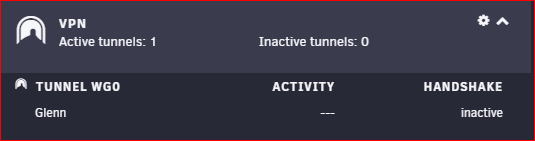
Just upgraded to Beta 24 and lost activity on dash, I am connected now and using Tunnel but the dashboard has this displaying
-
Just install Nginx Proxy Manager Docker, not able to login, using [email protected] and password changeme, It comes up with No relevant user found Any help would be appreciated. Thanks
