esf
Members
-
Joined
-
Last visited
-
Thank you.. I got it...
-
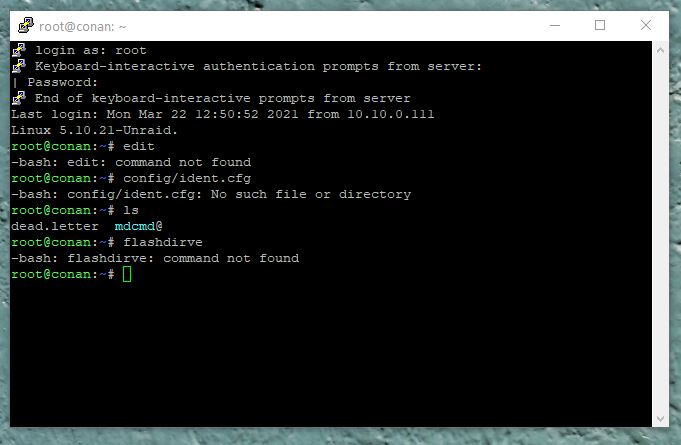
Hi, can anyone help me go through? I'm in the ssh, and I'm lost to proceed. (beginner).
-
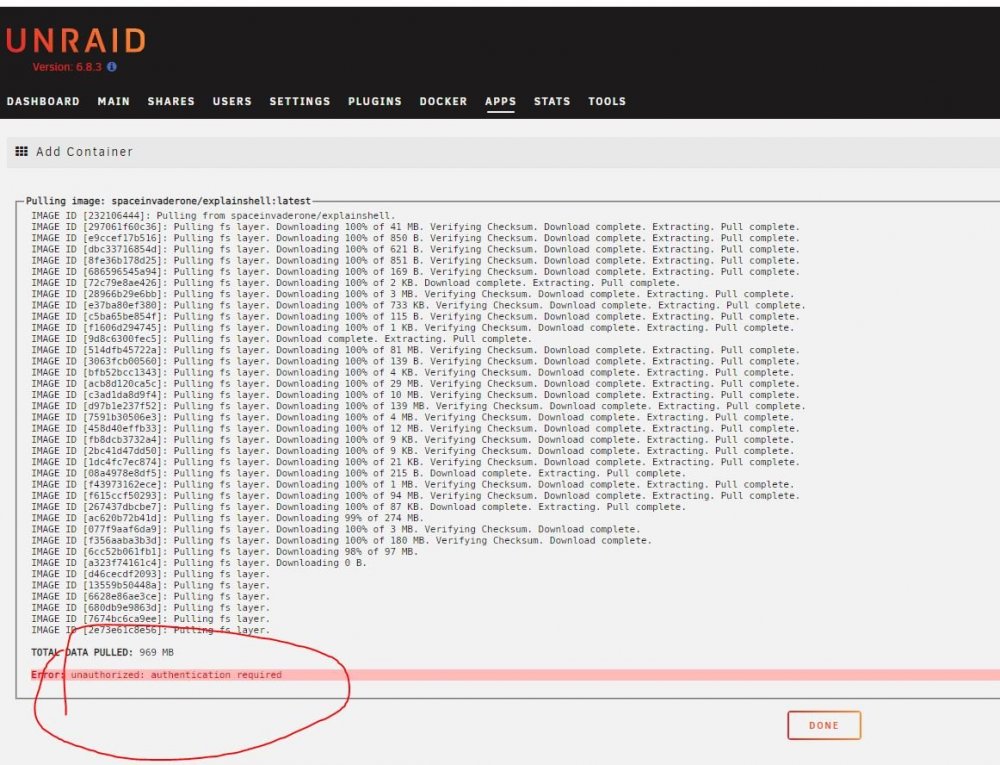
Hi, anyone can help me to know what I am doing wrong?
-
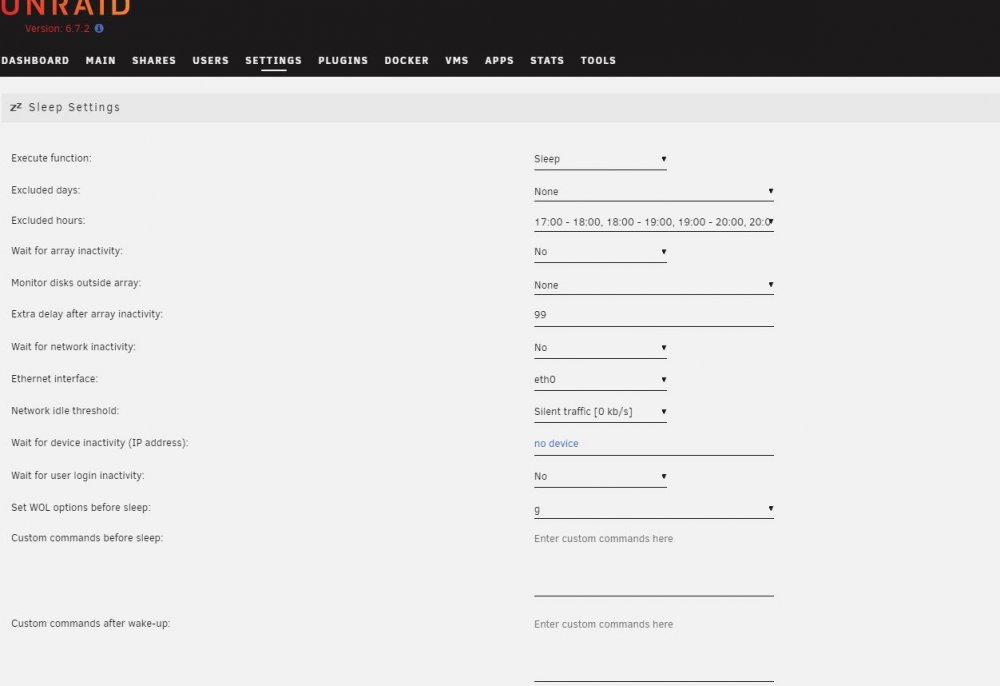
Hi, I use the Sleep plugin and it`s great. My hardware is really old, (12 years) and some functions don't work. But even like that, the plugin make a large economy in energy. One thing that could help in the options of configuration is if the "Extra delay after array inactivity:" aloowed more then 99 minutes. I know there is other options to prevent sleeping, but this optios is the easyest to configure and work in any hardware that I tried. thanks in advance and congratulations for the app
-
Thanks a lot for the repply. I solved the problem, my SETTINGS>DATE AND TIME was not configured. Now the "Excluded hours:" are working perfectly. thank anyway
-
hi, I need help with the configuration of Sleep plugin. My Server starts through the bios, everyday at 18:00, and I want that it keeps working for 6 hours and go to Sleep again. The problem is that I tried all possibilities, and nothing seans to work. The "Excluded hours:" does not matter, he goes to speep anyway. The "Wait for array inactivity:" if I dont put as "NO" he keeps awake anyway. The only thing that works is the "Extra delay after array inactivity:", that could solve it all, but this funcion accepted at most 99 minutes. I printed my actual configuration. Someone can help? Thanks in advance. I'm a beginner, so excuse me if this is a little basic.