





joshallen2k
Members
-
Joined
-
Last visited
Everything posted by joshallen2k
-
I've followed the instructions to a T. However once starting the VM and opening a VNC window I get the UEFI shell and nothing proceeds. What am I doing wrong? All settings are per the video.
-
Yes, it was the @SpaceInvaderOne tutorial that I originally used for the setup. I changed my network to bridge and had the same error. I just used the troubleshooting guide https://www.linuxserver.io/blog/2019-07-10-troubleshooting-letsencrypt-image-port-mapping-and-forwarding which suggests using the Nginx docker to test connectivity and forwarding. Using nginx seems to work - I can reach the standard web page, and when I use a port checker, port 80 and 443 are open/green. When I delete the nginx docker and launch swag (using the same port forward and network settings), then port 80/443 are showing up as closed.
-
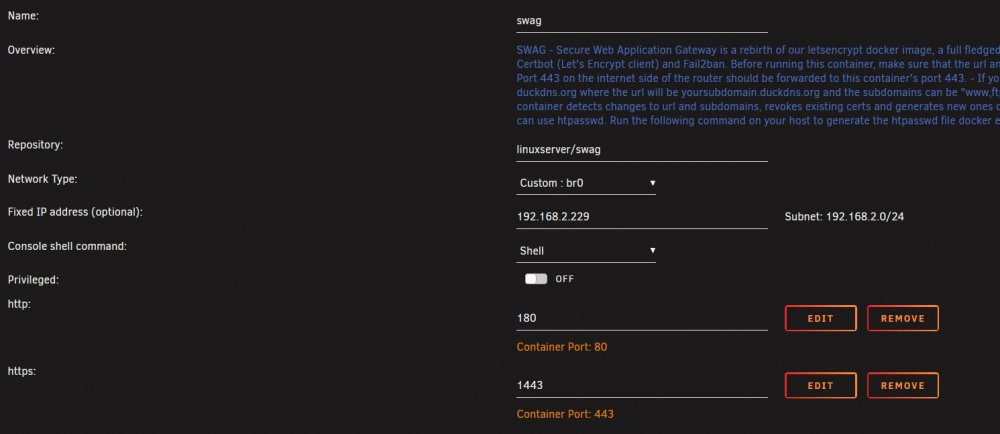
Thanks for the clarification, but I'm still having difficulty. With the setup in the screens below, the SWAG docker container fails to start with Execution Error 403. Note the fixed IP I specified in the template is the IP of my Unraid server (192.168.2.229). The IP of "ATLANTIS" is 192.168.2.229

-
Thanks for the reply. I double checked my WAN IP and its fine. For some reason my router when I specify an IP it resolves to the host name. WHat I'm unsure of is where you say to add my custom IP's again in the SWAG template. I don't think I specified anything there before. What should it be?
-
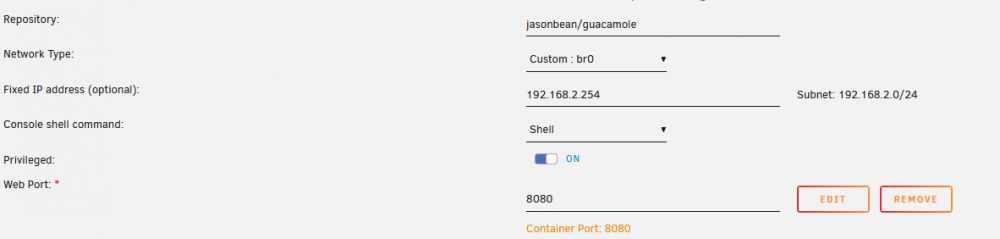
Any ideas here anyone? Or have I messed up some way in how I postedHi all - I'm having difficulty troubleshooting what looks like a port forwarding issue. My SWAG reverse proxy was working fine until a week ago. I was getting BTRFS errors in my docker.img, so deleted it and created from new. After reloading my apps, I noticed my reverse proxy was not working anymore. In my SWAG logs, I saw this error: int: The Certificate Authority failed to download the challenge files from the temporary standalone webserver started by Certbot on port 80. Ensure that the listed domains point to this machine and that it can accept inbound connections from the internet. Some challenges have failed. Ask for help or search for solutions at https://community.letsencrypt.org. See the logfile /var/log/letsencrypt/letsencrypt.log or re-run Certbot with -v for more details. ERROR: Cert does not exist! Please see the validation error above. The issue may be due to incorrect dns or port forwarding settings. Please fix your settings and recreate the container My port forwarding seemed to be correct for port 80 (to 180) and port 443 (to 1443) as per my SWAG docker template. I went to a number of port testing sites, and they all showed blocked for 80 and 443. So at this point I contacted my ISP (Bell Canada) and they said they have not changed anything. Where should I go now to figure this out? Thanks all.Thanks. I was afraid of that. Any suggestions on an alternative for Eth that would make sense to mine with this card?I'm having trouble with PhoenixMiner. Not connecting to any shares on Nanopool. I've tried a number of settings/suggestions from online posts, but no luck. Here is what the logs keep repeating: Eth: Mining Unknown on >ssl://eth-us-east1.nanopool.org for 0:01 Available GPUs for mining: GPU1: AMD Radeon (TM) RX 460 Graphics (pcie 1), OpenCL 1.2, 4 GB VRAM, 16 CUs GPU1: 39C 0% 7W GPUs power: 7.1 W Current -gt 15 Eth: Accepted shares 0 (0 stales), rejected shares 0 (0 stales) Eth: Incorrect shares 0 (0.00%), est. stales percentage 0.00% Eth: Average speed (5 min): 0.000 MH/s Eth: Effective speed: 0.00 MH/s; at pool: 0.00 MH/sI fixed this by disabling proxy inside Cloudflare. I'm not entirely sure why this worked, as my previous SWAG instance ran fine with Cloudflare proxy turned on...Hi - I'm having trouble with my swag setup. With a fresh docker install, my logs show challenge failed for my subdomains. They are properly setup in Cloudflare and my port forwarding is correct (forwarding 80 to 180 and 443 to 1443). I've attached my logs. Any suggestions? swaglog.txtHi, i have the docker running, but it doesn't seem to be generating any Eth. Does this log help at all? [95mGPU1: 38C 0% 8W GPUs power: 8.2 W [96mEth speed: 0.000 MH/s, shares: 0/0/0, time: 0:01 [96mEth speed: 0.000 MH/s, shares: 0/0/0, time: 0:01 Eth speed: 0.000 MH/s, shares: 0/0/0, time: 0:01 Eth speed: 0.000 MH/s, shares: 0/0/0, time: 0:01 Eth speed: 0.000 MH/s, shares: 0/0/0, time: 0:01 Eth speed: 0.000 MH/s, shares: 0/0/0, time: 0:01 Eth speed: 0.000 MH/s, shares: 0/0/0, time: 0:02 [95mGPU1: 38C 0% 8W GPUs power: 8.2 W [96mEth speed: 0.000 MH/s, shares: 0/0/0, time: 0:02 Eth speed: 0.000 MH/s, shares: 0/0/0, time: 0:02 [97m*** 0:02 *** 4/19 22:03 ************************************** [96mEth: Mining Unknown on stratum.slushpool.com:3333 for 0:02 Eth speed: 0.000 MH/s, shares: 0/0/0, time: 0:02 [0mEth: Accepted shares 0 (0 stales), rejected shares 0 (0 stales) Eth: Incorrect shares 0 (0.00%), est. stales percentage 0.00% [96mEth: Average speed (5 min): 0.000 MH/s Eth: Effective speed: 0.00 MH/s; at pool: 0.00 MH/sHi - I am having trouble getting duckdns/swag/wireguard to work for me. I've followed a number of guides but can't get it going. Symptoms: - Going to https://MYSERVER.duckdns.org - cannot reach server. Specific ports (e.g. :8989 for Sonarr) do not work either - Wireguard peers when service enabled cannot reach any IPs. I believe I have configured all correctly, and port forwarding for Wireguard appears properly enabled. Where would I start to troubleshoot this? All help appreciated.Hi - I was having constant issues with Influxdb error: Bad Request with my UUD 1.5 setup using separate Grafana, Influxdb, Varken and Telegraf dockers. So I installed GUS and its been smooth sailing. Imported the .JSON for UUD 1.5 and that works too. What's not working is the grafana pie chart and world map plugin. When I try and install through command line, it says cli tools are not installed. Googling around gave a manual way to download the plugins through command line. The default downloads to /tmp. When I try and go there through Krusader, the .zip is not there. When I try through command line it can never find the file either. Is there another way to install these plugins? Thank you!It has worked for me. If it helps, I have not run the helper script after updates.Personally I got around this by installing Catalina and just upgrade once the VM is established to Big Sur. Worked for me along with no problems of incremental OS upgrades through system preferences.Reading this thread over the last few days, I've learned something important. To use GPU passthrough on a VM you need to have a monitor physically connected to the server to leverage it. Sorry if this was something I should have known. I guess the black screen I was reporting when trying to connect the VM from another computer was to be expected (laughs at self). So maybe I'll ask my question a different way... IF I have a GPU passed through to my Unraid VM, and I have it set to autologon and launch a server (No Machine, for e.g.), will I be able to achieve higher resolution inside the VM client? Right now its 1920x1080, which is passable, but I was hoping to get closer to bare metal resolution. Is what I'm trying to achieve possible? Thanks!I am in the process of migrating my bare metal macOS Big Sur to a VM in Unraid. The VM is in place and the user data has been moved to a Vdisk. Everything is working fine - the only thing remaining is to get the Radeon 580 graphics to work. Selecting the card under graphics in the template, the OS after running the user script never boots. Switching back to VNC causes a "display not initialized" message. I have to blow away the VM every time this happens, and relink to my Vdisk. Booting back in using VNC, I have installed No Machine as well as auto-login. My thought being that once the GPU is recognized, I could remote in through No Machine. However every time I select the GPU in the template I cannot get it to boot. I double checked the OC setup and Lilu and whatevergreen are enabled. I thought about seeing if there's something in the BIOS I can fiddle with, but the VM boots too fast for me to enter the BIOS Any suggestions on how to get this working? Here's my XML <?xml version='1.0' encoding='UTF-8'?> <domain type='kvm' id='32' xmlns:qemu='http://libvirt.org/schemas/domain/qemu/1.0'> <name>Macinabox Catalina</name> <uuid>1b2d26f8-9d92-45e8-a084-bc5361be561e</uuid> <description>MacOS Catalina</description> <metadata> <vmtemplate xmlns="unraid" name="Windows 10" icon="Catalina.png" os="osx"/> </metadata> <memory unit='KiB'>16777216</memory> <currentMemory unit='KiB'>16777216</currentMemory> <memoryBacking> <nosharepages/> </memoryBacking> <vcpu placement='static'>8</vcpu> <cputune> <vcpupin vcpu='0' cpuset='4'/> <vcpupin vcpu='1' cpuset='12'/> <vcpupin vcpu='2' cpuset='5'/> <vcpupin vcpu='3' cpuset='13'/> <vcpupin vcpu='4' cpuset='6'/> <vcpupin vcpu='5' cpuset='14'/> <vcpupin vcpu='6' cpuset='7'/> <vcpupin vcpu='7' cpuset='15'/> </cputune> <resource> <partition>/machine</partition> </resource> <os> <type arch='x86_64' machine='pc-q35-4.2'>hvm</type> <loader readonly='yes' type='pflash'>/mnt/user/system/custom_ovmf/Macinabox_CODE-pure-efi.fd</loader> <nvram>/etc/libvirt/qemu/nvram/1b2d26f8-9d92-45e8-a084-bc5361be561e_VARS-pure-efi.fd</nvram> </os> <features> <acpi/> <apic/> </features> <cpu mode='host-passthrough' check='none' migratable='on'> <topology sockets='1' dies='1' cores='4' threads='2'/> <cache mode='passthrough'/> </cpu> <clock offset='utc'> <timer name='rtc' tickpolicy='catchup'/> <timer name='pit' tickpolicy='delay'/> <timer name='hpet' present='no'/> </clock> <on_poweroff>destroy</on_poweroff> <on_reboot>restart</on_reboot> <on_crash>restart</on_crash> <devices> <emulator>/usr/local/sbin/qemu</emulator> <disk type='file' device='disk'> <driver name='qemu' type='raw' cache='writeback'/> <source file='/mnt/user/domains/Josh Big Sur User/macos_disk.img' index='1'/> <backingStore/> <target dev='hdc' bus='sata'/> <boot order='1'/> <alias name='sata0-0-2'/> <address type='drive' controller='0' bus='0' target='0' unit='2'/> </disk> <controller type='sata' index='0'> <alias name='ide'/> <address type='pci' domain='0x0000' bus='0x00' slot='0x1f' function='0x2'/> </controller> <controller type='pci' index='0' model='pcie-root'> <alias name='pcie.0'/> </controller> <controller type='pci' index='1' model='pcie-root-port'> <model name='pcie-root-port'/> <target chassis='1' port='0x10'/> <alias name='pci.1'/> <address type='pci' domain='0x0000' bus='0x00' slot='0x02' function='0x0' multifunction='on'/> </controller> <controller type='pci' index='2' model='pcie-root-port'> <model name='pcie-root-port'/> <target chassis='2' port='0x11'/> <alias name='pci.2'/> <address type='pci' domain='0x0000' bus='0x00' slot='0x02' function='0x1'/> </controller> <controller type='pci' index='3' model='pcie-root-port'> <model name='pcie-root-port'/> <target chassis='3' port='0x12'/> <alias name='pci.3'/> <address type='pci' domain='0x0000' bus='0x00' slot='0x02' function='0x2'/> </controller> <controller type='pci' index='4' model='pcie-root-port'> <model name='pcie-root-port'/> <target chassis='4' port='0x13'/> <alias name='pci.4'/> <address type='pci' domain='0x0000' bus='0x00' slot='0x02' function='0x3'/> </controller> <controller type='virtio-serial' index='0'> <alias name='virtio-serial0'/> <address type='pci' domain='0x0000' bus='0x02' slot='0x00' function='0x0'/> </controller> <controller type='usb' index='0' model='ich9-ehci1'> <alias name='usb'/> <address type='pci' domain='0x0000' bus='0x00' slot='0x07' function='0x7'/> </controller> <controller type='usb' index='0' model='ich9-uhci1'> <alias name='usb'/> <master startport='0'/> <address type='pci' domain='0x0000' bus='0x00' slot='0x07' function='0x0' multifunction='on'/> </controller> <controller type='usb' index='0' model='ich9-uhci2'> <alias name='usb'/> <master startport='2'/> <address type='pci' domain='0x0000' bus='0x00' slot='0x07' function='0x1'/> </controller> <controller type='usb' index='0' model='ich9-uhci3'> <alias name='usb'/> <master startport='4'/> <address type='pci' domain='0x0000' bus='0x00' slot='0x07' function='0x2'/> </controller> <interface type='bridge'> <mac address='52:54:00:db:03:40'/> <source bridge='br0'/> <target dev='vnet0'/> <model type='e1000-82545em'/> <alias name='net0'/> <address type='pci' domain='0x0000' bus='0x01' slot='0x00' function='0x0'/> </interface> <serial type='pty'> <source path='/dev/pts/0'/> <target type='isa-serial' port='0'> <model name='isa-serial'/> </target> <alias name='serial0'/> </serial> <console type='pty' tty='/dev/pts/0'> <source path='/dev/pts/0'/> <target type='serial' port='0'/> <alias name='serial0'/> </console> <channel type='unix'> <source mode='bind' path='/var/lib/libvirt/qemu/channel/target/domain-32-Macinabox Catalina/org.qemu.guest_agent.0'/> <target type='virtio' name='org.qemu.guest_agent.0' state='connected'/> <alias name='channel0'/> <address type='virtio-serial' controller='0' bus='0' port='1'/> </channel> <input type='tablet' bus='usb'> <alias name='input0'/> <address type='usb' bus='0' port='1'/> </input> <input type='mouse' bus='ps2'> <alias name='input1'/> </input> <input type='keyboard' bus='ps2'> <alias name='input2'/> </input> <graphics type='vnc' port='5900' autoport='yes' websocket='5700' listen='0.0.0.0' keymap='en-us'> <listen type='address' address='0.0.0.0'/> </graphics> <video> <model type='qxl' ram='65536' vram='65536' vgamem='16384' heads='1' primary='yes'/> <alias name='video0'/> <address type='pci' domain='0x0000' bus='0x00' slot='0x01' function='0x0'/> </video> <memballoon model='virtio'> <alias name='balloon0'/> <address type='pci' domain='0x0000' bus='0x03' slot='0x00' function='0x0'/> </memballoon> </devices> <seclabel type='dynamic' model='dac' relabel='yes'> <label>+0:+100</label> <imagelabel>+0:+100</imagelabel> </seclabel> <qemu:commandline> <qemu:arg value='-usb'/> <qemu:arg value='-device'/> <qemu:arg value='usb-kbd,bus=usb-bus.0'/> <qemu:arg value='-device'/> Thanks!I found the SIO video "How to Mount, Access and Share any Vdisk on Unraid" which sounds like what I needed. However it didn't cover sharing a vdisk thats in APFS format. I did some googling and found a post on using Fuse to mount APFS volumes. However trying that method produced this error: # qemu-nbd --connect=/dev/nbd0 "/mnt/user/domains/Macinabox Catalina/macos_disk.img" WARNING: Image format was not specified for '/mnt/user/domains/Macinabox Catalina/macos_disk.img' and probing guessed raw. Automatically detecting the format is dangerous for raw images, write operations on block 0 will be restricted. Specify the 'raw' format explicitly to remove the restrictions. qemu-nbd: Failed to set NBD socket qemu-nbd: Disconnect client, due to: Failed to read request: Unexpected end-of-file before all bytes were read Anyone with any ideas?So I managed to get Big Sur working on my Unraid/Macinabox setup. I was unable to install Big Sur directly from Macinabox, but it worked to install Catalina. It also appears that upgrading to Big Sur from the fresh Catalina install worked fine. Now I am trying to import my user folder from a bare metal Macos Big Sur install I had. I created a symlink to my /Users/Me folder inside the admin account on my VM Big Sur (the user folder had been copied to my unraid cache). Then I tried adding a user with the same name as my previous install. Macos recognized that there was an existing user with the same name and asked to use that folder. After a while the user space loaded up, but non of my apps, setting, documents were pulled. Essentially a blank new user. Is there a better way to do this? Create an image of my old Big Sur install? Something else? I cannot use the Apple Migration tool as the old bare metal big sur system is not on my network, but I have the files copied onto Unraid. Any suggestions? Thanks!Perfect. That worked. Case closed. Thank you.Here is my docker settings as well as my connection details inside guacamole. Something with this setup is not working.
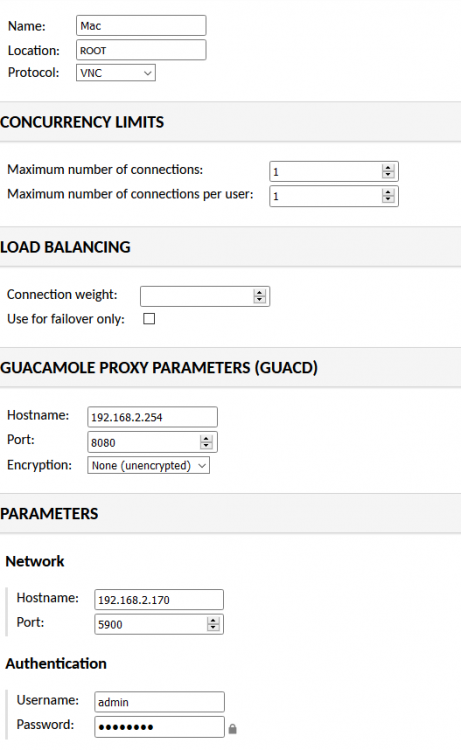 I’ve installed guacamole and got it working with a win10 VM over rdp. Where I am stuck is connecting to a Mac VM. I watched spaceinvader one’s video where he shows setting it up for different VM’s but he doesn’t cover off Mac (although claims to in the intro). I have turned on the screen sharing in the Mac VM, but not sure what needs to be set for guacd proxy parameters, and for the network parameters (host and port). Can someone help? Thanks so muchHi, I just tried to install Macinabox. When I applied the template, I didn't realize that I did not have user scripts installed. So I tried to remove the docker and start again after installing the CA app for user scripts. The Macinabox docker would not stop so I tried to delete it. The progress wheel just spun for about half and hour. So I rebooted the Unraid server, which started a parity check. I reinstalled the Macinabox docker, and it just stays in started status. The WebUI loads with an error message. The logs imply that stuff is happening, but I'm not sure if the Big Sur image is downloading or not. Here are the last few lines of the log below. Should I just let this continue? Its been about 90 minutes. 28/01/2021 22:33:24 - WebSockets client version hybi-13 28/01/2021 22:33:24 Disabled X server key autorepeat. 28/01/2021 22:33:24 to force back on run: 'xset r on' (3 times) 28/01/2021 22:33:24 incr accepted_client=6 for 127.0.0.1:47372 sock=10 28/01/2021 22:33:24 Client Protocol Version 3.8 28/01/2021 22:33:24 Protocol version sent 3.8, using 3.8 28/01/2021 22:33:24 rfbProcessClientSecurityType: executing handler for type 1 28/01/2021 22:33:24 rfbProcessClientSecurityType: returning securityResult for client rfb version >= 3.8 28/01/2021 22:33:25 Pixel format for client 127.0.0.1: 28/01/2021 22:33:25 32 bpp, depth 24, little endian 28/01/2021 22:33:25 true colour: max r 255 g 255 b 255, shift r 16 g 8 b 0 28/01/2021 22:33:25 no translation needed 28/01/2021 22:33:25 Enabling NewFBSize protocol extension for client 127.0.0.1 28/01/2021 22:33:25 Enabling full-color cursor updates for client 127.0.0.1 28/01/2021 22:33:25 Using image quality level 6 for client 127.0.0.1 28/01/2021 22:33:25 Using JPEG subsampling 0, Q79 for client 127.0.0.1 28/01/2021 22:33:25 Using compression level 9 for client 127.0.0.1 28/01/2021 22:33:25 Enabling LastRect protocol extension for client 127.0.0.1 28/01/2021 22:33:25 rfbProcessClientNormalMessage: ignoring unsupported encoding type Enc(0xFFFFFECC) 28/01/2021 22:33:25 Using tight encoding for client 127.0.0.1 28/01/2021 22:33:25 client_set_net: 127.0.0.1 0.0000 28/01/2021 22:33:25 active keyboard: turning X autorepeat off. 28/01/2021 22:33:25 created xdamage object: 0x20002e 28/01/2021 22:34:39 copy_tiles: allocating first_line at size 41 28/01/2021 22:38:25 idle keyboard: turning X autorepeat back on.


