





jakeshake
Members
-
Joined
-
Last visited
-
Update: the dashboard now matches MT5's own history (bridge update + EA v3.8) Three fixes, mostly for brokers whose MT5 server isn't on UTC or that book swap separately (e.g. Forex.com): Closed-trade times: they were shown in the broker's server time (3 hours off on Forex.com). The bridge now converts deal times to your own time zone, including trades it already recorded. Swap: brokers that book overnight swap as a separate ">Swap #ticket" entry now show it in "Comm + swap" and in net PnL, so net matches MT5. Needs EA v3.8. Closes that found nothing to close now show "no position" instead of "executed", so you can spot TradingView and MT5 disagreeing about a position. Also new: add reason=time (or any word) to an exit alert and "Closed by" shows why the strategy closed. EA v3.8 also re-sends recent deal history on start and every 30 minutes, so anything missed while the bridge was down fills in. Already installed? Update pinebridge-bridge (Docker tab > Check for Updates > apply update). If the dashboard still shows server-time trade times, Unraid kept a stale :latest; use Force Update (see the troubleshooting section of the install guide). Then update the EA inside the VM to v3.8: the steps are in Updating the EA (docs/mt5-ea-setup.md). The dashboard header shows EA 3.8 once it's running. Details: https://github.com/jakeshake/pinebridge/pull/18 ⚠️ As always: test on a demo account first. Pinebridge places real trades with no human in the loop.
-
Update: Pinebridge is now in Community Applications 🎉 Open Apps, search Pinebridge, and install pinebridge-mt5 and pinebridge-bridge. No more terminal one-liner needed. New since the first post Pinebridge Dashboard: open the bridge's WebUI (port 8081, LAN only). It shows every TradingView signal and what happened to it, fill prices, slippage against TradingView's price and the broker's quote, latency, win rate, PnL and the equity curve. The EA (v3.6) reports each fill and close back to the bridge. Tunnel: Community Applications already has cloudflared apps, so the Pinebridge tunnel isn't listed separately. Use the Cloudflare tunnel you already run, or any cloudflared app from the Apps tab, and point a public hostname at the bridge's webhook port. See the tunnel guide. Not on Unraid? There's now a Docker Compose file and a guide for any Linux Docker host, Proxmox, and running the EA on your own Windows PC: docs/docker-install.md. The README now has screenshots, hardware requirements, and a list of what's automated and what you do yourself. Already installed from the first post? Update pinebridge-bridge and add its two new ports: 8081 (dashboard) and 5556 (EA reports). Then update the EA inside the VM to v3.6 and re-attach it to the chart. The steps are in Updating the EA. For the dashboard's slippage and latency numbers, set your alert Message to: {{strategy.order.alert_message}},tv_price={{strategy.order.price}},tv_time={{timenow}} ⚠️ As always: test on a demo account first. Pinebridge places real trades with no human in the loop.
-
Pinebridge: TradingView alerts to MetaTrader 5, self-hosted on Unraid Tired of paying a monthly fee just to get your TradingView alerts into MetaTrader 5? Or renting a VPS only so MT5 stays online around the clock? If you have an Unraid server, you already own the hardware for both. Pinebridge receives your TradingView strategy alerts and places the trades in MT5, which runs in a Windows container on your own server. No signal-relay subscription, no VPS bill, and your broker login stays on your own server instead of with a third-party service. TradingView alert → Cloudflare Tunnel → pinebridge-bridge → ZeroMQ → MT5 Expert Advisor → your broker Containers pinebridge-mt5: a Windows VM (dockur/windows) that installs MetaTrader 5 and the Pinebridge Expert Advisor and attaches it to a chart automatically. Needs KVM (/dev/kvm). Watch it set up at http://[server-ip]:8006. pinebridge-bridge: receives TradingView webhooks, checks the secret, translates the alert and sends it to the EA. It works with no settings filled in: it finds MT5 on your server and generates its own webhook secret on first start. Its log shows the exact Webhook URL and alert Message to use. Its WebUI (port 8081, LAN only) is the Pinebridge Dashboard: every signal and every closed trade (including broker SL/TP closes), stats per run, pair and strategy (win rate, expectancy, profit factor, drawdown), slippage against TradingView's price, latency and equity, with CSV export. Full dashboard screenshot Tunnel: TradingView needs a public HTTPS address. Use the Cloudflare tunnel you already run, or any cloudflared app from the Apps tab, and point a public hostname at the bridge's webhook port (not the dashboard). See the tunnel guide. Supports: market entries, resting limit orders (arm / cancel / modify), double-down adds, retrying closes after a broker disconnect, and brokers that require oldest-first closing and don't allow opposite positions (e.g. US Forex.com accounts). Requirements: a paid TradingView plan with webhooks and two-factor login; an MT5 broker account (start with a demo); a Cloudflare account and domain for the tunnel (or your own HTTPS reverse proxy). Hardware: virtualization enabled in BIOS, and about 10 GB RAM and 64 GB disk free for the Windows VM (see the README for minimums). Install: open Apps, search Pinebridge, and install pinebridge-mt5 and pinebridge-bridge. Details in the Unraid install guide. Not on Unraid? There's a Docker Compose / Proxmox guide. Links GitHub and docs: https://github.com/jakeshake/pinebridge TradingView alert format: docs/tradingview-alert-format.md Troubleshooting (errors 10027, 10045, 10046, and Unraid keeping a stale :latest): see the end of the install guide Support the project If Pinebridge saves you a VPS or a signal subscription, consider buying me a coffee. Supporter perks: Any donation: a ready-to-use Pine strategy that sends Pinebridge-formatted alerts. $20 or more: a premium Pine strategy. After donating, message me on Buy Me a Coffee with your TradingView username and I'll give you access to the invite-only script on TradingView. The scripts are tools, not trading advice: backtests and past results don't predict future returns. Run them on a demo account first. ⚠️ Risk notice: Pinebridge places real trades with no human in the loop. Test on a demo account first, and read the risk notice before using a live account. You are responsible for your trades and for your Windows license. When asking for help, please include: the bridge log (docker logs pinebridge-bridge), the MT5 Experts tab around the time of the problem, and your broker and account type (demo or live, hedging or netting).
-
Hello, Thank you for keeping the pace going with this plug-in. I am curious - are you able to output video from a Windows VM using the HDMI or Display Port with the iGPU using this plug-in?
-
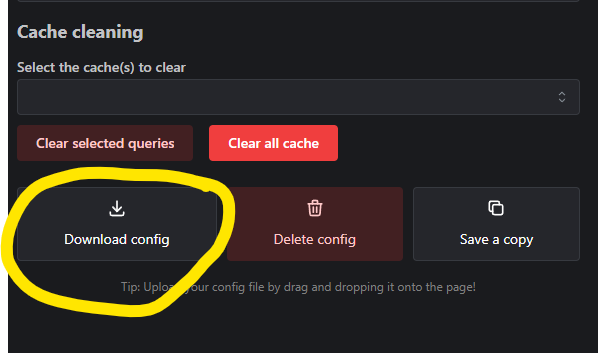
ClamAV detecting a trojan when downloading the config file- anyone else?
-
Maybe this was mentioned and I missed it, but, anyone who comes across this make note of the below: tl;dr: 4 sticks do not work at overclock (XMP) speeds in Alderlake. Run at JDEC speeds for stability. You cannot use 4 sticks of ram, (in my case ddr5) and run them overclocked in the Alderlake, (z690 in my case, pun intended). So, no XMP. Just run at JDEC speeds if you have 4 sticks. I've only applied this hardware to Linux, and Windows 11 may do some voodoo magic that somehow allows this, but I think this is just a major fcuk up by Intel and the board manufacturers for not being crystal clear with their customers.
-
Updated to 6.11.0-rc4 and discovered object detection in Frigate wasn't functioning properly. Was not able to pin point issue through logs but downgraded to rc3 and it works as intended. Will try rc4 again and see if I can find issue in logs and report back.
-
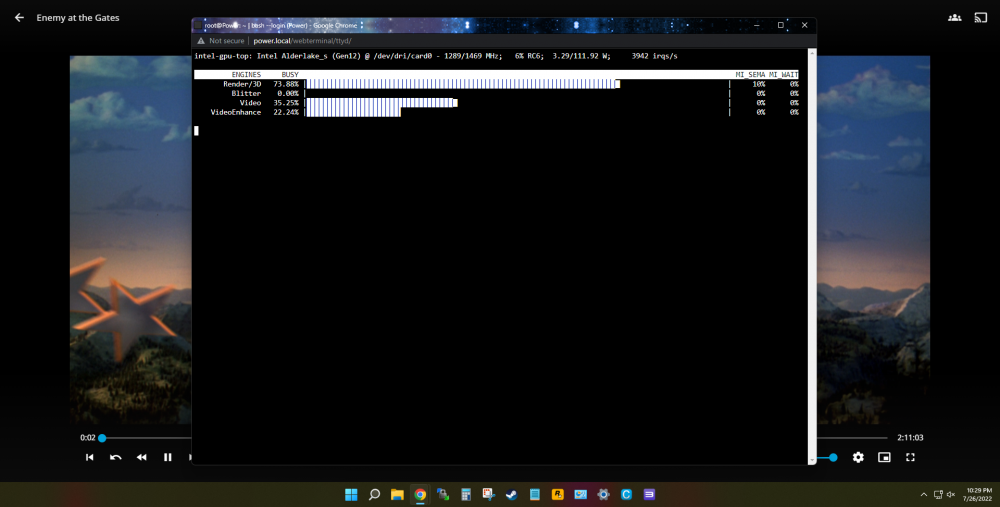
For example, it appears to work with Jellyfin.
-
Hello, Thought I might ask opinions here... While I understand there will be errors in most cases; has anyone had luck with overclocking their Unraid Adler Lake box? Even minor bumps and/or just an undervolt to save on electricity? If so can you elaborate? Separately, updated to 6.11 and I see the iGPU is now accessible. Would be nice to hear others experiences with that as well.
-
Rebooted, still nada. Deleted the Nvidia plug-in & folder, (deleted directly off the USB, not sure if that's appropriate). Powered back on, nothing. Also, now each time I reboot, unraid will only boot from a fresh USB port... Tried using the USB configurator and copy over (a working) config folder from a few weeks ago and still, no dice. If there's no other suggestions based on the diagnostic file, I'll just try a fresh install and redo the array...
-
itimpi, I did try to manually https://my_ip and no dice. Thank you for your suggestion. Squid, thank you for responding so quick. I'll reboot now and see if the problem persists.
-
Hello, Firstly, thank you to whomever can assist in bringing back access to the WebGUI. This all started shortly after updating the "MyServers" plugin. (I am not sure if that is the culprit). Access to the WebGUI has disappeared while all other functions still operational. I can log in via terminal, docker apps run fine, VM running fine and connectable, I just cannot connect via browser (I tried chrome, edge, firefox) to the WebGUI. tower-diagnostics-20220222-1105.zip Please see attached diagnostics zip.