goldenEY3
Members
-
Joined
-
Last visited
-
Trying to install Element and get it accessible via a Cloudflare tunnel. It installs fine, and I was able to set it up through the Ubuntu client, however when I try to load up the Web GUI through Unraid, it errors out. I've set it up through a Cloudflare tunnel, however it errors out with a "Bad Gateway Error 502" status. Looking into the logs, it's just a repeat of
-
Hello, newbie user to Unraid. I'm trying to set up full remote access to some Docker containers with the end goal of being able to host my own web page, and I'm trying to configure Nginx Proxy Manager. I've downloaded Nginx and tried setting it up, however the web GUI always says the API is unhealthy. Not sure what I'm doing wrong. Checking the logs shows the same result, with updated time stamps: Everything is fully updated, running Unraid 7.2.2
-
Found this container, set it up, and it works great. While it works great for one (1) tunnel, is there a way to get a second tunnel added to it? I've tried adding another variable to the container, however the connection always seems to drop after a minute (at least from Cloudflare's side). The original (first) connection/tunnel remains up, it's just getting the second one seems to cause trouble.
-
Hello, newbie user to Unraid. I'm trying to set up full remote access to some Docker containers, and I'm trying to configure Nginx Proxy Manager. I've downloaded Nginx and tried setting it up, however the web GUI always says the API is unhealthy. Not sure what I'm doing wrong. Checking the logs shows the same result, with updated time stamps: Everything is fully updated, running Unraid 7.2.2
-
Think things are pretty well solved. Bit the bullet and upgraded my drives; swapped out the WD Reds for Seagate IronWolf NAS drives. I was probably gonna have to expand anyways. Local store had a deal for SSDs on the cheap, so I picked up an NVMe to use as a cache drive. Between the cache and the new (non SMR) drives, transfer speeds are holding rock steady at 100+ Mb/s. tl;dr solution: unmarked SMR drives killed data transfer speeds, upgraded to drives that don't use SMR, issue resolved.
-
First, thank you for the help. I adjusted the share setting to "Include Disk 2," tried transferring ~10 Gb of files to the NAS. It transferred half at 100+ Mb/s, then dropped down to ~50 Mb/s; I'm willing to chalk that up to the cheap backup storage disk I'm using to hold my data until I get the transfer thing sorted out. That adjustment seems to have worked. Do I have the right to assume that SMR hard drives don't doesn't play well with Unraid?
-
Thanks, trurl. Hope this helps in finding a solution. tower-diagnostics-20220422-0941.zip
-
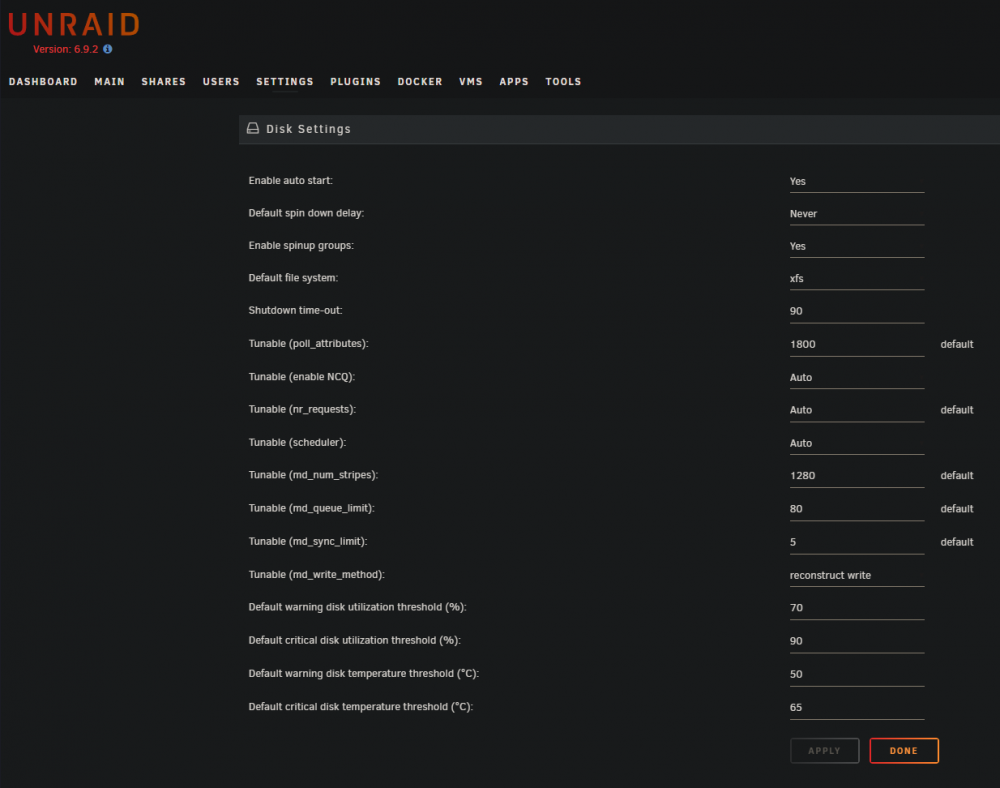
Hello all, new Unraid user here trying to land on their feet. I moved from TrueNAS to Unraid to take advantage of the Docker feature and expand my NAS' usefulness. However, once I got everything installed and started moving data over, the transfer speeds took an immediate nosedive. Transfers went from 100+ MB/s to sub-10 MB/s within seconds of moving files. I know my equipment and network are good, because when I was running TrueNAS, transfers were rock-steady and above 100 MB/s. Now, it's taking far too long to move even the most basic amount of data to the array. I've done some searching in the forums about this issue, and it seems the most common fix is to enable Turbo Write. I've enabled it, rebooted the machine (from the Web GUI), yet the issue remains; starts at 100+ MB/s, then gets cratered to sub-10 speeds. Is there a setting I'm missing or overlooked?