





FUser
Members
-
Joined
-
Last visited
-
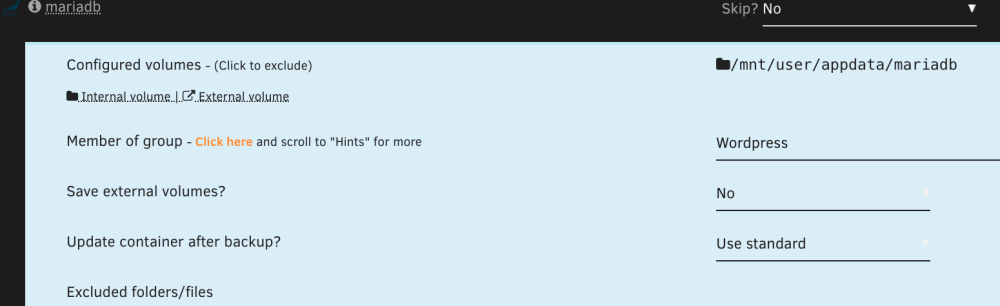
FYI, confirming the update fixed the visual issue: Thank you!
-
Please let me know if you need a larger view of what I'm seeing.

-
I did notice something else (minor cosmetic issue). The background in that section when you click on a container is a light blue, but it's a fixed color (doesn't tie into any system defined color). This isn't an issue on a light themed system where the text is dark, but on a dark colored theme, the light/white text (if a group is selected for example) against that blue background is hard to read. Thank you for all of the work you put into this invaluable app by the way.
-
Thank you! That makes sense. It's working.
-
I apologize if this issue was already addressed (I searched but couldn't find any mention of this issue). I just noticed the grouping functionality but when I double click the field where is says 'None - Double click for a list': , nothing happens. I've tried 2 different systems (both using chrome however) and it acts the same. How do I group containers with each other? Thank you.

-
I installed this and it's working via SNMP in Standalone mode. It pulls in all the typical tings, but for Nominal Power it just shows a red W and UPS load is showing a hyphen (The UPS Load % does show a number however) and the status on the bottom shows the wattage (2358w).


-
I just got it to work... I think. I was considering using the docker-compose plugin and just recreate what they had, but I figured it's not really doing anything special in terms of running the containers so I just used the standard unraid interface and brought up the containers in the order they specified. To work properly I had to add some variables to each container and I have multiple instances of the librenms container as one runs as the poller (among other things) So you set up containers for (based on https://github.com/librenms/docker/blob/master/examples/rrdcached-server/docker-compose.yml): MariaDB (or whatever SQL you choose) Redis rrdcached librenms librenms-dispatch (it's technically the same container as librenms but with some variables added to differentiate it as a poller) This is the bare minimum to get it working... adding the other components wouldn't be too difficult I imagine (their docker-compose file also has msmtpd, syslogng (a third instance of librenms with another variable added... I think removing port 514 from the main container and using this is the way it should be done), and snmptrapd (a fourth instance with yet another variable).
-
Is there an article/video that walks someone through the install process for librenms on unraid? I have the container running, sort of, but the validate option is giving me a few errors: Poller Failure FAIL: No active polling method detected OK: Dispatcher Service not detected OK: Locks are functional FAIL: No python wrapper pollers found OK: Redis is unavailable I've also noticed that polling isn't working automatically (but if I go into the debug section and run the polling manually, it does populate some things... although graphs and some other things aren't quite working fully at the moment). Reading some other sites, it seems I'll need multiple containers to get this to work perhaps (I can't find a clear walkthrough that explains any of this).... things like librenms-dispatcher for polling and rrdcached for graphing? Do I just add those separate containers? Not quite sure how they talk to each other though... Any help would be appreciated. Thank you!




