





jlficken1
Members
-
Joined
-
Last visited
-
I was able to test with V6 and V7 machines both locally and across WireGuard with SMB and here’s what I found: Locally: Both versions work together with no speed issues. Over WireGuard: V6 can pull from V7 with no speed issues, however, V7 is slow whether pulling from either a V6 or V7 machine. The WireGuard processes CPU usage seems to spike a single core when the slowdown is happening. The only thing I’ve found to work is to switch to NFS.
-
I did find a difference in the WireGuard (wireguard.ko.xz) versions between 6 and 7. 6.12.14: WireGuard - 6.1.118 7.0.0: WireGuard - 6.6.68
-
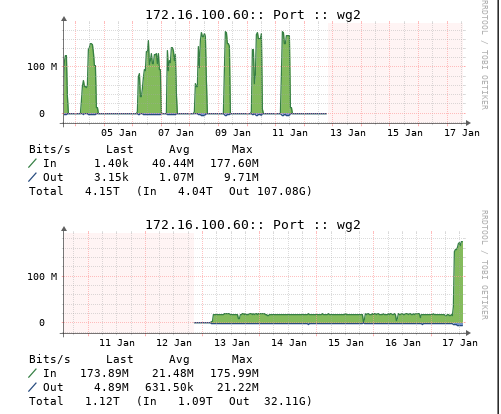
It's definately something to do with SMB over WireGuard in V7 as here's transfer history from the offsite machine over the last 2 weeks. Top graph is when it was running 6.12.12 and the bottom graph is after the upgrade to 7.0.0 a few days ago. The source machine wasn't upgrade to 7.0.0 until 1/15. The bottom graph speeds jumped back to what they should be earlier this morning when I switched from SMB to NFS.
-
Here's some version info for a couple of things. V7.0.0: CIFS - v2.45 RSYNC - 3.3.0 V6.12.14: CIFS - 2.4.0 RSYNC - 3.2.7 I'm not seeing the same issues with speed on my own network going between either 2 V7 machines or a V7 and a V6 machine so it may still be related to WireGuard even though NFS speeds are fine over the tunnel as well as iperf3. I'm waiting for my backup to finish over NFS and then I'll try connecting over WireGuard using SMB to the V6 machine and see what the speeds look like.
-
I hadn't noticed that before but took a look at it. It appears to just add an export to /etc/exports, however, like I discovered when doing that myself the issue is that it gets removed when you edit an NFS share through the Shares tab so it's not a perfect solution. For now I'm just going to run this every hour through User Scripts: if ! grep -q "fsid=999" "/etc/exports"; then echo "Didn't Find NFS Root Export...Adding." echo "\"/mnt/user\" -fsid=999,async,no_subtree_check 172.16.100.60(sec=sys,ro)" >> /etc/exports /etc/rc.d/rc.nfsd restart fi The IP is the address of my remote UnRAID server.
-
Yeah I have the basic exports for each share working, however, in SMB you can go into the Samba Extra Configuration section and do this: [rootshare] path = /mnt/user comment = browseable = no public = no valid users = backup writeable = no I use that as a read only single path to mount via UD for all of my backup scripts to use since it has access to all of the other shares this way. It just makes things simpler.
-
I'll try to test later today as I still have 1 server that's running 6.12, however, I've update the rest to 7 over the last week since I didn't notice any issues after a couple of days. Would I want the 6.12 machine to be the source, the destination, or try both directions? ETA: For the moment I'm trying to redo all of my backups to use NFS as I transfer hundreds of GB per day so I need them to work. You can't create a custom NFS share like you can with SMB can you?
-
I've had a remote UnRAID server now for 2+ years using WireGuard to connect back to my OPNsense router. Until the upgrade it had no issues maintaining a 200Mbps transfer rate when pulling files across an SMB share from my home UnRAID server according to my Observium history, however, after I've upgraded I'm now seeing 20Mbps normally with only a few spikes to 200Mbps. I did just do an iperf3 test between the servers in both directions and it appears that WireGuard itself is working correctly as hitting 200Mbps consistently isn't an issue so could it be Rsync? Any thoughts would be appreciated. ETA: It's SMB causing the slowdown as switching to NFS allows the speed to go back to normal. Did anything change with SMB in V7? ETA: CPU usage also goes back to normal after switching to NFS. ETA: SMB speeds are fine from my Windows machine to the UnRAID server.
-
I looked for it but couldn't find any settings related to Unlimited Width now. All of the systems I've updated no longer have the same appearance as they did previously. I guess ill keep looking. ETA: Found it under display settings.
-
Are there any plans to make this compatible with v7?
-
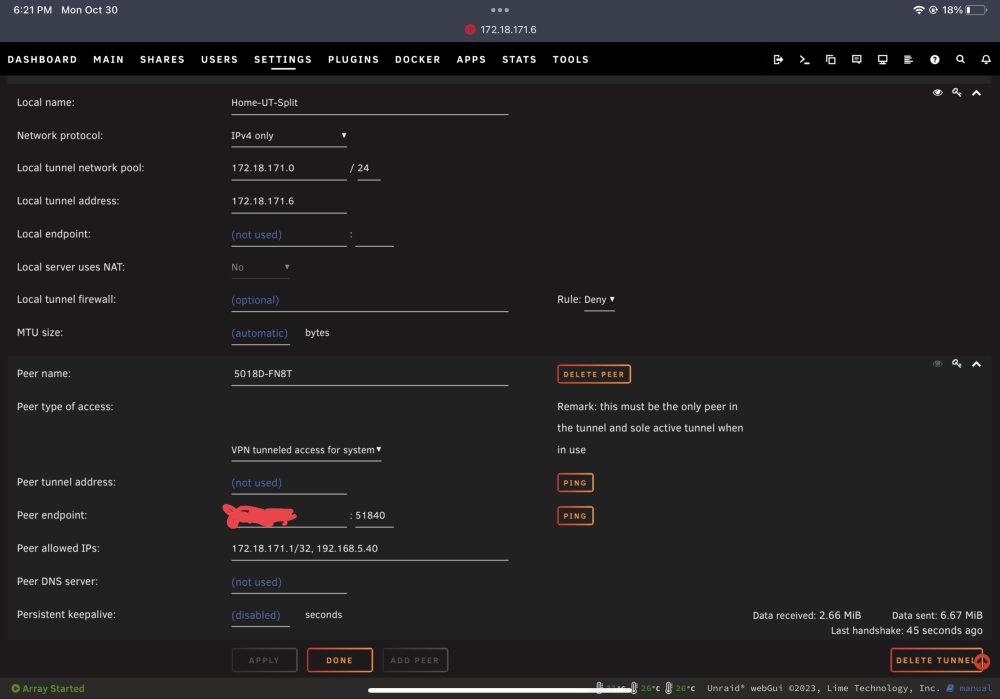
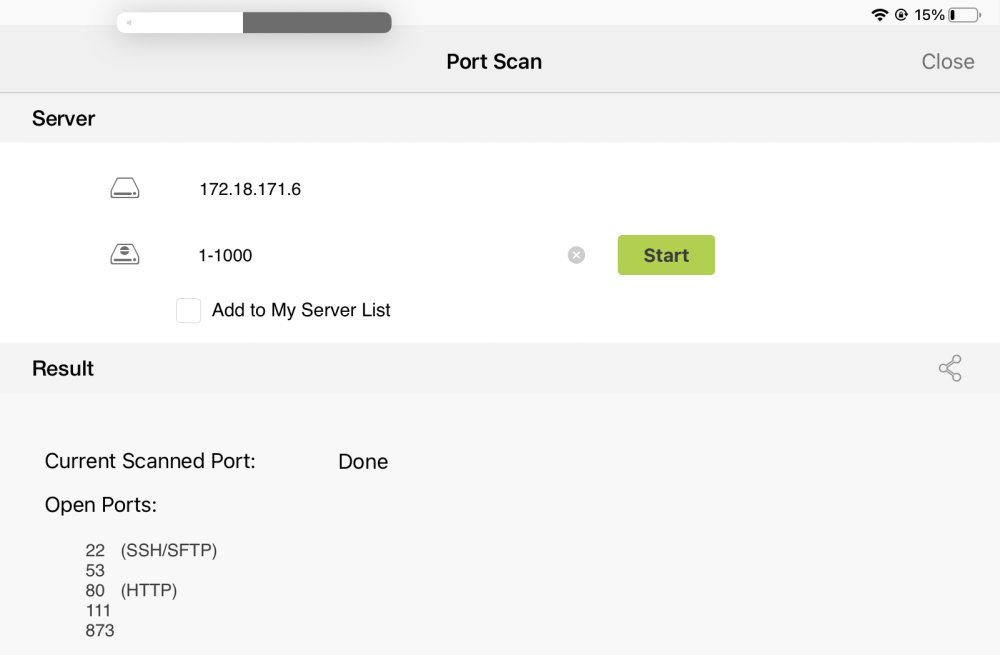
I can’t seem to connect via SMB or NFS to the remote UnRAID server from my home network. The remote server can ping the home network machines and vise versa. I can also connect to the remote server’s web interface from the home network. The remote server can also connect via SMB back to the UnRAID server on the home network. Any thoughts would be appreciated. ETA: It appears that SMB isn’t listening on the WireGuard interface? Add to SMB Extra Settings to fix: [global] bind interfaces only = No



-
What do you mean by “steps”? My original server used an X9 board and it adjusted the fans based on CPU temp with the plug-in. I used it through 6.11.5 I believe. I turned off the Fan Control part of the plug-in, set the IPMI to “Optimal”, and the fans are spinning up and down now while the server is performing a parity check. It’s just changing the fan speeds every few seconds rather than the 60 seconds I had the plug-in set to which is kind of annoying when it’s a foot away. https://support.siliconmechanics.com/portal/en/kb/articles/changing-fan-speeds-for-x9-x10-series-boards
-
I set up a system with a Supermicro X9SRL-F, however, it doesn't appear that this plugin is actually adjusting the fan speeds. Here are some of the log entries where it shows the fan speed should be changing, however, the speeds never change. The fan sensors are all populated in the Readings tab as well. ETA: I also discovered that if I change the Fan Control setting to No, save, and then change it back to Yes it does indeed change the fan speeds...to Full Speed (100%) which I find odd. ETA 2: They system is a completely stock Supermicro CSE-826 chassis. 2023-08-25 14:17:43 fan control config file updated, reloading settings 2023-08-25 14:17:43 Fan:Temp, FAN1234(100%):CPU Temp(33°C) 2023-08-25 14:19:20 Stopping Fan Control 2023-08-25 14:19:20 Setting fans to auto 2023-08-25 14:19:50 Starting Fan Control 2023-08-25 14:19:50 Setting fans to full speed 2023-08-25 14:20:00 Fan:Temp, FAN1234(100%):CPU Temp(37°C) 2023-08-25 14:21:52 Stopping Fan Control 2023-08-25 14:21:52 Setting fans to auto 2023-08-25 14:26:54 Starting Fan Control 2023-08-25 14:26:54 Setting fans to full speed 2023-08-25 14:27:05 Fan:Temp, FAN1234(34%):CPU Temp(37°C) 2023-08-25 14:27:35 Fan:Temp, FAN1234(32%):CPU Temp(36°C) 2023-08-25 14:27:45 fan control config file updated, reloading settings 2023-08-25 14:27:45 Fan:Temp, FAN1234(54%):CPU Temp(36°C) 2023-08-25 14:28:15 fan control config file updated, reloading settings 2023-08-25 14:28:15 Fan:Temp, FAN1234(80%):CPU Temp(36°C) 2023-08-25 14:28:45 fan control config file updated, reloading settings 2023-08-25 14:28:45 Fan:Temp, FAN1234(30%):CPU Temp(35°C) 2023-08-25 14:29:15 Fan:Temp, FAN1234(32%):CPU Temp(36°C) 2023-08-25 14:30:45 Fan:Temp, FAN1234(34%):CPU Temp(37°C) 2023-08-25 14:31:15 Fan:Temp, FAN1234(26%):CPU Temp(33°C) 2023-08-25 14:33:15 Fan:Temp, FAN1234(24%):CPU Temp(32°C) 2023-08-25 14:33:45 Fan:Temp, FAN1234(42%):CPU Temp(41°C) 2023-08-25 14:34:15 Fan:Temp, FAN1234(30%):CPU Temp(35°C) I'm using this on 4 other Supermicro servers with X10 motherboards so is this motherboard just too old? Is there anything that I can do to troubleshoot?
-
If I run "smartctl --all /dev/sdh" in the console I get SMART data, however, if I click on the device and then go to Attributes it says "Attributes not available"....thoughts?
-
Being able to at least add another drive to the array without having to stop it first would be awesome.


