Tom7320
Members
-
Joined
-
Last visited
-
I'd like to encourage you to give Tailscale Services a try, along with Docktail: DockTail — Containers as Tailscale ServicesAutomatically expose Docker containers as Tailscale Services using label-based configuration. It just works out of the Box…
-
Great! Thanks!
-
Does it support --attach? Can't make it to work...
-
Ok. I think it should be enough to keep my old backup script for the new setup: mkdir -p /mnt/backup if mount UUID=6A09-DB37 /mnt/backup; then echo "Backup Unraid..." /usr/local/emhttp/webGui/scripts/flash_backup echo echo "Move to destination..." mv /unraid-*-boot-backup-*.zip /mnt/backup echo "Cleanup..." find /mnt/backup/ -name "unraid-*-boot-backup-*.zip" -type f -mtime +30 -delete find /usr/local/emhttp -maxdepth 1 -name "unraid-*-boot-backup-*.zip" -delete umount /mnt/backup else echo "Error: no backup device found..." fiBare metal recovery is done by creating a bootable usb flash drive with the USB creator and the backup zip file.
-
Hi! I successfully updated to 7.3.0 and moved to internal boot and TPM licensing. Now I'm wondering what a smart backup and restore strategy of the boot SSD might look like?! Is it enough/safe to sanoid/syncoid my boot dataset like all my other datasets to an external drive once a day? How would a bare metal recovery from a failed boot SSD work? Thanks a lot! Thorsten
-
Meanwhile, I simply use Unraid as the LT Server URL: http://unraid.funny-name.ts.net:8123/v2 Another way would be to use Tailscale Services: With Tailscale Services you just do a simple # tailscale serve --service=svc:languagetool --https=443 127.0.0.1:8123 on your Unraid server. Then your LT Server URL would be https://languagetool.funny-name.ts.net/v2 Personally I quit using the build in Unraid Docker integration completely. Tailscale Services is much more reliable and so much simpler to work with...
-
Good question which I can't answer unfortunately... I do not use the build in Tailscale mechanism anymore. I switched all my Dockers to Tailscale services. This way I can use Joplin for example without being root (-u 0:0): TailscaleTailscale Services · Tailscale DocsSecurely connect to and manage access to your internal resources using Tailscale Services.
-
Extra parameter -u 0:0 (or --user 0:0) does work but makes Joplin run with root permissions. For a home lab this might be acceptable...
-
Why not just use the mentioned CNAF container? It's also just a bash script wrapped in a container: GitHubcontainernetwork-autofix/entrypoint.sh at main · buxxdev/...ContainerNetwork AutoFix (CNAF) - Automatically recreates dependent containers when master container restarts - buxxdev/containernetwork-autofix
-
Yeah. That's true. I was so stupid to click them one by one... 🤪
-
Yes, thanks! That's exactly what I did. It worked, but I wanted to avoid it, since I had to re-install 45+ containers by hand which took me about two hours of clicking around. But at least there was no data loss AFAIK.... 🙃
-
Same problem here. Did you find a solution?
-
For all the newbies like me who missed it: Tailscale ACL within the "grants" section: "src": ["autogroup:admin"], "dst": ["*"], "app": { "tailscale.com/cap/tsidp": [ { "allow_admin_ui": true, "allow_dcr": true, "users": ["*"], "resources": ["*"], "includeInUserInfo": true, }, ], }, },Then go to https://unraid.your-tailnet.ts.net:1025 I missed port 1025... 😉 Have a nice weekend! Thorsten
-
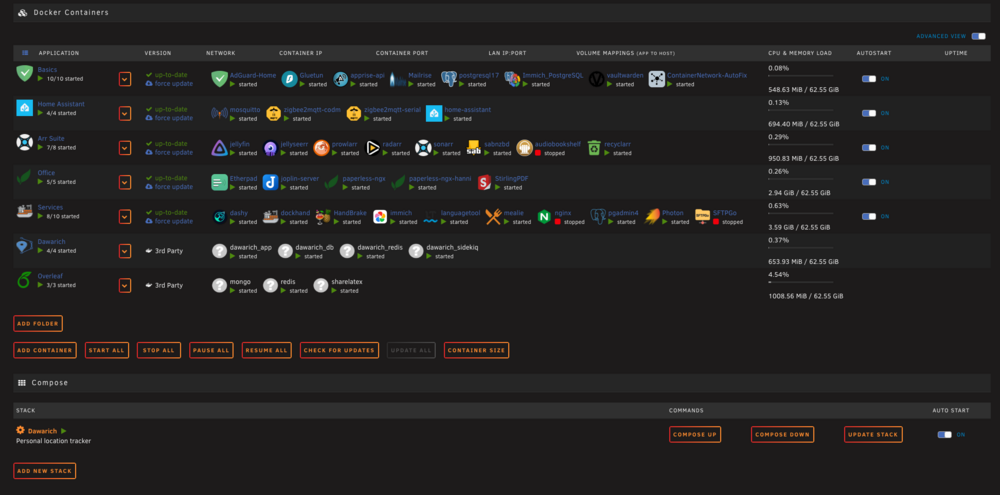
Hi! After a reboot of my server a couple of arbitrary Docker containers did not start automatically: I tried to start them from the GUI and got a "Error code 403". So I delete the containers in question and tried to recreate them. But this time I got a "docker: Error response from daemon: Address already in use.". I also tried to stop and start the Docker daemon again with and without a reboot. No luck. The problem is, that I am very sure, that the port is not in use (lsof -i :8088 reports nothing in case of nginx configured on that port)?! And it worked before the reboot without change. What am I doing wrong? Help would be very much appreciated.... Thanks a lot! Thorsten unraid-diagnostics-20260314-1737.zip
-
Thanks! I just copy/pasted the ACLs from here: https://github.com/tailscale/tsidp But how do I reach tsidp admin console? I still don't get it....