





shimlapinks
Members
-
Joined
-
Last visited
Everything posted by shimlapinks
-
Figured it out To fix, I just deleted one of the empty wallets via the console wallet says not in sync now but hopefuly that will iron itself out.
-
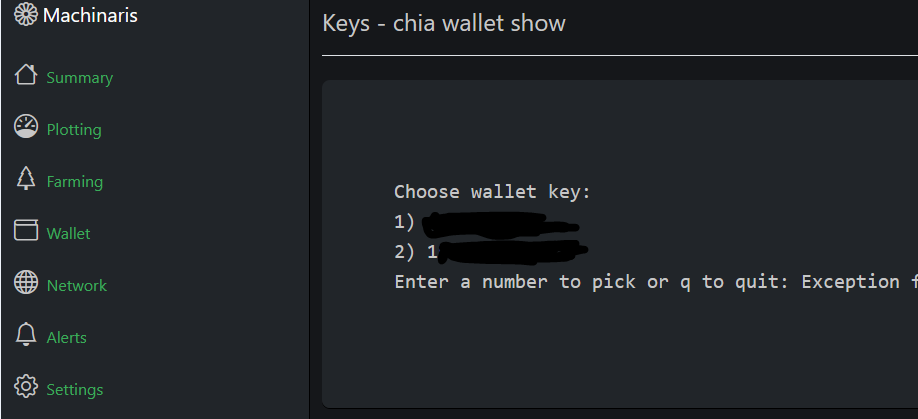
Hi - I generated a key when I installed this,then deleted the mnemonic.txt, then I copied my own mnemonic.txt - now it shows I have 2 wallets (I only want one). In the wallet section, it looks like a console prompt but keys will not respond eg 1/2/q within the web page to select or quit- anyone know how to fix please? Thanks
-
As time has shown repeatedly, if it is easy to do and becomes mainstream, say goodbye.
-
I unfortunately had a powercut when the script was uploading to gdrive, now I keep getting this in the logs: 2019/02/16 23:22:28 NOTICE: Serving remote control on http://127.0.0.1:5572/ 2019/02/16 23:22:29 NOTICE: pacer: Invalid error in fs.Pacer: %!t() 2019/02/16 23:22:29 NOTICE: pacer: Invalid error in fs.Pacer: %!t() 2019/02/16 23:22:29 NOTICE: pacer: Invalid error in fs.Pacer: %!t() So I ran all the unmount/cleanup etc scripts, uninstalled the rclone beta (including the config files in the boot folder) and redid my gdrive and crypt remotes but it keeps on spamming this message still, I cannot find a single entry on google about it. I get this message even after starting again - ie deleting the remotes and recreating them, then upon entering the 2nd command with your setup routine (ie "rclone copy mountcheck gdrive_media_vfs: -vv --no-traverse", i get the same error message - so it must be an rclone issue I did notice that it is showing port 5572 for the remote control above (at top of my post) and when I recreated a gdrive remote and did the token refresh it shows a different port ie 53682 http://127.0.0.1:53682/auth but not sure if that is relevant to the error or not..
-
I spent two nights trying to get this to work and I'm finally just about there, thank you for this. Just 1 thing, when I delete files it is putting them back where I deleted them from. I.e: If I delete a file directly (this is how you are meant to delete media files right?) from mount_unionfs>google_vfs/tvshows/Fawlty Towers....mkv It goes into the mount_unionfs>google_vfs>.unionfs>tvshows> folder (which I dont have access to unless I reset the permissions in Unraid to that folder) (The .mkv is also now in the rclone_upload folder.) So if I run the unionFS cleanup script, it gives the below output and then puts the file right back to where I deleted it from, any ideas please? 3.02.2019 23:30:43 INFO: starting unionfs cleanup. rm: cannot remove '/mnt/user/mount_rclone/google_vfs/mnt/user/mount_unionfs/google_vfs/.unionfs/TVShows/Fawlty Towers - S01E01 - A Touch of Class - (1975) - h264-576p.mkv': No such file or directory rm: cannot remove '/mnt/user/mount_rclone/google_tdrive_vfs/mnt/user/mount_unionfs/google_vfs/.unionfs/TVShows/Fawlty Towers - S01E01 - A Touch of Class - (1975) - h264-576p.mkv': No such file or directory Script Finished Wed, 13 Feb 2019 23:30:43 +0000 Edit: PS I am using teamdrive and the UnionFS cleanup script from the original post.
-
Very fast scanner, great job
-
Excellent guide, I am a fan of your video series. I am aware of how to implement windows 10 vm but as a catch all one stop shop with the nuances explained and extra tips here, I will no doubt refer to your video again in future. As somone is who is currently looking at the overheads when running a 4k gaming machine as a vm, I am also looking forward to chapter 2!
