





.png.a7cddd6d88c5c39c8967bbca3c1a64ac.png)
Halon314
Members
-
Joined
-
Last visited
-
Is there an FAQ or some support documentation on this app? I'm confused about several settings. Like "Install VirtualBox during array mount:" Does it really have to reinstall VirtualBox every time? I'm confused why the installation is not persistent like other apps.
-
No worries. I didn't install a web server. unRAID has a web-based management console out of the box, I just use that. Is Apache or other such service a dependency for this plugin? If so, I didn't realise that. Is there any documentation on this?
-
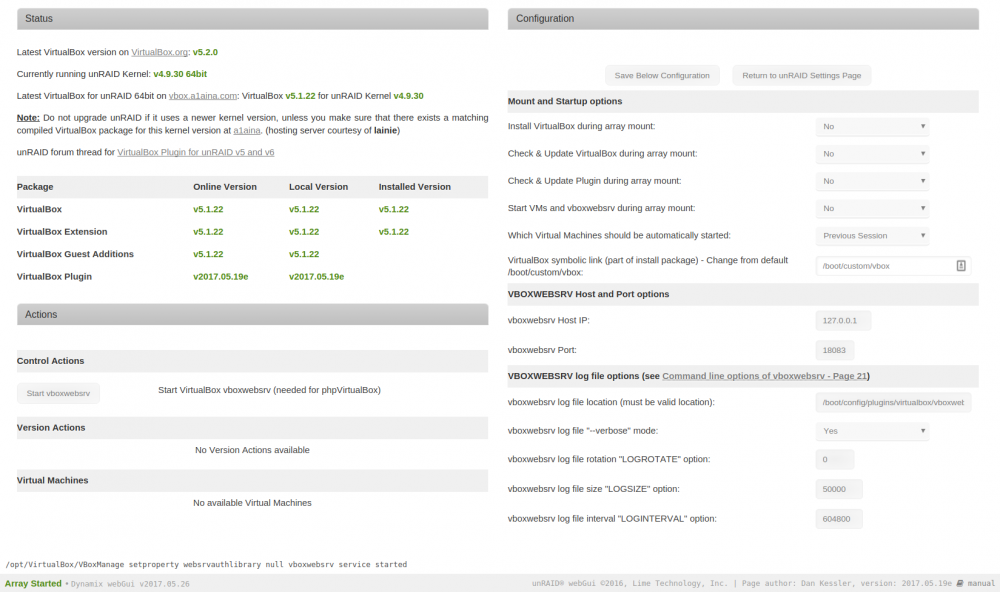
I understand what you mean about the page not updating - but no, it's actually unresponsive. I try refreshing / opening the UI in a new tab / other laptop, etc. It will not load. Below is a screenshot of what it looks like after clicking "start vboxwebsrv"
-
I have installed the plugin but every time I click on "start vboxwebsrv" the unRAID web interface stops responding and I have to reboot the server via CLI to get it working again. After reboot, vbox is no longer installed... Any thoughts? Also - is there any documentation or FAQ's other than this thread? While I appreciate the work going into all the responses here, it's difficult to search. Thanks!
-
Halon314 changed their profile photo
-
Just starting out with unRAID. My box has 8GB RAM. Hoping to spin up a VM or two, so may be looking for more memory in the coming months.
.thumb.png.cc42ed6e1c5434c9c59a91424b70d07a.png)
