





Dyon
Members
-
Joined
-
Last visited
Everything posted by Dyon
-
I think your OpenVPN config might has some lines regarding IPv6. This is my .ovpn for example, your will be different since you have a different provider, but check if there is anything related to IPv6: client dev tun proto udp remote remote.host.com 443 nobind auth-user-pass resolv-retry infinite auth SHA512 cipher AES-256-CBC comp-lzo verb 2 mute-replay-warnings remote-cert-tls server persist-key persist-tun key-direction 1
-
Currently, your Docker has no connection because it has no OpenVPN config. Because of this you can not launch the webui. 1. In your Unraid, you need to add the OpenVPN config file to the following path: /mnt/user/appdata/qbittorrentvpn/openvpn/config.ovpn You should not add a password file here, but add it to the config of the Docker, at VPN_USERNAME and VPN_PASSWORD. 2. Curl is not installed with the Docker. If you Docker has a network connection you can run `apt update && apt install -y curl`. 3. Because you have no connection, the WebUI is unavailable. 4. 10.10.20.0/24 should be fine.
-
Did you place it at /mnt/user/appdata/qbittorrentvpn/openvpn/config.ovpn ?
-
Good luck giving it another shot tomorrow. If you run into an error and need someone to look at it, feel free to post the error here! I'll see if I can help then 😁 This error is often caused because the container is not running privileged by the way; Cannot open TUN/TAP dev /dev/net/tun: No such file or directory (errno=2)
-
I've also updated it so that VPN_ENABLED is now case insensitive. For my VPN provider, I get separate credentials to login with OpenVPN. NordVPN also requires this, in case you didn't know. Just pass these through VPN_USERNAME and VPN_PASSWORD, and it should be fine. Check out step 11 on this page: How to set up manual connection on Windows 7 and above | NordVPN Support As a reference, here is the .ovpn file of my provider, I did not change anything of mine: client dev tun proto udp remote my.vpnprovider.com 443 nobind auth-user-pass resolv-retry infinite auth SHA512 cipher AES-256-CBC comp-lzo verb 2 mute-replay-warnings remote-cert-tls server persist-key persist-tun key-direction 1 <ca> -----BEGIN CERTIFICATE----- ########################################################### ########################################################### ########################################################### ########################################################### ########################################################### ########################################################### ########################################################### etc..... -----END CERTIFICATE----- </ca> <tls-auth> -----BEGIN OpenVPN Static key V1----- ####################################### ####################################### ####################################### ####################################### ####################################### etc..... -----END OpenVPN Static key V1----- </tls-auth>
-
@UWonBiDVD I think, and this is so stupid, that it does not work because you did enter VPN_ENABLES=YES instead of VPN_ENABLED=yes Please try if this fixes it, but looking at the code, that would be the issue. Definitely would need to fix this so it doesn't matter if you say YES or yes 😅
-
If you can post the log of the container itself, so not Jackett 😜😜, I can maybe see what's going on. I don't think it does contain sensitive information, but you're free to censor whatever you think may be sensitive information.
-
@UWonBiDVD I feel like you are looking at the logs in /volume1/config/config2/Jackett/log.txt That is the log file of the Jackett application, but not of the container 😄 If you want to make sure if the VPN is working you can open the console of the Docker and enter the following: apt update && apt install -y curl curl ifconfig.me After running 'curl ifconfig.me' you should see an IP that is not your own IP, but the IP your VPN Provider gave you.
-
You indeed don't have too. magnetico(d) indexes a lot of illegal torrents, which, depending on your region, could cause potential trouble. You are indeed not downloading any torrents. It is indeed a peer discovery. Also, have a look at this warning from the creator of magnetico: magnetico/README.md at master · boramalper/magnetico · GitHub Another reason why I do like using a VPN is because if you don't, some weird torrents may show up as that you downloaded it on; https://iknowwhatyoudownload.com/ I haven't personally forwarded my ports, and set a static port in magnetico, so I can't tell you if that works better.
-
If you Edit the Docker, you will see a slider to enable privilleged;
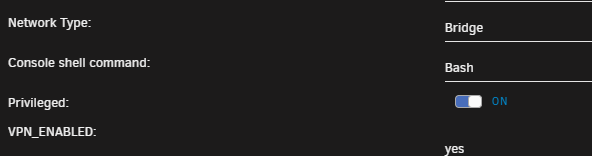
-
Did you run it privileged?
-
Thanks for letting me know! I've updated the readme 😄
-
No problem! Sometimes it is just easier to ask something than to search hours for the answer you are looking for 😄
-
I see you are using Private Internet Access, that one is an odd one I believe. This is a comment from Binhex's VPN Containers: So in short, I think this means that you need to do this: Download this: https://www.privateinternetaccess.com/openvpn/openvpn-nextgen.zip Copy the ca.rsa.2048.crt and crl.rsa.2048.pem to the same folder as the CAToronto.ovpn Restart the container
-
Ah, this is because there is a space in the filename. Please remove the space from the filename, so rename it to 'CAToronto.ovpn' for example. I'll fix this later, for now you can just rename the file
-
The 4.2.5 tag is now online. In Unraid, select my container, select Edit, and change the 'Repository' from 'dyonr/qbittorrentvpn' to 'dyonr/qbittorrentvpn:v4_2_x'
-
In my opinion a new official release version is not cutting edge, it has been in development for months by the qBittorrent team. I will add a tag for the latest 4.2.x version later. I'll reply to you again later to you know when it's added. I also encourage you to contact your trackers to add to support for qBittorrent 4.3.x
-
On one if my servers a script checks every hour to see if Jackett has released a new version, which happens quite often since it does index a lot of websites, these websites often maken changes in how items are indexed. So, my code on GitHub is the code of the files and how to build the Docker. The Dockerfile just takes the last release from the Jackett GitHub page. Because of that, I do not need to change the source code to hard code a new release, but only check if they released a new version. That's why there are almost daily updates to the docker, but not the GitHub. I hope it makes sense 😃
-
I've replied this on Github to you: This shouldn't be possible since the lines that did the checking for the IP range got commented out on commit of the 3rd of August. See lines 26 to 36 in this file: https://github.com/DyonR/docker-Jackettvpn/blob/master/jackett/iptables.sh Please make sure you are using the latest version of the Docker container
-
Odd, I will look at it in a moment. Does the log of qbittorrentvpn show that the ports got added to the IP tables? Edit: I've just tested this with a nginx webserver (linuxserver/nginx), and it works perfectly fine for me. On the additional dockers, you don't need to change anything about the ports, but only need to know which, so 6077 and 8089. In the qbittorrentvpn Docker, you need to add those as '6077,8089' and also add port mappings. At the bottom of the 'edit' of the qbittorrentvpn Docker select 'Add another Part, Port, Variable, Label or Device' Set the following: Config Type: Port Name: ChannelsDVR Container Port: 8089 Host Port: 8797 (example, change this to the port you like to use, 8089 would also be possible) Connection Type: TCP (doubt you need TCP) Click add, and apply. Also, don't forget to add the '--net=container:qbittorrentvpn' to the other containers. Please check if you did all the steps of this video correctly:
-
I think this may be related to qBittorrent's settings. Please open the qBittorrent options > BitTorrent > Uncheck Torrent Queueing Also check if the Connections Limits are set properly in the Connection tab, you could increase, double or triple those maybe, or just disable all connections by unchecking it all. Also please verify what qBittorrents connection status is at the bottom like how many DHT nodes you are connected with and if the connection status is green,
-
Nope. Normally you just install the Docker, set the settings. Add the WireGuard config to the WireGuard folder, with renaming the config 'wg0.conf'. After that you just click the 'WebUI' button in Unraid and you should have a working qBittorrent routed through the WireGuard VPN of your VPN Provider.
-
@Mattti1912 I sorry, I would love to help you, but I do not see anything wrong with the log files or the configurations. From looking at the log files and you configuration it should be possible to connect to qBittorrent's webui without problems.
-
I do not see anything wrong in the qbittorrent.log.txt or in the Container log. Does the container keep restarting continuously and you are not able to connect to the Web UI? Is the IP correct that you try to access the container on, also note https:// Just to be sure everything is clean: Stop the container Delete the appdata/qbittorrentvpn/qBittorrent folder (so it will do a full clean config and https install of qBittorrent) Check if the LAN_NETWORK is correct for your IP-range - Try again If it still does not work: Stop the container Delete the appdata/qbittorrentvpn/qBittorrent folder (so it will do a full clean config and https install of qBittorrent) Check if the LAN_NETWORK is correct for your IP-range Edit the container again, click 'show more settings...' and set ENABLE_SSL to no - Try again
-
Alright, WireGuard seems to be working now, but after qBittorrent starts it seems to crash, which is weird since it's kinda the 2nd last action of the start up script, after that it should keep on checking the connection. Because of this I think qBittorrent might have a corrupted config file. Can you stop the container, and delete `appdata/qbittorrentvpn/qBittorrent/config/qBittorrent.conf` After that, if it still does not work, could you send `appdata/qbittorrentvpn/qBittorrent/data/logs/qbittorrent.log` Warning: This file MIGHT contain sensitive information about your IP (mainly the lines with the text 'Detected external IP:') or the torrent loaded in qBittorrent, so please be careful whens ending this over.


