





Torben
Members
-
Joined
-
Last visited
Everything posted by Torben
-
I'm trying to find a solution for this for weeks now. Can't say when the problems started, it was working for month some time ago. Anyways, changing the MTU helps (I set it to 1280 in wireguard for fiber connections), but I see almost the same behavior of speed dropping down to 10 MBit/s after some time. Not sure if it's SMB, Wireguard, unRAID, all of it...it's frustrating. I switched to NFS shares and although not working with max speed (250 MBit), it at least runs stable with 80-100 MBit and I continously transfered 2 TB without a problem. This was unRAID to unRAID, so I didn't try with Windows (and never mounted NFS with Windows). Maybe you want to give it a shot, there are tutorials on the web on how to mount NFS rw on Win10 (Pro/Enterprise).
-
Sure, I just didn't expect files to be copied simultaniously, since I didn't know about RAM write cache in Linux until that point. And when I see that it disables Turbo write and almost lowers write speed to half when in normal mode, I'm asking myself if it really makes sense. There sure are use cases when you e.g. have no cache SSDs or work with a faster source than the target and don't want to wait for the copy process to finish, but otherwise I do only see cons. Lowering both "dirty ratios" helps big time, although not completely mitigating the behavior. Further searching the web brought up mounting a drive with "-o sync" should disable RAM write caching. Since I don't want to tinker with something that important in the unRAID config, without exactly knowing what I'm doing, what do you guys think? Would this change bring up the expected behavior of fully transferring the first file to the array then start with the next? This would overall speed up copy processes for me. If so, could you advise where to do the changes to give it a try?
-
Ok, so it's the RAM cache feature, which normally doesn't bother me (probably it's even useful in certain use cases 🙂 ). I found your post regarding the other way around (not enough RAM is used): So I set vm.dirty_ratio to 2 and vm.dirty_background_ratio to 1 and the copy job runs way better. Most of the time with 120 MB/s and not 250, but that's 1/3 of the time it would have taken otherwise. If I should change something else or adjust these two ratios to other values, please let me know. Anyways, thank you very, very much for your help!
-
Nope, it's just one source, one target share, copying file a, b, c, d, e, all in a row not at the same time and that's why I don't get how there can be multiple copy processes at once causing the issue. 😞 I just thought about it and when there is absolutely is no other way, I'll delete the files before copying them over again (and hopefully don't mess up the script). It's kinda stupid, but it's computers. 🙂
-
Ok, I got that, thank you for explaining. 🙂 The point I don't really get is why it's writing to multiple disks at once (and if it's possible to work around that). I'm not starting multiple copy processes, I'm just marking all files and hit "Copy" (with one share as target), so something must "make it" multiple. I could guess, but with my 1h Google knowledge about Linux copy processes this probably wouldn't be helpful. 🙂
-
Thank you for the fast reply. I'm running all shares in High-Water mode, but investigating in this direction maybe this information could be relevant: 90% of the copy process is replacing existing files (mostly because of changed dates), only 10% is creating new ones.
-
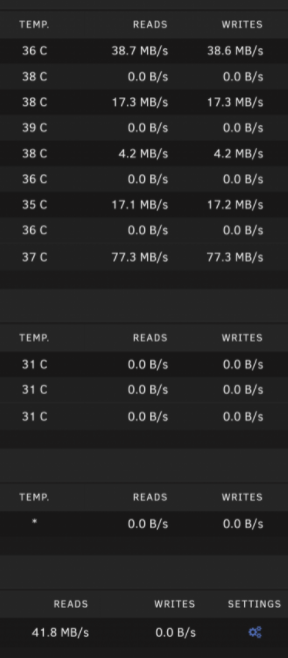
Hi guys, I experience - for my unknowing logic - a weird copy behavior when writing data to the array (e.g. from USB HDD): It all starts as expected, all disks except the 2 writing ones (Parity and the disk the data is landing on) read with 223-250 MB/s and the writing ones write with the same speed, but after a file or so most disks stop reading and the parity and mostly 2, sometimes 3 other disks continue reading/writing like using read/modify/write...but simultainiously on multiple data disks. It looks like this: I tried it with rsync and Midnight Commander, with dockers on and off, always the same result. From time to time the copy process seems to get back on track copying as expected, but again shows this behavior shortly after. Also the whole system becomes "weird", like stopping/restarting dockers takes forever or doesn't even work at all or the GUI not showing they are stopped, accessing dockers websites is horribly slow (although they are on the Cache drives) and so on. I would think it's some temporary caching to RAM stuff, but I have no real idea how to find a way around it (without possibly breaking my unRAID setup 🙂 ). I tried rsync --drop-cache and tried googleing for "linux" and "unraid disable copy cache" - which in the unRAID case brings up stuff about the cache drives...it's like googleing for "big hammer". So do you have an idea what's going on and how to solve it/get around it? I wanted to copy ~10TB and after leaving it running for about 8h MC tells me it'll take another 31h to finish...
-
Funny that you posted today...after some frustrating time I tried some stuff over the weekend until now. I reset everything I changed before to defaults and gave it a try. It sucks more than with changing MTU and what not, but...yeah. 1. When running with the "Userscripts" plugin in the background (or "manually" in bash) and high speeds, it fails within 1-2 minutes dropping to the speed we already found as some kind of fallback speed. 2. When running with the "Userscripts" plugin in the foreground and high speeds, it runs between 15 and 60 minutes, then drops. 3. I limited rsync speed to 10 MB/s (80-85 MBit/s) and it's behaving like 2. 4. We tried using NFS to see what happens. Running without limiting rsync it runs full speed for the first file (250 MBit/s) and drops to 85-100 MBit/s afterwards. I limited rsync to have less CPU usage and transfered almost 2TB at 85-100 MBit/s speed without a problem. So it's not working correctly, but it sucks way less than SMB. Unfortunately NFS can't be secured the way I'd like, so I'm still hoping someone finds a solution. All I didn't try so far is switching to SMBv1 for testing purposes (found that in a on reddit or so). And I still see the same behavior of one CPU core going up to 100% and jumping to the next when failing (with SMB). I'm almost thinking about a driver issue, kernel issue with newer CPUs, C-State issue, I have no fricking idea.
-
It's hard to say if it makes a difference or not, since we now had the problem again that the transfer was staying at 10 MBit/s almost immediately after a fresh SMB mount. But my colleague was surfing the web, so it could be the overall speed drops that caused it. As far as I could say, I had less problems with hardlinks turned off and since I don't experience any other problems because of that, I'll leave it off for now. What I wanted to say with the difference in hardware was, that it doesn't make a difference how much power your cores have, it's always one core, 100%. Did you check overall CPU usage or single cores? The overall usage stays the same, it's just not multi core with e.g 1 core at x% and one core at y% (with bwlimit it just ramps up every couple of seconds), it's one core at 100% and the rest is handling the background noise. We now have 2 unRAID servers showing this behavior. Also both servers show used/free space of the remote share in Unassigned Devices as 0/0, not the real numbers as it does when everything's fine. But that's an already known thing, as far as I googled thru the last three weeks of somewhat trying to workaround this issue. I bet we're both talking about the same speeds, but you're talking about 1 MB/s and I'm talking about 10 MBit/s (I'm using the unRAID Dashboard network part to check the speed). To me it looks like a fallback speed, since it's 10 MBit/s no matter what...1 GBit or 50 MBit download connection, 100 or 250 or 500 MBit upload connection - always 10 MBit/s in this "fail state" scenario.
-
And here are the news: Some hours after the successful 10h transfer I was browsing the remote share without reconnecting it a bit to contol if everything was alright and wanted to start a new transfer. This transfer instantly started with 12 MBit/s, so the SMB connection was broken and I had to reconnect. Now I got one of my colleagues to join the "WG-SMB-Test-Club", connecting to my server. She's got a way slower internet connection (--bwlimit to half the internet connection, maybe I have to go lower for consistency) and especially a way less powerfull CPU (J5040 vs 10900T). We started with MTU 1350 and after 2 minutes the CPU didn't use multi core anymore like it did before and just uses one core jumping in 2 steps to 100% switching to the next at 100%...the old story. Additional info: We tried to do a "clear" in bash and "top" while this happend, but it took several seconds (5+) for the commands to be executed. I then realized that we didn't do a change I did on my server as one of the first steps of troubleshooting: Disable Settings -> Global Share Settings -> Tunable (support Hard Links) So we killed all rsync processes, disconnected SMB, stopped the array, changed the setting and we're now transferring for over 1.5h without a problem so far. Let's see when or if it fails. I have no idea how all this corellates - and if it really does or everything is just a fluke, but I'll try to get everything to "the same setup" as close as possible and see if I can find out more things in common.
-
The first time I tried, it failed again after propably some hours, but I had to run the mover at the same time, since my cache drive filled up because of all the testing. I had to do a large file transfer this night and did two changes at once...which you shouldn't do troubleshooting, but...yeah. I uninstalled the Unassigned Devices Plugin (just to make sure it doesn't do...something), disabled settings in Dockers that react to new files and the transfer went for 10h at max. speed, just dropping from 8,5 MB/s to 7,5 MB/s for one file. I'll continue testing and see what happens. I mounted with a simple "mount -t cifs -o username=USERNAME,iocharset=utf8 SOURCE TARGET" and "rsync --bwlimit..."
-
I just wanted to let you know about my testing today: With MTU 1350 I reached speeds a bit higher and more stable than before and it worked very well until it stopped working. Same CPU sh*t as before. Then I had the idea to see what happens if I don't max out the connection with "rsync --bwlimit". I set it a bit below max speed, about 8 MBit/s (8%, better a bit less i guess) and holy shit...the CPU load used by Wireguard/the copy process reduced drastically overall. Every couple of seconds it uses one or 2 cores up to 45-70% total, the rest of the time the CPU is almost as idle as it is without a copy process running.
-
I almost wanted to say: "Works", since I did several large transfers, but when I did the last test I ran into the same problem...CPU spikes up to 100% on one core and switches like that to all the others without ever going back to multi core. There are 2 differences: The speed first drops from 90 MBit/s to 80 MBit after some time and then shortly after to 70-80 MBit/s and stays there until everything goes wrong and the speed instantly drops. But now it drops to 13 MBit/s. Before it was instantly going to 10 MBit/s without the steps in between. And it was the same with a 250 MBit connection - instant drop to 10 MBit/s. I don't know, I'll try MTU 1350 next, found some stuff on some forums. And if that doesn't make a difference I'll probably search for a different solution, since this problem annoys the crap out of me.
-
Alright. 🙂 I did 2 transfers yesterday, 200 GB in total, without a problem. Will try running another 200GB tonight and let you know if it worked.
-
Don't know if you already knew, but you can get the current MTU for all interfaces with: ifconfig | grep -i MTU I'm by far no expert, but the MTU size depends on your servers internet connection. For LAN it's 1500, on the internet it mostly isn't. You can check it by using the "ping" command. Working: root@tower:/mnt/user# ping -c 1 -M do -s 1464 9.9.9.9 PING 9.9.9.9 (9.9.9.9) 1464(1492) bytes of data. 1472 bytes from 9.9.9.9: icmp_seq=1 ttl=60 time=10.6 ms --- 9.9.9.9 ping statistics --- 1 packets transmitted, 1 received, 0% packet loss, time 0ms rtt min/avg/max/mdev = 10.645/10.645/10.645/0.000 ms Not working: root@tower:/mnt/user# ping -c 1 -M do -s 1465 9.9.9.9 PING 9.9.9.9 (9.9.9.9) 1465(1493) bytes of data. ping: local error: message too long, mtu=1492 --- 9.9.9.9 ping statistics --- 1 packets transmitted, 0 received, +1 errors, 100% packet loss, time 0ms There's a buffer sizes on the network, for internet connections 28, for wireguard 80. That's why I'm just pinging with a package of 1464 instead of 1492 on the internet connection and for wireguard it would mean 1412. For you it could mean something different, since every internet connection can have a different MTU size. The networking guy at work meant the MTU size of WG is independant from the internet connection, since it's a different protocol, but my logic tells me that wireguard is still running over the internet connection and if the WG package is too large, the internet connection can't handle it correctly. Ok, I didn't have any problems before unRAID 6.9 - or I just didn't realize -, but I tried that much other stuff that I'm grasping at any straw I can to get constantly high transfer speeds again. 🙂
-
Hm, it's weird that you don't have this CPU correlation. Since the default MTU of Wireguard is 1420, I'd be surprised if this really made a difference - except you didn't set it to "auto" before. In my experience it doesn't matter how much data or how many files you transfer, it looks like happening randomly and that's what makes troubleshooting so fricking annoying. And when you lose speed, the MTU size normally is too high as you need two packet fragments instead of one packet. I didn't lose speed with MTU 1420, but I tried to find out the max MTU of my servers internet connection instead of wireguards and besides getting weird results on unRAID (1600 working with a max of 1500...what?!), I tried it on my Windows machine connecting with the Windows WG client. The result was that the internet connection maxed out at MTU 1492 (and later on this was what unRAID also said), which means a Wireguard MTU of 1412 (using 80 as buffer by default). I'm now trying it with MTU 1412, have max speed and so far copying for 45 minutes without a problem...but as we know this doesn't mean a thing.
-
I'm kind of in the same boat. 2 unRAID-Servers connected thru Wireguard, accessing SMB shares mounted thru Unassigned Devices (but it also happens when mounted manually). unRAID and all plugins are updated. Here's what happens: The download starts and most of the time - not always though - it drops from 250 MBit/s to 10 MBit/s at some point in time. Sometimes after a minute, sometimes after hours, while copying a file and sometimes while starting to copy a new one, with rsync or Midnight Commander. I mostly can fix it by unmounting the share and remounting it and the game starts again. I tried troubleshooting for hours, using Google and the unRAID forum (and just trying out stuff) and more than once thought I made it...but it always comes back. What I think I should mention is CPU load/multi core behavior. When wireguard and SMB is working, multiple cores are used and load is jumping all over them, sometimes spiking up to 98% on a core for a split second then using multiple cores again. But when the problem occurs, only one core is used. It shoots up to about 90% and some milliseconds later to 100% and it stays there for maybe two seconds. Then it jumps to another core, 90% 100% 2s, next core. But it doesn't seem to make a difference in "top", the CPU load per process seems to stay the same as if it's still using multiple cores. Unfortunately I have no idea what info could be usefull to continue troubleshooting, so please let me know if you have any suggestions.
-
The plugin uses "hdparm", which - like in my case - doesn't recognize the correct status of running Seagate Ironwolfs (it's "unknown"). Scroll up a bit in this thread and also check page 4 close to the bottom. Niklas posted some changes to use "smartctl" instead which worked fine for me, maybe also for you? The only problem is that the plugin/script is (whysoever) reset soon after, so I again stopped using it - unfortunately.
-
Oooooh man, I stumbled across your post when I wanted to add my suggestion about using "smartctl" instead of "hdparm". I'm using Seagate Ironwolfs and all drives report "unknown" with hdparm when they are active, so I wasn't able to use this plugin for quite some time since the switch. Thank you so much for posting your script changes! I changed the script on my server and it now counts all active/standby states correctly. Whoohoo! :-) @Squid: Would it be possible to switch from "hdparm" to "smartctl" or provide two different versions (in case you see problems with smartctl)? It would be nice to not lose the smartctl-change when you update the plugin. :-)

