





Dmitry Spikhalskiy
Members
-
Joined
-
Last visited
Everything posted by Dmitry Spikhalskiy
-
ZeroTier you mean? I think I put some description in the header. Remote access. One if the reasons why people install VPN. Your unraid under nas, you don’t want to setup port forwarding for security reasons, you need to open a console or ui of some app. Or plex is not accessible directly because of nat, indirect connection supports only 720p and you want to stream HD videos somewhere not at home - you get an effective peer to peer connection without port forwarding, so your client can connect directly to your Plex box.
-
I will take a look at it and add this feature if possible. I'm not sure, but I don't think it's possible. You want to tunnel a traffic and use a Zerotier host as a VPN server, I don't know if Zerotier is designed for it. Hmmm. //tower works in your local network not because of a central DNS server. https://www.systutorials.com/docs/linux/man/8-avahi-daemon/ The same avahi-daemon should announce your unRaid name in Zerotier network too. At least, I can access unRaid in Zerotier network using the same name I use in my local network. Maybe try to add ".local" to your domain name. I use "<servername>.local" for both local and Zerotier network as a domain.
-
@hernandito You could set up your own "controller" and "moon nodes" and create your own full infrastructure basically. Nothing stops you, everything is open source - in that case, you will need to care about the security of your own controller, but it will remove other admins from the system. If you go with a default infrastructure - yeah, members of your network can be theoretically "authorized" by anybody who has an admin access to the public controller.
-
@1812 No, it creates a "local" network to communicate between your devices and it works effectively in peer to peer mode - if possible you devices will talk directly without an additional VPN server in the middle. But it's not a solution for encrypting or tunnelling traffic between you and any other host on the internet and it's not a VPN replacement for this goal.
-
@argonaut Yeah, it's a typo, thanks for pointing out! About 1.2.8 - currently my docker image uses as a parent an official dockerized ZeroTier image zerotier/zerotier-containerized. And it currently has version 1.2.4 inside. My thoughts here: 1) I decided to keep things simple and transparent to the community and use the official image as a reference, so everybody could simply verify that my modifications don't do anything bad in docker run in "privileged" mode. 2) I reviewed changes that version 1.2.8 includes and 1.2.4 doesn't and I didn't find anything really important for Linux. But didn't do it very thoroughly. So, if there is any significant reason to upgrade like anybody really needs anything from the new version - yeah, we can do that. If no - I would prefer to stay on the current version for the described reasons.
-
@RSQtech Hi! Yeah, why not. You have two options: 1) You can install ZT directly on Linux, follow https://www.zerotier.com/download.shtml section "Linux (DEB and RPM distributions)". Likely the simplest way should work for you, that one with "curl -s https://install.zerotier.com/ | sudo bash". After that you will need to start ZT client and join the network, that's it. You should find the Linux ZT client in "/var/lib/zerotier-one" after installation, CLI is pretty straightforward. Could be helpful: https://www.zerotier.com/manual.shtml#4 2) You can utilize the same docker image I made for this unRaid template, which starts ZT. You should be able to do something like "docker run --device=/dev/net/tun --net=host --cap-add=NET_ADMIN --cap-add=SYS_ADMIN -d -e NETWORK_ID='<NETWORK_ID>' -v /var/lib/zerotier-one:/var/lib/zerotier-one -n zerotier spikhalskiy/zerotier". Of course, you need to have a docker on these machines.
-
https://americancpr.com/ - enjoy!
-
@RSQtech Cool! Will be at home in half a hour, just text me your skype/hangout/whatever contact in private message and when to call you. I’m in EST timezone.
-
@RSQtech I wouldn't personally mount videos likely, just not a fan activity for me at all. Adopt the first post guide to address user issues and different experiences and make it more clear - for sure. Can offer you a 5 minutes screen sharing call to show how to setup everything in exchange for your opinion, what is absent in the original guide, not a problem
-
@RSQtech I think that I already did it in the first post, to be honest. It's really always was that simple for me. If I find some potential complications, for example from your experience - sure, will think about it.
-
@RSQtech Ok! don't forget to throw away identity config directory to make a clean setup. By default it's "/mnt/user/appdata/zerotier/zerotier-one".
-
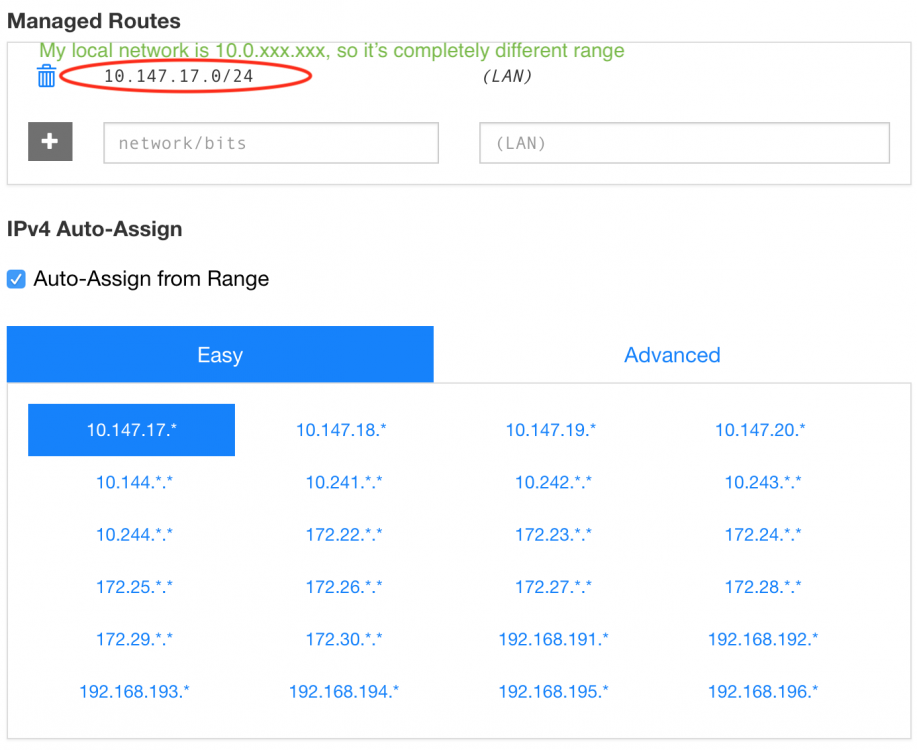
@RSQtech This is interesting! Looks like you were able to connect all devices to Zerotier network. I didn't get where did you make this change "192.168.192.0/24 was what was showing... I changed it to 192.168.1.0/24". It doesn't sound right and as something that you should do. Did you try to make Zerotier Managed addresses exactly same as your physical local network addresses? If you did - I think it's not a good idea. If your local network addresses (where unRaid are) in 192.168.1.x - select something else! Address that your device will have in Zerotier network should be different from its address in a physical local network and it should be on another subnet. The address of my unRaid in a physical local network is 10.0.0.43, in a Zerotier one - 10.147.17.49
-
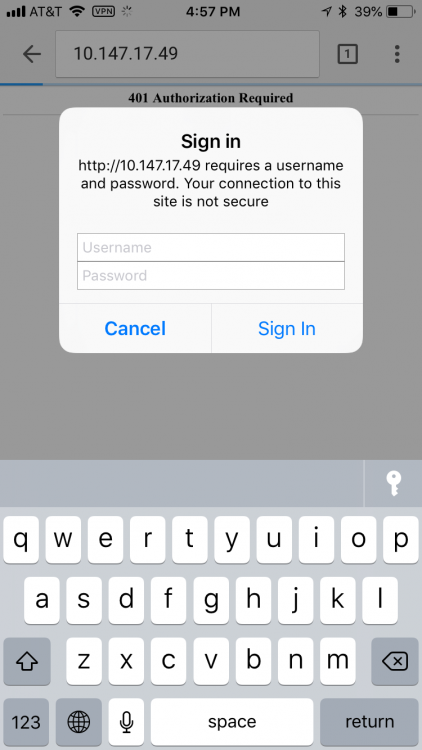
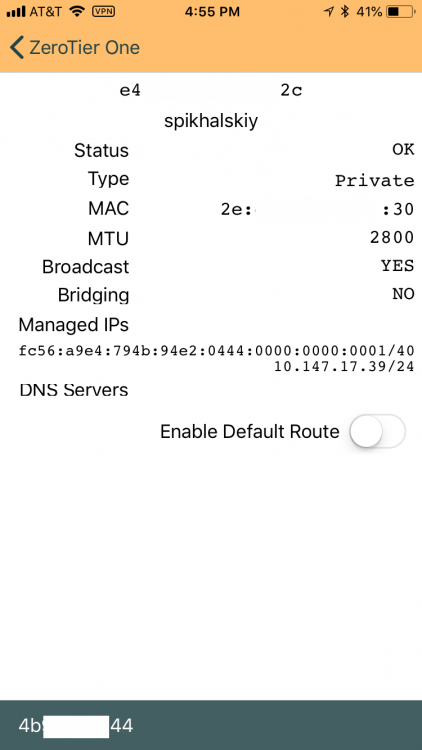
@RSQtech yeah, but how it's related and what you are going to find there? There is no need to enable "Enable default route" on Zerotier on your phone. If you don't do this - Zerotier doesn't affect anything you see in online "whats my ip" services. It's not a regular VPN that tunnels whole phone traffic thru some server and changes your public IP for google. Zerotier by default does it only with "managed IPs". If you want to check if everything works - better just open https://my.zerotier.com/network/<NETWORK_ID>, find NAS in your device list, take an IP of your NAS and open a web browser on your phone with that IP and your regular webGui port - 80 by default. If you got webGui authentication window - you good. Also, you may try to skip IP lookup and just use the .local hostname of your unRaid - it usually works too.

-
[Update] Update to the docker image has been posted that addresses the problem of initial join reported above
-
@bonienl Thank you for debugging! Will add this way in the instruction for guys who got an issue and will try to replay your flow on the evening and maybe address it better.
-
@bonienl And it's a good result! After getting this state you need to go to your control panel and setup the Auth flag for the new host, you should see it now.
-
@bonienl Ok cool, join to network didn't go right. What about a result of manual input ./zerotier-cli join <NETWORK_ID>
-
@bonienl Nope, it should be enough. Just set NETWORK_ID and start the container, after that your host should appear in your network hosts (without Auth flag setup). It could be less likely affected by your NAT type and more by your host setup. If you need help to debug what's going wrong - let's try to start with the simplest thing, could you open a console for this docker and post an output of ./zerotier-cli info ./zerotier-cli listnetworks ./zerotier-cli listpeers You will likely want to remove your specific network id from the output and replace it with some placeholder. Also, you could try to make your network "None (Public Network)" in zerotier control panel for a moment and try to start the container with this setup just to remove any potential authorization questions.
-
RESERVED
-
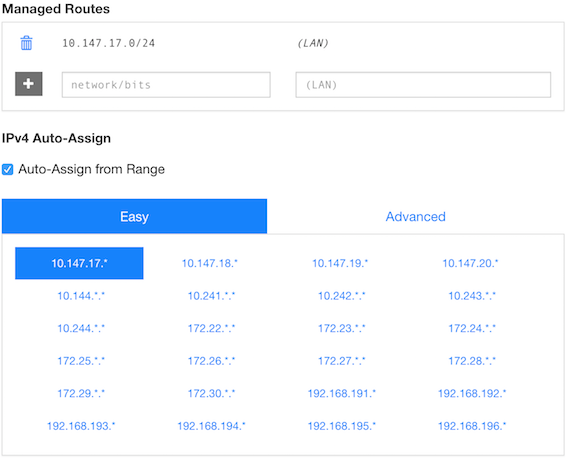
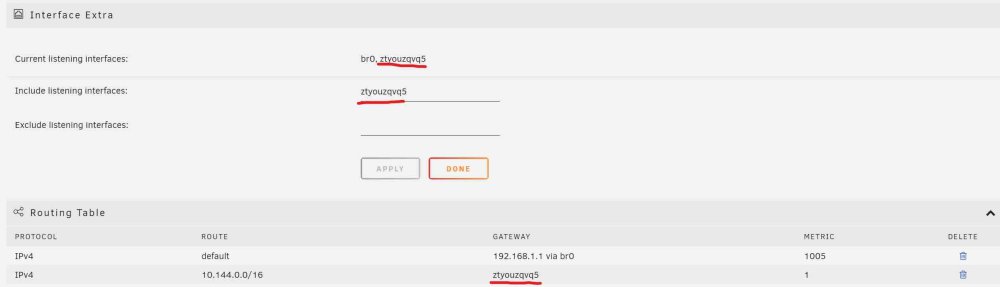
Application Name: ZeroTier Application Site: https://www.zerotier.com/ Docker Hub: https://hub.docker.com/r/spikhalskiy/zerotier/ Github Docker: https://github.com/Spikhalskiy/zerotier-unraid-docker Templates Repo: https://github.com/Spikhalskiy/docker-templates Zerotier is an open source, cross-platform virtual LAN / VPN available on Android, iOS, Mac, Windows, Linux. It allows remote access to devices as if they all reside in the same local network. All traffic is encrypted end-to-end and takes the most direct path available for minimum latency and maximum performance, using VPN-like connections. Up to 100 devices for free, no need for port forwarding, very simple setup. Network and the docker image setup steps: Create a Zerotier account https://my.zerotier.com/ and create a Network there. Ensure that "Managed Routes" section of your network settings DOESN'T include the subnet of IPs that is used in your local networks. You can check FAQ at the end of the post for more information. Get an ID of the created network (looks something like b4da7454b271902c). Install this docker image on your unRaid using a template or from Community Applications and put that ID as a NETWORK_ID parameter of the container. Start the container. Go to "Settings -> Network Settings -> Routing Table" and find the name of your zerotier gateway. It will have "zt*[0-9]" format, like "ztyouzqvq5". Go to "Settings -> Network Settings -> Interface Extra" and add zerotier gateway name to "Include listening interfaces". Go to https://my.zerotier.com/network/<NETWORK_ID> to “Members section” area. Check “Auth” checkbox for the new device. Assign a meaningful name to it, copy an IP from "Managed IPs" column - it will be a static IP of your NAS in your virtual network. Install a Zerotier client to your laptop/phone/other devices, join a network with the same id and repeat the previous step for them. IP addresses that you found on the step 7 can be used to remotely access corresponding hosts from other devices connected to your virtual Zerotier network. A bug or a change in recent versions of Unraid leads to Unraid UI not being available on zerotier IP after a server reboot. A temporary workaround is to add the following userscript with "At First Array Start Only" scheduling. Video instruction. Now, when you connect Zerotier on any of your devices - a VPN connection will be set up and all connected devices will be available like they are in the same network. SMB shares/TimeMachine will be autodetected, UIs will be accessible on <ip from the step 4>:<usual port>. Post an issue If you post about an issue, it will be helpful if you open a console of the docker from webGui, run and include in your post an output of the following commands: zerotier-cli info zerotier-cli listnetworks zerotier-cli listpeers Clean reinstall If you want to make a clean installation and start setup from scratch - don't forget to cleanup config directory which is "/mnt/user/appdata/zerotier/zerotier-one" by default. It contains an identity of your Zerotier node and generated certificates. FAQ Q: Should I change "Managed routes" on https://my.zerotier.com/network/<NETWORK_ID> to reflect my unRaid internal IP and subnet in a real physical network? A: No, ZeroTier creates a virtual network adapter to use in ZeroTier network. If your home IP range is 192.168.1.0/24 and ZeroTier by default selected "10.147.17.*" for example for you managed IPs - it's totally fine. Even opposite, if ZeroTier "Managed routes" intersect with your physical local IPs - change the Zerotier Managed routes range to be different - there was a reported problem with accessing the server remotely if this rule is violated.

-
I made a docker for ZeroTier, published to Community Applications. Support thread: You need just to specify a Network ID in docker parameters.





