





Jules
Members
-
Joined
-
Last visited
Everything posted by Jules
-
For those who can't find username and password, enable user registration from the installation page and register your account as per normal.
-
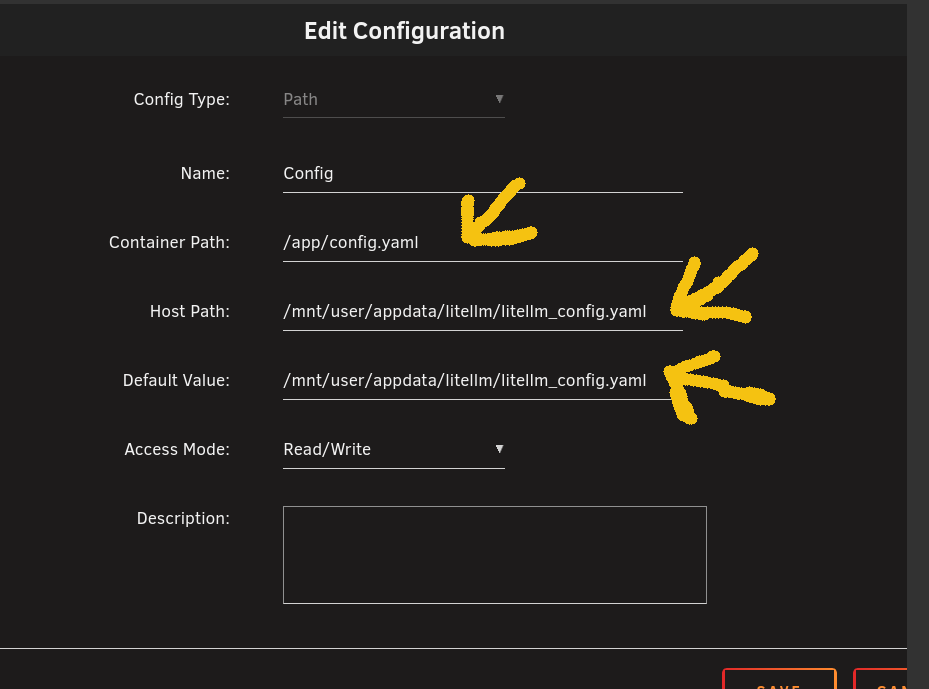
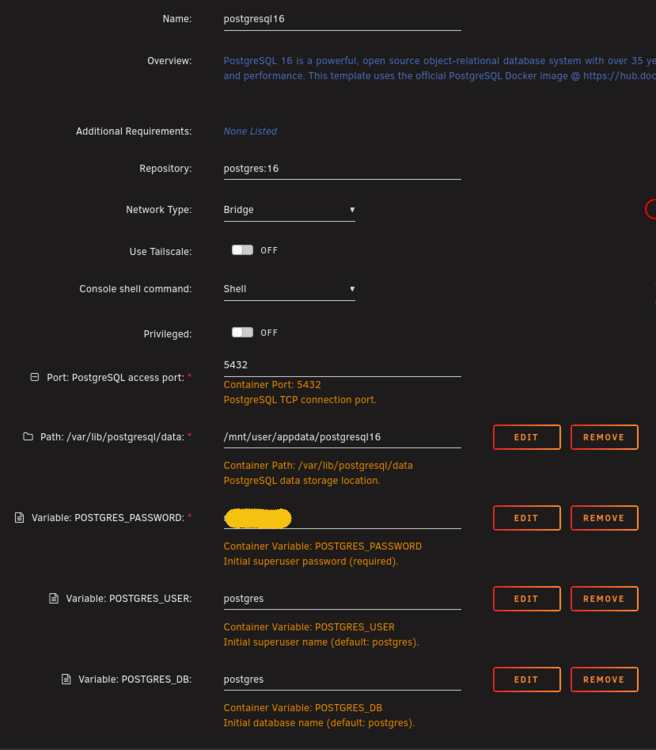
I got it to work. The docker container is weird because it creates config.yaml as a directory instead of a file. The problem is the path creation. It is very easy, Here is the complete guide on how to fix it. Install Postgresql 16Nothing fancy here, stock standard. (optional) if you don't know how to use postgresql, install pgadmin. Standard install, login, create a database, create/assign whatever user you want or leave it the default postgres with the password postgres and be done with it. You don't need to do anything crazy Install LiteLLM - Guide1 Install the docker container as it is (it will fail) - that's okLet the container fail, that's fine, you will need to tweak a couple of things. 2 Remove the config directory and replace it with litellm_config.yaml 3 Edit litellm_config.yaml Add the following to litellm_config.yaml general_settings: master_key: sk-112233(whatever-this-will-be-your-login-password) store_model_in_db: True database_url: "postgresql://postgres:[email protected]:5432/litellm" The guide to follow for the last line (database_url) is this: database_url: "postgresql://<username>:<password>@<IP>:<port>/<database>" My server doesn't want to accept localhost as the IP address so I wrote down the IP address of the server. 4 Update the LitleLLM container with the new variable (This is where it fails)Edit the config path. Enjoy LiteLLM.



-
I'm also in the same boat.... any opinions?
-
Is there a comprehensive guide to this? I can't seem to get it working.
-
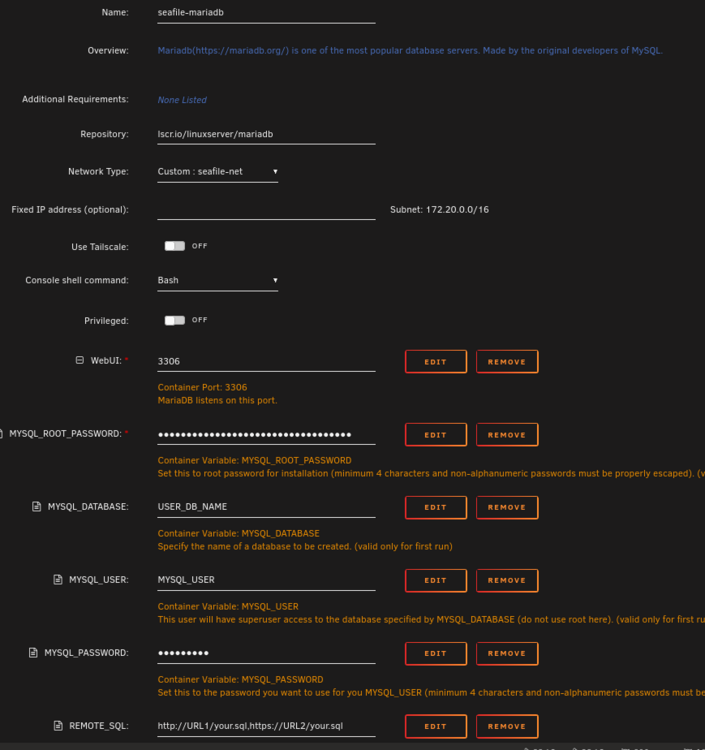
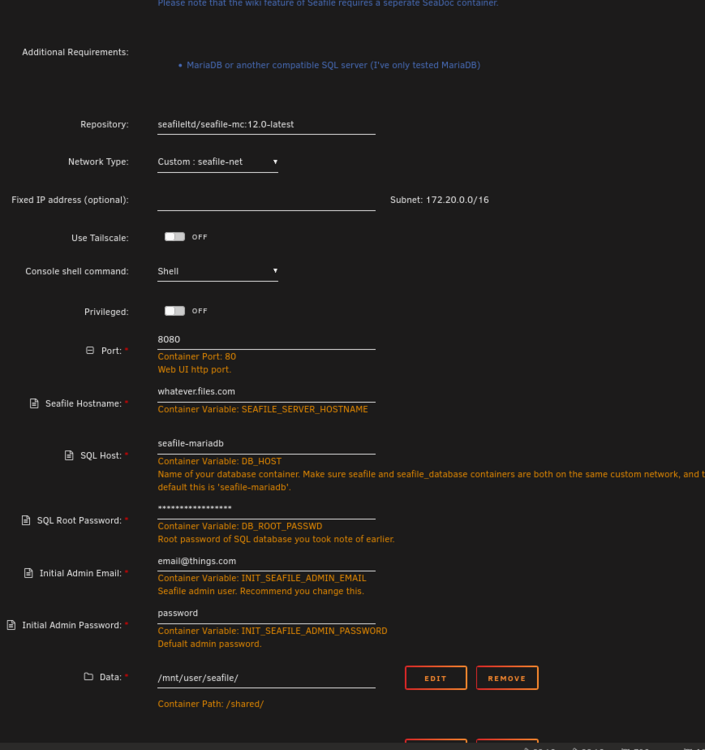
Any resolve for this? Followed the instruction from github and I have the exactly same problem. EDIT (SOLVED THE PROBLEM) The problem was that MariaDb and Seafile didn't communicate because Mariadb's container name. Pay attention to MariaDb's first field, "Name". It has to match Seafile's host.
-
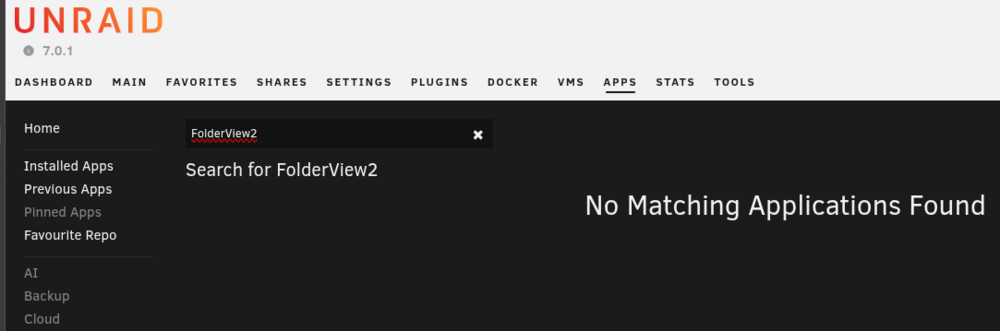
I saw that but I think FolderView2 might be dead as well.
-
Is this still working? I can't find it in the apps.
-
Hi all, Is this still a thing? I can't find it in the applications.
-
I can't seem to find the username/password for the ZNC's admin interface. Anyone can help me with this please? EDIT: found it as: admin / admin
-
Thank you




