





chuque
Members
-
Joined
-
Last visited
-
I am having a similar issue. my nvidia driver is at latest: v515.48.07 What version are you running that got you working again?
-
For what it is worth my issue resolved when I tried an IP that was within my dhcp pool so I am guessing that my router's internal firewall rules may be at play?
-
I'll look into that, I was using a browser for the http ports, but easier to cut and paste a cli output
-
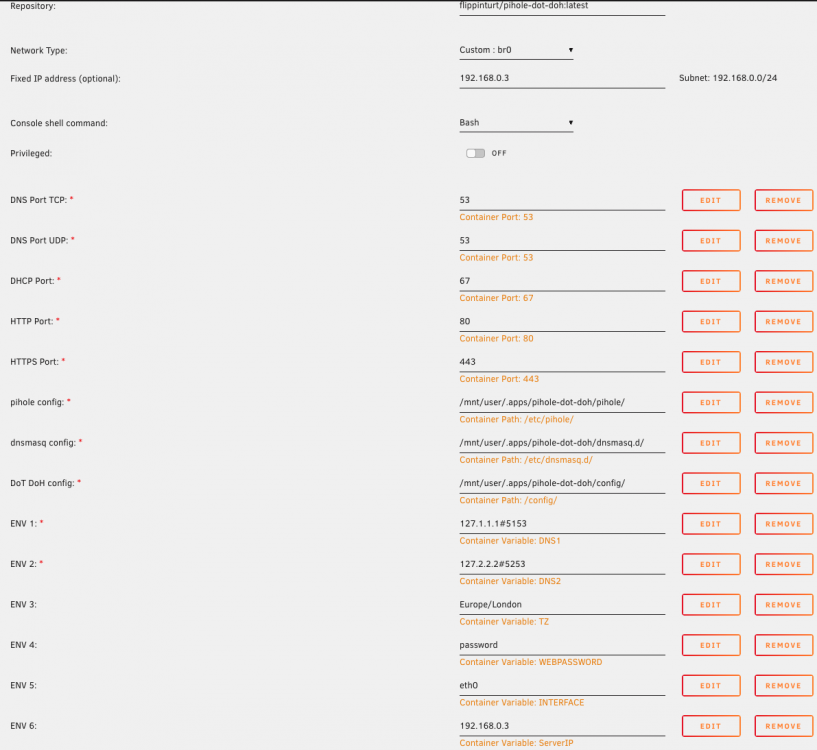
getting connection refused on port 80 and 443 but works of 53 sure this is a dumb mistake on my part but be damed if I can find it root@MediaStore:~# telnet 192.168.0.3 80 Trying 192.168.0.3... telnet: connect to address 192.168.0.3: Connection refused root@MediaStore:~# telnet 192.168.0.3 443 Trying 192.168.0.3... telnet: connect to address 192.168.0.3: Connection refused root@MediaStore:~# telnet 192.168.0.3 53 Trying 192.168.0.3... Connected to 192.168.0.3. Escape character is '^]'.
-
Hello Mr. Hex, I have installed and been using Deluge for a while now, and it seems that my upload speed never gets above 1 or 2KiB/s regardless of network settings I adjust. based on some other forum research moving to libtorrent 1.0.9.0 might help. I was hoping for advice or best practice to achieve this, and or any other advice on the topic you or others may have.
-
I ordered one of these guys, I am looking for a bracket that will allow me to fit a 3.5 and a 2.5 drive in the 5.25 bay and my search foo is very weak. have any of you found a bracket that works well for this system ? Thanks


