






Thx And Bye
Members
-
Joined
-
Last visited
Everything posted by Thx And Bye
-
Compatibility problems specifically with CA Backup or with the tar on Unraid? Shouldn't it be as easy as to replace the -z flag of tar with -I pigz when pigz is installed? Also if pigz doesn't work, wouldn't a other compression that supports multicore (like pbzip2) possible?
-
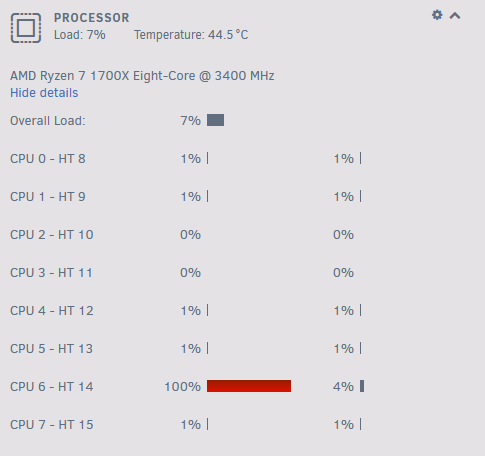
The plugin works really well for the task but is it intended behavior that only one thread is used for compression? I think on a multicore CPU there could be substantial performance improvements if more cores are used for this task. If there is no better method available on Unraid by default, maybe make it optional if a better compression program is detected (e.g. pigz installed via NerdPack)? I think anyone can profit from this as multi-core CPUs are the norm nowadays.
-
You can also use /dev/shm to map to RAM. /tmp seems to be mounted to rootfs on unRAID and not a tempfs like /dev/shm. For unRAID this shouldn't make much of a difference (since it runs in RAM anyways) but for other Linux distros /tmp might not be in RAM while /dev/shm (if available) should always map to RAM-
-
Eh, sure. Effectively you just have to execute the command from my other post. If you don't want to do that manually every time you open a ssh connection then you have to add it to this file: /root/.bash_profile To make it persistent across reboots (that's how I did it, not saying it's the most ideal way): Edit /boot/config/go and add: # Customise bash cat /boot/config/bash_extra.cfg >> /root/.bash_profile Create the /boot/config/bash_extra.cfg (e.g. with nano) and add: #docker-compose as container alias docker-compose='docker run --rm \ -v /var/run/docker.sock:/var/run/docker.sock \ -v "$PWD:$PWD" \ -w="$PWD" \ docker/compose:latest' And that's it. After a reboot that will add the command to the .bash_profile file meaning it'll automatically get executed one you open a shell.
-
Just wondering if this is some kind of legacy fix for permissions? There seems to be a "fix permissions" script that does the same and set everything to nobody:users. Also the consensus seems to set 777 permissions for some reason? I personally "grew up" with just setting the permissions that are actually needed and not making the file system "free-for-all" just because it's more convenient. Since I'm fairly new to unraid and the regular array shares are simply using the <username>:users permissions (at least for new installations), I don't really see a reason to incorporate nobody into the unix permissions. For me this just seems like adding unnecessary abstraction to the permissions. I totally understand this approach and at this point this surely shouldn't be just removed for everyone since it would probably cause lots of problems for many people. But imo there should be at least a kinda hidden away "advanced settings" that could display a warning if the setting is changed to give the option to unify SMB behavior with the regular unraid array shares. Taking away options just to make something more fool proof isn't always the right approach it just needs to be clear what settings can cause massive problems and just make those less accessible.
-
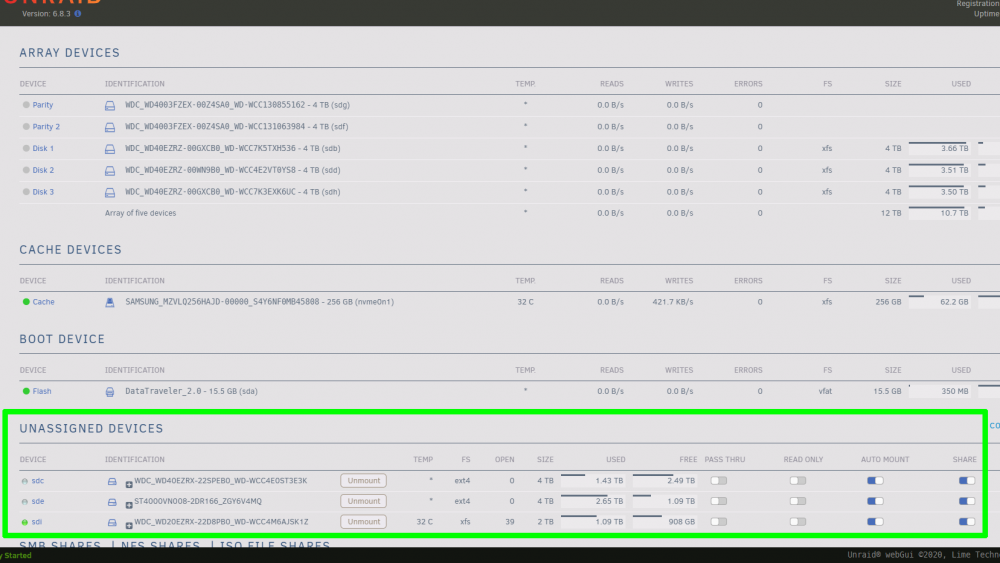
I already did ask for a reason but that's not really something we have to argue about because it's pointless and leads to nowhere. Our communication didn't quite work out I'd guess, my apologies for that. So lets start fresh. I just have some local non-array drives that are mounted via UD. No shenanigans with mounting and re-exporting some other network shares. The array works just as expected, new files are written with the accessing username and the 'users' group. So it's easy to set user-specific permissions, permissions for all registered users and for everything else (e.g. stuff running in a docker). So all three sets of permission work as intended (Owner, Group, Other) work independently and give great control over individual files without needing to restrict a user completely via the SMB access permissions. Now for the non-array drives in the same physical and logical system that are mounted via UD (/mnt/disks/) and exported via a SMB share ("SHARE") there is one dimension less of control over the permissions. As in the Owner "nobody" is effectively equal to Group "users" for those shares. So all SMB access to those shares are operations with only two sets of permission since Owner and Group are essentially equal, if that makes sense. (Taking away the control over the Owner permission) Why is that, and would it be possible to implement a option to gain back that additional control that the Unix permission system allows without any hackery? As this is a artificial restriction imposed specifically by UD and I don't see a technical reason to do so. Simply removing the "Force User = nobody" from the SMB config files created by UD and then restarting samba works just fine. I understand that removing this per default makes little sense, because it could breaks a lot of peoples setups, but I'd really appreciate a option to have the UD shared drives operate in the same way on the Unix file system as the shares on the array.
-
Yes I get that you can set samba user access via the UI (for array shares and UD). The array shares won't force the "nobody" user on me tho (I attached a video for reference). All I'm wondering why UD has to behave differently in this regard? Why limiting the options for advanced users for no good reason? (or is there a good reason?) The unix group is "users" for everyone accessing via SMB if you want common permissions, why have a redundant "nobody" user that is of no use and just behaves differently than shares on the array? Why make administration more difficult? Why do I need a custom script that removes this unnecessary option and why can't I just check a box in the UI to do so? Don't get me wrong, I really appreciate your plugin. I just haven't found a good reason (nor did you give any) for why it has to be different. 2020-06-01 13-50-08.mkv
-
I only use the shares in the local network but there are four people using them. That is just for the UD shares, not the ones on the array. I just want more fine grained control over who can delete files in specific folders. If I execute this: #!/bin/bash for file in /etc/samba/unassigned-shares/*.conf; do sed -i '/Force User = nobody/d' $file done (It also has some other logic to determine if the config was changed to then reload samba) I get exactly the fine grained control over the write permissions that I need. I can have a folder with 755 permissions that others can read but only I can write to.
-
But it controls the Unix user used. I'd like not to use the "nobody" user but the username of the account that accesses the share. The regular Unraid shares also do it that way, so why use " nobody" for UD shares?
-
How to disable the "Force User = nobody" option for SMB shares? I want to use the actual usernames on those shares (like with regular Unraid shares) and not the "nobody" user. In general more control over the SMB settings would be nice (e.g. changing the share name or permissions for individual drives and not all of them). Or am I just blind and not seeing those options?
-
I'm using a couple of Docker containers with docker-compose on my system. One of the stacks is for my web-services (nginx, nextcloud, wordpress) but the exact containers don't really matter. I use docker-compose though a docker-container (docker/compose:latest). The problem I have is, that the "Check for Updates" in the Unraid WebUI only works once for those containers. After creation it'll show "up-to-date" just fine, but after detecting an update once, it'll never change, even if the container is updated though docker-compose. The check for updates routine should properly check for updates, even for those containers. To reproduce: Simply setup a stack via docker-compose. I use this alias to invoke the compose container (so compose works just like it normally would though the CLI): alias docker-compose='docker run --rm \ -v /var/run/docker.sock:/var/run/docker.sock \ -v "$PWD:$PWD" \ -w="$PWD" \ docker/compose:latest' Press "Check for Updates" in the Docker section of the unraid WebUI, it'll show "up-to-date" Wait for an update on one of the containers in the stack. Check for Updates in the WebUI again, it'll show "apply update" Update the container via compose (docker-compose pull, (docker-compose down), docker-compose up -d) Check for Updates in the WebUI again, it'll still show "apply update" even if the container should show up-to-date. The Portainer instance I've running correctly shows the container being on the correct image (latest, stable, etc.), just Unraid still "thinks" that there is a update available. My installed Plugins (even if I think that they are completely unrelated): Community Applications Dynamix Cache Directories Dynamix File Integrity Unassigned Devices Unassigned Devices Plus Unraid Nvidia The system is running on a X370-Pro, Ryzen 1700X, 32GB ECC RAM @ 2666MHz, GTX 1650 LP, 400W SeaSonic PSU and a bunch of drives. boxofcare-diagnostics-20200515-1421.zip
-
I have add a alias that launches docker-compose in a container. It has the benefit of being up-to-date without any modifications: alias docker-compose='docker run --rm \ -v /var/run/docker.sock:/var/run/docker.sock \ -v "$PWD:$PWD" \ -w="$PWD" \ docker/compose:latest' It has worked great so far for me.




