





Scheev
Members
-
Joined
-
Last visited
-
Oh this is awesome, one of my biggest gripes will be solved. Thank you! Especially since solutions on the autofan plugin thread are along the lines of "fork it and change it yourself 🤷"
-
Love the plugin, I found the autofan plugin to be quite clunky to use. Happy I came across this. I found the autofan plugin to be much too verbose, constantly spamming my logs with fan speed updates. It doesn't seem like this is the case for this plugin, but maybe a feature consideration would be to allow the user to enable/disable logging? just to avoid clogging the system log. For those who want to determine which fans are associated with which pwm controllers pwmconfig is a great command to use. Although the pause feature for this plugin may be more useful.
-
Oh sorry, the autofan plugin.
-
Is there a way to turn logging off for this plugin? I find the syslog hard to parse now and want to disable the messages.
-
Excuse my ignorance on that, maybe I missed something. It looks like that info isn't present on the container description, could be worth just a sentence that says something to the tune of "sqlite database is already included as part of the container, if you wish to use postgres.....etc". I was confused for awhile as to whether or not I had to do additional setup.
-
Does the container implement sqlite by default? bit confused as to whether or not I need another container to hook up sqlite to mealie.
-
Yeah for sure, just send me a DM here on the forums and I can give it a shot
-
Oh awesome, I spent like 4 hours today converting some of it already, happy to help if you want.
-
I was able to figure it out, but my only hurdle is related to the use of InfluxQL for the dashboard instead of Flux. Is there a setting that will alleviate this? I started rewriting the dashboard in Flux...but realized theres probably another way around it.
-
Need some advice on here, Ive been bashing my head for awhile trying to get this all working. I am finding that all the guides are fairly outdated. When I use telegraf 1.20.2 it doesn't gather metrics cause the only way ive found to get the config provides the latest config. Using an older config wouldn't exactly solve my problem either as explained below. Switching to the latest telegraf branch gives me permissions errors and won't start. Ive tried to do some chmod antics but can't seem to get the hang of where or what this is supposed to be. In my post arguments I have it running apt install arguments that have been outlined in guides and such. Would that be the culprit? how do I elevate permissions for this? E: List directory /var/lib/apt/lists/partial is missing. - Acquire (13: Permission denied) I imagine if telegraf started I could likely configure it to give metrics to influx. Next problem, my influxDB docker is running influxdb v2 because I have a OPNsense instance that is posting metrics to Influx and requires it. However, without telegraf starting I can't even use the influxdb_v2 inputs in the config. As well, how would I configure influx if I have two different instances of telegraf providing metrics to the database? Thanks for any and all help!
-
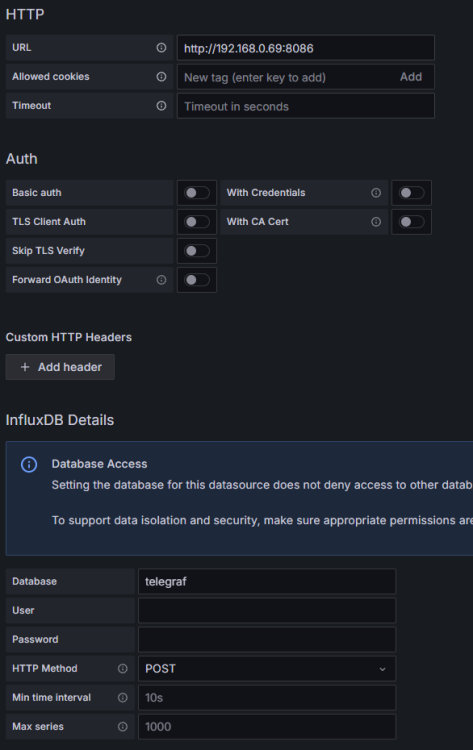
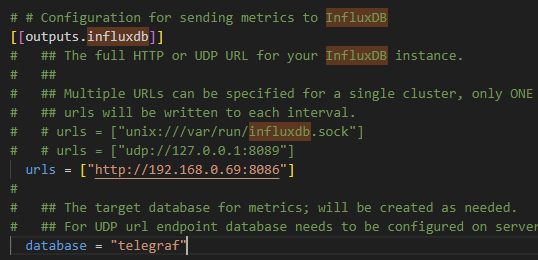
I am quite confused, been trying to setup Telegraf, InfluxDB, and Grafana for quite awhile now. But I keep getting no data when I setup the data source in grafana. Any help is appreciated. Telegraf also does this thing where it stops after even just touching grafana or influx. Here are my setups: Telegraf is 1.20.2 Influx is 1.8.4 ( I don't get any WebUI) telegraf Post Arguments: /bin/sh -c 'apt update && apt install -y smartmontools && apt install -y lm-sensors && apt install -y nvme-cli && apt install -y ipmitool && telegraf' -u 0 telegraf config my data source looks like this Just not really sure where to go from here. I have tried so many things to see if it will work. Googled this so much, but can't seem to find a guide that solves the problem. Thanks for any help
-
Huh genuinely confused as to how that would've happened. The mention of carriage returns in the folder name let me understand what I needed to google. Dynamix wasn't able to handle it, it would try to delete but seemingly fail and wouldn't provide any info as to why. Found this link https://unix.stackexchange.com/questions/60779/how-do-i-remove-carriage-returns-from-directory-names which provided some commands for me to try. Navigated to /mnt/user/ where the "appdata/r/r" was stored. used the command rename $'\r' '' *$'\r' to get rid of the of the carriage returns and the folder disappeared. I was also having issues where I couldn't open files because of the constantly restarting services. This solved that problem as well.
-
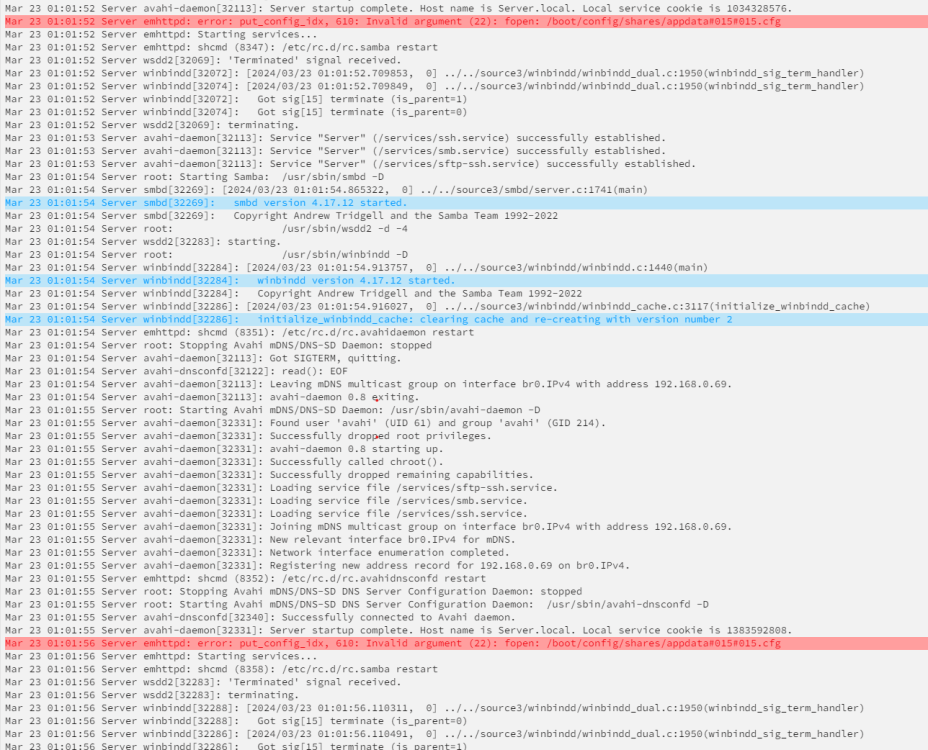
I actually discovered a new symptom of having the extra empty appdata folder in the syslog. I have been noticing that my "Starting Services" is periodically going away and appearing in the bottom left. The syslog shows these errors. repeat ad nauseum, seems like the folder is causing issues. Attached my diagnostics as well. server-diagnostics-20240323-0106.zip
-
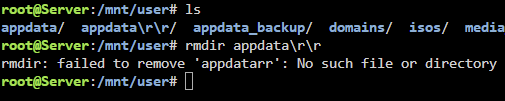
I am seeing an empty duplicate appdata share in my shares tab. Weirdest part is when I try to peer into the contents, there is nothing. Here is a picture for context. I figured I could go into command line and try rmdir on it but it has some "\r\r" after the name and im pretty confused by what that is. The following is what I see. Tried rebooting to no avail also. I think the problem is that I recently upgraded some hardware on my system and in my infinite wisdom started up unraid after forgetting to plug in the sata ssd drive I was using as my appdata storage. I imagine unraid may have compensated and placed this ghost appdata on the array. Any help to remove this would be appreciated.

-
Okay cool, I tried looking at the settings page, but I am not seeing an obvious way to have both of those conditions. Do you mind sharing how exactly you achieved that?


