





Sup3rTr00p
Members
-
Joined
-
Last visited
-
I recently installed Calibre-Web-Automated and it's working great except when I try setting up Kobo syncing. I've setup the API sync key, added it to my Kobo, and when I run the sync it starts to show a subset of my books' titles, but then I'm unable to download them and then it give me errors on the Kobo. Subsequent sync attempts fail and I'm unable to download the 50ish books that it initially started to sync. I've enabled debugging in Developer options on the Kobo and turned on Debug logging in Calibre-Web-Automated. I've looked through the logs that it generated, but I can't figure out how to narrow down what the issue is. Also, I couldn't figure out how to setup the prerequisites listed on the Kobo-Integration page, so I suspect that is likely the issue but I don't know how to go about resolving it within Unraid. I've attached my logs with the keys redacted in case that helps shed light on the issue. Any advice would be greatly appreciated! access.log calibre-web.log
-
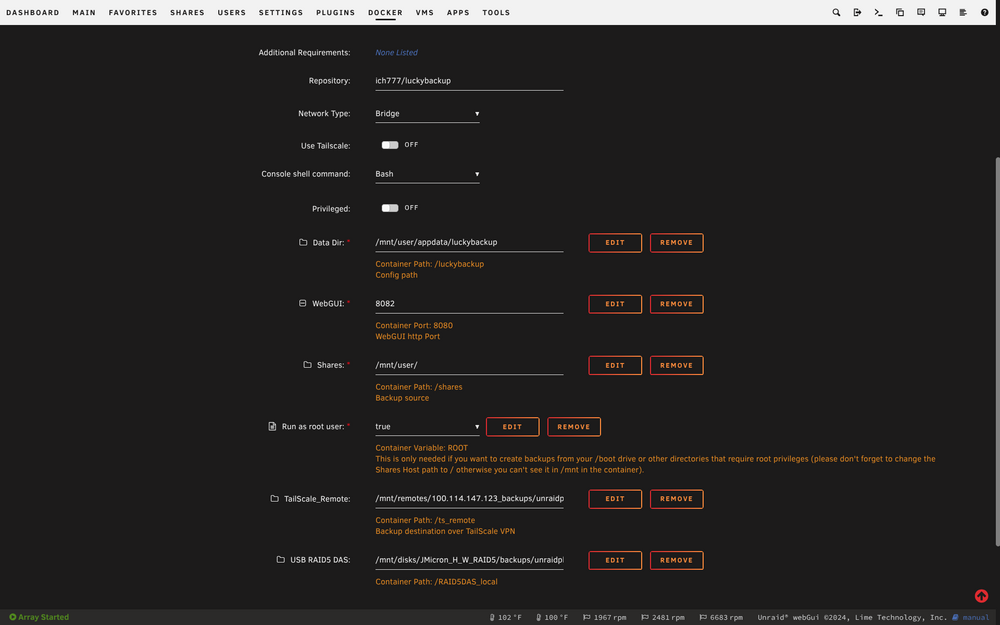
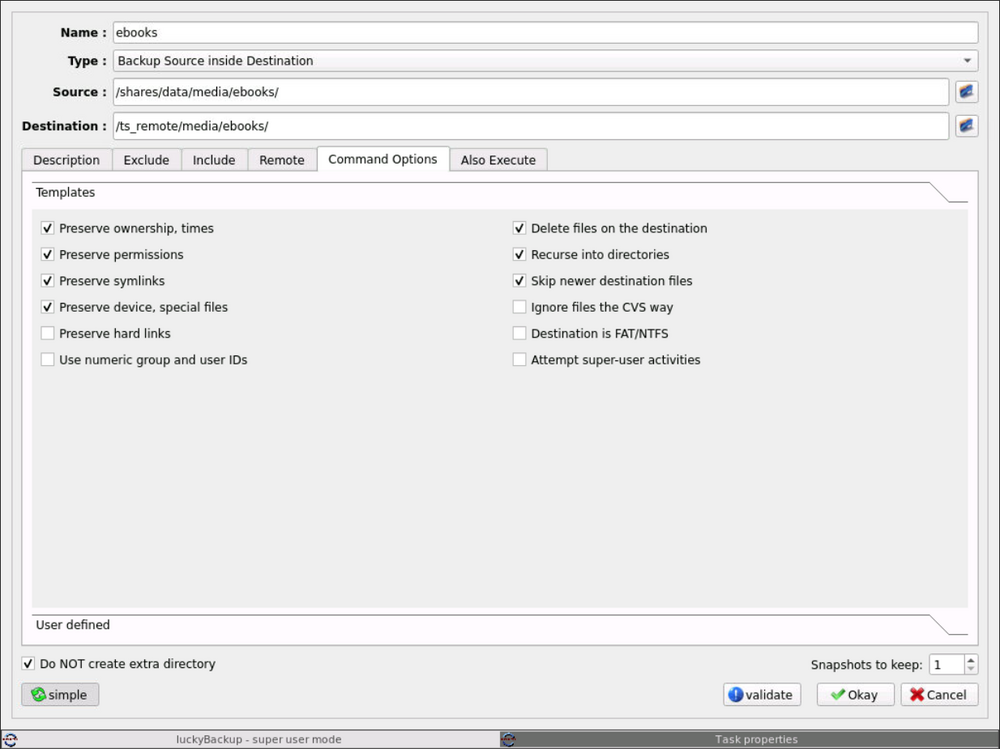
I'm not sure what you mean. The shares container path for /mnt/usr on the originating server as that is where I'm wanting to backup from. I'm creating tasks that all start in /mnt/usr so as to make navigating to each origin share easier. So for example: To backup my audiobooks which are located in /mnt/usr/data/media/audiobooks I have my task setup for /shares/data/media/audiobooks backup to /ts_remote/media/audiobooks. I mapped /shares to /mnt/usr because I also backup other shares like /appdata-backup, /nextcloud-backup, /isos, etc. Should I have created multiple folder mappings in Docker for each separate share on the host server rather than generically as /mnt/usr? I can do that but it seems like a lot of extra work. I am not knowledgeable about FUSE or the implications you're referencing. On my destination server, I have an NVME cache pool that is 1TB and the /backups share is set to write to it with 100GB minimum space. I have mover set to run daily, so as long as I don't have more than 900GB to backup in a single day I shouldn't run into any issues I would think.
-
Okay, so this makes absolutely no sense. I haven't changed anything at all from yesterday when I started experiencing these errors, but right after posting my screenshots I decided to run the ebooks task again just for giggles, and now it's working...albeit very slowly. I'll try working through each of the tasks one at a time and circle back if it starts throwing errors again.
-
Hmm. So I didn't change anything from when it was working except recreating the tasks that I had in place before. The way I have things configured is my main server (UnRaidPlex) backs up via Luckybackup to an SMB share called /backups that is on my remote server (UnRaidBackups). The /backups share on UnRaidBackups has a user with read/write permissions to the share called backups. That is the user that is authenticating to the SMB share over Tailscale. I didn't delete or recreate the container, and nothing was changed except the accidental deletion and manual recreation of the "default" profile within the GUI for Luckybackup. What started all this was I was trying to delete just one task that I no longer needed but accidentally clicked Delete at the top of the GUI instead of Remove Task on the right side. I recreated the tasks the exact same as before. The SMB mount was never changed, I've verified that the backups user can add/edit/delete files over SMB to the /backups share over Tailscale, etc. Attached is a screenshot of my container settings which are unchanged.
-
Howdy All, I had backups of various media folders (tv, movies, audiobooks, etc) successfully backing up to another Unraid box at my office via SMB share over a Tailscale VPN. It was working great until 2 days ago when I accidentally deleted the backup profile rather than just one of the individual tasks that I was trying to remove. So I painstakingly recreated all my backup tasks, but now when I try to run Luckybackup I get errors and can't figure out how to fix it. A dry run seems to work fine without any issues, but when I do an actual run of just one task (doesn't matter which), I get the following errors: My ebooks folder, which I used in this example, only has a total of 6.25GB of total used space. The receiving server has 29.8 TB free, and the cache drive that my backups share uses has 1.02TB free. So it's definitely nowhere near being out of space. I verified that the tailscale connection was good and the drive is properly mounted on my main server in unassigned devices. I mounted the destination share via SMB over Tailscale on my laptop and I was able to write a test file to the folder using the same "backups" user that I have setup for this task. So it's definitely not a permissions issue. I'm at a loss for what it could be or how to fix it. Luckily I haven't lost any data and I have other backup methods in place for my critical data, but I would sleep much better if I could get this working again. Any advice would be greatly appreciated!
-
Howdy All, I had backups of various media folders (tv, movies, audiobooks, etc) successfully backing up to another Unraid box at my office over a Tailscale VPN. It was working great until 2 days ago when I accidentally deleted the backup profile rather than just one of the individual task that I was trying to remove. Although I do use the plugin Appdata Backups, Luckybackup was giving me errors so I had it disabled until I had time to troubleshoot it. So I don't have a way to roll back Luckybackup to the day before I deleted the profile. So I painstakingly recreated all my backup tasks, but now when I try to run Luckybackup I get errors and can't figure out how to fix it. A dry run seems to work fine without any issues, but when I do an actual run of just one task (doesn't matter which), I get the following errors: The receiving server has 29.8 TB free, and the cache drive that my backups share uses has 1.02TB free. So it's definitely nowhere near being out of space. My ebooks folder, which I used in this example, only has a total of 6.25GB of total used space. I verified that the tailscale connection was good and the drive is properly mounted on my main server in unassigned devices. I mounted the destination share via SMB over Tailscale on my laptop and I was able to write a test file to the folder using the same "backups" user that I have setup for this task. So it's definitely not a permissions issue. I'm at a loss for what it could be or how to fix it. Luckily I haven't lost any data and I have other backup methods in place for my critical data, but I would sleep much better if I could get this working again. Any advice would be greatly appreciated!
-
TBH, I can't remember any more. I think I only managed to get it working briefly, but then it turned out there was an issue with the card and I had to return it. I gave up on ARC and installed an Nvidia Quadro for a little while. I had that working perfectly for a few months, but a couple weeks ago I completely removed my Windows VM and the GPU because I no longer need them. The only thing I was using it for was recording content via PlayOn Home, but it wasn't very reliable in the VM. I eventually just setup a dedicated Windows 11 mini pc for that task and instead decided to use my only PCIe for an HBA instead. Sorry I can't recall what I did back then.
-
Quick follow up: I pulled the JMB535 m.2 SATA x5 adapter, removed my Nvidia Quadro K620 gpu, added an HBA, and added another NVME drive. I also changed the QNAP m.2 SATA enclosure to RAID1 mode and plugged it into one of the motherboard SATA ports. Upon firing it up, I simply had to format the QNAP SATA SSD enclosure, add it to a new cache pool, and add the new NVME drive to my existing cache pool. Now I have 2 protected SSD cache pools: the NVME one for /domains, /appdata, /system, and /nextcloud; and the SATA one for /data, /isos, and /syslogs. Everything appears to be running well and there's no more log flooding with port multiplier errors! The only thing I "lost" in the scenario is the GPU that I was passing through to my Windows 11 VM, but I rarely used that anyways. I did "gain" 3 SATA ports on the motherboard, so I may toss in some additional SATA SSD's for VM's in the near future. Thank you once again for all the help JorgeB!!!
-
Ah HA!!! One of the SATA ports is populated with 2 x SATA m.2 drives inside a QNAP Dual M.2 SATA SSD to 2.5" SATA RAID Adapter Converter set to Individual Mode: (https://www.qnap.com/en/product/qda-a2mar). Looking over the documentation, it appears Individual Mode acts as a port multiplier, so that must be the issue! I am using that as a redundant cache drive but maybe I need to rethink how I'm doing this. I wonder if setting the enclosure to RAID 1 and having the redundancy at the hardware level rather than doing it in software would be better. I went ahead and ordered an HBA just in case, and if that would be the better route to go than the JMB535 M.2 adapter, that would free up several more SATA ports that I can use for separate 2.5" SATA drives which I can use for redundant cache pools. Thanks for helping me sort this out!
-
Hmm...the adapter I have is using a JMB585 chip which is one of the recommended chips listed on the page you referenced. I don't recall this being an issue in the past, so do you think the adapter is simply going bad? I have a spare NVME M.2 SATA adapter, so should I try swapping it out? This is the exact model I have: https://a.co/d/gVCZ8er Or should I just ditch the NVME M.2 SATA adapter and go with an HBA like this? https://a.co/d/aZH0HVN My concern with switching over to an HBA is that I read somewhere that disk location is part of dual parity calculation. Is it merely the disk layout in the Unraid GUI that needs to remain the same, or is it the physical location on the mobo that needs to remain the same? If all I need to do is take a screenshot of my disk locations then make sure they're still in the same slots in the GUI then I'm cool with that. --Please forgive my ignorance here. I currently have a GPU occupying the sole PCIe slot on my ASRock z690m-itx/ax mobo that I passthru to a Windows 11 VM, but I'm willing to ditch that if it will mean my data is safer and drives are more stable. I wonder if this is why I was experiencing system lockups a couple of weeks ago when I was attempting to backup about 25.5TB of data to a secondary Unraid server.
-
My server only has a runtime of 10 days or so, and prior to that it was having quite a few problems freezing up which required reboots when I was doing massive backups over LAN to another Unraid server. I see a few things in my syslog that are repeated quite regularly that might be the cause of it, but I don't know what they mean, if they're the issue, nor how to fix them. They're repeated messages about various ethernet ports being disabled, entering a blocking state, entering a forwarding state, etc. There were also some strings of errors when one of my tailscale mounted remotes in unassigned devices was down, but that is resolved now. I've attached my diagnostics and would greatly appreciate some insight/assistance getting to the bottom of this. unraidplex-diagnostics-20250216-0743.zip
-
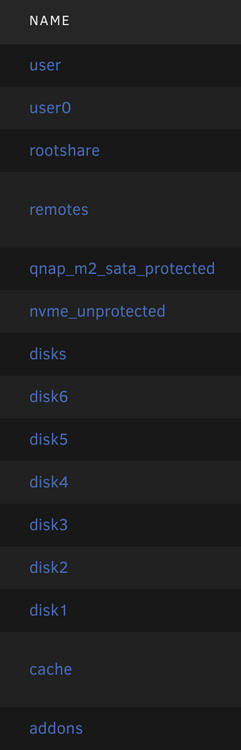
Actually, it turned out to be /cache . For some reason, an old Docker container that I'm not using was set to use it. I removed the container, removed all traces of it from appdata and rebooted. Now that share is no longer there and the warning in FCP is gone. Even easier fix than I imagined it would be!
-
Fix Common Problems just threw a warning I've never seen before and I'm having trouble figuring out what to do to resolve it: "Invalid folder cache contained within /mnt" I looked at the folders I have in /mnt , but I don't know which one is invalid or how it would have gotten created: I'm guessing the offending folder is either /rootshare /remotes or /addons as I know the others are valid. I'm sure it is an easy fix, but I'm not really sure how to resolve this, so any help would be greatly appreciated. unraidplex-diagnostics-20250112-0652.zip
-
I recreated the VM using the exact same settings and Vdisks, and now it works perfectly. Not sure why it worked, but I'll take it!
-
The VM will start up and I can log in via Chrome Remote Desktop, but the resolution is extremely low and the system is completely unresponsive. I can see all my desktop icons from before, but I can't click on anything. I've tried pinning the same CPU cores as what was pinned on the old 12400, but no luck. My Nvidia Quadro K620 appears in VM manager to be passing through, but inside the VM itself it doesn't appear to be working maybe?



