





.jpg.139f8d19d3464c04aeaee0a33577fb00.jpg)
Twisted
Members
-
Joined
-
Last visited
-
Tried to find an OP file and could not find one. I then tried to create one as well, with no luck.
-
Thank you for the links. I get the same errors on the console and in game. I'm stuck on this one.
-
Same Error message. It only sees my name if i put a space and no "
-
I also tried that, but it does not recognize my mane if I remove the space: No targets matched selector
-
Thank you for the clarification. I am still learning and that helped. I log into the console and when I type op (my gamer tag) I get the folloing error message: Syntax error: Unexpected "First Word": at "p First Word >>Second Word<<" I thought maybe because my gamer tag has a space, it may be causing issues, so I tried my XUID and received the same error. Does anyone have any suggestions?
-
Yes, I do have cheats enabled and it is the Bedrock Edition. I have never connected to the console of the container. Are there any guides on this out there?
-
I moved over my Minecraft world and it loaded up with no issues. The only thing I cannot figure out is why cheats is not working and the game loaded in creative mode. The settings are locked, so I can not change anything. My server.properties file seems to be working fine. My only guess is the game is loading me in as a player and not an admin? Any suggestions on how to fix this would be greatly appreciated.
-
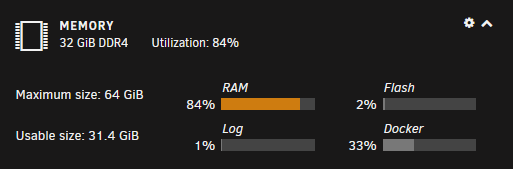
@BoxOfSnoo Thanks for the tips! 1. I tried turning on cheats again and it worked. I think what happened was it didn't work the first time I tried because I was not an operator yet. 2. I am still testing this one. I am not sure why my RAM is showing 84% utilization when I have 8 GB dedicated to the Unraid OS and Dockers. Maybe I need to test taking some RAM away from my Windows 10 VM and see if that helps.
-
@BoxOfSnoo Thank you! Sorry, I don't know how I missed that. I was a little too excited to finally have this up and running. It now says I am an operator, but when I open the chat, the controls to change the weather and time are no longer there. Did they move them in the latest update? It also takes about 5 to 10 seconds to load the world. Everything starts with clear walls. Is that a server resource issue? I am running 32 GB, with 8 GB dedicated to the system and Dockers. I have the Minecraft server running on a single core with the OS and the Windows 10 VM on the other three.
-
Here is what I have. [ { "permission": "operator","2533274801027666": "1234567812345567" } ]
-
ok. I thought there was a separate log in the Minecraft files. I updated the above code and replaced xuid with my ID and I am getting the following error. ERROR] xuid or permission missing from permissions file: permissions.json
-
Can you please share the server log location? I cannot find mine.
-
I already have a permissions.json file in the main folder, so I added the code and replace xuid with my gamer tag and nothing happened. Am I doing something wrong?
-
Is there a way to change only your permissions and not all players? default-player-permission-level=member # Permission level for new players joining for the first time. # Allowed values: "visitor", "member", "operator"
-
Unfortunately that does not turn on the feature. When you create a new world in Windows 10 with cheats off, you can change the weather and time. It might not be an option when hosting a file.
.thumb.jpg.0aafc0a6ea092e3977bcef718d794aa3.jpg)
