





robcalewar
Members
-
Joined
-
Last visited
-
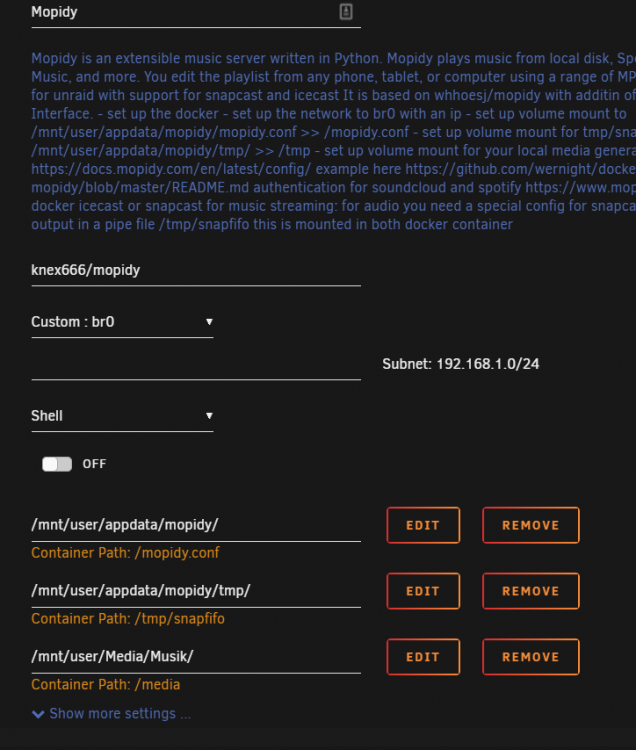
I'm having a really hard time getting this working. When I open mopidy through a webbrowser @ 192.168.1.2:6800/iris I get a page loading for an extended period of time before I get a 404. Something worth noting is all my other dockers run off my server's local IP 192.168.1.100 Here is a screenshot of my config Here's the contents of my config file located at /mnt/user/appdata/mopidy/mopidy.conf; [core] cache_dir = $XDG_CACHE_DIR/mopidy config_dir = $XDG_CONFIG_DIR/mopidy data_dir = $XDG_DATA_DIR/mopidy max_tracklist_length = 10000 restore_state = false [logging] config_file = /etc/mopidy/logging.conf debug_file = /var/log/mopidy/mopidy-debug.log [audio] mixer = software mixer_volume = output = autoaudiosink buffer_time = [mpd] hostname = :: port = 6600 [spotify] client_id = XXXXXXXXXXXXXXXXXXXXXXXXXXXXXXXXXX client_secret = XXXXXXXXXXXXXXXXXXXXXXXXXXXXXXXXXX username = XXXXXXXXXXXXXXXXXXXXXXXXXXXXXXXXXX password = XXXXXXXXXXXXXXXXXXXXXXXXXXXXXXXXXX [spotify_web] client_id = XXXXXXXXXXXXXXXXXXXXXXXXXXXXXXXXXX client_secret = XXXXXXXXXXXXXXXXXXXXXXXXXXXXXXXXXX [http] enabled = true hostname = :: port = 6680 zeroconf = Mopidy HTTP server on $hostname [iris] snapcast_enabled = true snapcast_port = 6680 [stream] enabled = true protocols = http https mms rtmp rtmps rtsp timeout = 5000 [scrobbler] enabled = false [soundcloud] enabled = false [local] enabled = false
-
yeah, mines having issues as well. Switching to legacy mode fixed it for the time being.
