





Smith007
Members
-
Joined
Everything posted by Smith007
-
For the moment just change Unraid GUI ports and use them for your Pi Hole as before. And wait for the update that @bonienl scheduled, which will restore the previous behavior of binding to the primary br0 IP only.
-
For me it was broken in any version 7. I upgraded from 6 and as I had no time to debug, I rolled back. Only now I finally had some time to sit and debug. But I'm pretty sure it was in 7.0 as well.
-
Thanks a lot, much appreciated. Side comment: that is why I love open projects or small companies. Try to get such a response from the big guys.
-
Clearly it was not tested. It was changed compared to 6.x though - intentionally or not. My solution is quite simple and so far allowed to keep standard ports for both GUI and swag frontend. Yes, the other solution is to change the GUI ports, but I see it less elegant and also possibly confusing in emergency scenarios (you need to know and remember non-standard ports). Thus would love to see the old behaviour back - meaning Unraid GUI binding only to the primary IP defined for br0 in Settings/Network.
-
Swag is running on Custom:proxynet for its backend services with plenty of free IPs and all ports available. But it has defined 192.168.1.11:80 and :443 for its frontend. Since version 7.x this is not working, as ports 80/443 are taken by Unraid GUI, which now binds to all IPs assigned to br0. It was not like this before, why was it changed?
-
Hi, I have my Unraid main IP of 192.168.1.10 and its GUI running in standard 80/443 ports of that IP. Since few years I had my swag proxy docker 80/443 ports bound to dedicated IP, running as a secondary IP 192.168.1.11 on the same interface as Unraid GUI, so on the same br0 (eth0). I was achieving assigning secondary IP to br0 by using User Scripts plugin, to add additional IP to br0 interface after array start. The script looks like this: IP=191.168.1.11/24 DEV=br0 echo "Adding $IP to $DEV" ip address add $IP dev $DEV After executing the above script I have had such a config: root@unraid:~# ip addr | grep 192.168.1 inet 192.168.1.10/24 metric 1 scope global br0 inet 192.168.1.11/24 scope global secondary br0 but Unraid GUI was bound to .10 only, and swag docker on .11 only - using the same standard 80/443 ports. It was working fine until 7.x Unraid was released. Seems that on 6.x Unraid GUI was binding to the primary IP only (possibly the one defined in Settings/Network), not to all IPs assigned to the br0. That way ports 80/443 were free on the secondary IP and available for swag docker. Seems the above behaviour was changed after upgrading to version 7, and now Unraid GUI is binding on all IPs assigned to br0 interface. That causes a problem with swag running on secondary IP, as now there is no free ports available for this docker. I solved this problem by assigning different, non-standard http/https port numbers for Unraid GUI, but is there any way to force Unraid GUI 7.x to bind only to its primary IP address and leave ports on the secondary IP untouched? as it was before...
-
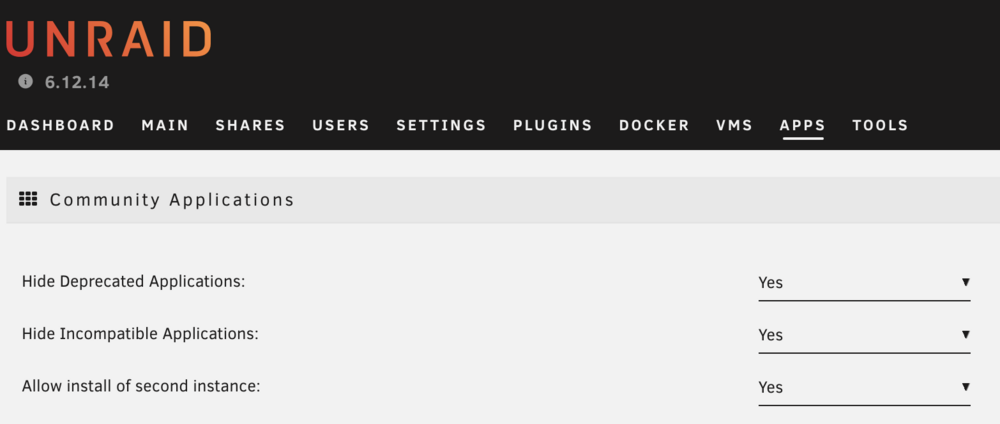
Small update, now it is called "Allow install of second instance", still in Apps / Settings menu.
-
Hi - I'm facing the same issue. Where can I find those different (per ovpn config) credentials?
-
I want a docker to put it in the same network, among other dockers using the same gateway. Thought this is he way
-
Hi All, I need to have a very simple docker, where I can execute various curl commands at a specific times. Basically bare Linux with some common tools and cron. Any suggestions?
-
Hi, I have installed webtrees docker, using MariaDB. All seems to work fine (I can access webtrees login page), except I cannot figure out default admin username and password. Also wt_user table is empty. Do I need to apply any special procedure to create admin account?
-
For SWAG it was enough to change upstream_port to 8080. Path to conf.yml must be changed manually, or I guess we can wait for official update in Unraid App repository...
-
Mine has stopped working after update. I have in on port 4000, but behind SWAG proxy. After update SWAG reports "502 Bad Gateway" and in error log "connection refused". Seems like this update broke something?
-
So it actually works like a charm. All you have to do is to list files you want the mover to skip in a text file, and tell the Mover Tuning plugin to use it. In my case seems it was enough to list: /mnt/cache/NEXTCLOUD/nextcloud.log (not sure, but I reckon it is important to use /mnt/cache/* and NOT /mnt/user/*) Seems it solved the problem with triggering secondary storage, but need some more days to confirm.
-
I will check hopefully tomorrow and report here.
-
Thanks! This is amazing - even when Unraid is not doing something, there is a plugin for it . I guess this is what i need:

-
Thanks for your suggestions re which files to keep on cache. More or less these was my picks too. I was hoping to copy them manually to primary ssd storage and then keep them there, by somehow forcing the mover to leave them where they are. Is that possible?
-
I have my Nextcloud docker on Unraid and it is working just fine. I'm using it mainly as simple Onedrive replacement, so to keep files. I have Nextcloud data on ssd cache as primary storage, and hdd as secondary; with mover running weekly. I have noticed though, that the secondary storegr if often woke up, even if no changes to data files / file structure are made. I think it is because some internal Nextcloud status or log files are on secondary hdd storage (moved there from cache after maximum a week) and Nextcloud client is simply triggering some read of writes to those "status" files, even if no regular data files are added, deleted or changed. If this is true – two questions: Which Next Cloud files / folders should be kept on cache only (not moved to secondary hdd storage) How to keep the above files out of scope of the mover job. I'm hoping that solving the above two points would wake up secondary hdd storage only in case regular data files are accessed by Nextcloud client.
-
But I didn't put anything in the Fixed IP Address field... anyway, see the below :). Agreed. I'm happy I got it working exactly the way I wanted it. Thanks again!
-
Previously it was listening in 192.168.1.10 ports 180/1443. Now it listens on 192.168.1.11 ports 80/443, as I wanted it to... How it is not affecting it anyhow? I must be missing something...
-
Yes but not sure why you considered them obsolete...
-
I'm not sure what you mean...
-
User Script / At First Array Start Only - seems like a good idea?
-
OK, I figured it out... First I needed to add additional 192.168.1.11/24 IP to default br0. Currently I'm doing in using sh commands, but looking for a way to make this change permanent, in a proper Unraid way - asked a question here. Then, in SWAG settings (or any other container) I defined the following port mappings: and voila - I have SWAG listening on 80/443 native ports, on dedicated IP. Easy enough, all works like a charm . Any disadvantages of this solution I should consider?

-
Primary IP of my Unraid server is 192.168.1.10 (br0 static IP). I'm adding additional IP to br0 using command: ip address add 192.168.1.11/24 dev br0 How can I make this change permanent, so it stays after Unraid reboot? I know how to do it on generic Linux and probably could find some way on Unraid too, but would like to do it in a proper, Unraid supported way...




