





extremeaudio
Members
-
Joined
-
Last visited
Everything posted by extremeaudio
-
My lan speed seems to be very slow. Even the led next to the port shows amber light instead of green. I know its a giga capable switch and cable, another appliance connected to the same cable gives a green light. Inside unraid, in the dashboard, next to eth0 I can see "1000 Mb/s, full duplex, mtu 1500" Even issuing ethtool eth0 shows 1000 BaseT in the supported modes. But i still get an amber light. Diagnostics attached. server-diagnostics-20241114-1740.zip
-
I removed and re installed the zerotier docker. Under network settings, I added the route 10.147.20.0/24 Then I added the new string created to the managed routes list. I can access the web interface but not samba or ssh. I have many unused routes in routing table. Could these be causing the issue? Cannot delete them from the web interface. Dont know how to delete from ssh. ``` route Kernel IP routing table Destination Gateway Genmask Flags Metric Ref Use Iface default 192.168.1.1 0.0.0.0 UG 0 0 0 eth0 10.147.1.0 0.0.0.0 255.255.255.0 U 0 0 0 ztsgkmfu zk 10.147.19.0 0.0.0.0 255.255.255.0 U 0 0 0 ztgnz7g6 di 10.147.20.0 0.0.0.0 255.255.255.0 U 0 0 0 ztgnzrcm 54 10.147.22.0 0.0.0.0 255.255.255.0 U 0 0 0 zt6icxit bn 172.17.0.0 0.0.0.0 255.255.0.0 U 0 0 0 docker0 172.18.0.0 0.0.0.0 255.255.0.0 U 0 0 0 br-24b9d 178bd9e 192.168.1.0 0.0.0.0 255.255.255.0 U 1 0 0 eth0 192.168.1.0 10.147.22.19 255.255.255.0 UG 5000 0 0 zt6icxit ``` How do I resolve this?
-
Since the zerotier client from within unraid's community applications does not fully work anymore, is it possible to install zerotier using the bash script directly onto the OS? Any steps, suggestions, precautions would be welcome.
-
Just wanted to report that this fix works. I reset my network.cfg file and then added the extra entry in routing table to the list of excluded interfaces. And also added the 10.147.X.X zerotier IP to the list of included interfaces. EDIT : That was shortlived joy. After a restart it stops working again. Can Zerotier be installed onto the core Linux using entware or something? It sucks to not be able to remotely access the server.
-
In my routing table, I have 2 entries from zerotier. Although only one is added to the listening interfaces, the other is still in the list and I am unable to take it out. This is from a previous zerotier container that was in use. Could this be causing problems? Dont know how to remove it from the table. Clicking on the cross does not remove it.
-
I disabled the netbios setting in smb settings, rebooted but still no luck. Unraid is the latest stable version. Zerotier docker is updated to the latest. So, smb and ssh both dont work using the ZT IP. It seems like everything I can do remotely using a browser is working while everything that needs any other interface isn't.
-
Didn't understand your question. On the local network I am able to access my server by typing \\192.168.1.49 into the Windows Explorer address bar. When connecting remotely using Zerotier, I use the Zerotier generated IP like \\10.140.25.49 And obviously I use the same IP, like http://10.140.25.49 in a browser to access the web UI etc. Its the same IP for all remote access, just the port etc is different, obviously.
-
Thanks, I can access the WEB UI now with this script. But accessing the samba shares at \\unraid-zerotier-ip-address still doesnt work
-
Is there any solution to this? This has completely broken the ability to remotely access my tower. Will downgrading to some older unraid version help?
-
smart test extended result attached. MAIN shows no errors now. smart-20240415-1107.zip
-
Diagnostics attached. On a side note, I am also unable to update unraid. The page is blank. Should I just manually copy paste the bz* files? Can this be done with server running? diagnostics-20240411-2108.zip
-
In the MAIN view, one of the disks is showing 400 something errors, in the errors column after reads and writes. There is no disk disabled or anything. What is the process to clear this? As far as I remember I had run a parity check after this with write correction to disk enabled but this still shows.
-
I downgraded manually from 6.12 to 6.11 because zerotier does not work properly on 6.12 Now after booting the docker containers are all stopped. If I try to manually start it says "Server Error Execution Error" How to fix this? Diag attached. diagnostics-20240319-2159.zip
-
Sorry for being really dumb about this but my docker knowledge is very limited. The stack used is as below. Where do you think I could possibly retrieve the data from? And I hope I didnt overwrite the data since I have tried to start the stack since Any suggestions? version: "3" services: ztncui: image: keynetworks/ztncui container_name: ztncui environment: - USER_UID=99 #adjust to your system - USER_GID=100 #adjust to your system - NODE_ENV=production - HTTPS_PORT=3443 - ZTNCUI_PASSWD=******** #change this volumes: - ztncui:/opt/key-networks/ztncui/etc - zt1:/var/lib/zerotier-one ports: - 3443:3443 #dashboard port - 3180:3180
-
I have reconnected using SATA. Everything seems to be restoring fine except the userdata of the container added to portainer using stacks, outside of unraid app store. Any idea where this might be stored? In the docker.img itself? When I try to copy back the old docker.img I had backed up, the web UI hangs. I can only create the new docker img but then old data is lost.
-
Dockers disappeared again. akserver-diagnostics-20240125-1233.zip
-
This is not related dorectly to unraid, but I would be glad if someone helped me out. I installed zerotier controller on unraid using stacks in portainer-ce docker installed from the unraid app store. Now when I restore from the appdata backup and reinstall portainer from user templates, portainer installs properly and also shows a stack called ztncui which is the correct one. But ideally there should have been networks etc which is the userdata of that container. But I cant see that. Any way to restore that? In additon to the backup created by appdata backup plugin I also have a copy of the appdata folder and docker.img saved away, in case that helps restore the data any better.
-
Now the docker starts. But when I am installing from user templates the user data is not showing. The containers seem to be installing at default. Actually I'm not sure. Some containers seem ok. Others seem default. Cant be that way, right?
-
No it does not create a user template. So should restoring the appdata using the appdata backup/ restore plugin recreate the previous state? Just reseated everything and restarted. All looks ok now? Diag attached. akserver-diagnostics-20240122-1523.zip
-
Deleted the docker img, re created it and docker service started fine. Now I get some read only filesystem error when trying to install dockers. Btw will all the dockers be restored back perfectly when reinstalled using user template? I also had a zerotier controller docker installed from outside the unraid app store by using stacks in portainer I believe. So should installing portainer with the user template restore that docker? diag attached. akserver-diagnostics-20240121-1922.zip
-
syslog attached.syslog-192.168.1.49.log
-
Yes, within a few seconds of trying to start docker. Docker does not start.
-
I removed one of the 2 RAM sticks suspecting a bad RAM and had forgotten to put it back as the problem still persisted. With docker disabled the server is working fine. When should I issue this? Should I start docker now and immediately do this? Currently the output of that command is as below df -h Filesystem Size Used Avail Use% Mounted on rootfs 3.8G 232M 3.5G 7% / tmpfs 32M 520K 32M 2% /run /dev/sda1 29G 830M 28G 3% /boot overlay 3.8G 232M 3.5G 7% /lib overlay 3.8G 232M 3.5G 7% /usr devtmpfs 8.0M 0 8.0M 0% /dev tmpfs 3.8G 0 3.8G 0% /dev/shm tmpfs 128M 224K 128M 1% /var/log tmpfs 1.0M 0 1.0M 0% /mnt/disks tmpfs 1.0M 0 1.0M 0% /mnt/remotes tmpfs 1.0M 0 1.0M 0% /mnt/addons tmpfs 1.0M 0 1.0M 0% /mnt/rootshare /dev/md1p1 7.3T 5.7T 1.7T 78% /mnt/disk1 /dev/md2p1 7.3T 6.8T 504G 94% /mnt/disk2 /dev/md3p1 7.3T 305G 7.0T 5% /mnt/disk3 /dev/sdb1 75G 35G 40G 47% /mnt/cache shfs 22T 13T 9.2T 59% /mnt/user0 shfs 22T 13T 9.2T 59% /mnt/user tmpfs 762M 0 762M 0% /run/user/0
-
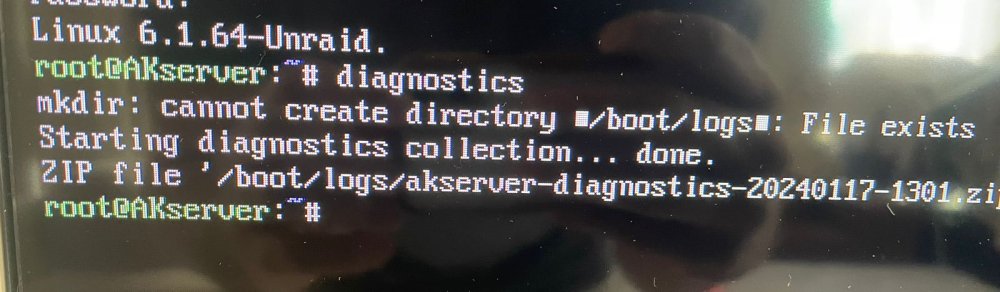
I tried typing diagnostics with a keyboard attached to the tower again but same result. The screen says the file is saved but there is none in the flash. Pic attached. After that I booted using the flash by disabling docker and saved a diagnostics that is attached. Then I enabled docker from the web UI and attempted another diagnostics download which failed midway, presumably as the web UI and whichever other devices went down. The text that showed in the diagnostics pop up window are pasted in the text file attached. akserver-diagnostics-20240117-1310.zip failed diagnostics.txt
-
My tower cache disk became undetectable. So I swapped around a few cache disks till I realised a cable was faulty. The data disks are fine. After starting back up the tower web UI becomes unaccessible when trying to start docker. Unable to access the tower via putty from another machine too. Fortunately terminal on the tower itself works. So I typed diagnostics at the terminal. But after a message that said some /log file exists and saying that it is collecting diagnostics for a minute or so, there is no diagnostics zip on the flash drive. What do I do? I have tried checking the flash for errors. Nothing there.
