SSD
Moderators
-
Joined
-
Last visited
Everything posted by SSD
-
It is very important to understand the way parity works. When you swap / reconstruct a drive, unRAID is going to restore it as a bit for bit copy. It DOES not copy each file individually. If the disk was fragmented, the restored disk is fragmented. Every sector of the new disk will be identical to every sector on the old disk. So if the old disk is formatted with RFS, when you rebuild it, the new disk will be formatted with RFS. If you tell unRAID that the FS on the new disk is XFS, and then you restore an RFS disk on it, unRAID will still recover it sector by sector, but in the end unRAID will not recognize it as having a valid XFS format. If will show "unformatted" because it not contain a valid XFS disk format. You would have to switch it over to be a reiserfs disk, and then unRAID should (hiopefully, I've never tried it) recognize it and mount it. But if you do a recovery and the wrong FS is selected, and then click "format" because you are confused as to why the disk didn't recover, your recovery would be LOST and you'd be having to use reiserfsck (a last resort) to try to salvage some of your data! So hopefully the message is clear. You cannot use unRAID's disk rebuild process to switch file systems. It does not work that way. If you do not understand why after this explanation (OP and other users), please ask for clarification. This goes to the heart of understanding what unRAID is and does, and understanding this very basic concept will help you recover from a variety of situations. So how do you move from RFS to XFS? First, you need to buy (or free up) a disk as large as your largest data drive. If it is a new disk, you have to preclear it and add it to your array like any other new disk. For these instructions, I will assume your array looks like this: parity - 4T disk1 - 4T - RFS disk2 - 3T - RFS disk3 - 4T - RFS disk4 - 2T - RFS disk5 - 4T - new/empty disk, FS doesn't matter we're going to set it in a minute 1 - Define your disk conversion order. Below is an example for this sample array. Make sure your order takes into account the drive sizes. If you copy a 2T drive to your new 4T drive, the 2T drive will not be big enough to convert your next 4T drive. You'll see I start with the biggest disk, and then move to the smaller ones. In the end, the smallest disk is empty. Substitute [source] and [dest] in the instructions below based on the round you are in. I don't address cache conversion. That's another topic. round [source] [dest] notes ------- ----------- -------- ------------ 1 disk1 disk5 2 disk3 disk1 (4T to 4T) 3 disk2 disk3 (3T to 4T) 4 disk4 disk2 (2T to 3T) 5 --- disk4 (empty the 2T) 2 - With array stopped, change the filesystem on [dest] to XFS (or BTRFS is that is your preference. Most users are going with XFS). 3 - Start the array, the new XFS disk should show unformatted, all the other disks should be formatted!! (IF NOT, DO NOT PROCEED) 4 - Format the unformatted with unRAID. XFS disk formats. (If you are on the last round and just reformatting the last disk to XFS - round 5 for the example - you are done!!!) 5 - Open or resume a screen session (Aside - we are about to copy all of the files from one of your RFS disks to the XFS disk. If the disk is involved in a user share, this will result in creating duplicate files out the ying yang! For that reason, I create a temporary directory (I call it "t") on the XFS disk and copy everything there. This will eliminate the possibility of your user share dealing with and possibly logging all the duplicates. Once the copy is completed and verified, we will move the files from the "t" directory to the root, and get rid of the "t" directory.) 6 - Make the "t" directory on [dest]. You can easily do from Windows Explorer or with this command: mkdir /mnt/[dest]/t 7 - Copy the data from the [source] to [dest]. Note this will take a long time (this is why doing it in a screen session so it will not timeout). Do overnight or at a convenient time when the array will not be heavily utilized. You definitely don't want to be doing a parity check while this is happening! Note that -rpv means do it recursively, preserve the permissions, and be verbose (it lists each file it copies). Make sure they are all in lower case. cp -rpv /mnt/[source]/* /mnt/[dest]/t Note if you happen to have the [dest] disk red-ball in the middle of the copy, you will have to do a drive replacement. I would recommend stopping the copy once you notice this has happened. You can resume it later. Then follow the normal disk replacement procedure. If this happens it is likely a file will get have been corrupted and the comparison below becomes very important so you know which one it is so you can re-copy it from the [source] before the source gets overwritten in the next round. 8 - It is now highly recommended to compare the checksums of the source to the dest. (If not, at least spot check several files). There are multiple ways to do that including md5sum, bitrot (a user contributed script). There is also a way to use rsync (perhaps Weebo will post or link instructions - sorry, i couldn't find them) to do the copy and verify in one rsync step. If there are questions here, please ask. My method is a bit of a Rube Goldberg, but will try to clean it up and post if there is interest. UPDATE: Here is one way to complete step 8 (see later post in this thread) (thanks to danioj): From a screen session, run this command: rsync -nrcv /mnt/[source]/ /mnt/[dest]/t >/boot/verify.txt This will put the output of the comparison in a file on the flash disk. It will likely have little or no output, but this will preserve all output in case it is lengthy and would scroll off the screen. You can view the output with this command in another session: cat /boot/verify.txt 9 - If there are any comparison failures, stop here and ask for help 10 - Now is the good time to move the files in the "t" directory to the root on [dest]. I do this with cut and paste from Windows explorer. 11 - Stop the array (no need to delete anything from the [source]) 12 - Go back to step 2. Note that this isn't a race - you can do it at your leisure of the course of days, weeks, or months. I do one or two a week or so. Good luck. Post any questions.
-
Not that is totally unfair, we Canucks get shafted. I've been deciding to get removable cages for a while now and your thread has been helpful. The Norco SS-500 is on sale for $65 plus 20% code right now. SM and other cages are also on sale now. Still trying to decide Norco or SM. I like the SM ones. The aluminum cages surround the drive (think horseshoe) and allow air to flow over all the hot surfaces providing exceptional cooling. The Norcos conver the bottom of the drives where heat is at its highest with a metal plate that prevents good airflow on this the hottest surface. The SMs fans are larger and provide better airflow. Some complain they are noisy, but they are easily replaced with quieter ones if desired.
-
thanks for all the feedback. can anyone point me in the right direction in terms of how to run a memory test on the server? One of the boot options on the unRAID server is to run the memory test.
-
This is an exceedingly rare scenario. It may mean bad memory in the computer, bad (cache) memory on the disk, or even bad memory on a controller. Remotely possible is a bad connection. Faced with this I'd likely run a 24 hour memory test on my server.
-
My understanding is that the economics of testing drives just isn't there in the business world. Redundancy and backups are there to protect data. Testing is expensive.
-
I use Amex. I just gave them the model number, serial number, purchase date, and purchase price. They didn't ask for me to send any of it. In fact, they didn't even ask me to send back the drive. They just credited my account for the purchase price. Newegg and Amazon keep e-purchase receipts forever, so I was able to find my receipt pretty easily to give exact date and price.
-
Absolutely agree. And in addition to that you get a drive that uses less power; runs cooler; and is optimized for vibrational control. Definitely worth a few extra $$ in my opinion. Ditto. I certainly agree I'll never replace my older, smaller drives when notably larger sizes are available; but it's certainly reasonable to expect you won't need to do this every year. 3 years is a good interval for this. One other thing I've noted: It is VERY likely that if you have a drive fail after a couple years and RMA it for replacement that you will receive a LARGER drive in return for it. Both WD and Seagate do this routinely; and I assume others do as well. So a longer warranty not only means you won't have to buy a new drive for that slot for longer; but it may also mean that if it DOES fail you'll get a larger drive without the need to buy one Don't forget the extra year of warranty you get with Amex (and some other credit cards too).
-
Unfortunately my crystal ball is acting up lately. I would not be surprised to see 4T drive hit $99 on an outstanding sale. So far the best I've seen was $129 from Fry's (which usually provide only in-store discounts, but this one time it was allowed for mail order, but quantity was limited to 1). I am not sure how aggressive WD is going to be with the HGST brand, though, as I've seen signs of models being discontinued and prices rising not falling. Personally I'll be holding off before adding 6Tb drives to my array. Nothing has proven itself so far. 4T is relatively enormous when you compare it to the 500G drives in my array a few years back. Don't get me wrong, If I saw them on sale for $199 I might try one, but not holding my breath. Reading a little wishful thinking in there. We have certainly seen signs that price and capacity are driving the market more than reliability. I put more stock in your positive experiences than some guess that BackBlaze's inventory is an early production model. It does appear that the 3T Reds get dramatically less reliable over time, so I am concerned for people that use them suddenly having issues around the time the warranty runs out. Traditional RAID arrays stripe data. If a drive is slow to respond the RAID firmware (or software) will kick a disk from the array. Desktop hard drives aggressively try to detect and correct errors, which can take too much time for the RAID subsystem, and result in a drives being kicked from an array too frequently. NAS firmware will therefore seek to REDUCE the error correcting features of the drive in favor of a quicker response. This is what you get with a NAS drive. Since unRAID does not stripe, the quicker response is NOT needed. So I could easily argue that NAS "optimizations" are actually a slight negative for unRAID. Combine that with the fact that BackBlaze is reporting worse reliability on even Enterprise drives than desktop drives, despite their premium price and warranty, leads me to believe that NAS drives are not going to offer any longevity advantage.
-
Prices for various drives bounce all over the place. I bought a 4T HGST for $129. My approach is to wait for a good deal on a drive I want and then buy them, whether I need the space right then or not. Obviously you can overdo, but 2 or even 3 drives in reserve is not a bad thing IMO. Right now is a pretty dry time to be buying - no good sales recently. But black Friday and Xmas are coming. Keep your eyes open.
-
I have 2 Seagate 4T drives and rest are 3T and 4T Hitachi/HGST. They stay away from the bleeding edge, so density is not as high, but reliability is outstanding.
-
BackBlaze 2014 Report Highlights: HGST (previously Hitachi) 2T-4T excellent (0.7% - 1.4% annualized failure rate) Seagate 4T decent - 3% AFR WD Red 3T bad - 8.8% AFR Seagate 1.5T-3T varies from bad to sucky by model - 6.7% - 24.9% AFR Consumer drives slightly more reliable than enterprise drives at more that 2x the price.
-
I like them to. myMain has been doing something similar for years ... Hover text gives precise meaning for each icon. (Note this isn't a real array, it is a sort of demo mode that randomly picks the icons. Normally you'd see all check marks on the array disks, and a red X if a disk were kicked from the array.)
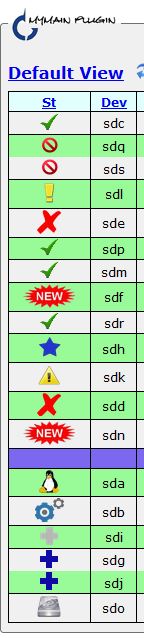
-
My color blindness is not severe. And if I see a large sample of red and a large sample of green I CAN tell the difference. But with a tiny image I can't. Blue is clear but other colors (red, green, orange) all get muddled and I can't differentiate. (Note this applies to all screen showing these color statuses - including the "Shares" page.)
-
Thanks guys!
-
unRAID uses color to denote meaning and would be inaccessible to users with disabilities. Users like me, with red/green color blindness, are not able to see when a disk is red balled. About 10% of males are red/green color blind. Or you could use different SHAPES in addition to different COLORS to designate state. Or the hover text could show the state of that disk, and not a list of all of the states. I have to use myMain to tell if a disk is "red balled". It shades the whole row and changes the drive icon.
-
RobJ - great job! Great info so far, and once complete this will be an outstanding resource!!! I will be adding a link from myMain.
-
PS3 Media Server and/or minidlna media server My son with the PS3 would be eternally grateful!
-
FILEBOT Not clear if it has a web gui, but the command line would be great. I would even be willing to create a basic Web GUI for the command line version if that is desired to make it into a Docker container.
-
If you bought with Amex you get an extra year of warranty, and that's from the purchase date, not the borne date. I refer to the problem you see with that disk as the pothole effect. Every time the drive reads that area and reallocates some sectors, the pothole gets bigger and more need to be remapped.
-
Update: 8/9/15: So happy with the Seagate 5T drive I had, I bought another one that i found locally on a good sale. The shell had a blue bottom - and it was much easier to extract the drive than the prior generation. The drive model was the same as what I had. It made it through the preread and zeroing phases with no problem, and was 80% through the post read. But next time I checked back on it the drive had been dropped from the server. It was /dev/sdc, and that device no longer existed. Long series of errors in the syslog with no clue what happend. I rebooted, and checked and the drive was not precleared. So set it up to postread just the very last few % and watched it. The postread finished, but then it entered a series of I/Os to the very very beginning of the drive to install the partition and preclear signature, the drive hung for a while and then dropped. Rebooted the server with the drive in another slot. Smart report was fine. Same thing. I noticed that the firmware revision was different - I think it ended with a "6" but forgot to write it down. Anyway, I returned it as a defective drive. Can't say why this happened. Maybe a bad drive that just happened to have a problem at or near sector 0, or maybe Seagate playing games. Either way, I've switched to Toshiba. Update 7/25/15: Since originally writing this review - I have learned that this drive is an SMR drive meaning that it has overlapping tracks that require very special writing. This can result in slow performance under certain circumstances. To alleviate performance issues, the drive features a persistent cache - a non SMR portion where writes are made and later, when cache is full or drive idle, the drive copies from the cache to the SMR area. I believe that I was trying to do I/O while the drive was dumping persistent cache which created some very strange performance characteristics observed and detailed in this thread. Maybe there is special logic in the USB bios to prevent this type of thing, but when attached to a normal SATA controller, the odd slowdowns were interpreted as related to a purposefully restricted BIOS making the drive perform poorly when connected to a SATA port. This theory was developed based on research I found on the internet from other users' experiences and seemed to fit the facts. I now believe this is not the case, and that the experiences users were having should actually have been attributed to the SMR technology in the drive. (Seagate never disclosed these to be SMR drives). After reading about 8T SMR drives I decided to test it again (previously it had been reverted to be used as portable USB 3 drives and used very infrequently). Once I removed it from the USB enclosure and inserted it in the server, I let it sit for over a week, so absolutely any persistent cache activity would complete. I then precleared the drive, let it sit a week, copied a bunch of data to it, and performed a parity check. The drive is performing quite admirably. My plan is to fill these drives with sequentially written data (minimal if any fragmentation) and use the PMR drive space freed by copying data to this drive for everyday reads and writes. (Although I let the drive wait about a week, a day would likely have been more than enough). Sorry for misleading anyone with my writeup, which was intended to help others avoid problems with the drive. ORIGINAL WRITEUP: I recently bought a 5TB Seagate Expansion drive (STBV5000100), precleared it in the USB case, extracted the drive, and added it to my server. I saw a few oddities in which it would not correctly report its spindown status, but was able to fix that. Yesterday I tried to start migrating some data to the disk and that's when the real problems started. The disk locked up while trying to copy data to it. And afterwards, trying to run a preclear preread test on it, the performance of the drive was all over the place (from 8 MB/sec to 120 MB/sec - back and forth and in between). I tried different controllers, different servers, and all methods to get the drive working, but nothing worked. I was able to get about 20G of data copied at one time, but then it locked up again and on reboot all of the data was gone. I reassembled the USB enclosure and hooked it up to a USB3 port on my desktop. It works fine (even quite well) in that configuration. If anyone is using one of these drives successfully as an internal please reply with your experiences. Maybe I just have a bad one but it just doesn't feel that way to me. It appears (see below) that Seagate may have intentionally crippled the firmware on the drive to not work properly as an internal drive. I have advocated that this would be a good choice based on price per TB, but highly recommend that unless you need a 5T USB drive that you pass on this one. If true, it is extremely disappointing to see Seagate act in this way. I did not have all the problems mentioned in the review - I did get it to recognize as AHCI - but as stated above it is not working properly and I suspect the firmware. This is not the only problematic review, but certainly sounds like a knowledgeable user as compared to others which sounded like newbie's to me that just didn't know what to do. I have quoted the review (from Timmothy W.) in case it were to get removed from Newegg:
-
I precleared a 5T external drive in its USB container, and it completed successfully and verified as precleared afterwards. I then removed the disk from the USB enclosure and added it to the server as a SATA disk. It is being recognized correctly and the preclear signature verifies. But I noticed that the reported drive size is very slightly different. When it was precleared in the USB chasis it thought the drive size was 4,883,770,548K, but when it connected directly to the SATA port it is reporting a size of 4,883,770,552K (difference of 4K). Do I need to preclear the disk again? If not would unRAID see that the partition as not completely filling the disk and go into its own clear. Thanks for your thoughts on this.
-
Did you look at my link/instructions about replacing parity? It answers your question about when to preclear (see step 0)
-
Do you plan to introduce the new drive to replace a smaller parity, and then add the old parity drive as a data drive to the array? Refer to the "Replace parity" how-to link in my sig for some instructions.
-
I don't understand what you are trying to do. It is true that unRAID does not come with a backup tool, but backing up the contents of the array to another server is as easy as copying the files. Most people use unRAID as a backup destination (i.e., backing up workstations). The ability to backup an entire array to an Internet site has feasibility issues due to the extremely long time it would take. I do not think this is a valid criticism of unRAID or its authors.
-
Did you make sure to double check the response didn't go into junk or spam? Tom is very diligent at issuing keys and if you didn't receive yours you need to reach out to Limetech via email to resolve these types of issues.