





Transient
Members
-
Joined
-
Last visited
-
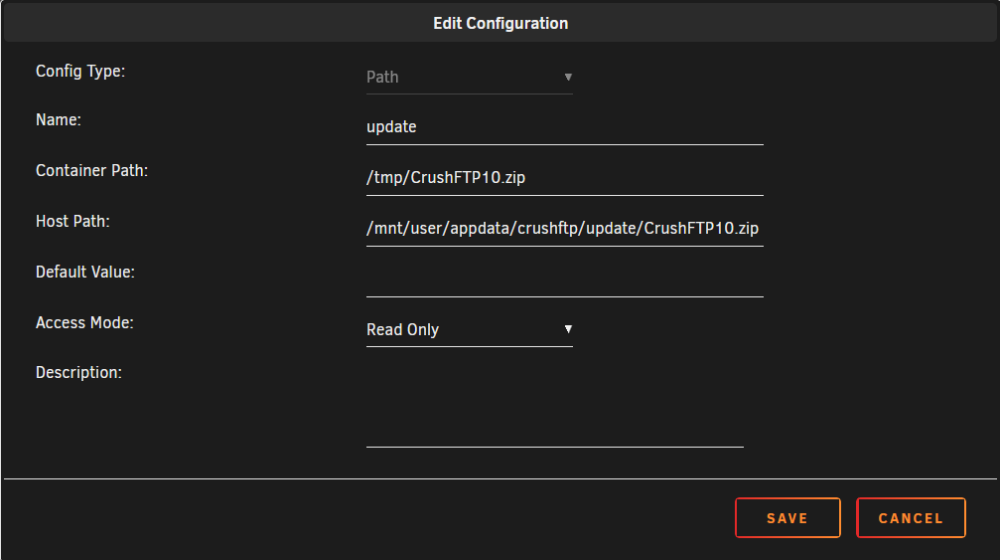
Anyone running the CrushFTP10 container should be aware that there are several critical vulnerabilities in the version of CrushFTP being used (10.0.0). Details are available on their wiki: https://www.crushftp.com/crush10wiki/Wiki.jsp?page=Update I'm not sure what happened to MarkusMcNugen, but he seems to no longer be maintaining these projects. Here's a workaround to this problem: 1. Download CrushFTP 10.7.1 from CrushFTP's website: https://www.crushftp.com/early10/CrushFTP10.zip 2. Save the file into your CrushFTP appdata folder. eg. /mnt/user/appdata/crushftp/update/CrushFTP10.zip 3. Add a new path, mapping the update file to /tmp/CrushFTP10.zip (case-sensitive). The container looks for this file on startup and auto-applies the update, if present. 4. Be sure to set the mapping "Read Only", otherwise the file will be deleted after the update and you'll be back to 10.0.0 on the next startup.
-
I was able to resolve this issue, but wanted to share in case it helps someone else. Today I noticed many of my Docker containers weren't updating. They'd run through the update process without error, but in the end would still be running the outdated version. Upon a closer inspection of the update window, I noticed the pull did not complete extracting. I believe Unraid aborts the pull after a set amount of time, but then proceeds with a stop / remove / start of the container anyway, thereby finishing with the same version you already had previously. In my case, there were two reasons this timeout was occurring: docker.img was stored on the array the array was undergoing a parity check After moving it off the array, the problem was solved. In addition to this, I've had the rare instance where a container disappears. I could never figure out why this occurred and assumed it was due to a failed update, but I wouldn't notice until some time later. Today I finally saw the problem occur and it's related to the same issue above. The container would fail to stop due to the stop timeout being hit (which is configurable), but the the update process continues anyway. Next it would fail to remove the container and then fail to create a new container because one with the same name already exists. Then a few moments later, the remove command is processed and the container is gone! Both of these problems can be resolved by simply not putting docker.img on the array. Or possibly configuring things such that you never update your containers during a parity operation.
-
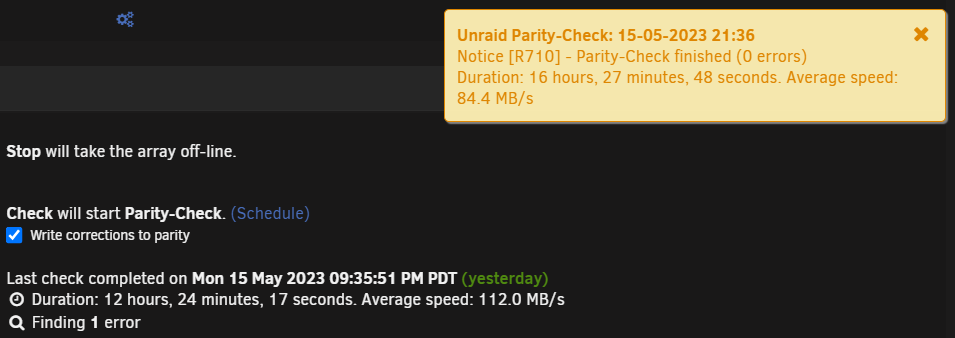
Parity history shows 1 error as well. Action Date Size Duration Speed Status Errors Parity-Check 2023-05-15, 21:35:51 (Monday) 5 TB 12 hr, 24 min, 17 sec 112.0 MB/s OK 1 Data-Rebuild 2023-05-08, 12:43:16 (Monday) 5 TB 16 hr, 27 min, 48 sec 84.4 MB/s OK 0 Parity-Check 2023-05-01, 19:09:46 (Monday) 5 TB 16 hr, 9 min, 45 sec 85.9 MB/s OK 0 The longer explanation is one of my drives started throwing read errors. I tried rebuilding it in a naive belief that it was a one-time event. Unsurprisingly, it was not. I then used the clear_array_drive script to zero out the drive without losing parity and then permanently removed it from the array as I don't really need the storage anyway. To be safe, I ran a parity check afterwards and it came back with 1 error, but the notification says 0 errors.
-
Hello. I ran a parity check and the notification tells me there were 0 errors, but the Main tab shows there was 1 error. Is this a known issue? Kinda weird that they would show different results, although I imagine the result on the Main tab is correct.
-
Thanks for all your work on the new version. Having just upgraded, I have one suggestion. Would it be possible to migrate the config from the old one? If so, it might make things easier for users transitioning.
-
I had the same problem with Catalina after going to 6.11.2. I tried everything I could think of and eventually I gave up and set up a new VM with Macinabox Big Sur. I then attached my old HDD and let it migrate data from my old Mac to the new one. Afterwards, everything is working as it was before. I'm not sure if that helps as I did upgrade to Big Sur during the process. If you need to stay on Catalina, maybe that would work too.
-
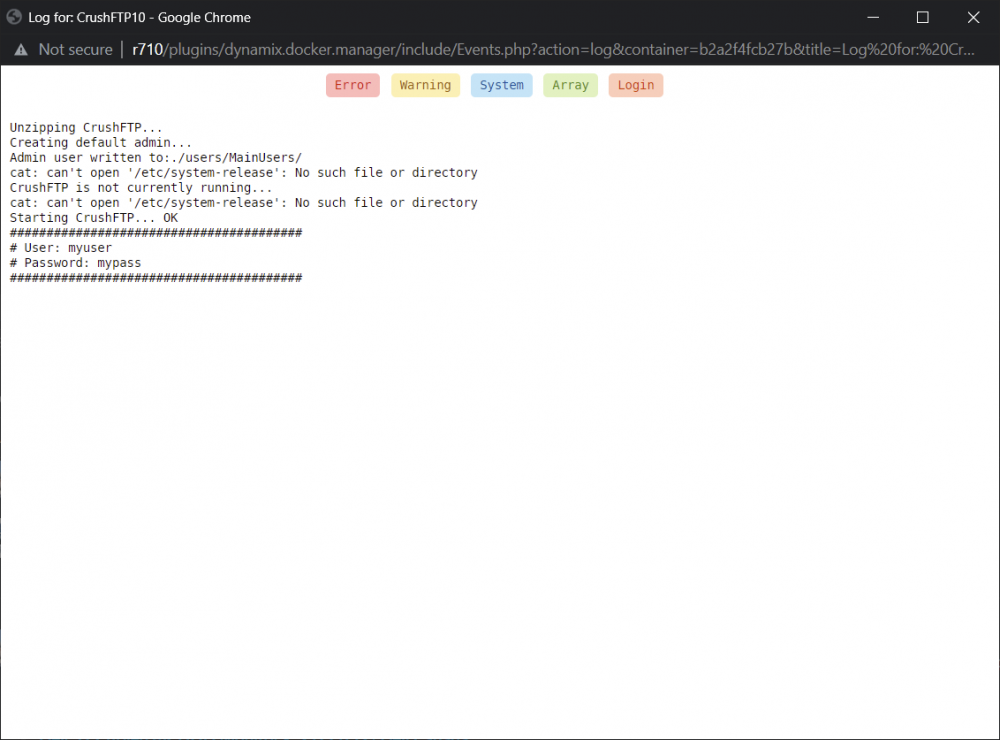
I noticed the Docker container log shows the admin username and password on startup. Is there a way to suppress that?
-
I have 64GB of ECC RAM, so it shouldn't be that, but I'll give that a try anyway. Who knows, the part that creates the temp file might be failing which is why it ends up set to None. I had a quick look through your log and it looks like you have something else going on. It doesn't seem to have any errors or even pick up any files to transcode at all.
-
You might be having the same problem as me. I traced it down to the cache path (where it does its transcoding) sometimes evaluating as None, but I couldn't see how the situation arises. I sent some details over to Josh.5 but I don't think he's had a chance to review it yet. I would suggest you also share your unmanic.log with him. If someone else is reporting the same issue, I imagine it would help identify what's going wrong.
-
Check your private messages.
-
Just letters, numbers, spaces and round brackets ( ). Nothing unusual.
-
I can, although I'm not really comfortable sharing it here. That said, checking unmanic.log, I found my workers all report this: 2020-10-22T11:28:30:ERROR:Unmanic.Worker-0 - [FORMATTED] - Exception in processing job with Worker-0: - expected str, bytes or os.PathLike object, not NoneType Traceback (most recent call last): File "/usr/local/lib/python3.6/dist-packages/unmanic/libs/foreman.py", line 224, in run self.process_task_queue_item() File "/usr/local/lib/python3.6/dist-packages/unmanic/libs/foreman.py", line 203, in process_task_queue_item self.current_task.set_success(self.process_item()) File "/usr/local/lib/python3.6/dist-packages/unmanic/libs/foreman.py", line 159, in process_item common.ensure_dir(self.current_task.task.cache_path) File "/usr/local/lib/python3.6/dist-packages/unmanic/libs/common.py", line 63, in ensure_dir directory = os.path.dirname(file_path) File "/usr/lib/python3.6/posixpath.py", line 156, in dirname p = os.fspath(p) TypeError: expected str, bytes or os.PathLike object, not NoneType
-
Those ones are very old. It's probably best to wait and see what josh5 has to say.
-
As the previous user said, just add :119 to the end of the repository name. This means to pull the one tagged 119. When left off, it will pull the one tagged latest. To find the tags, you can check Docker Hub. The easiest way IMO is to turn on Advanced View in Unraid (top right) then scroll down to your Unmanic container and click the little link that says By: josh5/unmanic. That'll take you over to Docker Hub and you can go to the Tags tab and see all the previous versions. ...only I just tried it and it looks like josh5 has since removed all tags other than latest so you may be unable to pull down 119. I'm not sure why he would do that. Maybe he didn't and there's an issue with Docker Hub at the moment?
-
It did indeed fix the error, however it appears to have been unrelated. Now I have no errors in the log, but it still doesn't process anything. All the workers are idle even though there are several pending. If I roll back to 119 everything works again. Is there any information I can provide that would be useful in identifying the problem?


