





OverlordQ
Members
-
Joined
-
Last visited
Everything posted by OverlordQ
-
It gives you a link to the upgrade procedures. Just follow them. And also dont use :latest if you dont know the consequences of it. But if you need the TL;DR: 1) Change image to mongodb:8.0 2) Start Container 3) Connect to the admin database: docker exec -it MongoDB mongosh admin 4) Run the upgrade command: db.adminCommand( { setFeatureCompatibilityVersion: "8.0", confirm: true } ) If you're fine with 8.0, stop there, if you want 8.2: 5) Stop the container. 6) Change back to :latest or even better pinning to 8.2 :8.2 7) Start container. 8) Run the upgrade command: `db.adminCommand( { setFeatureCompatibilityVersion: "8.2", confirm: true } )
-
If that's the one with regex support, yes.
-
Is it possible to get the perl-rename utility? It's regex support would be nice.
-
Wanted to benchmark something on my unraid box, but it was more of a NTH than an actual need. Installing latest plg gives error. https://imgur.com/a/mXmupZH
-
Could we get gcc/g++
-
Yeah, having to dig through the forums to find why basic functionality is broken is annoying.
-
The Tor Browser container seems to be out of date. The `TheTorProject/gettorbrowser` project to grab 'alternative' downloads for it seems to be deprecated/broken so it's missed the last few versions of Tor Browser, including 13.0. Use `https://aus1.torproject.org/torbrowser/update_3/release/downloads.json` to get the latest version then download from `https://dist.torproject.org/torbrowser/`
-
RM'd the /tmp/fix.common.problems/scanRunning file dated 4 days ago and then the pageload started working again.
-
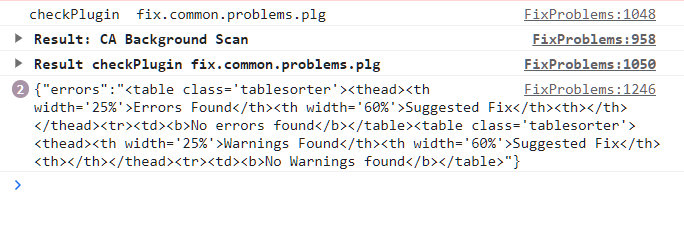
I got this too. You get the "Now Scanning your system for common problems." popup, but it never goes away. Reloading later doesn't show any completed results either. Multiple computers, both with and without Incognito. Previous version worked fine.
-
So evidently for 'reasons' you can't bring ports up through the UI (even after stopping docker), but opening a terminal and `ifconfig ethX up` get's it working. Why I didn't have to do that on eth4 is a mystery, and why this isn't something doable through the GUI is another mystery.
-
So turning on the server, I get link lights on the card and on the switch it is plugged into. This takes a bit as it goes through a bunch of LSI/Intel/etc boot screens. The lights stay on throughout the whole boo process. However, once it hits the grub bootloader and it starts loading unraid, the lights go out and I only get lights on the first port (eth4), (eth5) absolutely refuses to come back up. No amount of swapping transceivers or cables fixes it, it is *always* eth5. Booting from an Ubuntu livecd it detects both ports and successfully grabs IPs from DHCP, so it seems to be some sort of unraid driver issue. tower-diagnostics-20230727-1706.zip
-
Booted from Ubuntu 20.04 liveusb, both ports work fine, so definately an unraid driver issue.
-
So turning on the server, I get link lights on the card and on the switch it is plugged into. This takes a bit as it goes through a bunch of LSI/Intel/etc boot screens. The lights stay on throughout the whole boo process. However, once it hits the grub bootloader and it starts loading unraid, the lights go out and I only get lights on the first port (eth4), (eth5) absolutely refuses to come back up. No amount of swapping transceivers or cables fixes it, it is *always* eth5 tower-diagnostics-20230727-1706.zip
-
GCC/Build Tools/ETC


