





Elmojo
Members
-
Joined
-
Last visited
Everything posted by Elmojo
-
WRONG. I use TS on both iOS and Android. I have not experienced any such outages. I am on auto-update. Always. Can we please stop talking about this now?
-
I agree with @EDACerton that this is off-topic. I just want to add (briefly) so that anyone new to Tailscale doesn't get scared away, that the above is only the opinion of one user, and is demonstrably untrue. Most of us use TS every day with nearly zero issues. Mine has been rock solid, except for configuration issues on my end. As noted, no software (or hardware) is 100% trouble-free. Ask Microsoft, or Cisco, or any other massive IT-centric company that runs mission-critical software. Bugs and patches happen. Often. Tailscale has been far more reliable than I'd say 80% of the software I use on a regular basis. Use it or don't, but please don't dissuade others from trying a great (and free!) package just because you are having a bad time.
-
That's outdated info. That 2nd network was just for my Tailscale remote access. Since I wiped everything and started fresh, I didn't include that extra network. If we can get everything else working, I may go back and add it, but it's not critical. Thanks for looking, though! :)
-
I figured. :) Did that curl error mean anything to you? I watched the firewall log during that command, and nothing was reported as being blocked.
-
Long pause, followed by... curl: (35) TLS connect error: error:00000000:lib(0)::reason(0) When I click it from my browser, it opens right up, with a screen full of unformatted text. I presume you mean set to NO, right? Yeah, it seems to be working, but it's for sure super slooow. lol I won't say it's useless, but I would absolutely like to get it back up running full speed at some point if we can sort out why it can't see that server list.
-
Success!! It loaded very quickly (like I remember from before all this started) and connected no problem. I can access the webGUI! So what does that tell us? Obviously, it's something to do with it accessing the forwarding info via the PIA API, right?
-
You're absolutely correct about not blocking outbound 443 traffic. I misunderstood what you meant, sorry. I thought you were suggesting that I unblock incoming port 443. Like I said, all outgoing 443 traffic should already be allowed, and it seems that it is, since I have no trouble accessing any web sites from any of my desktops, and the server itself never has any connection issues either, it's just this one container. I went back and modified the firewall rule, to specifically allow outgoing traffic on port 443 from the server IP, and it hasn't made any difference. Same errors, stalls at the same point. I do have an adblocking DNS on my desktop, but that has nothing to do with the server or the pfsense firewall. The gateway (pfsense) is using Clouflare (1.1.1.1) as the primary DNS, so I assume no issues there. This is so baffling... I just know it's gonna end up being something simple, and stupid (on my end very likely). lol
-
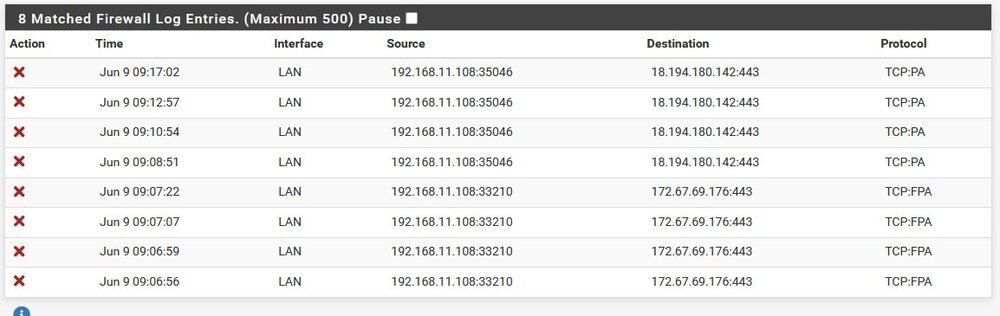
Yes, of course you see blocking entries, because I filtered it to show only blocking. lol That's what a firewall does, it blocks unwanted traffic (among other things). I can't just randomly unblock port 443, as that would allow all traffic from any IP on that port. Theoretically, all traffic should already be passed on port 443, since that should be authenticated https traffic, but for some reason it's not liking whatever this particular activity is. Regardless, nothing in the documentation for this container says anything about needing port 443 (not that I've seen anyway), so I'm not even sure if what you see blocked in that screenshot is even related. I just tried it as a guess, since it happened to be in the same timeframe as when I was restarting the container. I wish I knew more about how this docker is trying to communicate, and why it's suddenly doing something differently. It's been working perfectly for well over a year. It's obviously something VPN-related, since I can disable the VPN and it will connect right away. I wonder if PIA made some change with their API. Could that be the problem? EDIT: Oh, and THANK YOU for your patience and help with this. You've done an amazing job creating and maintaining this container for all these years, and it's not like we're paying anything for all this. Speaking of which, is there a way to donate or support you for your work?
-
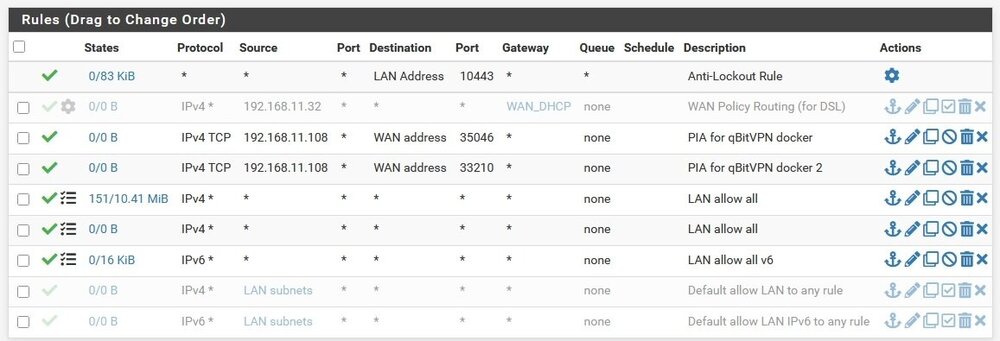
I decided to try watching the firewall logs again while the container started, to see if I could catch what was happening. During the startup, I see 2 outgoing ports that are being blocked from my server, but neither of them are the ones listed in the docker settings. Just for giggles, I set up rules to pass that traffic (not 100% sure I did those correctly). Now, when I start the container, it does the same thing, and stalls at the same point, but it seems to do it quicker, and I don't get the timeouts like I did before. Is this progress? lol
-
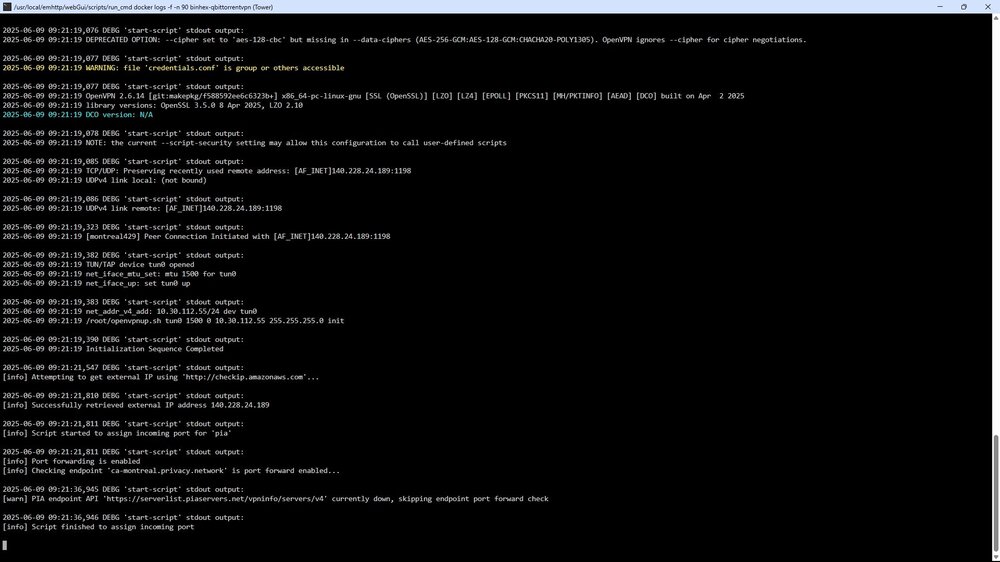
I'm not using any blocklists. My firewall is pretty default, except for a few custom rules I've added to allow access for specific services, but none of those have changed since I set it all up over a year ago. I don't have any custom rules to block anything. I pulled the image from the new (old) repo, as suggested, and... no change. The startup sequence seems to be exactly the same. It still errors when trying to connect to the PIA API, then stalls at "[info] Script finished to assign incoming port".
-
I do have a pfsense firewall/gateway, but nothing has changed in its configuration for many months. Why would it suddenly start blocking? Has something changed with the way this container talks to/through PIA/WG/whatever that would cause it to suddenly be blocked? I'm afraid that I'm not skilled enough on that end of things to know what I'd need to change, if so. I got my pfsense set up with lots of kind assistance from those with far more knowledge than myself on that front. :) EDIT: I just restarted the container, while watching my firewall log in dynamic (live) mode. Nothing was reported as blocked at any point during the startup process. Oddly, I also don't see any traffic passed from my server IP during that same period on any of the expected ports, so perhaps I'm not monitoring correctly.
-
Really? Mine never did previously when it was working correctly. In any ase, it's been like 40 minutes now, and it's still on that same line as shown in the log I posted above, so I think it's fair to say that it's not gonna connect. That PIA endpoint API warning about server list being down seems kinda ominous as well...
-
For testing, I went back and configured OpenVPN. The container will start, but I still can't access the webGUI. Now that I look closer, I don't see where it's reporting a successful connection. What's the "all good, ready state" message look like? Ah, it's still working, and taking a loooong time to connect. Maybe there's some issue with the way this container is trying to access the PIA API? When I use the PIA desktop app (in a VM, for example), it connects almost instantly, so I don't think it's a VPN problem. The log is posted below. I don't see any obvious errors (other than a few timeouts), but what do I know? ;) supervisord.log
-
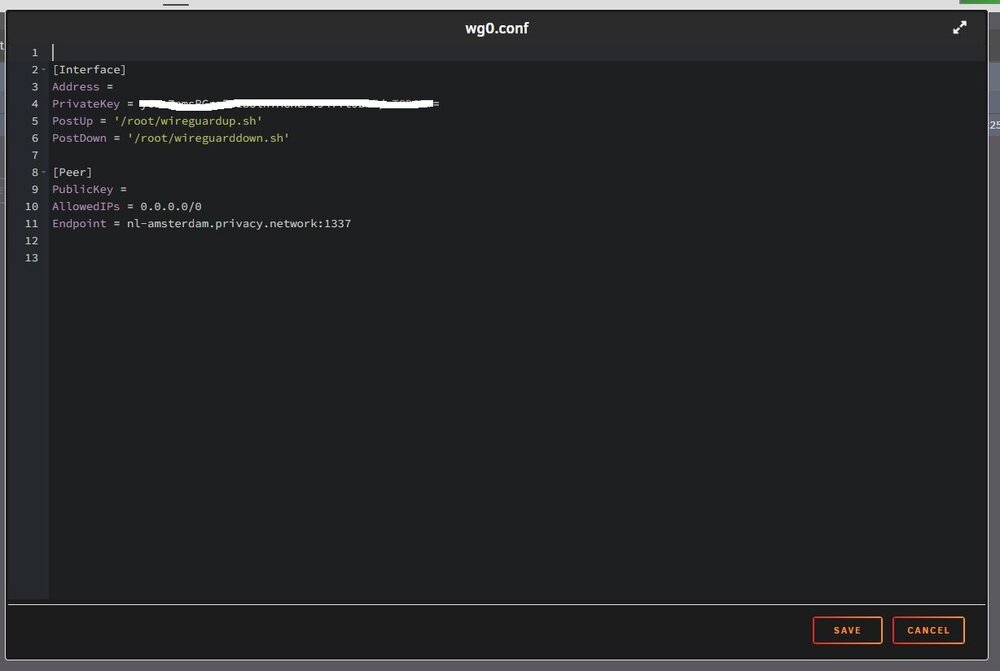
I understand, but I do not want to use OpenVPN, I want to use WG. Are you saying that I need to use OpenVPN? I tried that in a previous troubleshooting step, and it didn't work either, though I can't recall right off hand how it failed. The only way I've been able to get it working is to turn off the VPN entirely, then it works instantly, but that's obviously not an option long-term. Okay... this is weird... I just went back and turned off the VPN to confirm that what I said above is accurate (it is), but now I see that there's a wg0.conf file in the wireguard directory. I wasn't there last night. The supervisord.log still doesn't have a list of the available endpoints like it's supposed to, but something created that wg0 file... However, when I start the container, it still sticks on that line about "trying to connect to the PIA wireguard API..." Does any of this make any sort of sense to anyone? EDIT: Does that wg0.conf look correct to you guys? It looks...incomplete to me.
-
This isn't what Binhex said. He said (earlier in this thread) that using WG requires no additional config. PIA has no option for downloading any setup files. That's the whole issue. We've been over this at least 3 times already. Sorry if I sound frustrated, it's because I am. lol
-
Not recently. I wanted to use WG because @binhex said it didn't require any additional config, which sounded really good to me! Plus, I like the extra security and performance. :)
-
Yep, same thing. The container starts without issue, and it creates the wireguard folder, but that folder remains empty. There is no wg0.conf file, and the log stalls at "[info] Trying to connect to the PIA WireGuard API on 'nl-amsterdam.privacy.network'..."
-
I just wiped it clean again and am trying a fresh install with pretty much stock variables...
-
I agree. That's what it should be doing, but it's not. When I start the container, it doesn't create the wg0.conf file, so it fails to connect, obviously. I've tried a wipe and fresh install, and it does the same thing.
-
Not easily. lol If you look back to page 179, about 1/4 down the page, on May 23, you'll see where I asked if we can circle back to my issue please. After that is what's relevant. Thanks for looking! EDIT: Sorry, I was wrong, the latest stuff is towards the bottom of p 179. I sure wish this forum had post #s!
-
I've been struggling with a similar issue for several weeks, and have not been able to get anything resolved. I've just about given up at this point. No one even replied to the last time I posted my log and compose. :(
-
It's not exactly a 'command', per se. If you change anything in your template (edit a variable for example), and click [APPLY] at the bottom of the screen, the next thing you see should be the docker compose text scrolling by. When it's complete, copy/past it into your forum reply and you're done. Easy-peasy. :)
-
I did not, because the setup guide didn't say anything about doing that, and also because the new template looks different, and doesn't have those options. I figured that FAQ entry was OBE, and @binhex just hadn't had a chance to update/remove it yet. For example, the FAQ says to "Change Docker parameter from --cap-add=NET_ADMIN to --privileged=true". There is no such parameter any more. It now has a toggle for running the docker as privileged. Also, the next line in the FAQ talks about adding an "environment variable" with key "VPN_CLIENT". This appears to now be handled by the existing template variable of the same name, and WG is a drop-down option. My understanding was that simply selecting 'wireguard' (vs OpenVPN) in that variable selector was all that was required to enable WG, and that it should then auto-gen the wg0.conf file, which mine is not doing. If I'm incorrect about that, someone please let me know, because I sure don't see a way to do it as outlined in Q21 of the FAQ...
-
If you scroll back a bit, you'll see that this is part of my problem. I have no such file. My installation isn't creating/downloading/(whatever is supposed to be happening) the WG configuration. I've tried deleting the entire container and starting over, and it does the same thing.
-
Sorry, I'm not sure how I'd go about trying that... but I'm willing!


