





Elmojo
Members
-
Joined
-
Last visited
Everything posted by Elmojo
-
Sorry for the delay, was having surgery yesterday. So I did the 'compute all', and it just shows more of the main folder structure/size overview, but now broken down by drive. It still doesn't show me any of the individual folders (or sizes) on any of those drives. I see that several shares are using the cache drive (which I knew), and that it has about 32GB free. What I need is some way to browse through the entire cache drive, and look at it folder by folder to determine which app or process is eating up all the space. I kinda suspect it's tdarr, since that was the last think I installed, but I can't confirm that, or find a way to purge those files.
-
It will? I don't see where the cache drive is reflected on the shares tab, since I'm not "sharing" any of its contents specifically. At least I don't think I am. I should probably had said that I'm fairly new to this.
-
Ok, cool....that kinda gets me there. Is there any way to see usage stats, (ie how much space is used by each subfolder), like you can do in a windows explorer browser? I'm trying to track down what's suddenly eating up my drive space.
-
So I feel stupid for even asking this, but my searches have all come up empty. My dashboard is suddenly reporting that my cache is 75% full. I haven't been watching it super closely, but I think it's been running about 20-30% previously. I'd like to take a look to see what's on the cache, so I can figure out what might be clogging it up, but for the life of me I just can't find a simple way to view what's installed or residing on that drive. Someone please school me on the simple answer I know I'm overlooking.
-
All I did was watch SIO's video, click through the docker settings as shown in the video, accept all the defaults, and click start. According to the instructions, that should be all that's required to get the basic image up and running. I didn't make any edits to any VM settings. I'm not sure what I could have done wrong, but anything's possible. Since this isn't really anything beyond a curiosity to me, I likely won't put much effort into it. Even if I had a running Mac VM, I don't really have any use for it.
-
Hi all, Does anyone have any input on my issue? I'd like to get this working if possible. See my post from Aug 30, please.
-
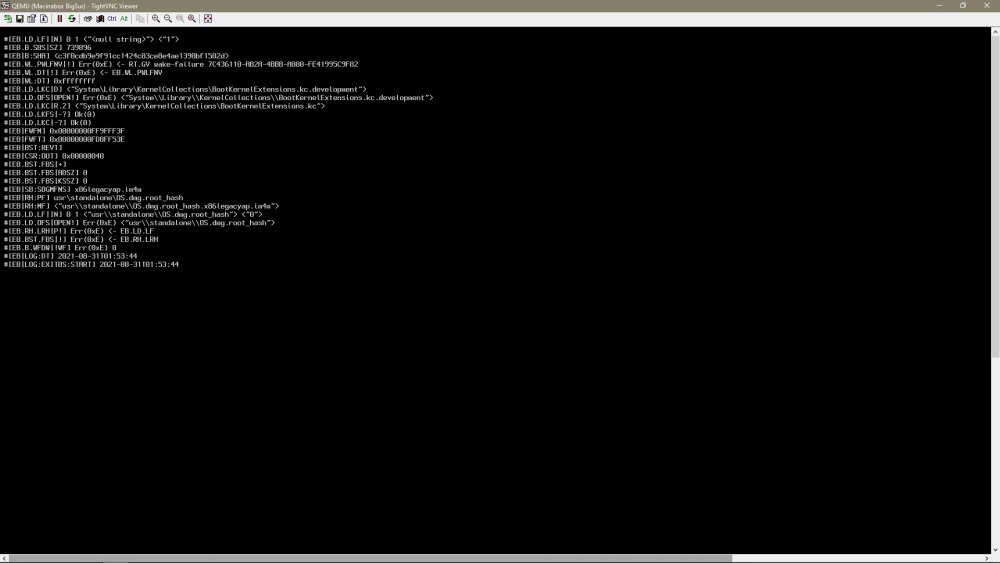
So I'm watching the video, trying to install Big Sur, but when I get to the part where I start the VM and launch the VNC remote, it opens the normal window, but after several seconds of "Connecting...", I get the error "Failed to connect to server". I'm sorta stuck, what do I do next? I'm on 6.10RC1, if that matters. EDIT: Update, I was able to get it to connect using TightVNC. However, I now see that the VM is only booting to some sort of console mode, and seems to be showing errors, although I can't make out what it's complaining about exactly. Anyone know what I should try next?
-
Ok, yeah, I have that info. I've never edited a script, or even used one for that matter. Do you know of a guide that would be helpful for how to start?
-
I think my question got buried previously... Any chance of this working on a Dell Poweredge T420, or is it just still for those few boards mentioned in the OP? If not, does anyone know of a good way to control the fans on a Gen 12 Poweredge based on HDD temps?
-
So I'm not gonna lie, I have not read all 56 pages of this thread. I have a Dell Poweredge T420 (12th gen). Is there any chance of this plugin controlling the fans, or is it still only for those 2 boards mentioned in the OP? EDIT: Also, I'm doing something wrong, since when I run any "ipmitool" command from the terminal, I get the output "bash: ipmitool: command not found". What key step have I missed?
