dlandon
Community Developer
-
Joined
-
Last visited
Everything posted by dlandon
-
Fixed in next release.
-
It's working for me. When you are testing, be sure to create a file that is not zero length. Any file that is zero length will be ignored and not put in the Recycle Bin. Post diagnostics.
-
All you have to do is select 'Array' and save the changes. In an earlier version of Unraid, the 'Cache' pool was presumed to be there, but in 7.0.0, a verification was added to check the Secondary Pool. This situation was ignored is earlier versions of Unraid but now generates an error.
-
This is a bit off the wall, but when this happens, go to the UD Settings page and click on the "Remote Servers" tab and enter a Windows client name or IP address and click "Test". UD does several tests that might show what the problem might be. If the IP address works and not the name, there is a name lookup issue. Also try the Unraid server you are on (yes, you are testing yourself) and see if anything shows out of that. I appreciate your frustration and the assumption it is Unraid because it happens on an Unraid update, but keep in mind we are subject to the following things that change that we have no control over: Linux Kernel changes. Samba changes and security updates. Windows security updates. Nothing like this showed up in either internal, beta, or rc testing. If we can reproduce the issue, we can work on a resolution. If we cannot make it happen, it's pretty much a trial and error approach so we can find what affects it. Do we like to do it this way? No, but it's the best we can do until we can reproduce it or seek out a proper resolution. If you don't have the patience for this approach, feel free to do what you have done - downgrade and wait it out.
-
If you have "NetBIOS" enabled, disable it. It is not necessary anymore for Windows clients and may be causing issues.
-
Post diagnostics.
-
A fix is in the next release.
-
I'll make a change to do this in the background, but honestly, having File Activity always enabled is not the way the FIle Activity plugin was intended to be used. It's good for figuring out issues with excess activity and disk spin up concerns, but it isn't something that needs to be always enabled After a restart, you can go to the File Activity page and start it, use it for a while and then stop it. It may also help if you have the cache_dirs plugin installed.
-
The docker has to be updated to update LMS. I'm building an updated docker with LMS 9.0.1. This docker will only use the latest stable release version as I don't want to support nightly builds. If you want the Development Build, then feel free to use the lmscommubity version, but we won't be able to support you here.
-
You have to reboot to set everything back to default.
-
If I turn off the log deleted files, they aren't logged. Not sure what you are seeing. Any files with a leading dot "." are hidden in Linux and Windows.
-
It works for me. You do have to use the Recycle Bin plugin to browse the deleted files in the shares.
-
I've done some testing and it appears that UD is handling the name with a space correctly, but when mounting a remote share, CIFS doesn't recognize the name. I'm looking at some options in case UD is not handling the credentials correctly, but it appears a space in the name won't work. I would recommend not using a space in credentials in either the name or the password.
-
I believe this may be related to the restoration of the databases. I've released an update that will restart samba when the databases are restored.
-
No. All good. You showed me how you got there.
-
The file manager from a device is different than from User shares. The one you showed me here is part of the file picker and I've got the fix for that.
-
I assume you got there from a disk or pool device?
-
The file picker is a bug and will be fixed. The file manager is working like it always has (by design - not a bug) and if a change is made it needs to make sense.
-
This is confusing. The file manager has never shown the /mnt/remotes/ folder. The remote shares are there, but with the change in the file picker, you can't select them in 7.0. This means when you want to pick /mnt/remotes/... for a container, you will have to type the path and can't 'pick' the destination file/folder.
-
You don't need to. I think you'll see the same thing I do.
-
root@BackupServer:~# ls -la /mnt/remotes/ total 0 drwxrwxrwt 4 nobody users 80 Jan 13 11:52 ./ drwxr-xr-x 14 root root 280 Jan 13 11:50 ../ drwxrwxrwx 2 nobody users 0 Sep 26 15:02 BACKUPSERVER_AV\ Media/ drwxrwxrwx 2 nobody users 0 Mar 9 2024 BACKUPSERVER_testing$/ Still don't see it. I don't doubt you were able to see /mnt/remotes/, but I think it was with the file picker and not the file manager. The file manager has always shown the /mnt/user/ shares as destination folders. The file picker in 7.0 was changed and the /mnt/remotes/ does not show as indicated by some previous posts. The file picker will be changed, but I'm trying to understand the issues with the file manager before making changes.
-
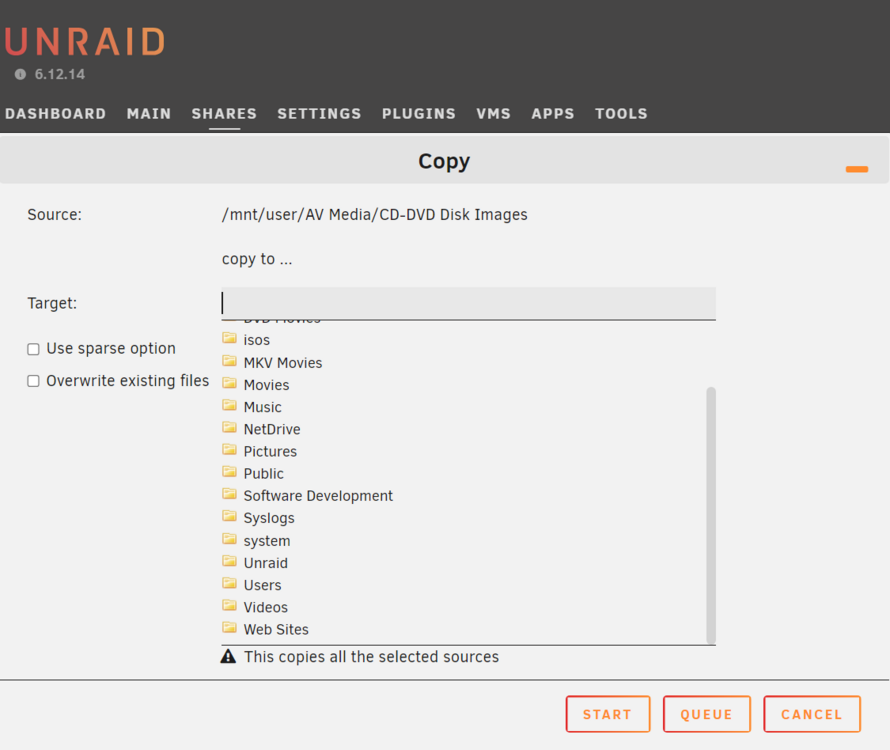
I just rolled back to 6.12.14. I must be missing something.
-
I booted up 6.12.14 and did not see it as a choice.
-
I don't know how. Can you show me a screen shot of the File Manager when it showed the /mnt/remotes?
-
How is it that you did this before? The FIle Manager plugin incorporated into Unraid is the same it was on 6.12.