





ken-ji
Members
-
Joined
-
Last visited
Everything posted by ken-ji
-
Hmm. first time i heard about this. So I tried to create a deep directory structure Dropbox/a/b/c/d with the last dir containing a file e and a directory f and surprisingly, the docker seems to think it was able to upload everything, but only a/b/c showed up in dropbox.com forcing an exclude and removing it caused the directoryies to be upload properly. Also creating the directories slowly (1 second in between) seems to work properly. This might be a bug in the client. (the docker uses the official headless client)
-
Guys, all NFS shares are absolute paths: ie tower:/mnt/user/Share never tower:/Share unless the Share directory was at the root folder
-
Yes, you are correct on your interpretation. FYI. Use cache disk set to yes will cache writes and changes to the share on the cache disk until the Mover applet is run (cf http://lime-technology.com/wiki/index.php/UnRAID_6/Getting_Started#Assigning_Devices_to_the_Array_and_Cache) When that happens, I have no idea what it looks like to the Docker app, which is probably why it deleted all your files.
-
I'm fairly sure I know the problem - if you did follow the instructions to the letter, does the share backups have Use cache disk: Yes? because it should be either cache only or No, because I'm not sure what the mover will do to Dropbox when data is moved from the cache disk to the array.
-
Whats the setting of your share where the Dropbox folder is located? I think you have this issue because the settings of my docker is allow access only to the Dropbox user. (default is nobody) - which means only guest accesses can actually access the Dropbox. If you are accessing using a user account, you can change the userid running Dropbox see above posts. Note: I cheat in my unraid since i have this in the file /boot/config/smb-extra.conf [global] force user = nobody which makes all server side accesses by the nobody user, the username and password for access over SMB is for authorization only.
-
I'm afraid you'll need a different docker image to support the run as root (particularly since its not aligned with best practices) No promises, but I'll see if I can whip something up.
-
Sorry, I'm not sure about the defaults anymore (because I run all my shares secured for user/password access) Here's my recommended fix for you: From a terminal, get the uid of your user # id ken-ji uid=0(ken-ji) gid=100(users) groups=100(users) Typically it will be 100 Make sure Dropbox docker is stopped. Execute # chown -Rv uid:users /mnt/user/appdata/Dropbox/* Replace uid = with the uid value (or your username) /mnt/user/appdata/Dropbox/ - replace with where your dropbox folders are (Dropbox, .dropbox-dist, .dropbox), in my case, they are all under /mnt/user/appdata/Dropbox You can specify all three folders separated by space in the command Modify the docker settings, and set the environment variables: DROPBOX_USER={myuser} DROPBOX_USERID={uid} Startup the docker, it should work then. If you don't feel comfortable, you can destroy all the folders, and restart the docker from scratch, but make sure to set the environment variables before the first start of the docker.
-
are you sure the new files coming from the unraid side are owned by the same user as DROPBOX_USER (default nobody) as the default user for new files could be root, and then the dropbox won't be able to access the due to the permission mismatch
-
You should make sure the folders mapped to the docker (in this case: /mnt/cache/appdata/dropbox, /mnt/user/Dropbox and all sub folders are owned by the same user "zan"), because you've already run the docker once, the folders have been generated and are causing some issues with the access permissions.
-
Dropbox is running as user nobody inside the docker. so to mess with CLI inside this docker, it is necessary to use docker exec -it --user nobody Dropbox /bin/bash -l
-
Ok. I've fixed the container to have a LANG=en_US.UTF-8. This should allow the running dropbox process to create files and directories with the proper Unicode names. "Works for me" is in effect.
-
I'll try the non-latin and or extended characters later, as I now realize that I haven't worked tried that at all. As for the name, its a side effect of the docker's host name which is randomly generated everytime a new image is created. Dockers are not suppose to care about that and you can go into your Dropbox security page to rename the host.
-
There is the dropbox.py cli for dropbox installed in the container. It probably can be used to selective sync, but I haven't bothered.
-
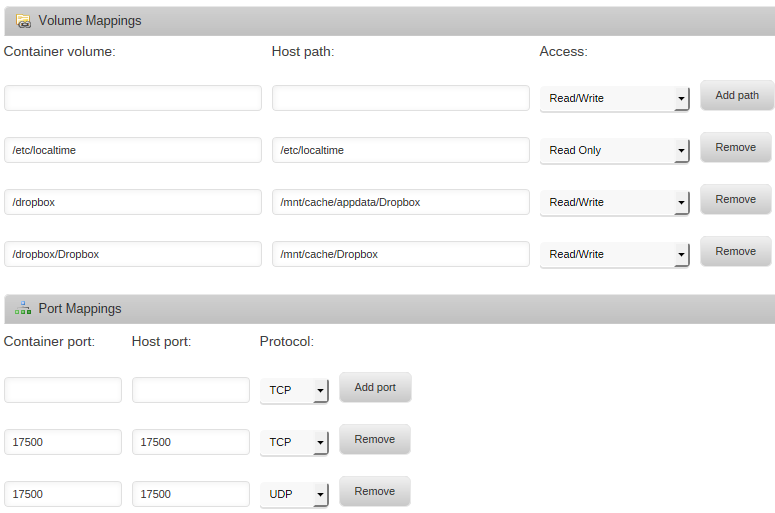
Add the docker and configure the folders: refer to attachment: Container Mounts.png Then check the docker container logs for a link to copy and paste to link your dropbox container.
-
Information Overview: Support for Docker image dropbox-docker by ken-ji. Application: Dropbox - https://www.dropbox.com/ Docker Hub: https://hub.docker.com/r/roninkenji/dropbox-docker/ GitHub: https://github.com/roninkenji/dropbox-docker Please post any support queries relating to this Docker image here. EDIT: Solved the dropbox app updating issue I've released an update and will post the correct way to change your existing install to the self updating version. Migration Steps: Stop the Container make sure the older app and config directories are under the same appdata folder (they are by default) rename the app directory to .dropbox-dist rename the config directory to .dropbox create a Dropbox directory it should look like this now: root@MediaStore:~# tree -aL 1 /mnt/cache/appdata/Dropbox/ /mnt/cache/appdata/Dropbox/ +-- .dropbox +-- .dropbox-dist \-- Dropbox Reconfigure the container as in the next post. This worked for me...
-
It's out of beta, so I reinstalled. Still see two versions in my 'Installed Apps' list. Any cache clearing to be done? Edit: By the way, I updated CA before reinstalling. I don't live next to the computer gfjardim is now blacklisted and will not appear within CA. Had to do a minor update to CA to get rid of it still showing gfjardim within the installed / previous. If gfjardim is installed, then uninstalled, if you go to previous apps and reinstall unassigned devices from there, it will pull dlandon's version Didn't realize CA could manage user instances (Didn't know we could have instances either) (Yeah I know out of context...)
-
The team should have told you this, but the init scripts inside the docker are hardwired to create the directories thats giving you hell. Best recourse is to move everything into the lower case directories and use those.
-
You did stop the docker before trying to edit the settings.json right? (I'm not using this but that's how settings.json should be modified)
-
Make a feature requesting for this setting for any share max disk size (G) This option allows you to put an upper limit on the apparent size of disks. If you set this option to 100 then all shares will appear to be not larger than 100 MB in size. Note that this option does not limit the amount of data you can put on the disk. In the above case you could still store much more than 100 MB on the disk, but if a client ever asks for the amount of free disk space or the total disk size then the result will be bounded by the amount specified in max disk size. This option is primarily useful to work around bugs in some pieces of software that can't handle very large disks, particularly disks over 1GB in size. A max disk size of 0 means no limit. Default: max disk size = 0 Example: max disk size = 1000 from https://www.samba.org/samba/docs/man/manpages-3/smb.conf.5.html This will let you work around your issue. EDIT: made one http://lime-technology.com/forum/index.php?topic=45850.0
-
I don't understand what you are asking. /boot/config/plugins/unassigned.devices/packages/nmap-6.40-x86_64-1.txz I don't understand the need for nmap for this package, sorry. Could you explain what it's used for? I don't understand either. I can't imagine why it is there. I took over the work that gfjardim started and didn't pay any attention to what packages were installed because I have been concerned with getting the plugin working. I will look into that, but I am thinking it has no business being there. This I somewhat remember from gfjardim's release notes it for detecting NFS or SMB servers I think.
-
I use passive LACP versus active LACP, as this should allow the switch to disable the link if the server is not linking the ports together (ie in case of server startup, alternate OS, recovery OS, etc)
-
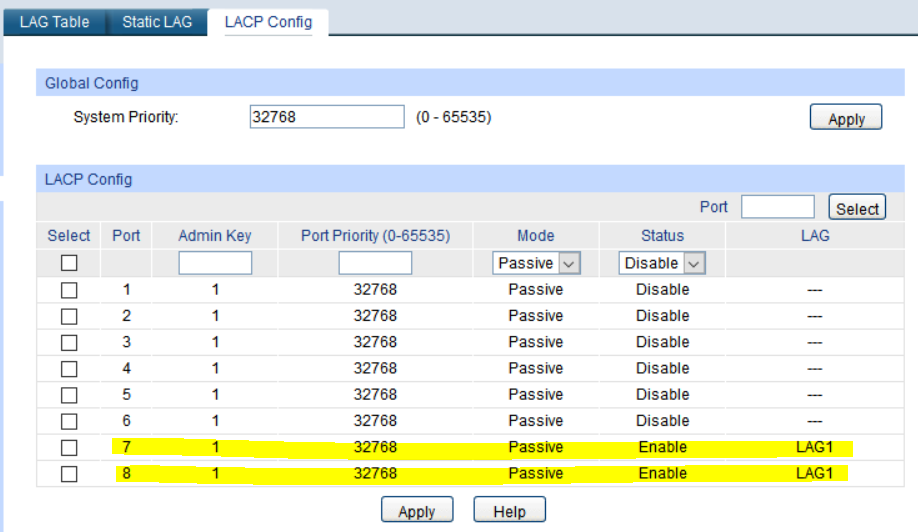
I think /sbin/ip link gives a better result the ifconfig MediaStore:~# ip link 1: lo: <LOOPBACK,UP,LOWER_UP> mtu 65536 qdisc noqueue state UNKNOWN mode DEFAULT link/loopback 00:00:00:00:00:00 brd 00:00:00:00:00:00 2: tunl0@NONE: <NOARP> mtu 1480 qdisc noop state DOWN mode DEFAULT link/ipip 0.0.0.0 brd 0.0.0.0 3: gre0@NONE: <NOARP> mtu 1476 qdisc noop state DOWN mode DEFAULT link/gre 0.0.0.0 brd 0.0.0.0 4: gretap0@NONE: <BROADCAST,MULTICAST> mtu 1462 qdisc noop state DOWN mode DEFAULT qlen 1000 link/ether 00:00:00:00:00:00 brd ff:ff:ff:ff:ff:ff 5: ip_vti0@NONE: <NOARP> mtu 1364 qdisc noop state DOWN mode DEFAULT link/ipip 0.0.0.0 brd 0.0.0.0 6: eth0: <BROADCAST,MULTICAST,SLAVE,UP,LOWER_UP> mtu 1500 qdisc mq master bond0 state UP mode DEFAULT qlen 1000 link/ether 00:e0:b6:17:76:84 brd ff:ff:ff:ff:ff:ff 7: eth1: <BROADCAST,MULTICAST,SLAVE,UP,LOWER_UP> mtu 1500 qdisc mq master bond0 state UP mode DEFAULT qlen 1000 link/ether 00:e0:b6:17:76:84 brd ff:ff:ff:ff:ff:ff 8: bond0: <BROADCAST,MULTICAST,PROMISC,MASTER,UP,LOWER_UP> mtu 1500 qdisc noqueue master br0 state UP mode DEFAULT link/ether 00:e0:b6:17:76:84 brd ff:ff:ff:ff:ff:ff 9: br0: <BROADCAST,MULTICAST,UP,LOWER_UP> mtu 1500 qdisc noqueue state UP mode DEFAULT link/ether 00:e0:b6:17:76:84 brd ff:ff:ff:ff:ff:ff 10: docker0: <BROADCAST,MULTICAST,UP,LOWER_UP> mtu 1500 qdisc noqueue state UP mode DEFAULT link/ether 46:be:f0:f3:73:2a brd ff:ff:ff:ff:ff:ff On My TP-Link, I just enabled LACP on the specific ports from the LACP Config Tab, and picked passive - as this will allow the server to have a network connection in case you are manually debugging or similar Then to quick check on the server root@MediaStore:~# ethtool bond0 Settings for bond0: Supported ports: [ ] Supported link modes: Not reported Supported pause frame use: No Supports auto-negotiation: No Advertised link modes: Not reported Advertised pause frame use: No Advertised auto-negotiation: No Speed: 2000Mb/s Duplex: Full Port: Other PHYAD: 0 Transceiver: internal Auto-negotiation: off Link detected: yes Mine is 2Gbps since I only have two linked ports you should be getting 4Gbps in your case. Finally, my switch logs this: 98 2016-01-16 16:36:44 LAG level_6 Added new Link Aggregation Group 1, members: Port 7-8. 99 2016-01-16 16:36:40 Link level_3 port 7, changed state to up. 100 2016-01-16 16:36:39 Link level_3 port 8, changed state to up.
-
If the enabled teaming on your switch has LACP, pick mode=4 (802.3ad) in the unRaid network settings for the bond otherwise, you probably should try and error it and see which one works for you and which ones causes a loop My switch supports LACP so I'm using mode=4
-
Please refer to this http://lime-technology.com/forum/index.php?topic=38988.msg388411#msg388411
-
Additionally from: http://linux.die.net/man/5/exports


