




.jpg.adf8def3431e0aa8e590900f82752d7a.jpg)

wgstarks
Members
-
Joined
-
Last visited
Everything posted by wgstarks
-
Switched to the new version. I got an email notification on the first run but not on repeat runs. The only difference I see is that the script aborted on the first run due to stale files so I'm wondering if the script only notifies on an abort and how to change it to always notify?
-
Doesn’t look like anyone has submitted a bug report for this issue. That would be the best way to make LT aware of it.
-
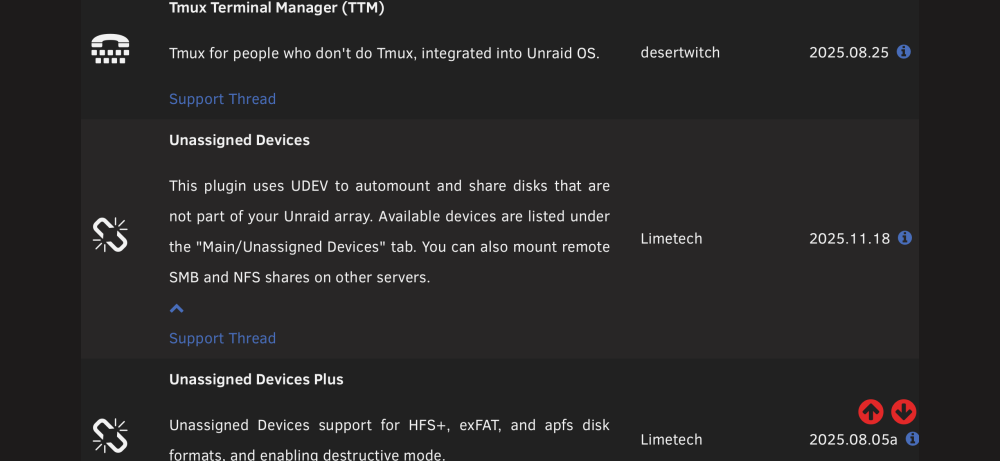
Actually it’s 2025-11-18.
-
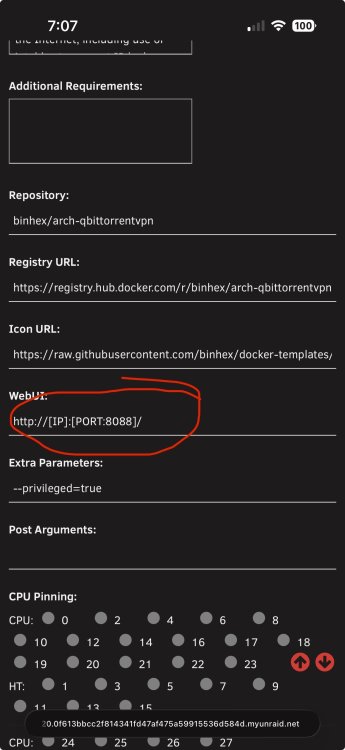
I’m guessing you’re referring to the link from the docker tab??? If you want to change this open the docker configuration, set the switch in the top right corner to advanced and look for the WebUI field. Set the port number to 8085 and click Apply.
-
Attach your supervisord log and docker run command to your next post. Be sure to redact users/passwords.
-
Probably won’t ever know for sure. Obviously not something on your end though or it would still be broken.
-
My suspicion is that it’s a PIA issue.
-
Try changing your PIA endpoint.
-
If you get to this point be sure to rename your qbit appdata folder to something like old_qBittorrent so that the install won’t re-use the old settings. That should eliminate anything you might have set from the trash guide. If a fresh install works you can delete the old folder once you’re sure you no longer need anything in it. You may want to re-use your ovpn/wg0 file.
-
You might try getting help on whatever forum trash uses.
-
Afraid I’m out of ideas. Usually when people have this sort of issue it’s because they’re trying to login from outside the configured LAN network.
-
How about if you try http://<hostIP>:<portnumber>
-
The log shows a successful start. How are you attempting to access the webUI?
-
I would suggest posting your supervisord log and docker run command first. Be sure to redact any users/passwords.
-
Is that BACKUP_BASE_DIR=? And I’m guessing I need to replace everything after the =?
-
Trying to figure out where to enter my UD remote destination?
-
You’re right. I was looking for the qBittorrent process started line and must have missed it in all the static. @dolphinspanker You’ve probably already answered this, but just to be sure, you are attempting to access the webUI from your local network defined in the settings right?
-
Your log show that qbit keeps trying to connect to PIA over and over. I suspect that it’s not getting a successful connection due to some problem with your wg0.conf file. I would try downloading a new one from PIA. That usually fixes this.
-
You’ll need to attach your supervisord log and docker run command to your next post. Be sure to redact any users/passwords.
-
Is /shared a container path or a host path? The container can only access container paths.
-
Jellyfin and qbit must use the same /data path (host and container). For example if Jellyfin is using a container path /data with host path /mnt/user/Jellyfin/Shared then qbit must also have the same. PIA uses port forwarding so no need to set ports.
-
From looking at your docker run command it appears that you haven’t changed the webUI port correctly. You have the variable webUI configured twice and you are missing the port mapping for the new webUI port. See the documentation- https://github.com/binhex/documentation/blob/master/docker/faq/qbittorrentvpn.md Scroll down to Q4.
-
Attach your entire supervisord log from your appdata folder.
-
See the documentation- https://github.com/binhex/documentation/blob/master/docker/faq/vpn.md Scroll down to Q4.
-
Attach your supervisord log and docker run command to your next post. Be sure to redact any users/passwords.


