




.jpg.adf8def3431e0aa8e590900f82752d7a.jpg)

wgstarks
Members
-
Joined
-
Last visited
Everything posted by wgstarks
-
You can get the most current template by deleting the docker and its image and then going to Apps tab>previous and re-installing from there. It will keep all your current settings but update the template. Most settings should have a default listed.
-
I’m also not sure you set the webUI port in the right spot.You’ll set the variable webUI port to your desired port number and then add a new port mapping that container port to the same host port. The warning is saying that 8181 is already in use by another container.8181 is already in use. You’ll need to try another one.Post your docker run command.You can change the port. https://github.com/binhex/documentation/blob/master/docker/faq/qbittorrentvpn.md Scroll down to Q4.I’m sure it couldn’t hurt to post your supervisord log as well as your docker run command. Someone might have some ideas here. I would probably also post on the qbit forum. Lots more users there.IMO sounds like a qbit issue. The container has nothing to do with logins. Just fyi, you are now required by qbit to set a password other than the default. Sounds like you have already done this though. You can also whitelist your local network in the qbit settings to allow access without having to login if you are comfortable with that.This sounds like a bug that has already been reported in the qbit forum where the details section is expanded to fill the entire window. There is a spot you can grab on the bar at the top of that section and drag down to reveal the list of torrents. I fixed mine by switching to an alternate webUI. This had the advantage of also letting me turn off dark mode.From his screenshot it looks like the status is missing as well as the basic/advanced switch and apply/done buttons.I had the same problem with the new webUI. Not really a big fan of the way the qbit devs have implemented dark mode either. I installed one of the alternate UI’s. It’s really fairly easy to do. Basically just create a folder in /config and download the webUI files to it. Set the path in the qbit config and restart the container. There’s a little more to it than that but not much. I posted a link to the alternate webui’s a few posts up.Looks like this new setting wasn’t well implemented but delete files permanently was the previous behavior.For anyone struggling with the new dark webUI there is a list of alternate webUI's here. No doubt there are others as well. They are fairly easy to install. Looks like most have instructions for this. The ability to toggle light/dark mode seems to be common as well as better support for mobile browsers.For those with issues deleting files try adjusting this setting in Advanced to “delete permanently”. Hopefully someone with this issue can test and report back.
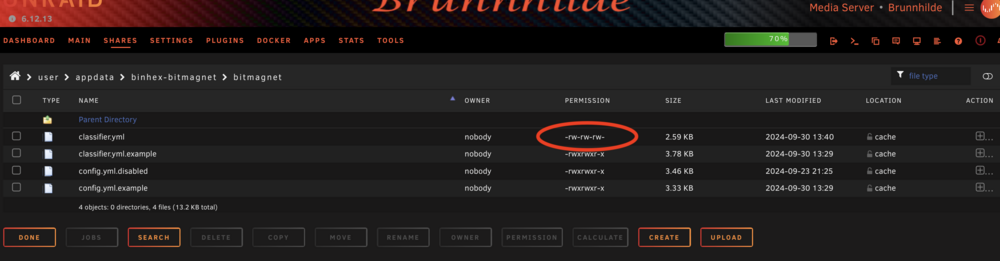
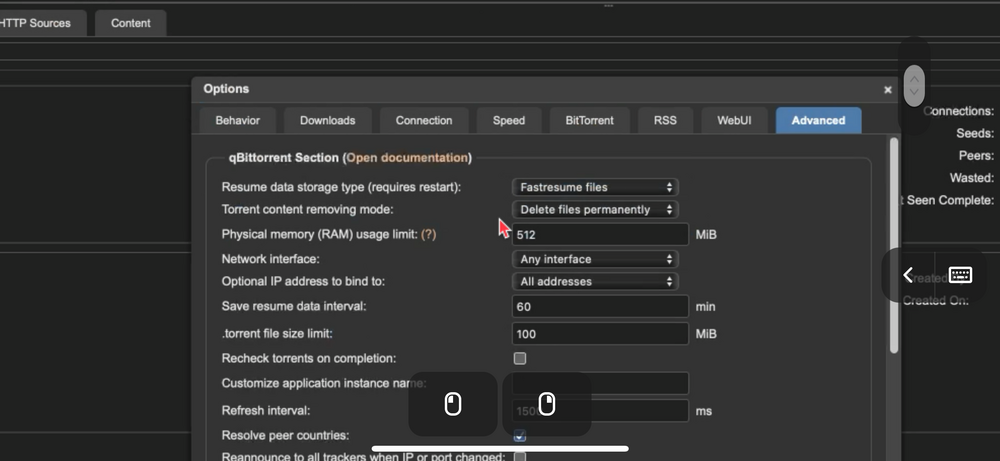 Looks like this bug has already been reported on GitHub. https://github.com/qbittorrent/qBittorrent/issues/21457The host path. You would need to add another path to the chromium docker with a container path and the host path above. Then in chromium use the container path you set.Looks like you don’t have a watch folder set. You can put something like /data/watch in the Monitored Folder section and that will be the watch folder (blackhole). The actual host path would be /mnt/user/data/watch. You can also just use the add torrent button in the webUI. Either the torrent file(s) or the hyperlink. I personally think this is easier.Post a screenshot of the downloads tab in the qbit options (settings).You’re posting this in the wrong forum. I doubt any of the qbit devs even use Unraid. You should put it in the qbit forum. This forum thread is just for support of the docker container.Is there a possibility for a workflow for allowed keywords (languages)? I see on bitmagnet.io that bitmagnet can filter for language, resolution, etc but no examples specifically for these. I thought about using banned keywords but many torrents have multiple languages so would result in false matches. I'm trying to eliminate all torrents not marked as english.Got it. I missed the "banned" and "delete_content_types" sections. I need to modify them to match config.yml.Also, noticed that my config.yml gets disabled when I start the docker after adding classifier.yml. Should this be happening? You can see it in the screenshot above.Actually this is just what I have been wanting plus a filter for movies and tv that stops the ones with no English language. I installed the classifier.yml file using file manager to upload it. Noticed that permissions differ (not executable). Do I need to adjust this? If so how? File manager will set read/write but not executable.
 If I’m reading this correctly it’s filtering any file with foreign characters, right? Cant really see what will be removed with a brand new db.




