




-
I finally, sort of solved, a problem with this issue (creating a custom ipvlan bridge while the rest of dockers stay on whatever) https://forums.unraid.net/bug-reports/stable-releases/upgrade-from-61211-to-700-breaks-tailscale-subnet-routing-with-dockervm-enabled-r3566/ I mean, this is a bug that should never have happened, but well.. So, I would have liked to post my solution there for anyone else who doesn't want to spend three days trying to do it, but I have no ability to comment at all. Is there some category of account I need?
-
So appdata backup force shutdown my postgresql17 container and corrupted the database. Is there a good solution for this? Because right now I am thinking this thing might be worse than having no backup. If I am trying to safeguard my data, the one thing it should absolutely never do is exactly what it did. Yeah, I could probably script something to make it wait longer - and maybe I will (realistically I want it to wait a long time for a graceful shutdown and if it doesn't get it, then skip it that container now and flag it to me to deal with in the morning). For now I guess I am just going to have it not backup my databases, which is a total garbage solution. Am I missing something obvious here?
-
It was a custom setup of a container, the container thread is basically for app store ones. Anyway it started working randomly, no idea why. I'll close this.
-
I have the env file definition in the extra parameters section and get this command - but it doesn't take... Can anyone tell me why it can't find the env file? docker run -d --name='aiometadata' --net='bridge' --pids-limit 2048 -e TZ="America/Los_Angeles" -e HOST_OS="Unraid" -e HOST_HOSTNAME="Tower" -e HOST_CONTAINERNAME="aiometadata" -l net.unraid.docker.managed=dockerman -l net.unraid.docker.webui='http://[IP]:[PORT:3232]/' -p '3232:3232/tcp' -v '/mnt/user/appdata/aiometadata':'/app/data':'rw' --env-file /mnt/user/appdata/aiometadata/aiometadata.env 'ghcr.io/cedya77/aiometadata:latest'
-
Hi everyone, I looked through this thread and saw that a couple of people were having similar issues with tar verification when backing up /mnt/cache/appdata, but not sure I saw the resolution? I have two dockers using /mnt/cache/appdata preferentially for their backups since they use sqlite heavily and lock states cause messes if they point to /mnt/user/appdata - pocket-id and bazarr. I checked their individual docker entries, and the plugin correctly pulls in the /mnt/cache/appdata/pocket-id path, but I still get tar verification failures. > tar verification failed! Tar said: tar: /mnt/cache/appdata/pocket-id: Not found in archive; tar: Exiting with failure status due to previous errors Any iudea how to get rid of this error and have it validate correctly?
-
I got this working, but I would really suggest that they add a permanent /tmp mapping to the template to /mnt/cache/appdata/bazarr/tmp/ or similar. otherwise if it gets stuck it will stuff your docker.img. I'd also suggest doing the appdata link to /mnt/cache/appdata/bazarr/ since the sqlite database loves to lock up when running both sonarr and radarr at the same time for the first time.
-
One small suggestion, the ordering of restart should, by default, be the same as the order they appear on the Docker tab, otherwise I am just setting the same thing twice (databases before apps, etc)...
-
OK, I think I finally got syslogs working... Just lots of random moving pieces to fit together just right. Here is my vector.toml: [sources.syslog] type = "file" include = ["/var/log/syslog"] ignore_older = 86400 # optional, ignores very old logs read_from = "beginning" # or "end" [transforms.to_syslog] type = "remap" inputs = ["syslog"] source = ''' .message = string!(.message) ''' [sinks.vlogs] type = "elasticsearch" inputs = ["syslog"] endpoints = ["http://10.0.0.6:9428/insert/elasticsearch/"] api_version = "v8" compression = "gzip" [sinks.vlogs.healthcheck] enabled = false [sinks.vlogs.query] _msg_field = "message" _time_field = "timestamp" _stream_fields = ["host", "container_name"]I'll add docker logs later...
-
I have been really struggling to get it to work with VictoriaLogs - especially since they give all their examples in YAML and it isn't just a 1-to-1 conversion. Any ideas?
-
Anyone able to do Tempest, a simple PHP script that generates XMLTV files for use with HDHomeRun and other live TV tuning? Github: https://github.com/K-vanc/Tempest-EPG-Generator I tried out ChatGPT, but was unsure how to get it up on dockerhub and confirm it was working correctly: ``` FROM php:8.2-cli # Install git and PHP extensions needed RUN apt-get update && apt-get install -y git \ && docker-php-ext-install curl xml \ && apt-get clean && rm -rf /var/lib/apt/lists/* WORKDIR /app # Clone the repo directly into /app RUN git clone https://github.com/K-vanc/Tempest-EPG-Generator.git . # Ensure main script is executable RUN chmod +x Tempest-EPG-Generator.php CMD ["php", "Tempest-EPG-Generator.php"] ```
-
I just came here to post the same problem...
-
Restarted, they didn't come back, but they did return when I just refreshed their template entries. Going to go with blip for now and get back to working on why they can't actually access one another on the network...
-
I was having a problem where dockers were unable to talk to one another despite host connections being enabled so I was stopping and starting the docker system to try out IPVLAN vs MACVLAN, etc. But after a couple of times, now half of the dockers didn't startup and when I try and start them, it says no container available. It is not all of them, but about a third of them. Relatively recent changes include updating to 7.1.2 from 6.11.x, enabling Appdata Backup, and switching USB flash drives. So it could be any of that. Attached a screenshot just to show which dockers were affected and diagnostics file Zip archive.zip
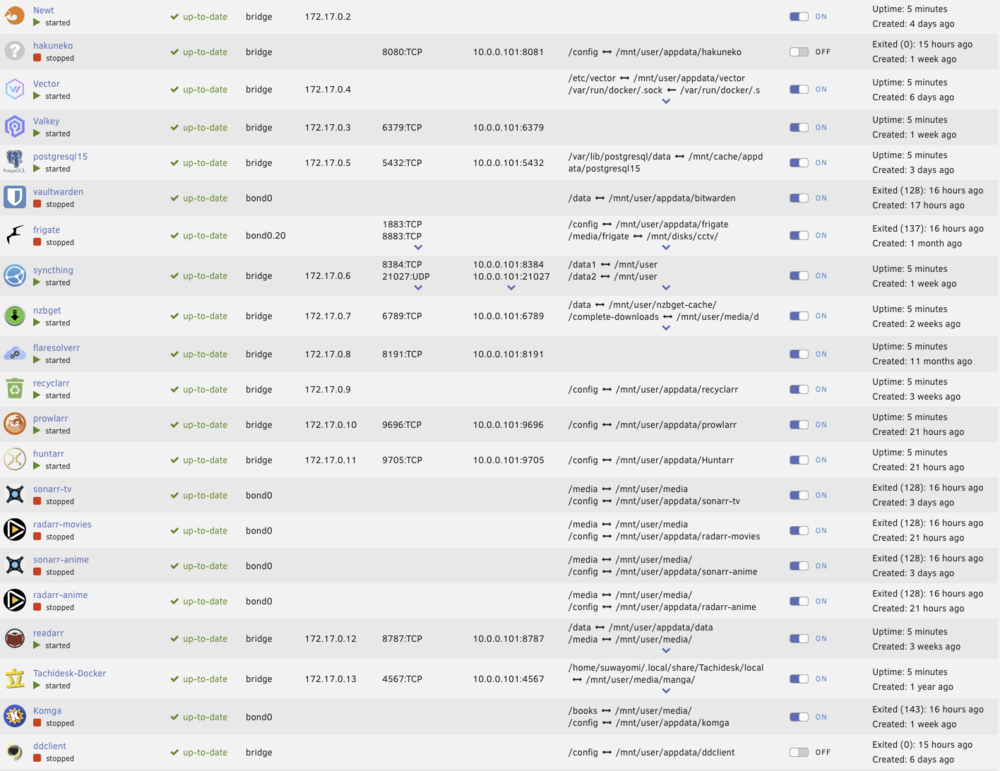
-
One minor suggestion - Shouldn't default ordering of containers be the same as what is the docker tab rather than just alphabetical
-
I have an old entertainment system in my car that takes blu rays and dvds. So was looking for a dvd authoring docker or similar to get selected media from Jellyfin, convert it and burn it to movie disc format. there is plenty of software for PCs/Macs but it feels like Linux offerings are non-existent? I get that at most people are going the other way and just ripping at this point…

View in the app
A better way to browse. Learn more.

