MarkRMonaco
Members
-
Joined
-
Last visited
Everything posted by MarkRMonaco
-
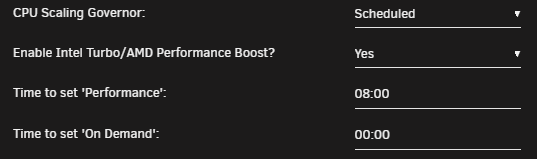
I'm trying to use the scheduling features of this plugin to set my CPU to "performance" or "on-demand" depending on time. However, I'm finding that instead of "on-demand" it is setting my CPU to "power save" which is definitely not boosting when needed (have been monitoring via terminal). - Is there any way to fix this? My CPU is an AMD Ryzen 7 3800x (under-volted w/ no OC applied). Global C-State Control is enabled in my BIOS, along with PBO ("on-demand" works as expected). For reference: - "Power Save": All cores sit at ~2.1GHz regardless of idle or load. - "On-Demand": All cores can sit as low as ~2.0GHz and boost/turbo up to ~4.2GHz under load. - "Performance": All cores sit at ~4.4GHz regardless of idle or load.
-
For my specific issue, I think it has to do with the ASUS router (RT-AX58U) that I purchased (I've seen some other VPN-related comments on Google). Since there is 3rd-party firmware support, I switched over to Merlin (who makes a modified stock firmware), which added additional support for router-level VPN connections. Previously, it was all or none. Now, I can route specific IP addresses through it (similar to how you can do it on pfSense), and have the rest of the traffic flow through the regular internet. - I'm just not 100% certain if all of the outbound traffic for those specific docker IP's are going through the tunnel (which I'll have to verify via terminal sessions).
-
Ok. I'm currently banging my head trying to figure out a networking issue. - When VPN is enabled for this docker container, I lose all ability to access it via it's webpage (http://docker ip:8080; ICMP still works). However, once I turn VPN off, access is immediately restored. The only thing that has changed in my environment is that my wireless router was replaced today (my previous router died last night, and I had to run out to the store for a new one). - All of the IP configuration has been carried over and the CIDR notation is still correct in the container variables. I've even tried a different VPN provider to see if it was an issue with their split tunneling. I'm also running into this same problem with "binhex-qbittorrentvpn" as well. supervisord.log
-
-
Good call. - I'm following too many topics, and lost track of which one I was posting this on...
-
Does anyone have a good guide/process on changing the pihole hostname in docker? The container's console lacks an editor and I'm unable to get one via apt-get. - I also tried copying the files (/etc/hosts and /etc/hostname) back to my pc via Krusader, editing them, and copying back to the container... which resulted in the WebGUI no longer loading (by IP) after the container was restarted. - Applying "chmod 777" to the files didn't help either (as I assumed they were copied back as read-only). Lately, attempting to pass the hostname variable via the container setup gets ignored, and only results in a new random hostname being generated (all of my other settings/data are preserved). - I should note that this seems to be the default behavior when running the container setup (i.e. new random hostname each time, regardless of the variable being passed or not).
-
Does anyone have a good guide/process on changing the pihole hostname in docker? The container's console lacks an editor and I'm unable to get one via apt-get. - I also tried copying the files (/etc/hosts and /etc/hostname) back to my pc via Krusader, editing them, and copying back to the container... which resulted in the WebGUI no longer loading (by IP) after the container was restarted. - Applying "chmod 777" to the files didn't help either (as I assumed they were copied back as read-only). Lately, attempting to pass the hostname variable via the container setup gets ignored, and only results in a new random hostname being generated (all of my other settings/data are preserved). - I should note that this seems to be the default behavior when running the container setup (i.e. new random hostname each time, regardless of the variable being passed or not).
-
Thanks @Firejack. I haven't had a chance to take my array offline to switch to IPv4+IPv6 mode. - I'm hoping that "ip a" will return a v6 address once it has been enabled.
-
I'm not having any problems with my unRAID server using the Pi-Hole as its primary DNS. - The only caveat was that you had to add "raw.githubusercontent.com" to your whitelist.
-
So, it appears that ifconfig is missing from the docker's console... Any alternatives or workarounds? # ifconfig sh: 2: ifconfig: not found #
-
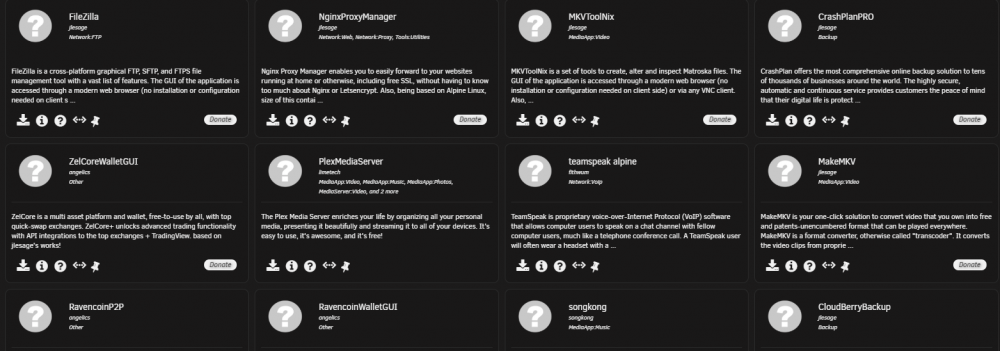
I actually, just answered my own question... After reviewing the Pi-Hole dashboard and logs, I found that the images were coming from "raw.githubusercontent.com". - I first attempted to whitelist just the base domain ("githubusercontent.com"), but found that it did not work. Instead, you have to explicitly define/add the sub-domain ("raw.githubusercontent.com"). - Once that was done, I was able to refresh my unRAID apps tab, and immediately see the missing pictures/icons. Hope this helps anyone else who runs into this problem...
-
Not sure if anyone ran into this issue, but right after installing and configuring Pi-Hole (Docker), icons on the unRAID apps tab are getting blocked. - Does anyone know the correct domain or sub-domain that needs to be added to the whitelist?