rutherford
Members
-
Joined
-
Last visited
Everything posted by rutherford
-
@ahror you should tell folks what you did, more missed, to make it work so someone searching can find your suggestion. Glad you’re up, happy holidays.
-
@ahror get into the console via the Immich docker, use the command line version of sql connect and manually test out the connection. Your server should have a static internal IP. Like 10.xxxx or one of those 192.168.xxxx then there will be a port to connect to as well. If you can connect via the Immich command line, it should work via the regular docker ways.
-
hey @Mattti1912 seems like you're having cascading issues there huh. I'm no expert in this stuff, but here's what I'd do to start addressing your reported issues: 1. unraid + tailscale, can't upload. So you said you can't upload. So I guess it's working, but you can't upload. Can you upload from home on the home wifi? There would be some sort of write permissions, or POST permissions that would apply to a user via VPN (tailscale = VPN) that would not apply to a local user. That's the crux on that issue. I have also seen issues of folks getting stuck on uploading videos because the POST size in some setting somewhere times out before the video can be uploaded. If you start to get into port numbers, you're getting off base there. I assume from the wording of your question that tailscale + immich are working, so port numbers isn't related to that problem. I don't think. 2. changing network type. I think the default unraid network types are HOST and BRIDGE, and then you can define other network types. It's my understanding that one defined network can't talk to another one. So tailscale and any docker that uses tailscale has to be on the same type of network. I don't personally use tailscale integration. I had setup VPN reverse proxy before tailscale was built in, and access mine via a subdomain, like photos.myname.com. But: there should be unraid + tailscale setup videos. I suggest you start at the beginning of one of those videos and check all your steps one by one. Eventually they'll point to some setting somewhere that got screwed up and you'll have your "ah hah" and it'll start working again. 3. you may not need to delete and reinstall. Go through a few setup videos and check all your settings. 3.1 keeping data between un-installations. You'll also need to do research on this one. Initially when you setup Immich you pointed it towards a location to store all your assets (pics + vids). When uninstalling immich, I don't think it will also delete your photo library. But JUST IN CASE, you probably want to make a copy of the entire library somewhere. Then go ahead and uninstall + reinstall. The software is really getting pretty solid and usually the only thing that uninstall + reinstall will do for you is put settings back to default. You have access to all those settings (which is almost certainly why it got screwed up in the first place! ) and when you find the settings that are wrong, or not matching, or not harmonious with another semi-correct setting somewhere, it will all start working again. 3.2 different users. Once you define the location for your immich library, it will create sub-directories for each user. When you save one, you should back up a level and just do them both. 3.3 reinstalling and rediscovering assets. I'm pretty sure ... yes: my pics are in: /mnt/user/memories/immich/profile/51c63710-e673-40ae-9756-47dd1106f84c/ and my username would be only my first name. So you should have two folders in /mnt/user/memories/immich/profile, one folder for each user. That's what you're going to want to save. And when you reinstall, you'll need Immich to identify those folders and link them to the new username. I have a hunch my first name doesn't automagically become 51c63710-e673-40ae-9756-47dd1106f84c, it's probably a bit random, or date linked or something who knows, so unless that recognition is built in, you'll need to figure that out too. Might be External Libraries. Hope this gets you barking up the right trees! Oh, and one more thing: in this long youtube video with Immich and FUTO, who recently purchased the immich team and software, they are planning on rolling out a cloud hosted version of immich. It's always the latest, it always works, and you pay for it. So that might be more your speed, when that feature setup becomes available. Until then: enjoy tinkering, and remember to setup and test your backups.
-
when these breaking changes come out, I usually wait until I have a couple hours free before doing the update. Just in case. Glad to hear this one went swimmingly with all of you. Thanks for sharing!
-
Correct. Server static ip is 192.168.11.2 Both NPM and Homeassistant are on custom network "proxynet"
-
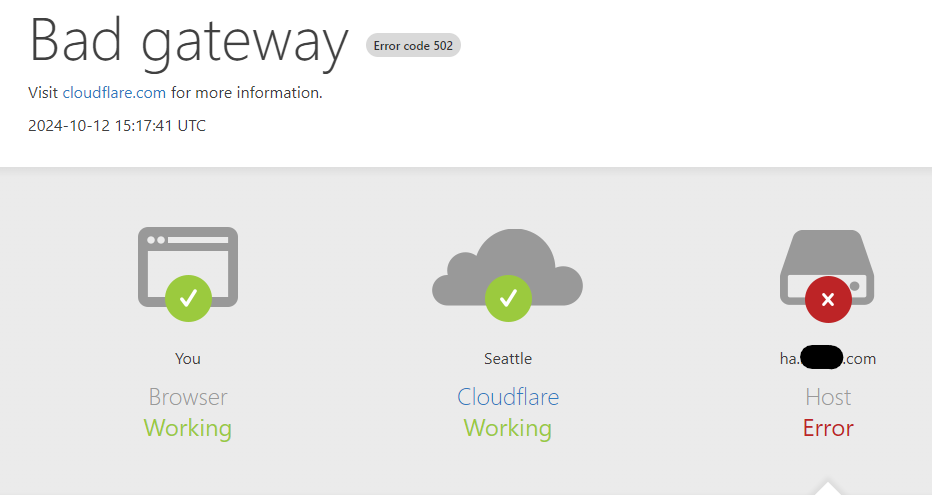
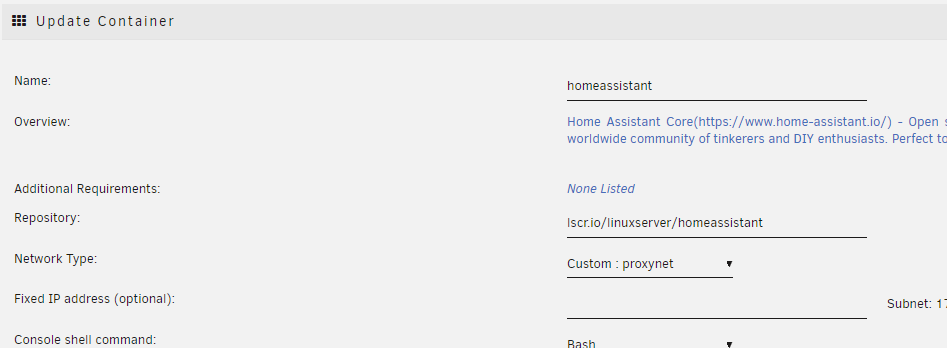
That definitely did something. My homeassistant unraid docker log is now empty. Now I'm getting a 530 error when I hit the url. cname setup in cloudflare pointing to my duckdns account. Works swimmingly for other services. contents of /mnt/user/appdata/homeassistant/configuration.yaml # Loads default set of integrations. Do not remove. default_config: # Load frontend themes from the themes folder frontend: themes: !include_dir_merge_named themes automation: !include automations.yaml script: !include scripts.yaml scene: !include scenes.yaml #10/12/2024 to get this to work with reverse-proxy NPM on unraid http: # For extra security set this to only accept connections on localhost if NGINX is on the same machine # Uncommenting this will mean that you can only reach Home Assistant using the proxy, not directly via IP from other clients. server_host: 127.0.0.1 use_x_forwarded_for: true # You must set the trusted proxy IP address so that Home Assistant will properly accept connections # Set this to your NGINX machine IP, or localhost if hosted on the same machine. trusted_proxies: 192.168.11.2 The docker settings, I do have it setup under "proxynet" for a different Network like this: I tried changing the Network Type: back to Bridge, no changes to the 502 error. Maybe that has something to do with this? I tried slapping some different ip addresses into the trusted_proxies: field, and got many errors. Looks like either 127.0.0.1, or 192.168.11.2 (ip of server) both work in there. When I change trusted_proxies: 127.0.0.1 Setting permissions [custom-init] No custom files found, skipping... [ls.io-init] done. to trusted_proxies: 192.168.11.2 Setting permissions [custom-init] No custom files found, skipping... Connection to localhost (127.0.0.1) 8123 port [tcp/*] succeeded! [ls.io-init] done. So that's slightly different. But after dinking with all of those, I'm still getting the 502 Bad Gateway error above. So: progress, but still stuck.

-
When I hit the cname ha.mydomain.com, I immediately get this. 2024-10-11 16:39:21.730 ERROR (MainThread) [homeassistant.components.http.forwarded] A request from a reverse proxy was received from 172.18.0.1, but your HTTP integration is not set-up for reverse proxies I think I need to tell the docker, homeassistant, that it's being reverse proxied and it's okay little docker. That file, /mnt/user/appdata/configuration.yaml # Loads default set of integrations. Do not remove. default_config: # Load frontend themes from the themes folder frontend: themes: !include_dir_merge_named themes automation: !include automations.yaml script: !include scripts.yaml scene: !include scenes.yaml Doesn't quite feel like the right place to put the "allow proxy" stuff. Any pointers? thanks!
-
Thank you @Gragorg Something about when I enabled the homeassistant.proxy.conf and added the ",homeassistant" to the SWAG app config, it really just screwed things up. I removed it, bang working again. I've also had a suspicion that those old Spaceinvader Lets Encrypt videos were getting a bit dated; and there is better software out there. One of these days I'll get it all transferred over! At least it's all back up at the moment.
-
I think I've managed to make all must stuff pretty complicated! I own my own domain, and use subdomains to access several of my home services via SWAG reverse proxy. It was working fine, I went to add one more, ha.mydomain.com. I added the ",homeassistant" to SWAG SUBDOMAINS, added the /mnt/user/appdata/swag/nginx/proxy-confs/homeassistant.subdomain.conf I think I've just made this all way too complicated! I initially registered my domains at godaddy. Since then, I've changed both the primary and secondary DNS entries at godaddy to point to hostgator, and have been using hostgator for all the DNS management, and actual hosting of some stuff. I'm looking for suggestions on streamlining this whole process so it isn't such a boondoggle everytime I want to add or remove a little subdomain. Here are the errors I'm looking at in the SWAG log. That Type is saying dns, but I selected http for VALIDATION. Different validation parameters entered than what was used before. Revoking and deleting existing certificate, and an updated one will be created Using Let's Encrypt as the cert provider SUBDOMAINS entered, processing Sub-domains processed are: nextcloud.mydomain.com,photos.mydomain.com,bitwarden.mydomain.com,homeassistant.mydomain.com E-mail address entered: [email protected] http validation is selected Generating new certificate Saving debug log to /var/log/letsencrypt/letsencrypt.log Account registered. Requesting a certificate for nextcloud.mydomain.com and 3 more domains Certbot failed to authenticate some domains (authenticator: standalone). The Certificate Authority reported these problems: Domain: bitwarden.mydomain.com Type: dns Detail: DNS problem: SERVFAIL looking up A for bitwarden.mydomain.com - the domain's nameservers may be malfunctioning; no valid AAAA records found for bitwarden.mydomain.com Domain: homeassistant.mydomain.com Type: dns Detail: DNS problem: SERVFAIL looking up A for homeassistant.mydomain.com - the domain's nameservers may be malfunctioning; no valid AAAA records found for homeassistant.mydomain.com Domain: photos.mydomain.com Type: dns Detail: DNS problem: query timed out looking up A for photos.mydomain.com; no valid AAAA records found for photos.mydomain.com Domain: nextcloud.mydomain.com Type: dns Detail: During secondary validation: DNS problem: SERVFAIL looking up A for nextcloud.mydomain.com - the domain's nameservers may be malfunctioning; DNS problem: SERVFAIL looking up AAAA for nextcloud.mydomain.com - the domain's nameservers may be malfunctioning Hint: The Certificate Authority failed to download the challenge files from the temporary standalone webserver started by Certbot on port 80. Ensure that the listed domains point to this machine and that it can accept inbound connections from the internet. Some challenges have failed. Ask for help or search for solutions at https://community.letsencrypt.org. See the logfile /var/log/letsencrypt/letsencrypt.log or re-run Certbot with -v for more details. ERROR: Cert does not exist! Please see the validation error above. The issue may be due to incorrect dns or port forwarding settings. Please fix your settings and recreate the container
-
well that was easy. Thanks!
-
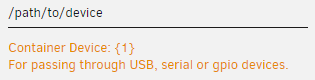
I get a zero-info error when I go to run the docker. I'm guessing it has something to do with this gpio thing: Which I don't have. I don't think...? Looks like most folks run it in a VM. Do I have to?
-
For posterity: unraid nextcloud database connection details. I had changed some settings a while back, and my changes got lost and nextcloud stopped connecting to the database. I found the database connection details in this file: /mnt/user/appdata/nextcloud/www/nextcloud/config/config.php excerpt below: <?php $CONFIG = array ( 'datadirectory' => '/data', 'instanceid' => 'oc0w4lt90dch', 'passwordsalt' => 'xxxxxxxxxxxx', 'secret' => 'xxxxxxxxxxxxxx', 'trusted_domains' => array ( 0 => '192.168.11.2:444', 1 => 'nextcloud.xxxxxxxxxxx.com', ), 'dbtype' => 'pgsql', 'version' => '29.0.4.1', 'overwrite.cli.url' => 'https://nextcloud.xxxxxxxxxxxx.com/', 'dbname' => 'nextclouddb', 'dbhost' => '192.168.11.2:5432', 'dbport' => '', 'dbtableprefix' => 'oc_', 'dbuser' => 'nextcloud', 'dbpassword' => 'nextpass', 'installed' => true, 'trusted_proxies' => array ( 0 => '192.168.11.2', ),
-
also, now it's 2024, and we have Unraid Connect: https://docs.unraid.net/connect/help/#automated-flash-backup so maybe you set that up? Good for you!
-
solution is this post: I'd also mention here, this is relatively new, came along after this post started, but this post comes up first for my googles: If you used Unraid Connect, you can do a restore using these instructions: https://docs.unraid.net/connect/help/#automated-flash-backup
-
swapped to new usb flash device, came right up. Guess that was the issue. Now if I can get back to where I was!...
-
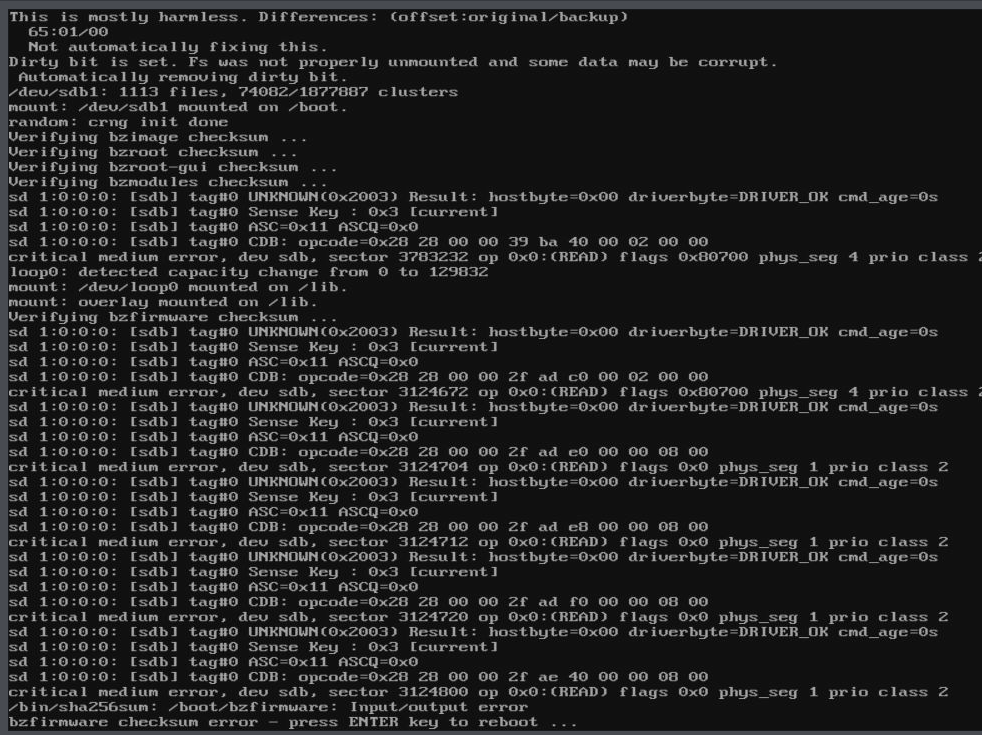
tried a different USB A outlet on the motherboard, errors, says sdb this time. That's one of the drives, my parity drive ending ZHZ37Z6K. I'll try pulling that sata cable.
-
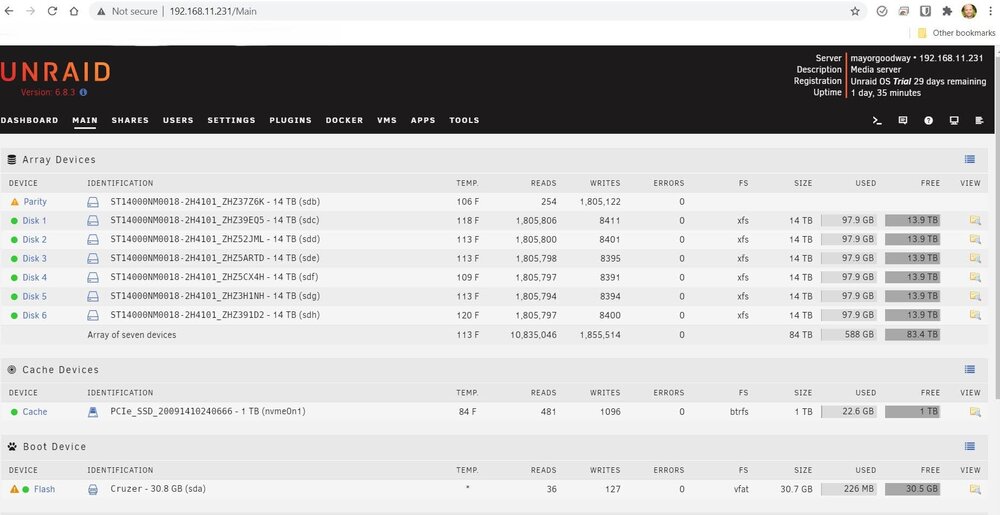
sda is my flash drive, derp! Hope I was backing that up. Now to figure out how to restore it... let's try the slick new unraid.net backup thing...
-
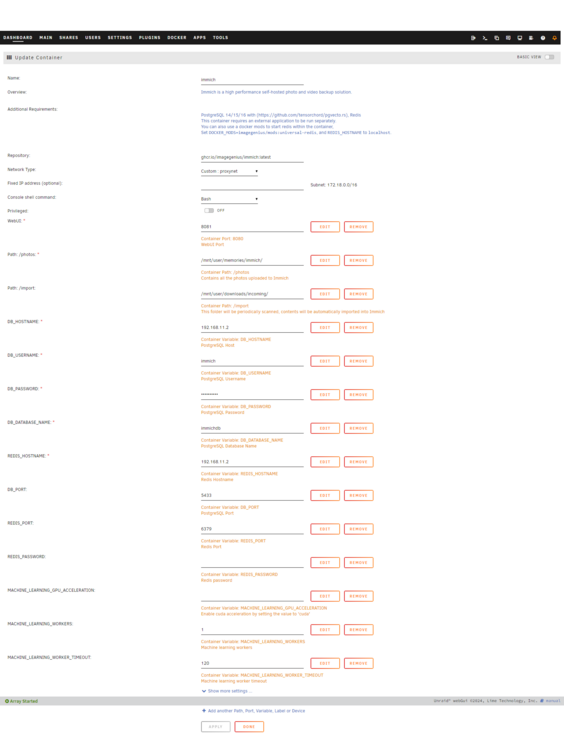
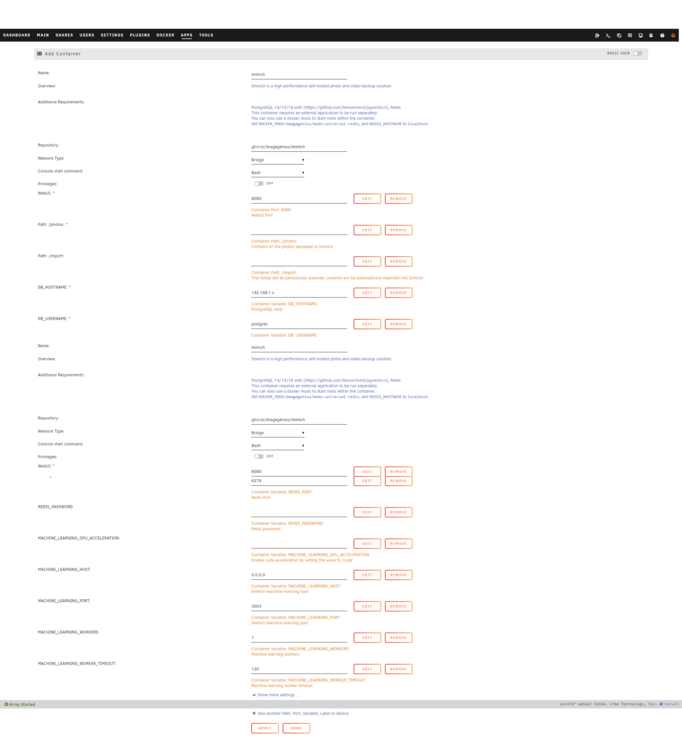
Went to upgrade to v1.106.2. Command failed, and got the following error page: docker: Error response from daemon: failed to create task for container: failed to create shim task: OCI runtime create failed: runc create failed: unable to start container process: error during container init: error running hook #0: error hastebin I did a screen shot of the full settings before, I applied the new changes. I nuked the docker install, started again, copying over old settings. I didn't get any entries at all over at the PostgreSQL_Immich docker. I was able to verify the IP port username and password via docker CLI: I saw entries over there for right or wrong password connection. Went to install another postgresql14 docker, and got the same error! Going to just restart the unRaid box. Ooo there is more going on here. I went to restart the server and it won't boot up. Getting some awesome drive errors I'm sure. more later. old settings: new settings:
-
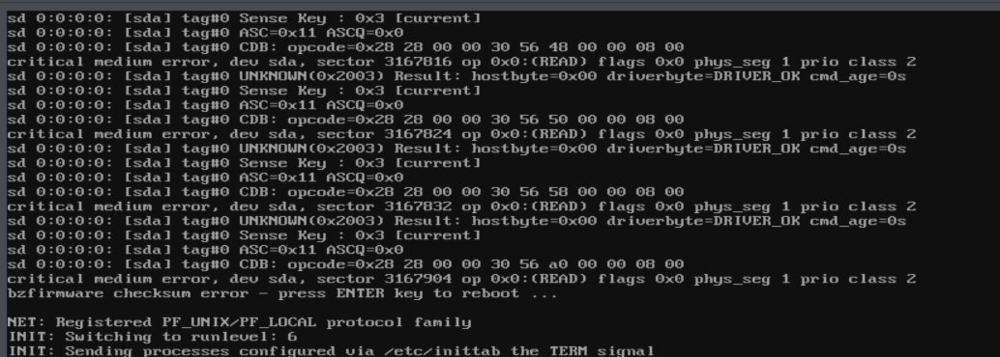
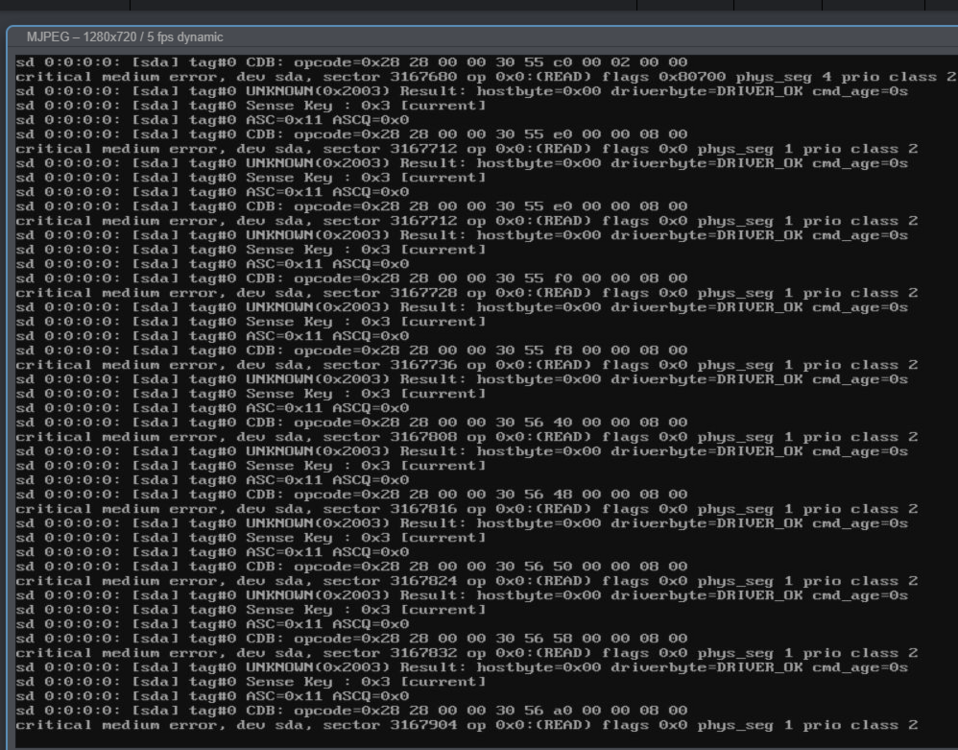
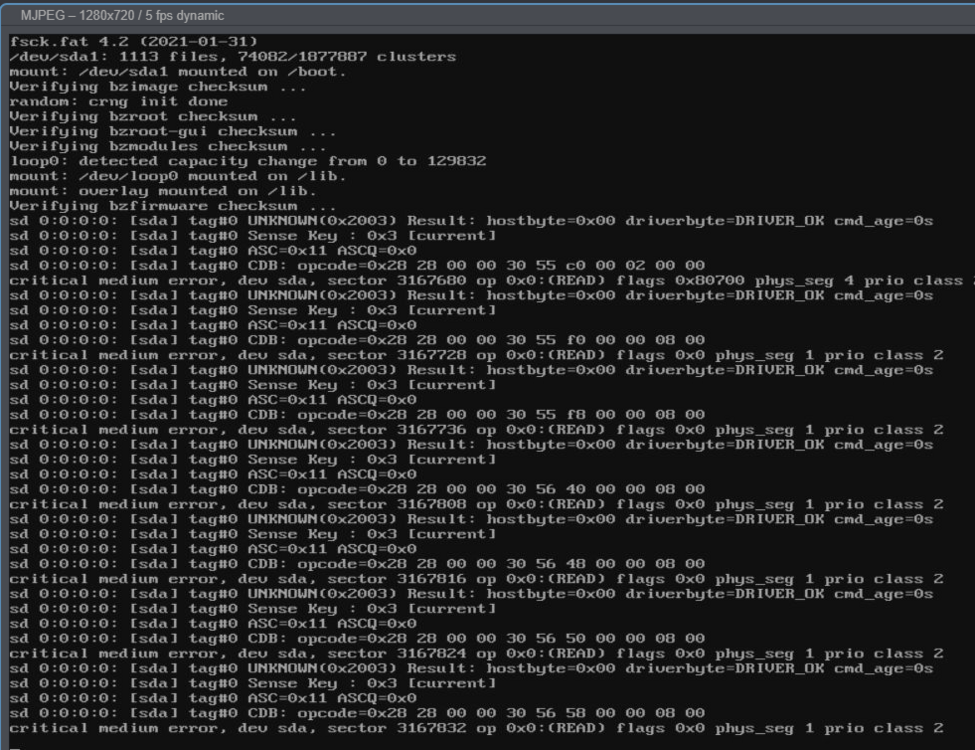
Got a pretty good error this evening, looks like it's hardware related. Went to boot to safe mode, GUI no plugins, got the same error. It looks like it hates drive sda, I suspect that's what I'll need to pull to get this back up and running. I hope I snapped a screen shot of the Main screen with drive assignments!... <fingers crossed>
-
@DeadModeanother good cautionary tale then about the importance of backup. There have been several of these. Wink be sure to follow the actual instructions right off the official documentation. Also look around for what a backup constitutes. The words “3-2-1 backup” come to mind.
-
@DeadMode you'll likely need to start at the beginning again with Immich. there was an error up there about pgvector. That’s a package that Immich needs inside the Postgres docker. Which docker are you using for that one? I think Spacedinvader has one he put together that includes it. Might be that’s not a problem at all. I also don’t recall, in his videos, how he handles the Postgres database docker. now the thing that’s really going to cause the problem here is you moved files around. From what I’ve read, Immich keeps full paths in the database. Seemed to me it wasn’t just picture files, but other operating files that it uses. When stuff gets shuffled around, it breaks, and you’ve got to rebuild the whole thing. now, you’ve already got all your pics and vids (assets) on the server, so you’re going to follow backup instructions posted at Immich.app for the database portion. Then nuke that Postgres docker, and repopulate the entire library using command line interface. I think the Immich-go CLI thing might do the trick. im not 100% on this stuff. It would probably be good to read through the depreciated old info I left up there in my first post. It may have something more applicable to your situation, or at least give you some more color to possible solutions short of nuking it.
-
@mbc0 so 2.7TB, does that seem right to you? Do you have anything that’s 2.7TB? I suspect your file paths are incorrect in the docker, then the Immich settings. revisit the setup instructions, pay close attending to Docker Settings > paths then also, once you get that Immich docker going, where those paths are pointing.
-
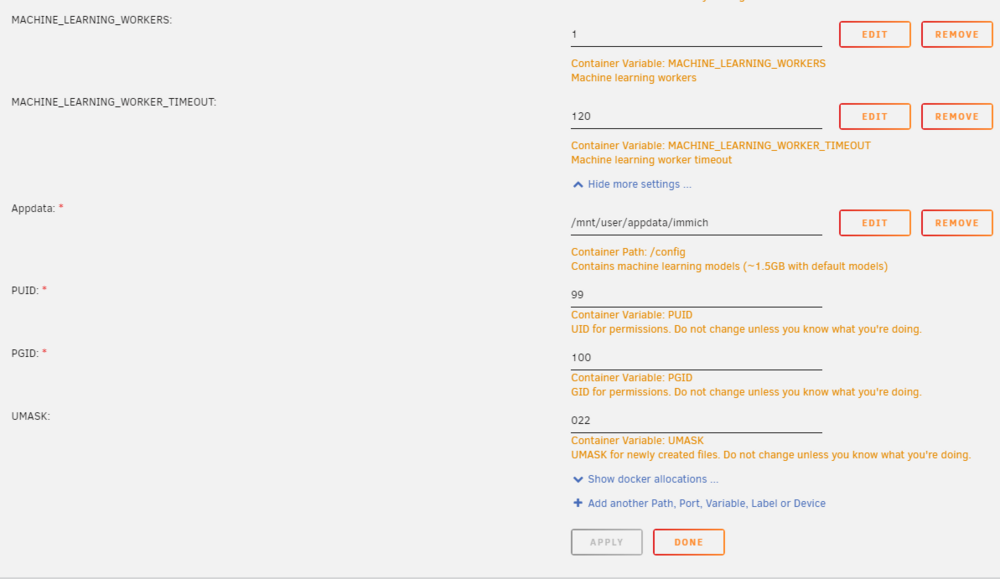
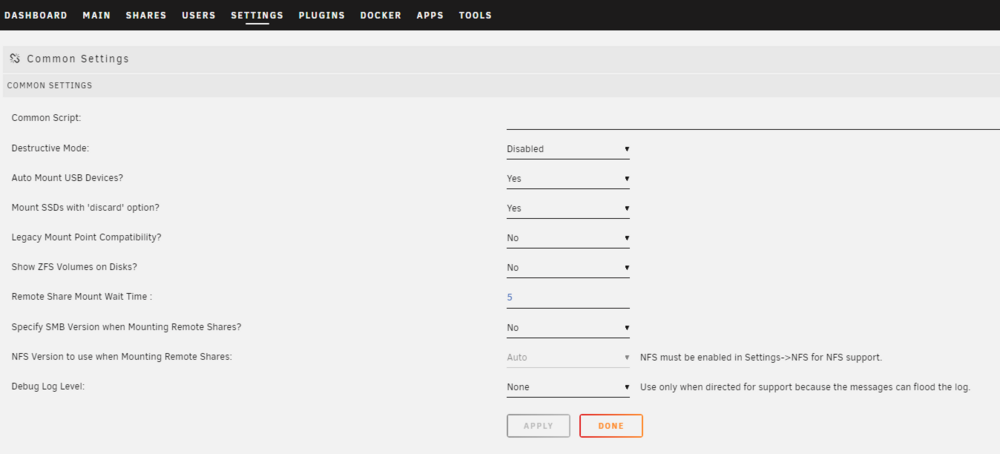
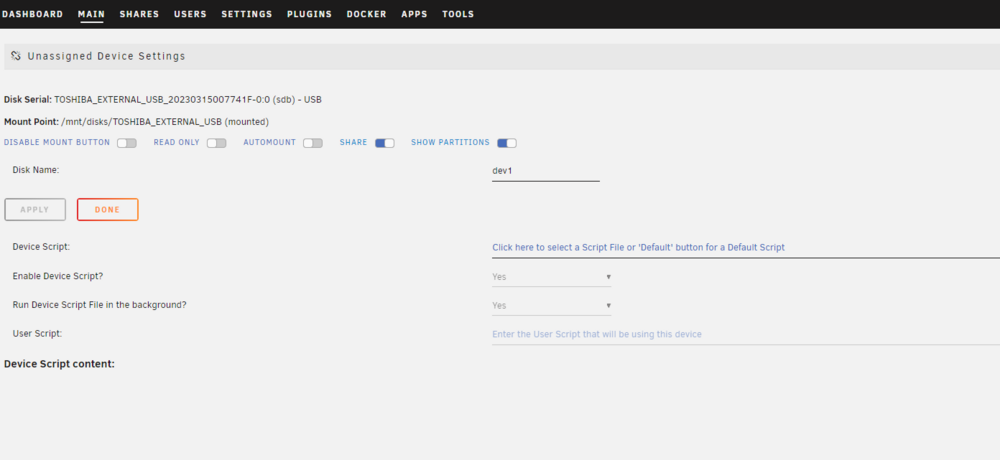
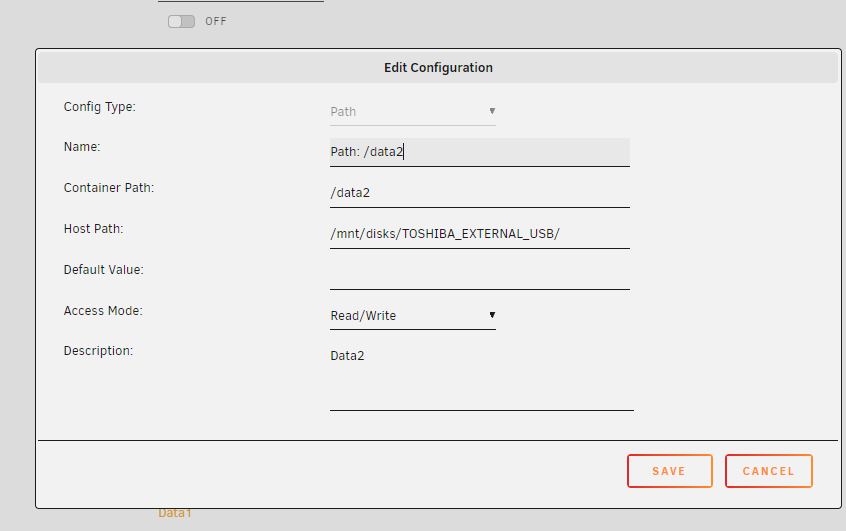
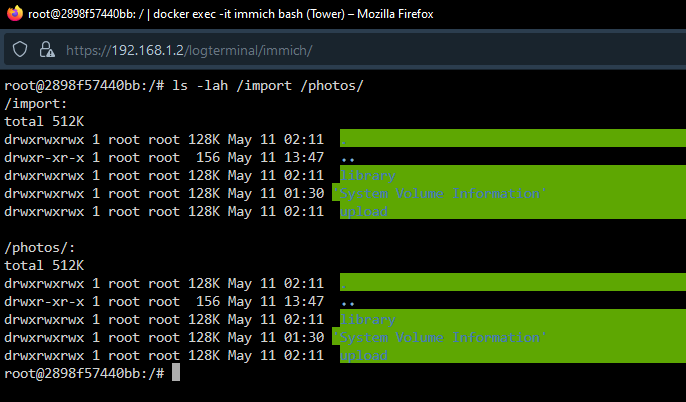
Here's a thread about docker permission issues: Under your Immich Settings, hit Advanced, make sure those permissions down there are correct, like these in mine below. I also saw a crossed out thing about your storage being somewhere else instead of a normal data disk in unRaid? Also check Common Settings under Settings for Unassigned Devices I seem to remember changing something in here a while back... Maybe that Destructive Mode thing? I don't exactly recall. Also the Main > unassigned devices > Settings gear on the drive you're mounting Hopefully this will get you somewhere! Looking over some other messages you have: looks like you probably linked the USB (?) folder via the Docker Settings for Immich. Make sure you got that right too. Let see if I have that somewhere... I also have a Syncthing going, and it IS writing to an external USB drive. Here are the settings for adding that drive into the docker settings for Syncthing, your addition to Immich, to ahve access to that USB drive would be the same: Another thing you can try out: Dashboard > Immich (icon) > "Console >_". That will drop you into the environment the Immich docker lives. You can CLI (command line interface) your way around in there. Try heading over to: /photos, and creating a file there: root@0a4265eaedab:/# cd photos/ root@0a4265eaedab:/photos# ls encoded-video library profile thumbs upload root@0a4265eaedab:/photos# touch test.txt root@0a4265eaedab:/photos# ls -la total 0 drwxrwxrwx 1 abc users 110 May 13 18:21 . drwxr-xr-x 1 root root 322 Apr 30 21:20 .. drwxr-xr-x 1 abc users 58 Oct 23 2023 encoded-video drwxr-xr-x 1 abc users 58 Oct 23 2023 library drwxr-xr-x 1 abc users 58 Oct 7 2023 profile -rw-r--r-- 1 root root 0 May 13 18:21 test.txt drwxr-xr-x 1 abc users 58 Oct 23 2023 thumbs drwxr-xr-x 1 abc users 58 Oct 25 2023 upload root@0a4265eaedab:/photos# That should work, and if it doesn't, then you're getting closer to the problem.
-
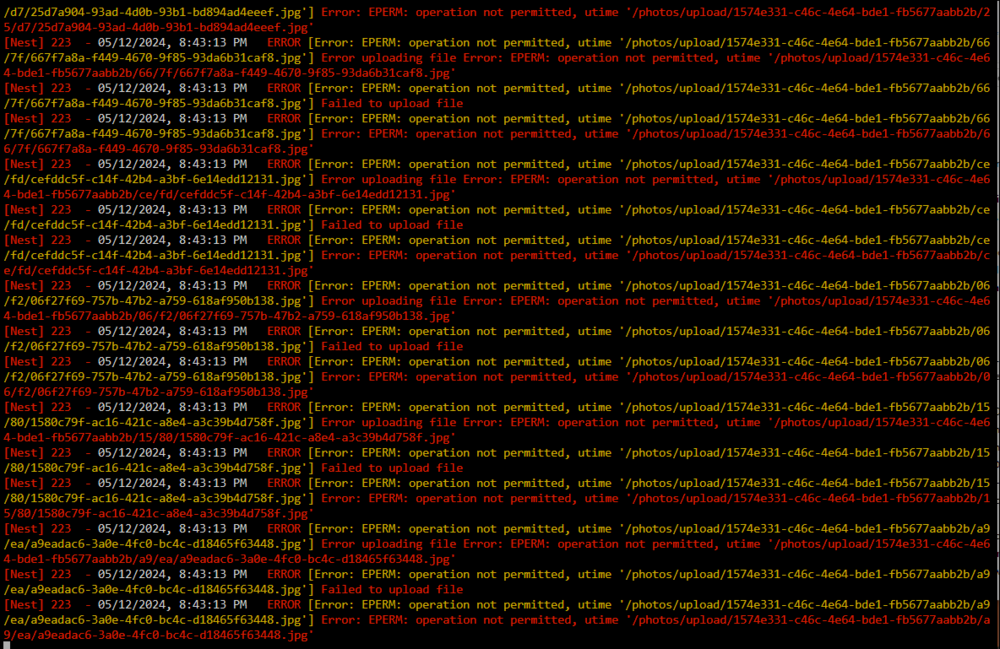
@srepper looks like permissions problems. Have you googled around for Immich permission problems? Have you restarted the docker?
-
I noticed some IP in China is slamming my ports. What's a good way to shut that down?