





damnshaneisthatu
Members
-
Joined
-
Last visited
-
I love this community. Thank you for providing the solution!!
-
Thank you, @blaine07. Was driving me absolutely batty. As usual, NC forums were useless.
-
Still the same after changing it.
-
Returned: total 0Is there another place to check perms? Tried from my Mac and no dice.
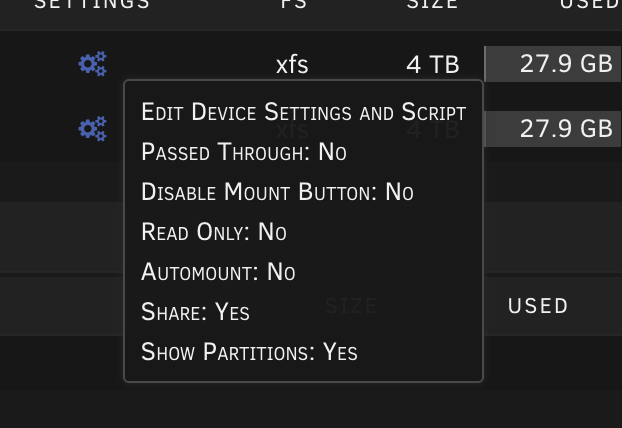 'mount' output: /dev/sdb1 on /mnt/disks/sdb1 type xfs (rw,noatime,nodiratime,discard) Dynamix SSD Trim is already installed.xfs jarvis-diagnostics-20220707-1915.zipI see. Still having the issue writing to the disk after having partitioned through UD.Is it the "Format" button shown here? Or a different method?
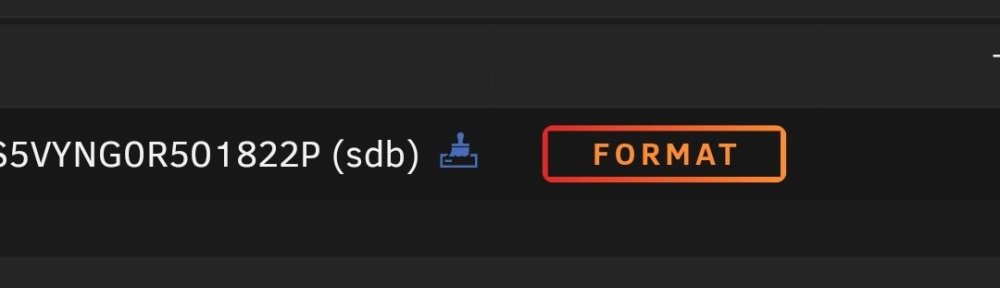 I am attempting to reformat an UD with partitions using this tutorial from Spaceinvader One. However, I'm running into an issue where I can't write to the UD after partitioning the drive. I've tried clearing the disk, removing the disk, and deleting it from the historical devices to no avail. I can't write to either partition via Krusader. Appreciate any assistance here!
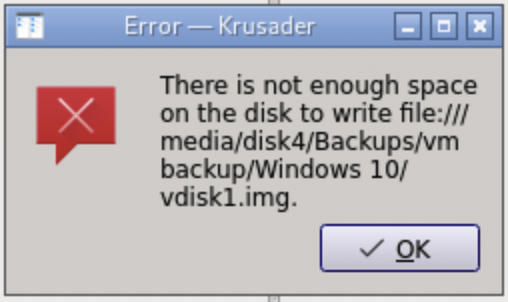
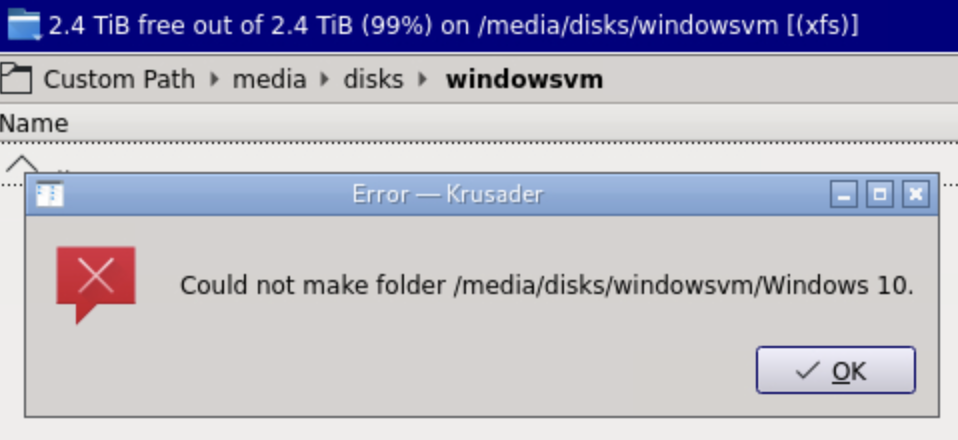 Apologies, just realized this was in General Support. I am attempting to move my Windows VM vdisk from my array back to an unassigned device via Krusader. I'm receiving the following error: "There is not enough space on the disk to write". jarvis-diagnostics-20220705-1002.zip
 What was the solution?Does anyone know what happened to Global Detector Settings? Are there other ways of setting motion detection? Thanks!
 Any update or fix? I'm still struggling with mine. Thinking about moving back over to Let's Encrypt docker.



