





damnshaneisthatu
Members
-
Joined
-
Last visited
Everything posted by damnshaneisthatu
-
I love this community. Thank you for providing the solution!!
-
Thank you, @blaine07. Was driving me absolutely batty. As usual, NC forums were useless.
-
Still the same after changing it.
-
Returned: total 0Is there another place to check perms? Tried from my Mac and no dice.
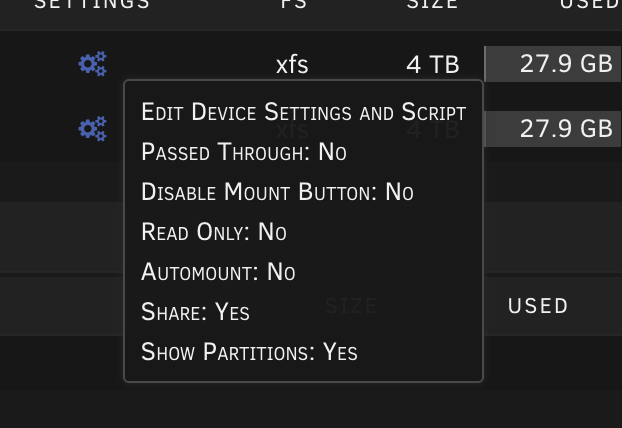 'mount' output: /dev/sdb1 on /mnt/disks/sdb1 type xfs (rw,noatime,nodiratime,discard) Dynamix SSD Trim is already installed.xfs jarvis-diagnostics-20220707-1915.zipI see. Still having the issue writing to the disk after having partitioned through UD.Is it the "Format" button shown here? Or a different method?
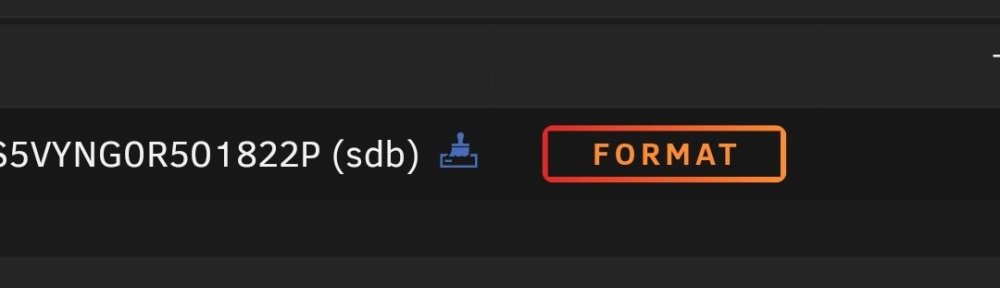 I am attempting to reformat an UD with partitions using this tutorial from Spaceinvader One. However, I'm running into an issue where I can't write to the UD after partitioning the drive. I've tried clearing the disk, removing the disk, and deleting it from the historical devices to no avail. I can't write to either partition via Krusader. Appreciate any assistance here!
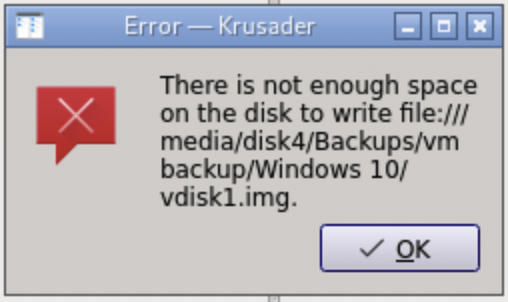
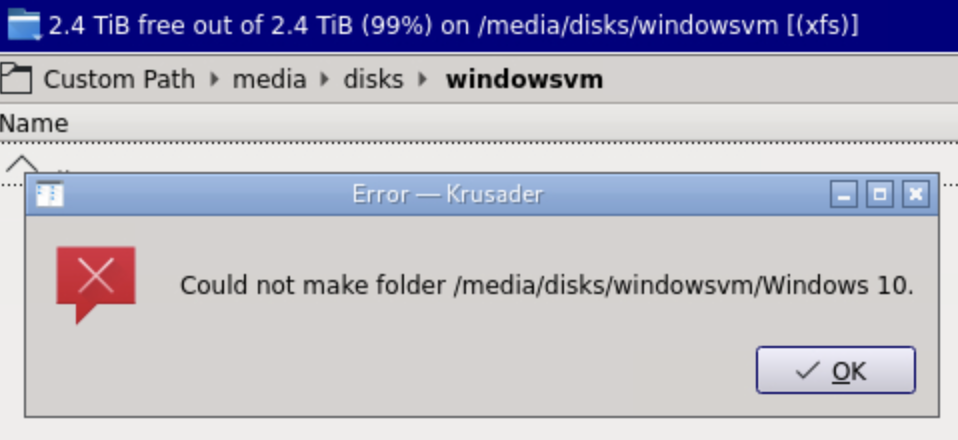 Apologies, just realized this was in General Support. I am attempting to move my Windows VM vdisk from my array back to an unassigned device via Krusader. I'm receiving the following error: "There is not enough space on the disk to write". jarvis-diagnostics-20220705-1002.zip
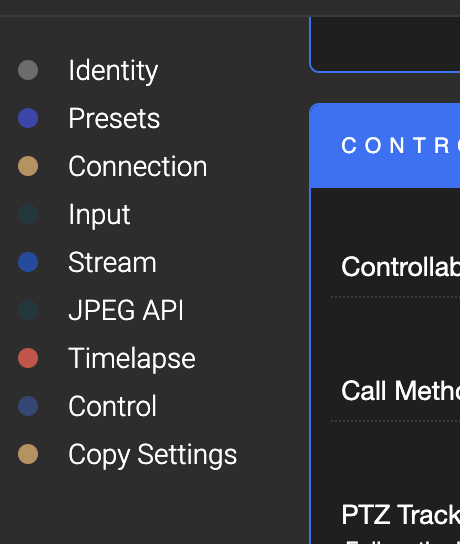
 What was the solution?Does anyone know what happened to Global Detector Settings? Are there other ways of setting motion detection? Thanks!
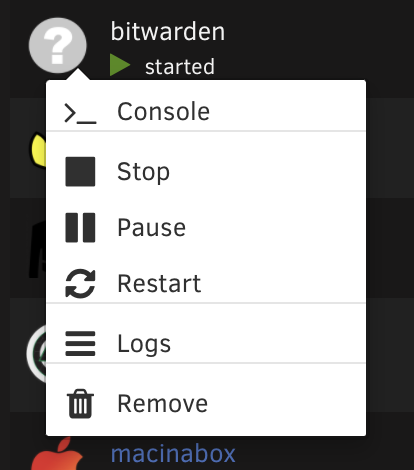
 Any update or fix? I'm still struggling with mine. Thinking about moving back over to Let's Encrypt docker.There's one that is working. For the certs that are failing, I'm getting: Your connection is not private Attackers might be trying to steal your information from radarr.mydomain.com (for example, passwords, messages, or credit cards). Learn more NET::ERR_CERT_DATE_INVALIDStill failing after running both renewal commands: "Hint: The Certificate Authority failed to download the temporary challenge files created by Certbot. Ensure that the listed domains serve their content from the provided --webroot-path/-w and that files created there can be downloaded from the internet."Having issues accessing some of my domains. "NET::ERR_CERT_DATE_INVALID" Log reporting: Error: Command failed: certbot renew --non-interactive --quiet --config "/etc/letsencrypt.ini" --preferred-challenges "dns,http" --disable-hook-validation All renewals failed. The following certificates could not be renewed: Can anyone offer any guidance here? Thank you.Drive with my vdisk was full. Swapped for a larger drive and solved the issue.Anyone else's machine repeatedly restarting after doing Spaceinvader One's Tdarr tutorial and transcoding their media library? I'm getting 3-5x restarts a day at least.Wasnt the case, however. Just looking for some help, not a scolding.After following this tutorial to update the repo from Bitwarden to Vaultwarden, I'm unable to access the WebUI from the docker or make edits to the docker itself. Has anyone else experienced this?
 @BMCave did you find a solution? I'm currently experience the same thing.Did you find a fix for this? Or was it just restoring the other drives?Running into the same thing here. Is there a way to revert to stock XML? I thought I selected all the original specs, but I still can't get it to boot properly.



