doesntaffect
Members
-
Joined
-
Last visited
Everything posted by doesntaffect
-
Not so far. Mine is still on 1.00 since it is rock stable since day 1.
-
Do you want to use the dock to be able to swap the disks? As you can see on my pictures, all my disks are internal and UnRaid does the spin down. I use one external usb disk, 4 TB, to back up critical data, compressed and encrypted and since I have a O365 account I use the 1TB online storage as external encrypted backup storage. I use duplicati to run backups.
-
Eco Mode is in Advanced / Overclocking Settings. You can configure the TDP etc. manually or just enable the Eco Mode - which is a good compromise between performance & wattage I think. How did you configure your memory resp. which setting did you change to reach 3200mhz? I also noticed there is no USB 2.0 port, however a USB 2.0 stick as boot media works well. Dont use a USB 3.0 stick. Thats gonna fail 99% after a few days. I experienced that a few times at the beginning and you dont need to go through that
-
Well, I might find time this week to play arround with this and to share the results here. Would be nice to see how you are progressing with your buld.
-
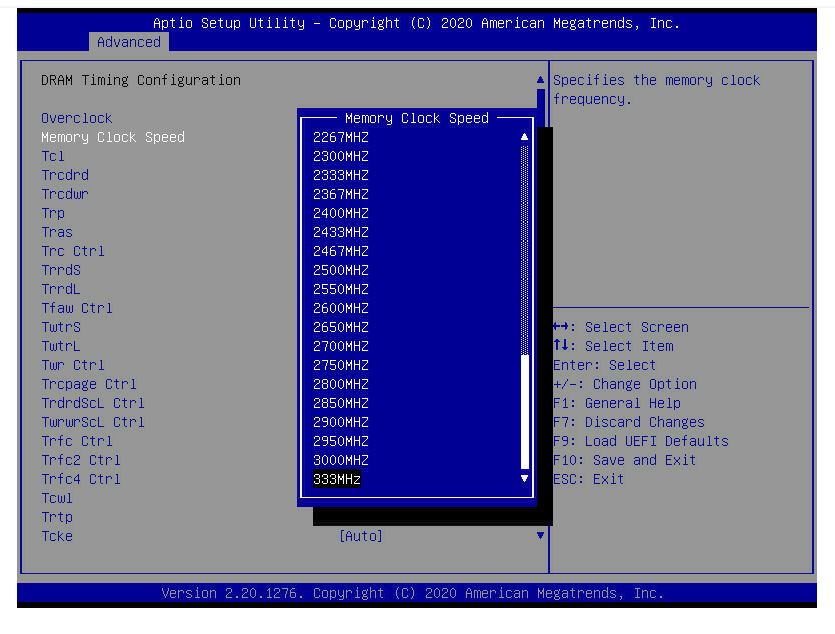
Memory Speed settings in Bios: Since the system is super stable I dont mind to change these settings. However, the memory is recognized as DDR4-3200 in the Bios main screen. Regarding SSDs - I'll try to explain it simple, but if you have more general questions I suggest you post the the general support section. As you can see in my earlier post I have 6 SSDs in two "pools". The small pool is a raid 1, the large pool a raid 10. Once I had my harddisk up and running I created several shares like you can see below. For each share I configured how to make use of the SSD caches. For some shares I dont need caching (NO), for some I want the data to "preferably" reside on the SSD if there is enough space on the SSD (e.g. for my VMs). And for some shares I decided to first write on cache, but once the mover kicks in at night the data gets moved to the harddisks and will be removed from the cache (Yes: Cache or XCache). There is also a "Only" option which means you keep data only on the cache but I see a risk here, should you run out of cache space, especially when the cache drive is shared between shares hence I changed that to "prefer" so data can overflow to the harddisk if a cache runs out of space. So, depending on the purpose you can configure your shares to make use of an SSD cache or not and to what extend. If you have two shares (VM and Data), you could configure the VM share to keep the data on the SSD (Prefer:Cache) and for example to only keep new files on the SSD for the Data share, until the mover gets invoked (Yes:Cache). However, this probably will only benefit you when you copy large amount of data to your UnRaid host over a network connection that can exceed the harddisk write speed (More than 100 - 130MB/Sec). There might be also other reasons to cache data drives, but that could be explored in a separate post :). My network is Gbit / Gbit WIFI and the UnRaid is bonded with 2x1GBit to the network. I dont use a special router since my Internet connection is just a 100Mbit connection. Hope that helped.

-
Large cache in action, performing a full balance. Speed varies between 1.5 - 2.2GB/Sec

-
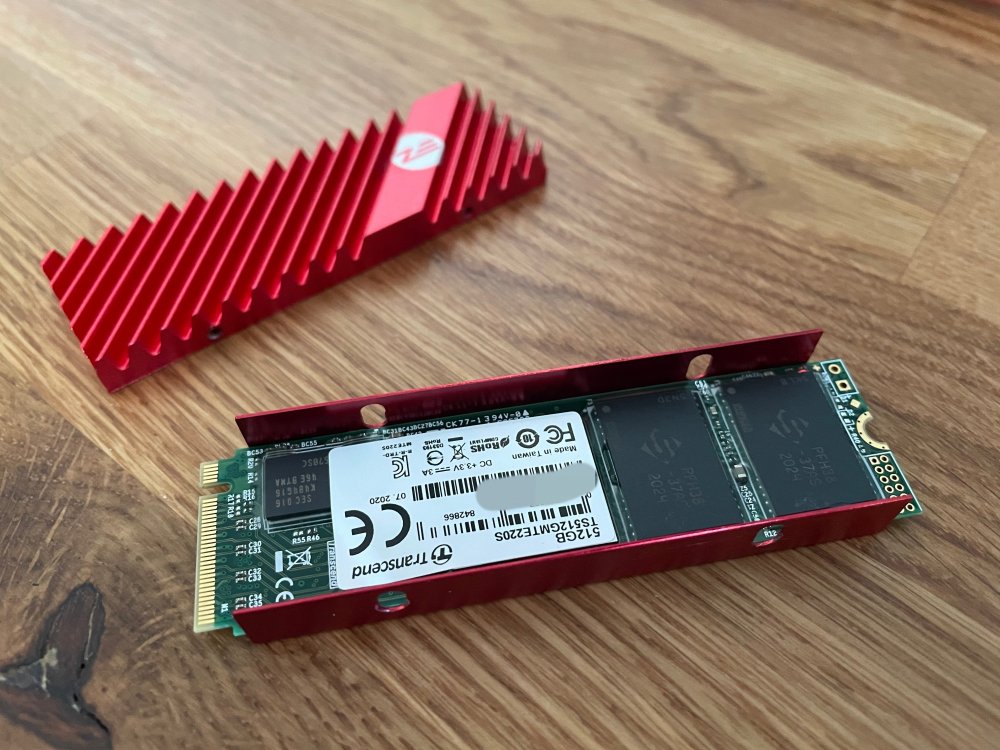
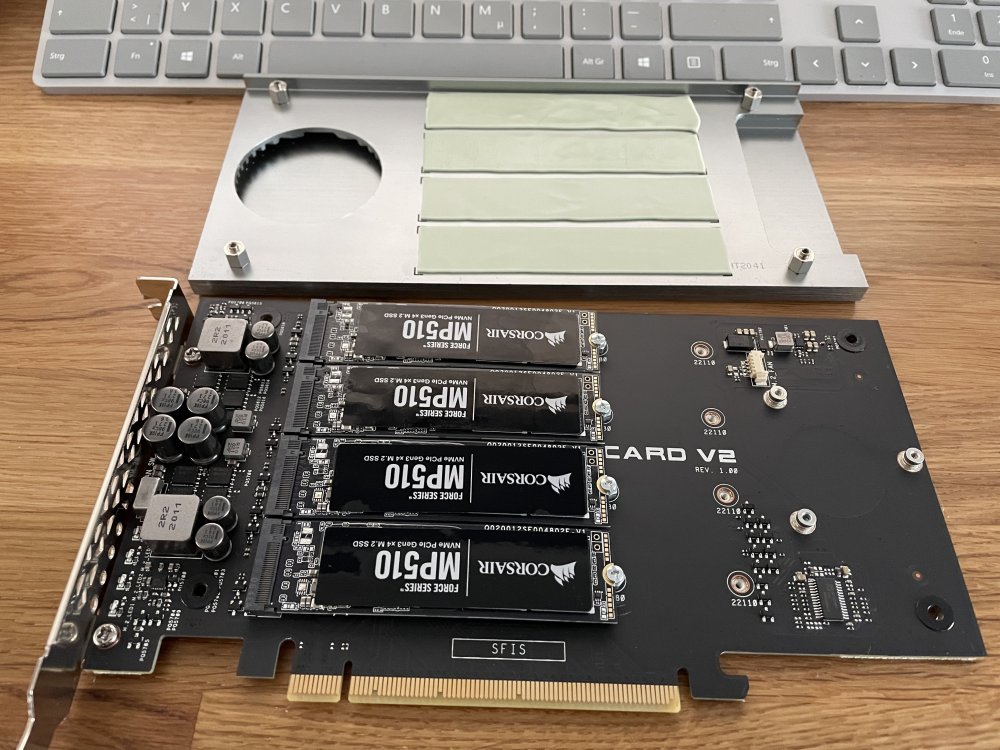
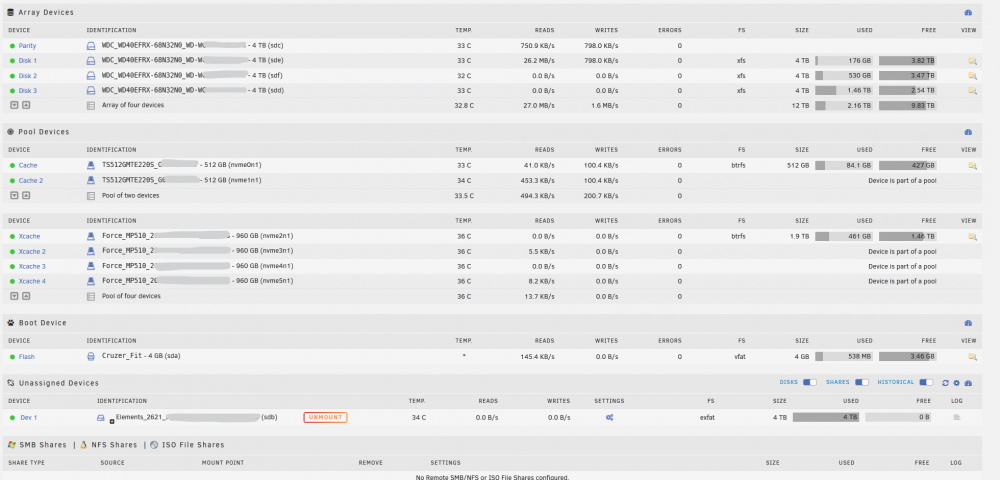
Your questions: 1. Why and how did you make such powerful cache? A: Because I can :). Seriously, I wanted to learn how this works and I wanted structure my system in a clean way. The way I structure my data is basically: Disks for cold data and Backups Small NVME cache for VMs only Large NVME cache for a photo / video library (50K photos / >2K videos; no movies) and 14 docker container USB Disk to move certain backups off the system I picked 4 SSDs and the raid10 config for the large cache to have a fast, mirrored cache which still has plenty of free space. I didnt want to build this, copy all data and immedialty run out of cache space, especialy since this would reduce the lifespan of the SSDs. You could say I use the cache as as a super fast drive, compared to the slower harddisks. 2. How did you get such fancy M.2 radiators? On the open market? Were such thinks a bundle part of SSD? A: The red NVME cooler are from Amazon (12 Euro) and do an excellent job, same as the M.2 adapter card with its large cooler surface. 3. What do you think about leaving ASM2500 as ONLY one card in the system. Any considerations? A: If you dont need strong GPU performance in your VMs you can perfectly live with the ASM. I have a few server VMs (Linux only) and a Win10 VM running and they only use virtual GPUs. The Win10 is my Virtual Desktop I use to edit the videos or to do other stuff directly on the file shares (So I dont need to copy / paste files between the Unraid host and my Laptop) and the performance on a Macbook, using MS RDP client is really good. I wouldnt need a dedicated GPU for the VM. So since you plan to run Win2022 Server I'd suggest to better have a CPU with more cores/cache and same TDP as the AMD APUs. I also started with an MSI Board and a 4 core Low Power APU but I didnt use the AMD integrated GPU for anything. So I went all in, in the matter of professionalizing the setup and changed CPU, Board, mem, case etc to the current setup. I did place the memory wrong in the beginning, however fixed that. I think I remember I could set the Speed to 3200 in the Bios, which did work / boot. So I reached out to the support and they confirmed 2666 is the max. speed - which makes sense since the two dimms are dual rank (DR), where the limit is 2666. As written early, I didnt spend any time in the Memory OC settings (OC settings in general are amazing and you can configure every piece of the board / CPU). Screenshot from my disk config attached:
-
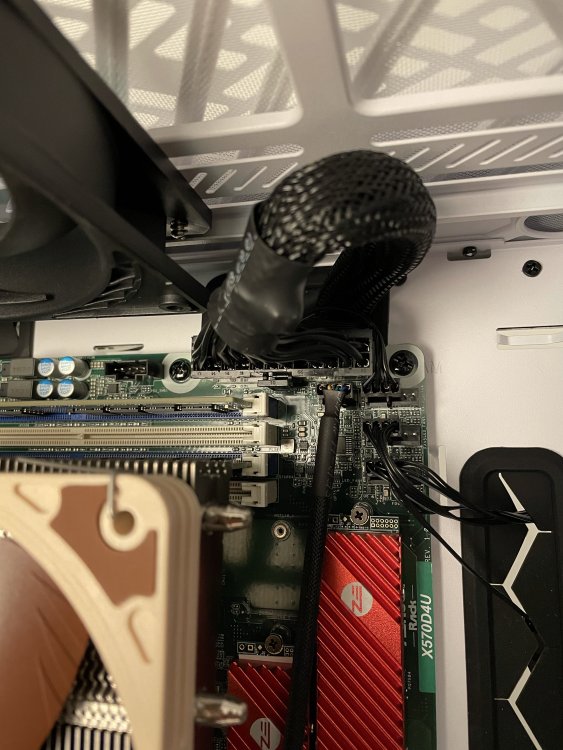
The system is 100% stable since day 1. No issues, no problems. It just sits there and works. The max memory speed has been confirmed by Asrockracks technical support. I didnt play with the memory OC features since stability is important for me and I dont need a couple more megabyte/sec memory bandwidth. I also didnt try the 1.10 bios because it doesnt add any features I am missing. I would only flash it for a Ryzen 5000. I'd say this board and the config (cooler, memory, case, NVME cards) is a fire and forget thing. Set it up, configure it and you are done. All disks work well, have a decent troughput, especially the NVME Raid 10 is amazingly fast. The only two things I remember from the build process to be aware of is, that the ATX cable needs to be long enough since the connector on the board is at the top, wich requires a bit of cable length to allow bending of the cable properly. And, secondly, that the IPMI password can only be 16byte long. If you set a longer password, login will not work. I think my 1st post covers all the points. I also did the upgrade from 6.9 RC2 to the final release, which took 5 mins incl reboot.
-
Hope this is what you are looking for: IOMMU group 0: [1022:1482] 00:01.0 Host bridge: Advanced Micro Devices, Inc. [AMD] Starship/Matisse PCIe Dummy Host Bridge IOMMU group 1: [1022:1483] 00:01.1 PCI bridge: Advanced Micro Devices, Inc. [AMD] Starship/Matisse GPP Bridge IOMMU group 2: [1022:1483] 00:01.2 PCI bridge: Advanced Micro Devices, Inc. [AMD] Starship/Matisse GPP Bridge IOMMU group 3: [1022:1482] 00:02.0 Host bridge: Advanced Micro Devices, Inc. [AMD] Starship/Matisse PCIe Dummy Host Bridge IOMMU group 4: [1022:1482] 00:03.0 Host bridge: Advanced Micro Devices, Inc. [AMD] Starship/Matisse PCIe Dummy Host Bridge IOMMU group 5: [1022:1483] 00:03.1 PCI bridge: Advanced Micro Devices, Inc. [AMD] Starship/Matisse GPP Bridge IOMMU group 6: [1022:1483] 00:03.2 PCI bridge: Advanced Micro Devices, Inc. [AMD] Starship/Matisse GPP Bridge IOMMU group 7: [1022:1483] 00:03.3 PCI bridge: Advanced Micro Devices, Inc. [AMD] Starship/Matisse GPP Bridge IOMMU group 8: [1022:1483] 00:03.4 PCI bridge: Advanced Micro Devices, Inc. [AMD] Starship/Matisse GPP Bridge IOMMU group 9: [1022:1482] 00:04.0 Host bridge: Advanced Micro Devices, Inc. [AMD] Starship/Matisse PCIe Dummy Host Bridge IOMMU group 10: [1022:1482] 00:05.0 Host bridge: Advanced Micro Devices, Inc. [AMD] Starship/Matisse PCIe Dummy Host Bridge IOMMU group 11: [1022:1482] 00:07.0 Host bridge: Advanced Micro Devices, Inc. [AMD] Starship/Matisse PCIe Dummy Host Bridge IOMMU group 12: [1022:1484] 00:07.1 PCI bridge: Advanced Micro Devices, Inc. [AMD] Starship/Matisse Internal PCIe GPP Bridge 0 to bus[E:B] IOMMU group 13: [1022:1482] 00:08.0 Host bridge: Advanced Micro Devices, Inc. [AMD] Starship/Matisse PCIe Dummy Host Bridge IOMMU group 14: [1022:1484] 00:08.1 PCI bridge: Advanced Micro Devices, Inc. [AMD] Starship/Matisse Internal PCIe GPP Bridge 0 to bus[E:B] IOMMU group 15: [1022:790b] 00:14.0 SMBus: Advanced Micro Devices, Inc. [AMD] FCH SMBus Controller (rev 61) [1022:790e] 00:14.3 ISA bridge: Advanced Micro Devices, Inc. [AMD] FCH LPC Bridge (rev 51) IOMMU group 16: [1022:1440] 00:18.0 Host bridge: Advanced Micro Devices, Inc. [AMD] Matisse Device 24: Function 0 [1022:1441] 00:18.1 Host bridge: Advanced Micro Devices, Inc. [AMD] Matisse Device 24: Function 1 [1022:1442] 00:18.2 Host bridge: Advanced Micro Devices, Inc. [AMD] Matisse Device 24: Function 2 [1022:1443] 00:18.3 Host bridge: Advanced Micro Devices, Inc. [AMD] Matisse Device 24: Function 3 [1022:1444] 00:18.4 Host bridge: Advanced Micro Devices, Inc. [AMD] Matisse Device 24: Function 4 [1022:1445] 00:18.5 Host bridge: Advanced Micro Devices, Inc. [AMD] Matisse Device 24: Function 5 [1022:1446] 00:18.6 Host bridge: Advanced Micro Devices, Inc. [AMD] Matisse Device 24: Function 6 [1022:1447] 00:18.7 Host bridge: Advanced Micro Devices, Inc. [AMD] Matisse Device 24: Function 7 IOMMU group 17: [126f:2262] 01:00.0 Non-Volatile memory controller: Silicon Motion, Inc. SM2262/SM2262EN SSD Controller (rev 03) [N:0:1:1] disk TS512GMTE220S__1 /dev/nvme0n1 512GB IOMMU group 18: [1022:57ad] 20:00.0 PCI bridge: Advanced Micro Devices, Inc. [AMD] Matisse Switch Upstream IOMMU group 19: [1022:57a3] 21:01.0 PCI bridge: Advanced Micro Devices, Inc. [AMD] Matisse PCIe GPP Bridge IOMMU group 20: [1022:57a3] 21:04.0 PCI bridge: Advanced Micro Devices, Inc. [AMD] Matisse PCIe GPP Bridge IOMMU group 21: [1022:57a3] 21:05.0 PCI bridge: Advanced Micro Devices, Inc. [AMD] Matisse PCIe GPP Bridge IOMMU group 22: [1022:57a3] 21:06.0 PCI bridge: Advanced Micro Devices, Inc. [AMD] Matisse PCIe GPP Bridge IOMMU group 23: [1022:57a4] 21:08.0 PCI bridge: Advanced Micro Devices, Inc. [AMD] Matisse PCIe GPP Bridge [1022:1485] 2a:00.0 Non-Essential Instrumentation [1300]: Advanced Micro Devices, Inc. [AMD] Starship/Matisse Reserved SPP [1022:149c] 2a:00.1 USB controller: Advanced Micro Devices, Inc. [AMD] Matisse USB 3.0 Host Controller Bus 001 Device 001: ID 1d6b:0002 Linux Foundation 2.0 root hub Bus 002 Device 001: ID 1d6b:0003 Linux Foundation 3.0 root hub [1022:149c] 2a:00.3 USB controller: Advanced Micro Devices, Inc. [AMD] Matisse USB 3.0 Host Controller Bus 003 Device 001: ID 1d6b:0002 Linux Foundation 2.0 root hub Bus 003 Device 002: ID 0781:5571 SanDisk Corp. Cruzer Fit Bus 003 Device 004: ID 046b:ff01 American Megatrends, Inc. Virtual Hub Bus 003 Device 005: ID 046b:ff20 American Megatrends, Inc. Virtual Cdrom Device Bus 003 Device 006: ID 046b:ffb0 American Megatrends, Inc. Virtual Ethernet Bus 003 Device 007: ID 046b:ff10 American Megatrends, Inc. Virtual Keyboard and Mouse Bus 003 Device 042: ID 0764:0501 Cyber Power System, Inc. CP1500 AVR UPS Bus 004 Device 001: ID 1d6b:0003 Linux Foundation 3.0 root hub IOMMU group 24: [1022:57a4] 21:09.0 PCI bridge: Advanced Micro Devices, Inc. [AMD] Matisse PCIe GPP Bridge [1022:7901] 2b:00.0 SATA controller: Advanced Micro Devices, Inc. [AMD] FCH SATA Controller [AHCI mode] (rev 51) [2:0:0:0] disk ATA WDC WD40EFRX-68N 0A82 /dev/sdb 4.00TB [5:0:0:0] disk ATA WDC WD40EFRX-68N 0A82 /dev/sdc 4.00TB IOMMU group 25: [1022:57a4] 21:0a.0 PCI bridge: Advanced Micro Devices, Inc. [AMD] Matisse PCIe GPP Bridge [1022:7901] 2c:00.0 SATA controller: Advanced Micro Devices, Inc. [AMD] FCH SATA Controller [AHCI mode] (rev 51) [7:0:0:0] disk ATA WDC WD40EFRX-68N 0A82 /dev/sdd 4.00TB [10:0:0:0] disk ATA WDC WD40EFRX-68N 0A82 /dev/sde 4.00TB IOMMU group 26: [126f:2262] 23:00.0 Non-Volatile memory controller: Silicon Motion, Inc. SM2262/SM2262EN SSD Controller (rev 03) [N:1:1:1] disk TS512GMTE220S__1 /dev/nvme1n1 512GB IOMMU group 27: [8086:1533] 26:00.0 Ethernet controller: Intel Corporation I210 Gigabit Network Connection (rev 03) IOMMU group 28: [8086:1533] 27:00.0 Ethernet controller: Intel Corporation I210 Gigabit Network Connection (rev 03) IOMMU group 29: [1a03:1150] 28:00.0 PCI bridge: ASPEED Technology, Inc. AST1150 PCI-to-PCI Bridge (rev 04) [1a03:2000] 29:00.0 VGA compatible controller: ASPEED Technology, Inc. ASPEED Graphics Family (rev 41) IOMMU group 30: [1987:5012] 2d:00.0 Non-Volatile memory controller: Phison Electronics Corporation E12 NVMe Controller (rev 01) [N:2:1:1] disk Force MP510__1 /dev/nvme2n1 960GB IOMMU group 31: [1987:5012] 2e:00.0 Non-Volatile memory controller: Phison Electronics Corporation E12 NVMe Controller (rev 01) [N:3:1:1] disk Force MP510__1 /dev/nvme3n1 960GB IOMMU group 32: [1987:5012] 2f:00.0 Non-Volatile memory controller: Phison Electronics Corporation E12 NVMe Controller (rev 01) [N:4:1:1] disk Force MP510__1 /dev/nvme4n1 960GB IOMMU group 33: [1987:5012] 30:00.0 Non-Volatile memory controller: Phison Electronics Corporation E12 NVMe Controller (rev 01) [N:5:1:1] disk Force MP510__1 /dev/nvme5n1 960GB IOMMU group 34: [1022:148a] 31:00.0 Non-Essential Instrumentation [1300]: Advanced Micro Devices, Inc. [AMD] Starship/Matisse PCIe Dummy Function IOMMU group 35: [1022:1485] 32:00.0 Non-Essential Instrumentation [1300]: Advanced Micro Devices, Inc. [AMD] Starship/Matisse Reserved SPP IOMMU group 36: [1022:1486] 32:00.1 Encryption controller: Advanced Micro Devices, Inc. [AMD] Starship/Matisse Cryptographic Coprocessor PSPCPP IOMMU group 37: [1022:149c] 32:00.3 USB controller: Advanced Micro Devices, Inc. [AMD] Matisse USB 3.0 Host Controller Bus 005 Device 001: ID 1d6b:0002 Linux Foundation 2.0 root hub Bus 006 Device 001: ID 1d6b:0003 Linux Foundation 3.0 root hub IOMMU group 38: [1022:1487] 32:00.4 Audio device: Advanced Micro Devices, Inc. [AMD] Starship/Matisse HD Audio Controller
-
I am not using GPU passthrough, however this should work from what I have seen in the config. Didnt digg deep into IOMMU settings, however all hardware which is present, even the IPMI virtual CD drive, can be choosen to passthrough to the VMs. If you have specific questions for settings, please ask.
-
Fully loaded 47mins being reported. I wonder why the batteries will be damaged when dropping below 50%. My current config is to shutdown after 10mins on Battery or when capacity drops below 50%. With an addtl. Switch and an Odroid C2 the UPS has an average load of 70W. The UnRaid host is running at Eco Mode, which gives a good compromise re temps/performance/consumption.
-
I added a Cyberpower UPS ValuePRO VP700ELCD Green Power UPS 700VA/390W which was detected immediatly by the integrated APC deamon. Approx. runtime on battery is 40 mins.
-
I think I found the issue, and I did following. Most of my container where running with "br0" instead of bridge for the network config. The moment I flipped the settings I could max out my wifi with up to 50 Mbyte/sec. The moment I switched back to "br0" I could not achieve more than 6MByte/sec. Will post this in the docker section too. bottom line photoprism is running fine now.
-
well summarized and worth a PIN. I think I'll redo the math. As written in my initial post, the 45W config on surface looks like a sweet spot, without getting to technical with math and numbers.
-
I did a few more tests with 65W respectively allowing the Motherboard (through BIOS config) to set the package power limits. Without any adjustments and the CPU running at stock 65W the system consumes: 50W during boot 50 - 60W during normal operations e.g. docker starts / restarts 84 - 88W during parity check and array start up (with all services starting up too) 184 - 188W during full load when transcoding a 4K video CPU temps at full load went up to 86° (degree celcius). I also compared the 35W vs. 45W vs. 65W (unlimited) performance: 4K transcoding of a 1.7GB file using a Handbrake container: 65W - 28 FPS / 3mins 30sec - 188W max. 45W (Called Eco Mode in Bios) - 25 FPS / 3mins 45sec - 125W max. 35W - 4FPS / 25 mins - 79W max. So bottom line - the average load / idle load does not differ that much, however the max consumption can be limited quite a lot, with the price of much lower performance. One can also see that if the system has to execute other jobs in e.g. Nextcloud the avg. FPS in handbrake drop to 3.xx. Rendering a movie and using Nextcloud at the same time becomes sluggish. Without rendering a movie the performance is still good. I edited the original post and added a few cost related comments.
-
Still troubleshooting this. Server is connected to 1Gbit LAN. All Devices connect through wifi to the different container apps. Downloading videos from photoprism is running with avg. 3MB/sec, downloading the same file with Cloud Commander (also a container) is running at 25 - 50MB/sec, depending on WIFI load and my location in the house. The tests I am doing are all done from the same place, at the same time. Really weird issue. I am connecting directly the the LAN IP, no proxies, just: Client -> WIFI AP (Fritz Repeater 3000) -> Fritzbox -> UnRaid host -> Container.
-
@ich777 Can you have a look here? https://github.com/photoprism/photoprism/issues/763 I am struggling with the performance of Photoprism, not sure if this is related to your container or the app itself.
-
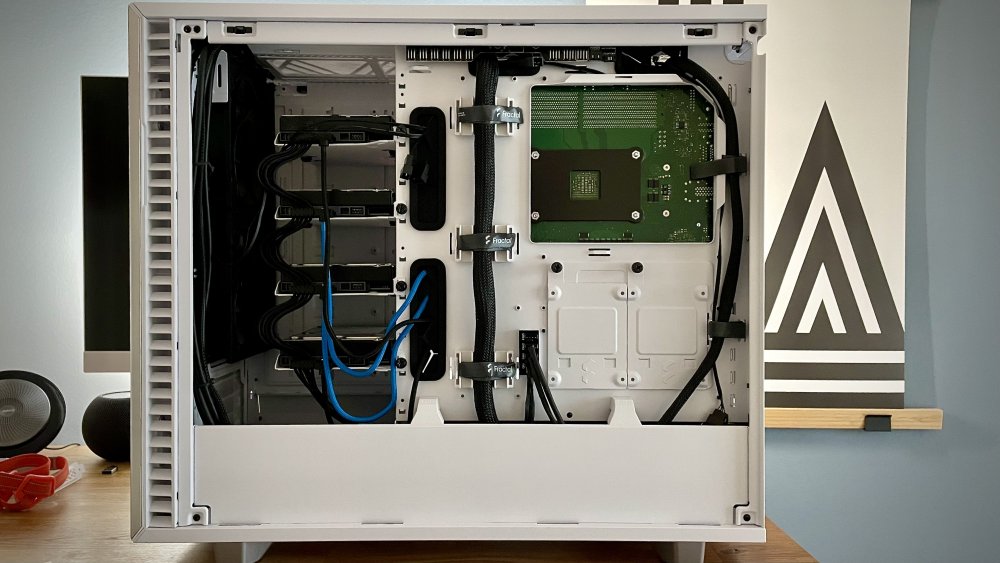
I think the Meshify allows even a better cable management, especially for the ATX connector since it has one more rubber protected cable grommet on top of the other two upper grommets. With the experience from my Define build I'd recommend the Meshify. And, the optics of the Meshify are cooler too. The Switch is fine. Not nowing your home / infrastructure I'd probably throw away the other small switch a get device which allows Link Aggregation. The full PCIe4 x1 slot of the board allows a 10G upgrade at a later stage.
-
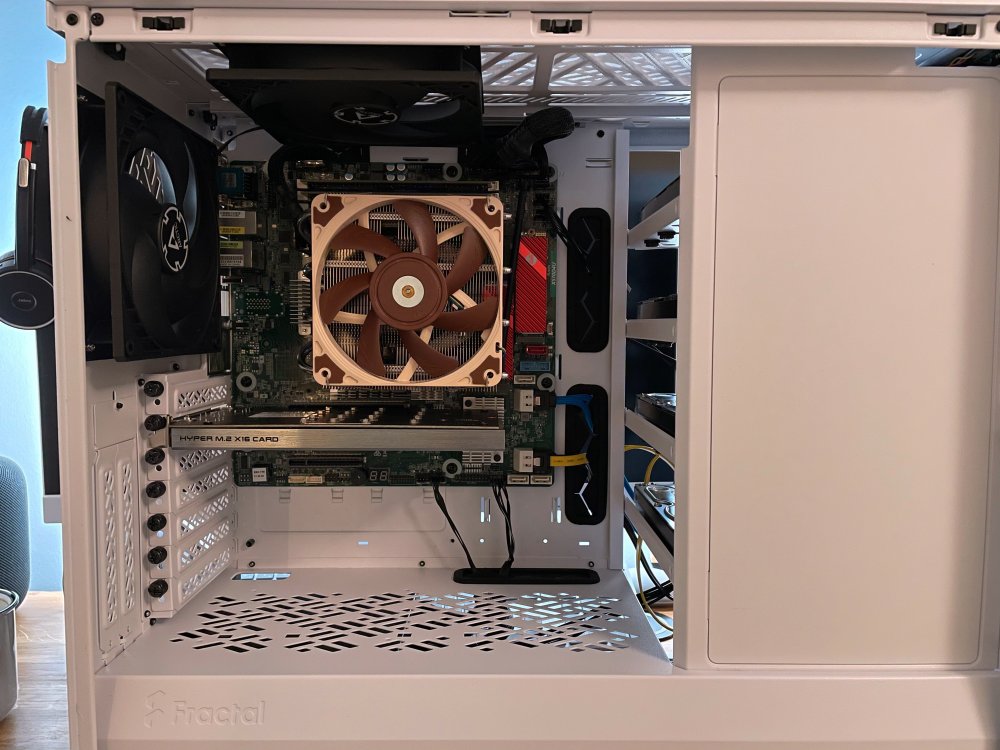
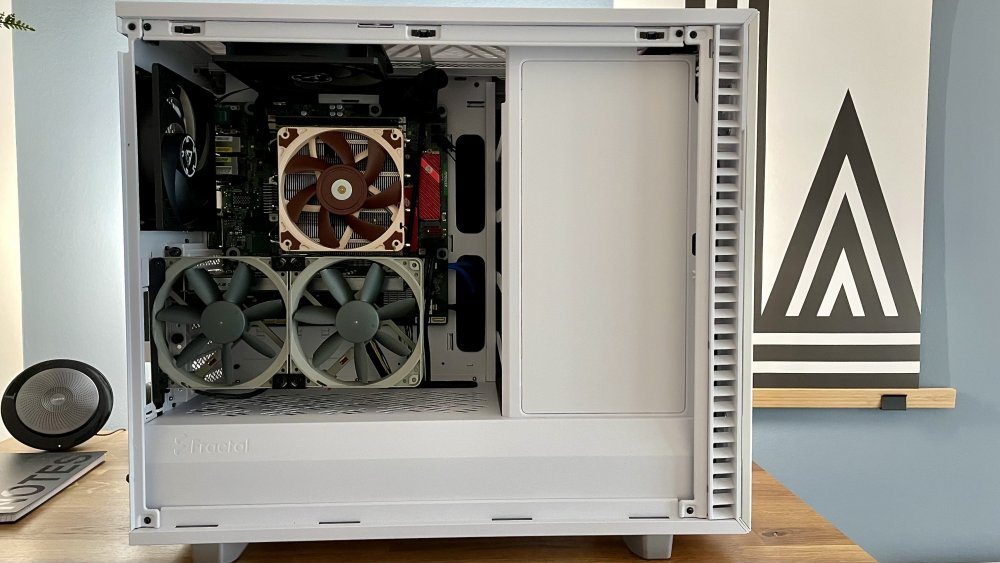
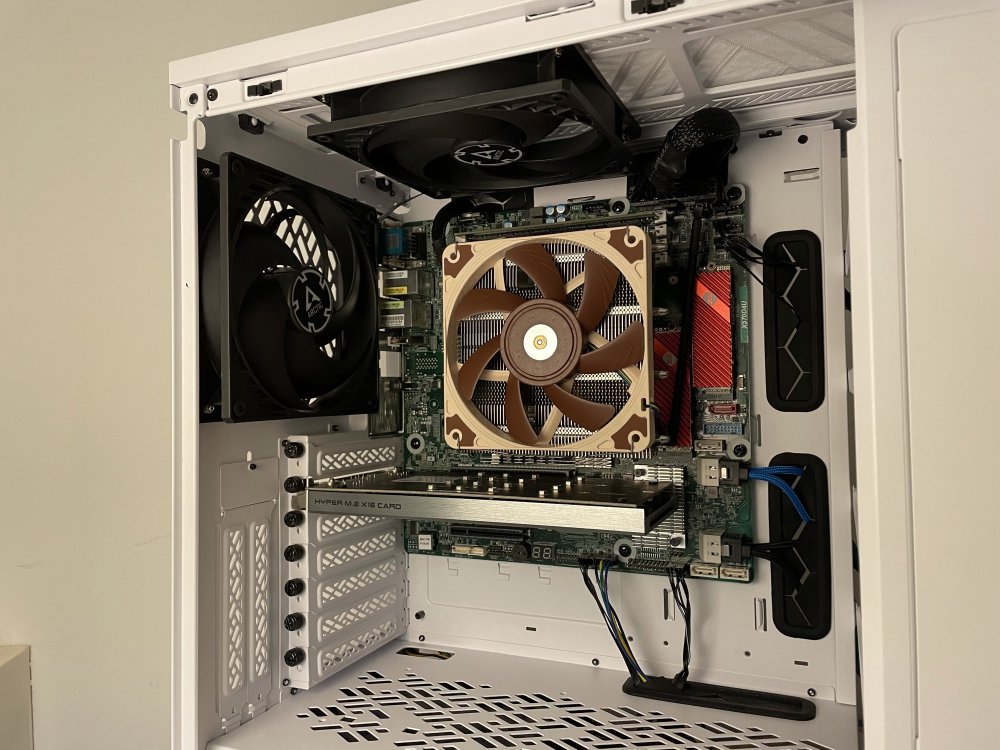
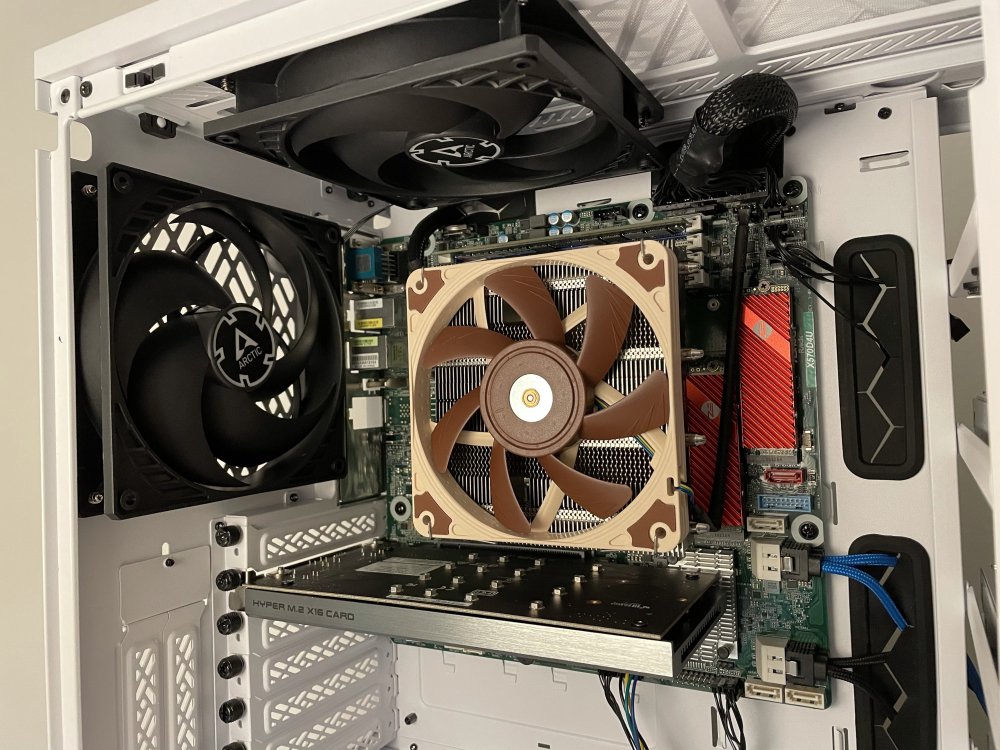
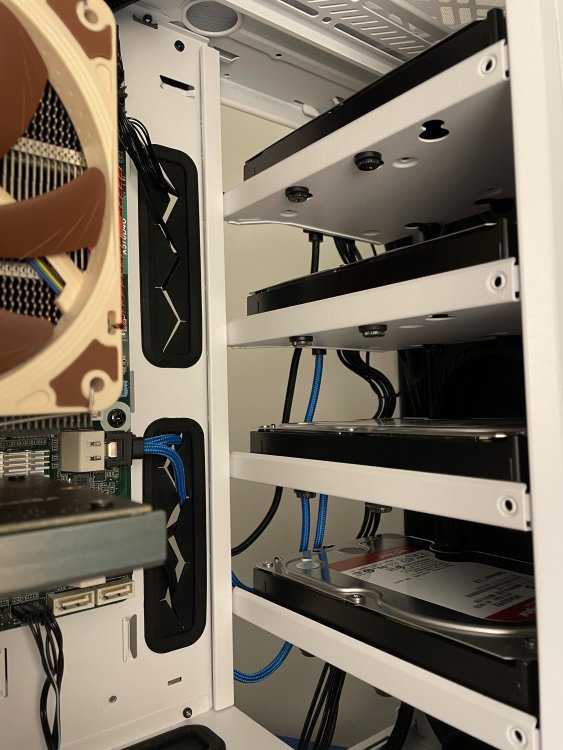
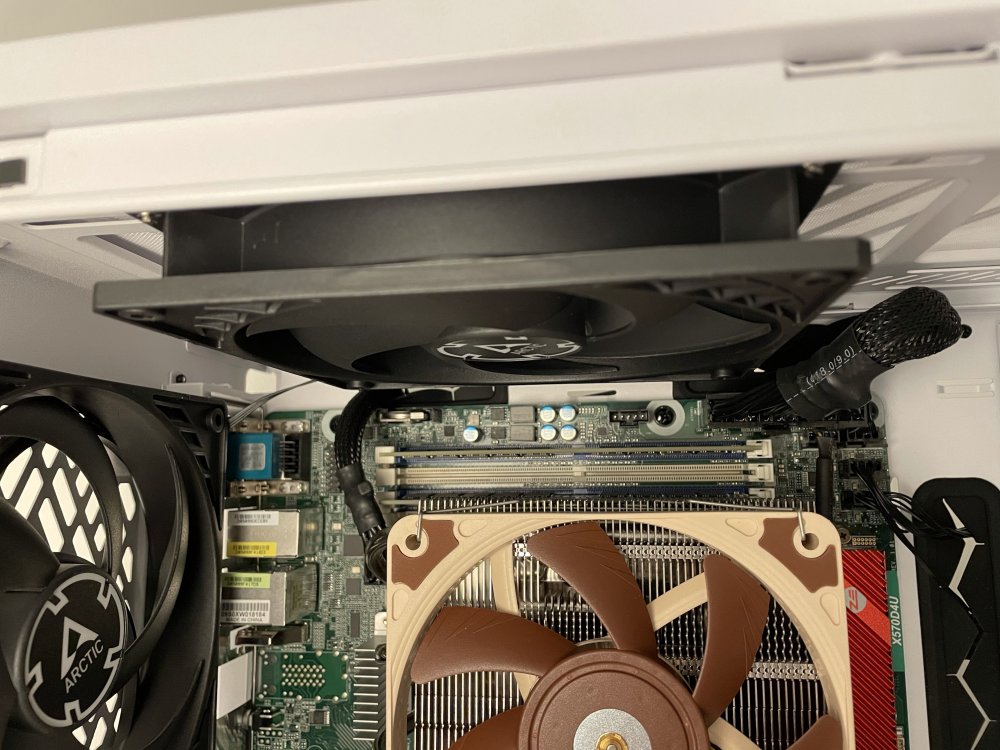
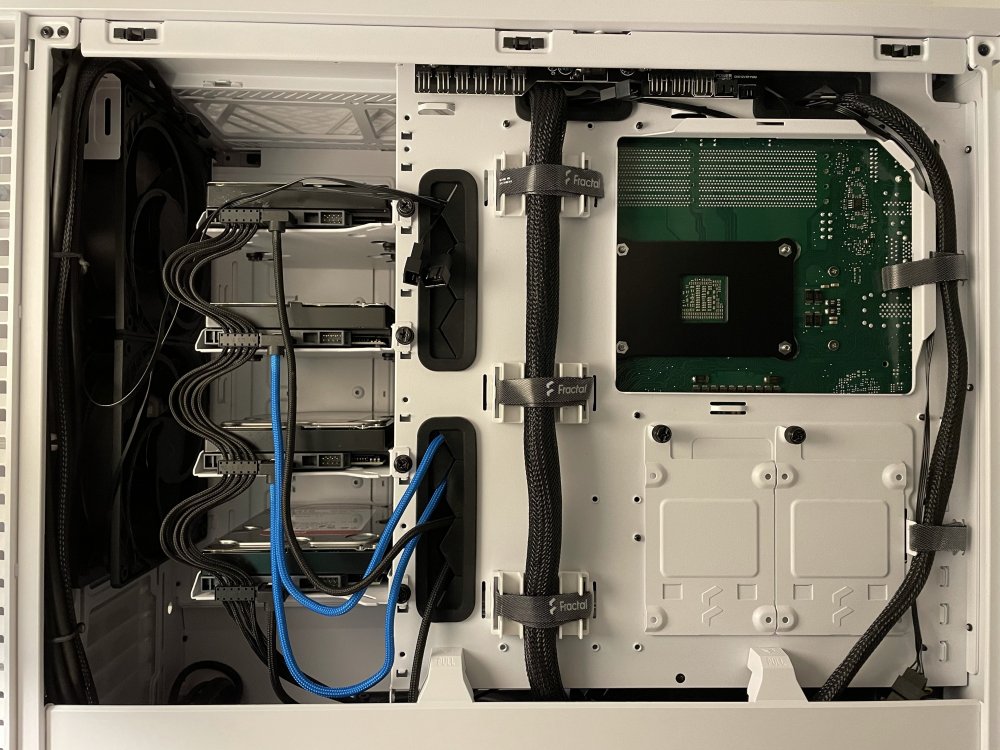
Main purpose of this system is media and document storage, with the flexibility to add docker container and VMs where I need them. My Picture db is approx. 40K High res JPEGs & RAW files and >1K videos, and growing . I am using a Photoprism container to structure the albums and also planing to use the Windows VM to edit the videos & photos. The workflows in this matter are still under development. I am also using a Handbrake container for video transcoding, primarily 4K IPhone footage (.mov) which I transcode into H.264 .mp4. This setup works really well, especially with all the CPU cores I can assign cores to e.g. Handbrake and let it render at 100% and assign cores to VMs and other services and basically nothing conflicts with each other. I dont use any Adobe software at the moment since I dont like their subscription model and I dont use this system for audio editing. I tested basic sound features Your 1G Switch will limit the speed per port to 1G (unless this rule has changed in last 5 yrs :D). What you could do is to bond the ports, however your Switch need to support this feature. 1G (max. ~80-90 Mbyte / second) is enough for my purpose and if I need more throughput I will bond the 2 NICs to get approx. 150 Mbyte / second. Simple Desktopswitches with link aggregration start at approx. 30 EUR. I picked the CPU to achieve a good core / power consumption ratio since it is running 24/7. And also, because I dont like standard hardware :). Since the board is relatively future proof I will also be able to add future 65W Zen 3 CPUs which AMD is preparing atm (Ryzen 9 5900 for example). The differences in performance between 3900 and 3900x can be measured but you will not notice them when working in apps. My goal also was to build a clean and well build system as I hate untidy setups or cable mess:). Updated pictures below. The case is really awsome and allows great airflow and a clean setup. If you plan to add a GPU to accelerate your VMs and to use the Asus card you would be limited to 2x x8 PCIe lanes. So you could use 2 PCIe 4.0 SSDs in Raid 1 with the Asus card, which should be fast enough for editing purposes. The x16 slot would be running at x8 speed. See the handbook page 15 for details.
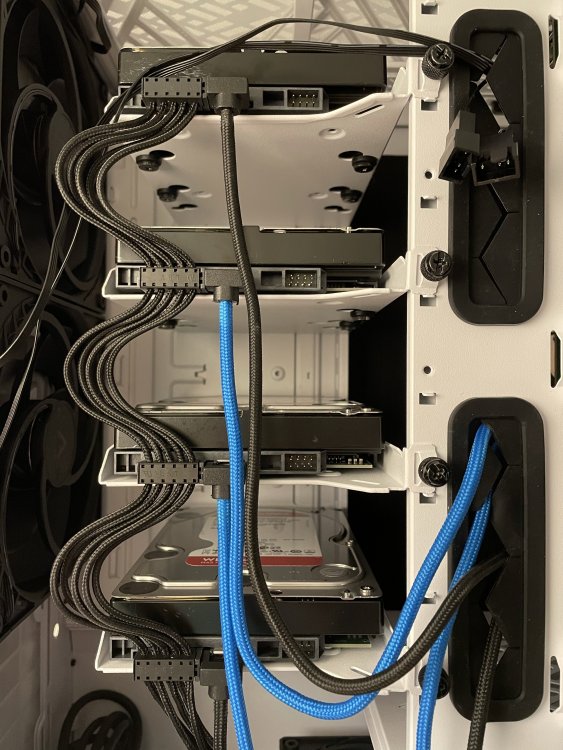
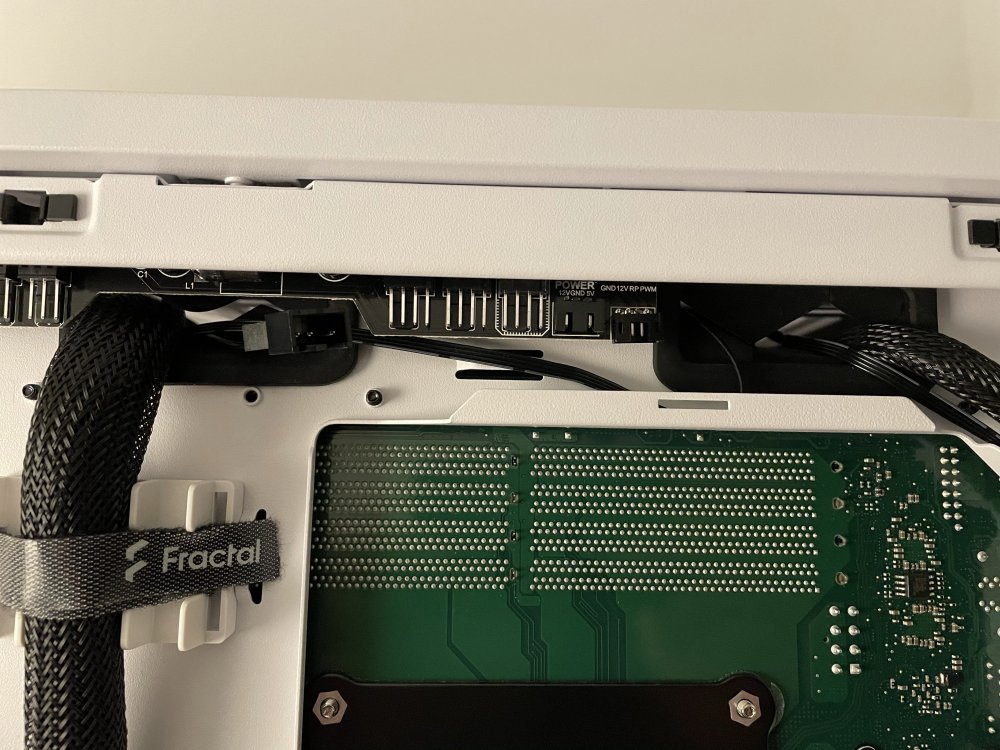
-
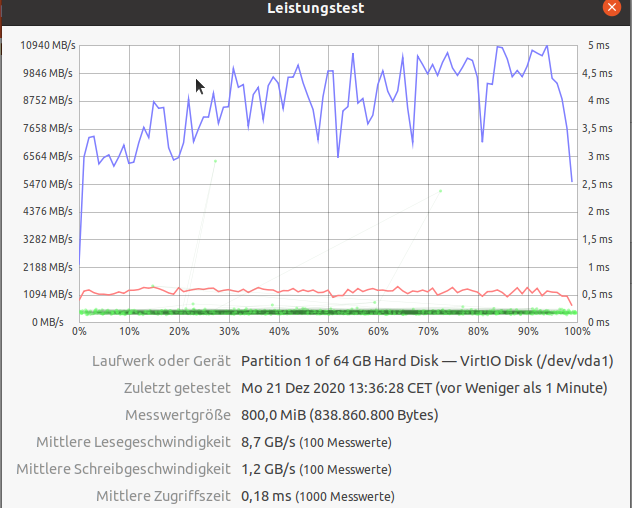
So far I have no issues with the board. Even the relatively high temps of the X570 seem to be no issue. The maximum I have seen is 76° during Parity check and will copying data back and forth to the NVMEs. I am using 2 Linux (server related) hosts and 1 Windows VM atm. Given that the Windows VM is only using a virtual VGA Adapter the performance is ok. I get between 5 - 7GB / Sec read speed (Raid 10) and 2,5 - 4,2 GB / Sec write speed (Raid 1 & Raid 10). Still testing the network speed which should give max. 1 GBit, given I have a WIFI only network. The UnRaid host is connected to a Fritzbox 1GBit Lan port. Main purpose of the large cache is to host docker container and a large picture db. I use the slower disks primarily as a 1st backup instance. Both cache drives are also being used to store VM disks. I got the 12 core CPU for encoding purposes and to be able to pin cores more granular to container and VMs. Still I wanted a low power CPU and not a 105W. Bottom line, I think the board (and probably the 10G version) is worth the money. 10G version only if the network allows the speed. The Bios is basically a server grade bios with added desktop (overclocking) features. The 4x Asus card works flawless. Even though the SSDs stay in their termal tolerance range I am thinking to add the fan again, and since its rather noisy add a resistor to lower the fan speed. The SSDs are ok up to 70°, so there is still plenty of head room atm. If a dedicated GPU would accelerate the Desktop VMs I might get one, but only a cheap 2D Card Like the Nvidia GT710 passive. Still need to figure that out. I did a quick disk benckmark with a the Linux Desktop which used a 60G disk on the Raid 10. The 8,7 GB is read, the 1,2GB is write speed.
-
Build a decent system with this Board. IPMI Fan stuff doesn't work yet, everything else is fine.
-
I am keen to learn how to configure this plugin. Have installed a new AsRock Rack X570D4U w/ IPMI and connected several FANs. When I try to configure the plugin I receive following: Checking IPMI fan Locations... Location 0-1: none Location 0-2: none Location 0-3: none Location 0-4: none Location 0-5: none Location 0-6: none Location 0-7: none Location 0-8: none Saving board configuration... Any advise where I can start to trouble shoot? If helpful I can test & share certain configs to help to improve the plugin.
-
Good summary! My use case is low overall (average) load. I have a Nextcloud, Photo DB, few VMs, Jellyfin etc. container. My system is peaking only when I transcode 4K footage from my IPhone, and that's basically it.
-
@jonathanmWhich Bios setting would you use to limit draw?
-
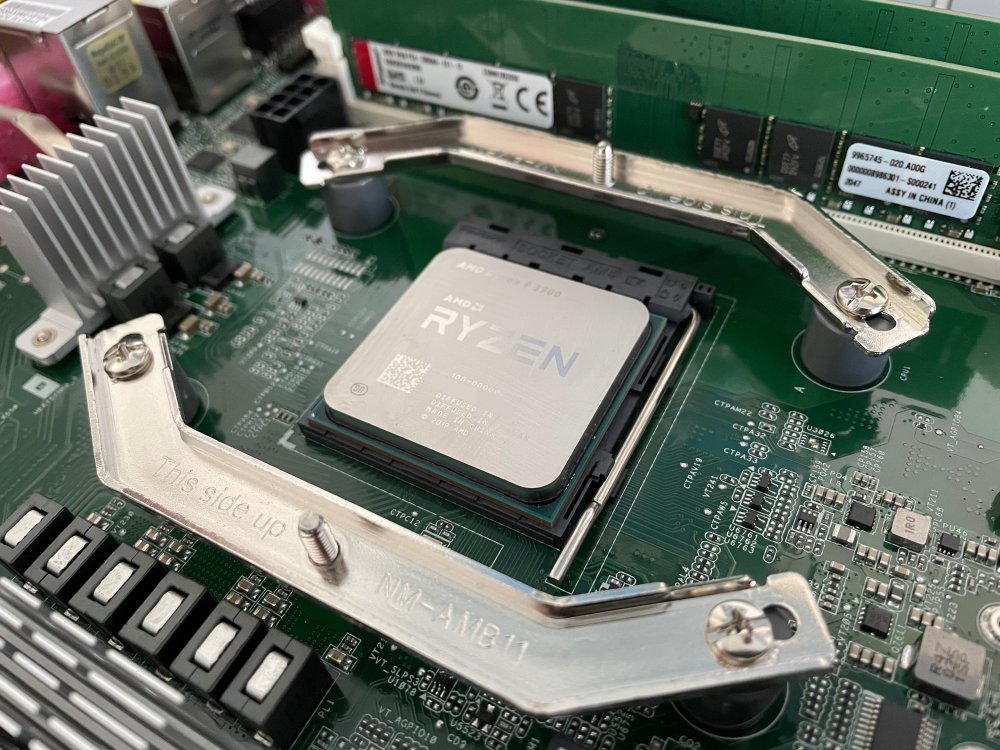
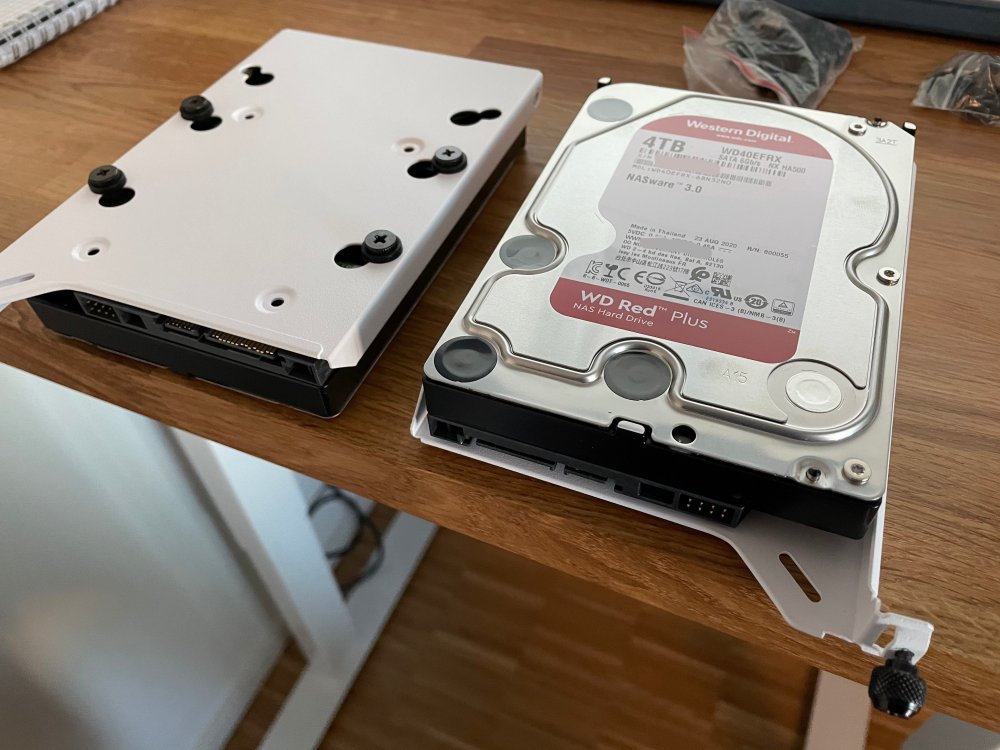
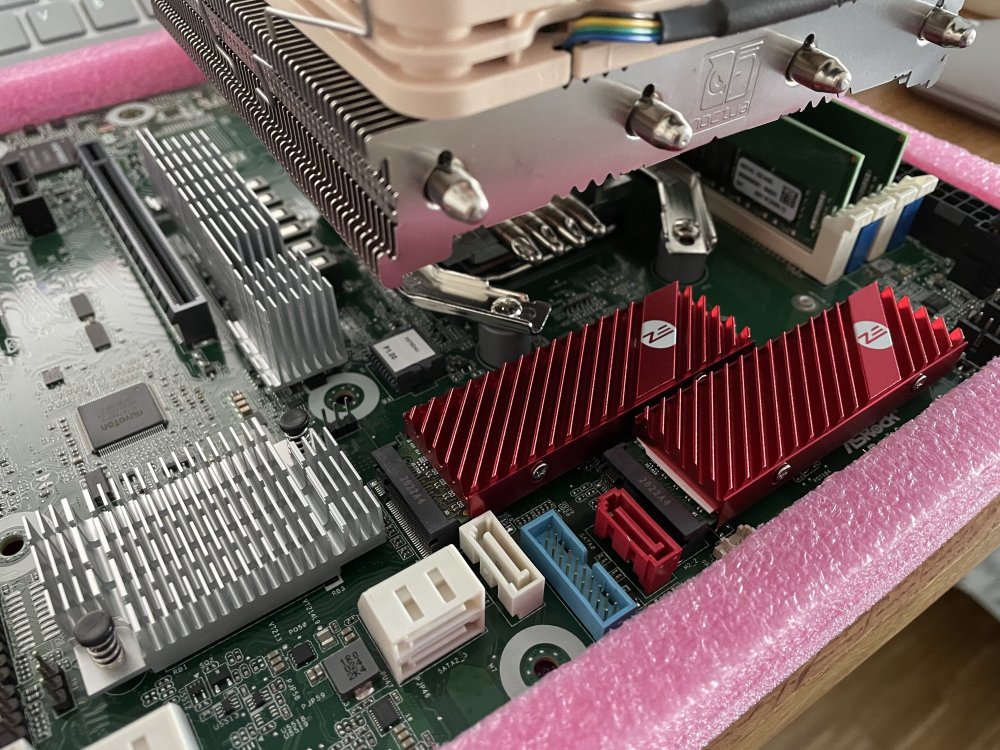
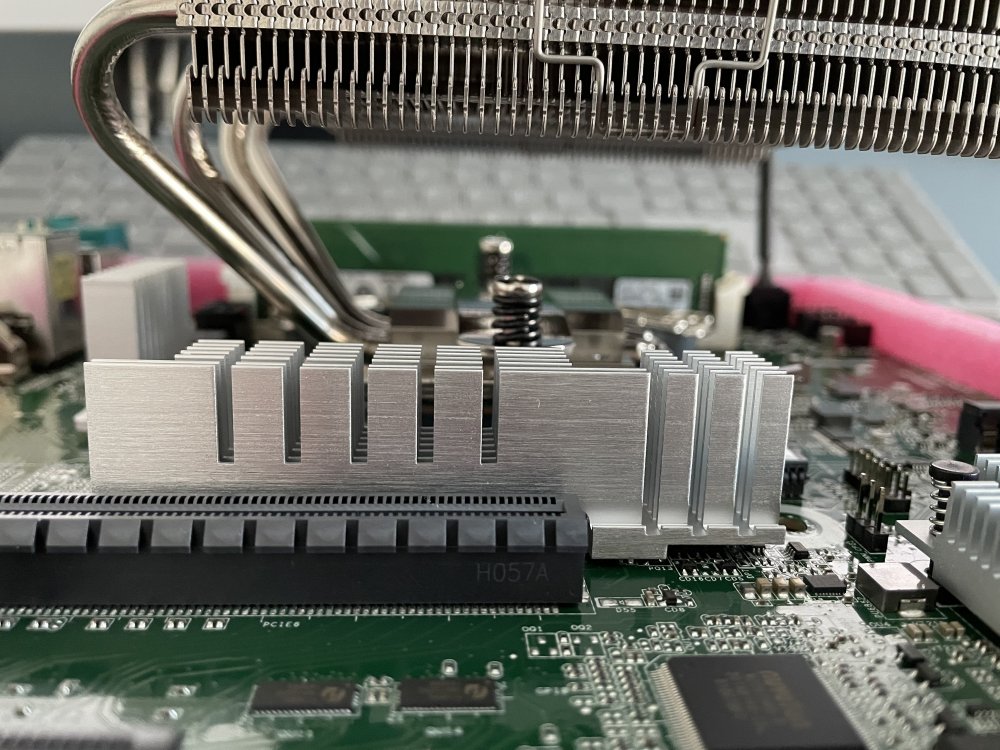
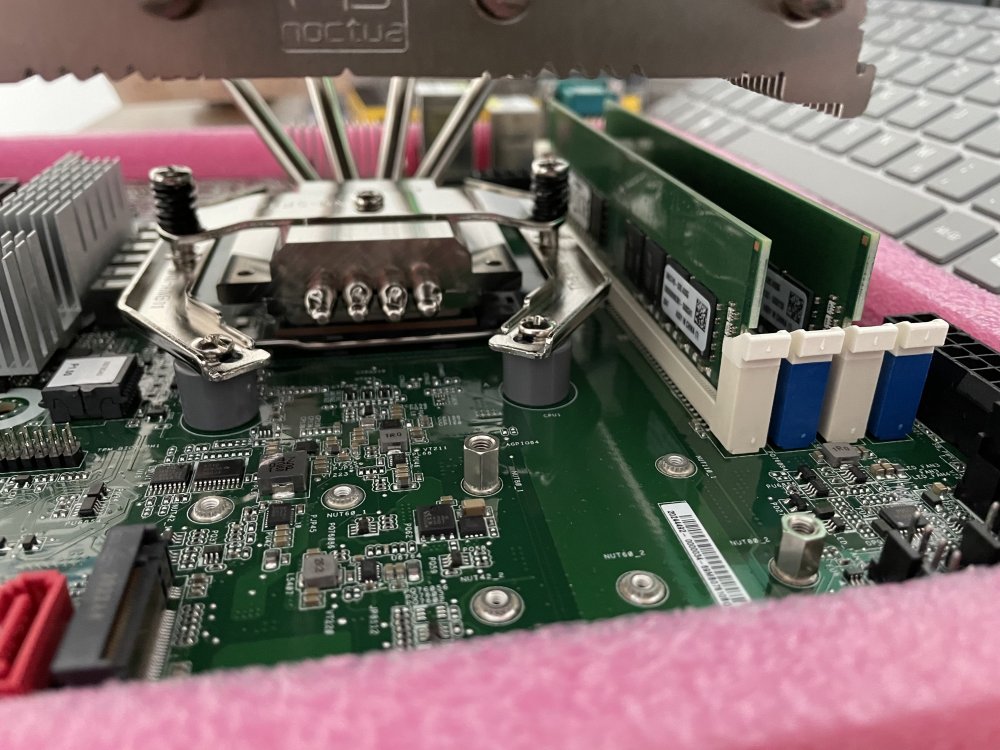
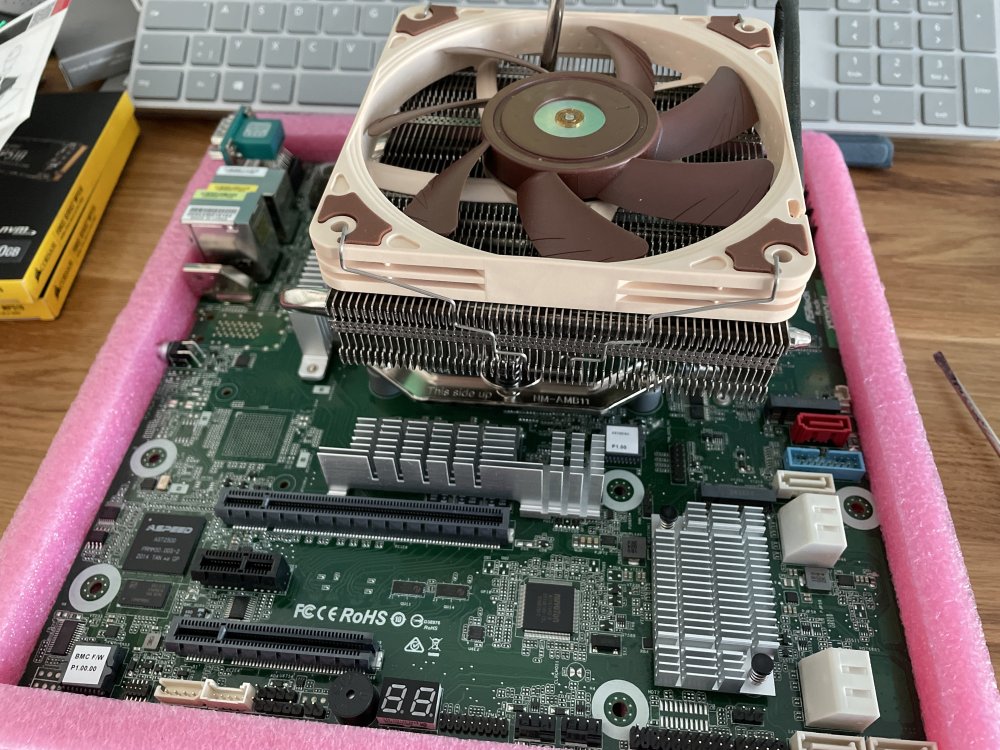
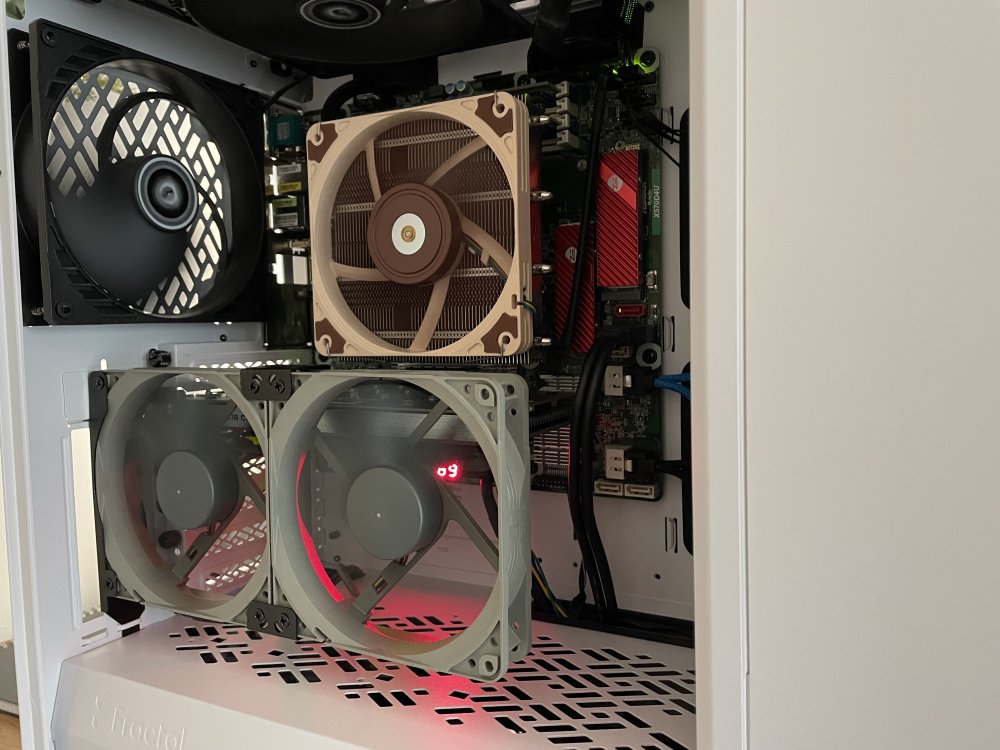
After starting to play around with UnRaid a couple of weeks ago I decided to build a proper system. I want to share build progress and key learnings here. Key requirements have been: AMD system Plenty of CPU cores Low Wattage ECC Memory IPMI Good cooling since the system sits in a warm closet Prosumer build quality Config: Runs 24/7 and is rock stable since day 1. UnRaid OS: 6.10 RC1 Case: Fractal Design Define 7 PSU: Be Quiet! Straight Power 550W Board: AsRockrack X570D4U w/ Bios 1.20; latest version as of 2021/10 CPU: Ryzen 9 3900 (65W PN: 100-000000070) locked to 35W TDP through Bios setting; CPU was difficult to source since it is meant for OEMs only. Cooler: Noctua NH-L12S Case Fans: 5x Arctic P14 PWM - noise level is close to zero / not noticeable Memory: 64 GB ECC (2x32 GB) Kingston KSM32ED8/32ME @ 3200Mhz (Per Memory QVL) Data disks: 3x 4TB WD40EFRX + 1x 4TB WD40EFRX for Parity (all same disks, same size) Cache 0: 2x 512GB Transcend MTE220S NVME SSDs Raid 1 Cache 1: 4x 960GB Corsair MP510 NVME SSDs Raid10. Set up with ASUS Hyper M.2 in PCIE X16 Slot (BIOS PCI Bifurcation config: 4x4x4x4x) Todos: Replace the 4 SATA cables with Corsair Premium Sleeved 30cm Sata cables Eventually install a AIO water cooler Figure dual channel memory setting out, atm. single channel config. Thats done. Eventually configure memory for 3200mhz, Done. Eventually install a 40mm PWM cooler for the X570. Update: After a few weeks of 24/7 uptime this seems to be unnecessary since the temps of the X570 settled at 68 - 70° Get the IPMI Fan control plugin working Temperatures (in Degree Celcius) / Througput: CPU @ 35W: 38° - 41° Basic usage (Docker / VMs) / 51° - 60° Load CPU 65W: 78 - 80° Load (This pushes fans to 1300 - 1500 RPM, which lowers the X570 temps to 65°) Disks: 28° - 34° Load SSDs: 33° - 38° Load Mainboard: 50° in average X570: 67° - 72° during normal operations, 76° during parity check Fan config: 2x Front (air intake), 1x bottom (air intake), 1x rear & 1x top (air out); 800 - 1000 RPM Network Througput: 1 Gbit LAN - Read speed: 1 Gbit / Write speed 550 - 600 Mbit max. (Limited by the UnRaid SMB implementation?). Write tests done directly to shares. So fare meeting expectations. Final Config: 2x1 Gbit Bond attached to a TP-Link TL-SG108E. Learnings from build process: Finding the 65W version of the Ryzen 9 3900 CPU was difficult; finally found a shop in Latvia where I ordered it. Some shops in Japan sell these too. The Case / Board config requires a ATX cable with min. 600mm length IPMI takes up to 3 mins after Power disconnect to become available The Bios does not show more than 2 M.2 SSDs which are connected to the Asus M.2 Card in the x16 slot. However, unRaid has no problem seeing them. Mounting the CPU before mounting the board was a good decision, should have also installed the ATX and 8PIN cable on the board before mounting it, since installing the two cables on the mounted board was a bit tricky Decided to go with the Noctua Top Blower to allow airflow for the components around the CPU socket, seems to work good so far Picked the case primarily because it allows great airflow for the HDDs and a clean cable setup The front Fans may require PWM extension cables for proper cable setup, depending where on the board the Fan connectors are located X570 is hot, however with a closed case airflow seems to be decent (vs. open case) and temps settled at 67° - 68° Removed the fan from the ASUS M.2, learned later that it has a fan switch too. Passive cooling seem to work for the 4 SSDs PCIe Bifurcation works well for the x16 slot, so far no trouble with the 4x SSD config Slotting (& testing) the two RAM modules should be done with the board not mounted yet since any changes to ram slots, or just in's/out's is a true hassle since the slots can only be opened on one side (looking down at the board on the left side, towards external connectors) and the modules have to be pushed rather hard to click in. IPMI works well, still misses some data in the system inventory. However the password can only have a max. length of 16 Byte; used a online generator to meet that. Used a 32 char PW at first instance and locked the account. Had to unlock it with the second default IPMI user (superuser) Asrock confirmed the missing data in the IPMI system inventory. Suggested to refresh the BMC what I didn't do yet. Performance: With CPU @ 35W the system performs well for day to day tasks, however feels like it could be a bit faster here and there. Nothing serious. VMs are not as fluent as expected. The system is ultra silent. With CPU @65W the system, especially VMs and docker tasks such as media encoding are blazing fast. VM performance is awsome and a Win10 VM through RDP on a MacBook feels 99% like a native desktop. The app performance in the VM is superiour to usual Laptops from my view, given the speed of the cache drive where I have the VM sitting at and the 12 core CPU. Fans are noticeable but not noisy. 45W Eco Mode seems to be the sweet spot, comparing performance vs. wattage vs. costs. Transcoding of a 1.7GB 4K .mov file using a Handbrake container: 65W config - 28 FPS / 3mins 30sec - 188W max. 45W (called ECO Mode in Bios) - 25 FPS / 3min 45sec - 125W max. 35W config - 4FPS / 25 mins - 79W max. Power consumption: Off (IPMI on) - 4W Boot 88W Bios 77- 87W Unraid running & ECO Mode (Can be set in Bios) - 48W Unraid running & TDP limited to 35W - 47W Parity check with CPU locked to 35W - 78W Without any power related adjustments and the CPU running at stock 65W the system consumes: 80W during boot 50 - 60W during normal operations e.g. docker starts / restarts 84 - 88W during parity check and array start up (with all services starting up too) 184 - 188W during full load when transcoding a 4K video CPU temps at full load went up to 86° (degree celcius). Costs: If I did the math right - the 35W config has less peak power consumption, however since calculations take longer the costs (€/$) are higher, compared to the 65W config. In this case 0.3 (188W over 3,5 Minutes) vs. 2.3 (78W over 25 Minutes) Euro Cent. So one might look for the sweet spot in the middle January 2021 - Update after roughly a month of runtime - No issues, freezes etc. so far. The system is rock stable and just does its job. Details regarding IOMMU groupings further below. I will revisit and edit the post while I am progressing with the build.