




.jpg.adf8def3431e0aa8e590900f82752d7a.jpg)

wgstarks
Members
-
Joined
-
Last visited
Everything posted by wgstarks
-
The devs added support for a trash bin but that really doesn’t work well since the container doesn’t have that functionality afaik.I don’t think this has anything to do with bitmagnet. If you go to the docker tab and click the icon for the iventoy docker you can select “support” and go to the support thread for that docker.Go to the docker tab and click the icon for this docker. Select “support”.There are a few alternative webui’s on the wiki. You may find others as well. Installation is fairly straightforward for most of them. Looks like they all have instructions in their various GitHub projects. In a nutshell, create a folder in a path that the container has access to (I used /mnt/user/appdata/binhex-qbittorrentvpn/). Download the webUI zip file and unpack it to the folder you created. In the qbit settings check the use alternative webui square and enter the CONTAINER PATH to the folder you created. If you can’t access the settings in the webui you can make the changes in /appdata/binhex-qbittorrent/qBittorrent/config/qBittorrent.conf. Restart the container.There are a few bugs in the new webUI. You can probably find several discussions on the qbit forums. There is a spot you can grab and pull down in the center of the bar. This will reveal the torrents. Every time the page reloads you’ll need to repeat this. I installed one of the alternate webui’s to get around this problem.Ed beat you to the punch.😁 Or I guess really it was @ironicbadger.Just click on them.Yeah, I’ve tested with Tailscale and OpenVPN. They both work.Sorry but I don’t really know anything about WireGuard.Would think you should be able to see it in the wireguard settings in your firewall appliance.You’ll need to add the network used by WireGuard to the LAN_NETWORK in the qbit docker configuration.That would depend on how you are accessing from your mobile device?The new webUI has a few issues. You can avoid them by installing one of the alternate webui’s.Adding the lan network used by WireGuard to LAN_NETWORK should do the trick.Add any networks you want to be able to access from to the LAN_NETWORK field. Comma separated. I would recommend not exposing your Unraid server to the internet. Use OpenVPN or Tailscale to access the webUI on your local network.When you use WireGuard is your IP address in the 192.168.1.0/24 range? I suspect it’s not and this is the problem. Any address outside that range won’t be able to access the webUI. You’ll need to add the network used by WireGuard to the docker configuration.I’m not sure if this will work. Maybe it does but might be worth just trying changing the webUI port. https://github.com/binhex/documentation/blob/master/docker/faq/qbittorrentvpn.md Scroll down to Q4.Did that fix everything?I see a syntax error here- WEBUI_Port'='8181' This should be WEBUI_PORT for the variable.You can install any version. Go to the dockerhub link in the first post and copy the tag number for the version you want. In the docker configuration add a colon and the tag number after the binhex/arch-qbittorrentvpn in the repository field.You can add it if you’re sure it’s not there. Mine is set to 8088 but use the port you want. Be sure you have your browser window set to Advanced so you’re seeing all the settings.
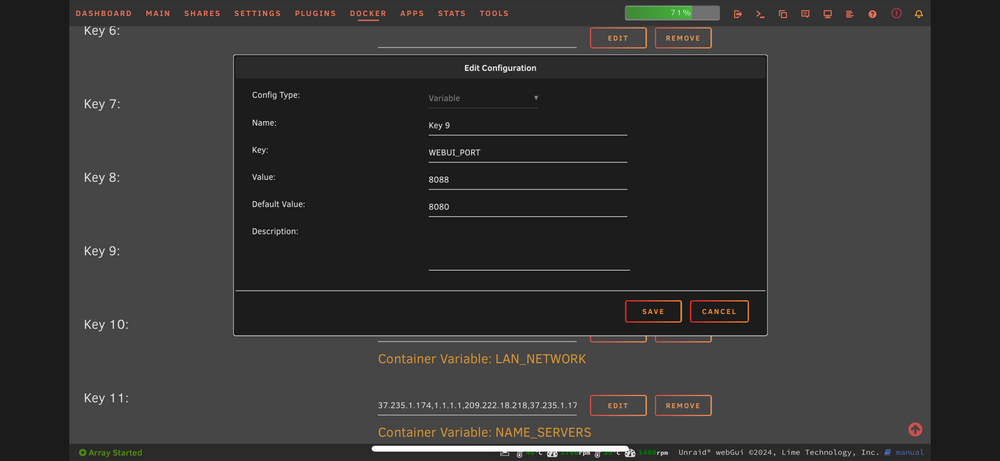 It’s a check box in the popup window when you select delete for the docker.Don’t delete your appdata folder. Just the docker and image. Then reinstall from the previous dockers in the apps tab.That doesn’t really show enough of the template for me to be sure but I don’t think that is the variable Web_UI. The proper setting will have the name of the variable shown. I think the field you are using is the one that controls the webUI link in the dropdown menu in the docker tab,





