





Veah
Members
-
Joined
-
Last visited
Everything posted by Veah
-
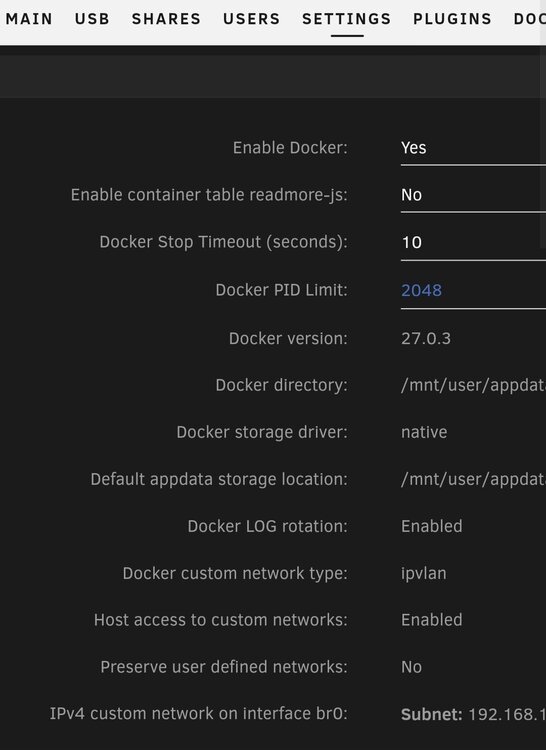
Don't know if it can help, but here's how my settings look under setting>docker. I can't read into the logs well enough to spot your problem.
-
Might find a better audience in the support area for the container you use.
-
I noticed your router is your dns address. If there's trouble there, you could try restarting it and/or temporarily assign unraid a DNS ip. Some options to try: 208.67.220.220 9.9.9.9 1.1.1.1
-
Agreed. As a tip, if you post the whole diagnostics zip, people like JorgeB can spot tons of potential problems. As a lurker, it's impressive to read all the issues they can glean from those files.
-
Could try running safe mode. If it still crashes then lean to a hw issue. If stable, then a container, plugin, or something else
-
Docker advanced view shows a force update option.
-
An attached diagnostics will give the audience something more detailed to look at.
-
Best I've read is to log out, wait 30 seconds, then log back in. Supposed to be a known issue. @JorgeB could likely give you the best info.
-
https://forums.unraid.net/topic/154463-announcing-new-unraid-os-license-keys/
-
This is the best explanation I've seen in a while regarding jumbo frames: ************* MAM59 Posted September 9 Jumbo Frames are Dinosaurs, left over from an ancient period. They are not needed anymore today, and, like you have already noticed, they can produce a lot of grief. First of all, make yourself clear why they have been invented some decades ago. CPUs were single core mostly and slow. NICs were dumb. The CPU had to do all the computations for checking and signing the frames and also to re-request them when something was wrong. Building and checking the Frame Headers was a tough and time consuming job. This became more and more ugly with the arrival of 1G ethernet. So the Idea came up that bigger ("Jumbo") frames would carry more data with fewer headers (and computations). This wasn`t too bad, but had some serious glitches: * more data will statistically produce more errors. So more retransmissions and more recalculations would be needed on not-so-stable lines * all devices on the transmission path (computers, switches and so on) need to be informed about this and support the larger frame type (THIS will be your current problem, it is NOT sufficient to set the Intel Card to 9000, all other Devices on the LAN need to be set to the same value! If one is missing (unmanaged switches are often a real big problem, you cannot see or check what they do or not), the packets are lost!) After some time people realized that the idea was bad. Many old devices did not play along and even newer devices often were incompatible because the frame size is reported different between vendors (your Intel "9000" reads "9024" elsewhere) In real life, jumbo frames never worked really well if enough devices were in the LAN. Technics moved on instead. CPU became faster, but more important: NICs became intelligent! Now even the cheapest NIC on the cheapest Motherboard offers "offloading", which means, all the computations, checkings and retransmission handlings formerly done by the CPU are now done by the NIC itself and do not bother anymore. The NIC is fast enough to handle full traffic of the desired speed now. "offloading" usually does Layer2 stuff, but very expensive (Server) NICs even offer Layer 3 offloading, meaning the whole TCP/IP stuff is done on the NIC. This made Jumbo Frames totally unnecessary anymore and almost everybody stopped using them. So, either turn them off (EVERYWHERE) or try to find the device(s) on your LAN, that do not support them properly and change them. (And before you asked: yeah, they still exist just because they have once existed. Like the 10Mbit/s Ethernet that still is to be handled by every current Device) Edited September 9 by MAM59
-
Looked up ROG STRIX B550-A GAMING and I only see x16 and x1 slots, no x4 This. also of note, the bottom x16 slot is pcie gen 3 at 4 lanes. You are looking only for an x1 GPU, the x4 option you mentioned will not work unless you mod an X1 slot to take the back out. Not hard but will cards will only work at x1 speeds. With that said, you want a gen3 x1 slot GPU. I saw some gt210 on eBay. Could probably find an old quadro or firepro too.
-
Looks like minimal system requirements for both Foundryvtt and Dungeondraft. Have you tried using virtual graphics? If that's not something you want, go for the x4 or even x1 card. Based on specs required, you don't need much.
-
Try moving your isos share to cache
-
Recommend having a good read here then copy/paste that last post.
-
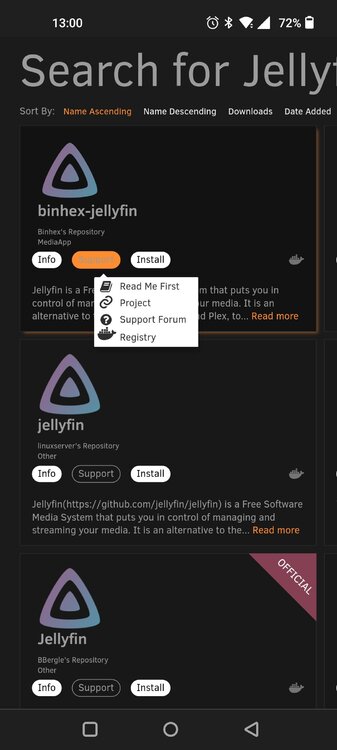
Have a look for binhex-qbittorrentvpn in community apps.
-
That's good they are physically connected. My very last thought is to edit your hosts file on the workstation. Tutorial info page here. And below is a copy paste from the pop-up info in Unraid under Settings>Management Access when clicking Use SSL/TLS. Hoping it can help spark an idea. Sorry I'm not more help. Best of luck. Determines how the webGUI responds to HTTP and/or HTTPS protocol on your LAN. Select No to use HTTP. To access your server use this URL: http://<server-name>.<localTLD> or this URL: http://<server-ip-address> Select Yes to enable use of an automatically-generated self-signed SSL certificate. Use this URL to access your server: https://<server-name>.<localTLD> Note that use of a self-signed SSL certificate will generate a browser warning. Select Strict to enable exclusive use of a myunraid.net SSL certificate for https access (see Provision below). Note that a DNS server must be reachable. Redirects: When accessing http://<server-ip-address> or http://<server-name>.<localTLD>, the behavior will change depending on the value of the Use SSL/TLS setting: If Use SSL/TLS is set to Strict, you will be redirected to https://<lan-ip>.<hash>.myunraid.net If Use SSL/TLS is set to Yes, you will be redirected to https://<server-ip-address> or https://<server-name>.<localTLD> If Use SSL/TLS is set to No, then the http url will load directly. Important: Strict may not be selectable if your router or upstream DNS server has DNS rebinding protection enabled. DNS rebinding protection prevents DNS from resolving a private IP network range. DNS rebinding protection is meant as a security feature on a LAN that may include legacy devices with buggy/insecure "web" interfaces. One source of DNS rebinding protection could be your ISP DNS server. In this case the problem may be solved by switching to a different DNS server such as OpenDNS where DNS rebinding proection can be turned off. More commonly, DNS rebinding protection could be enabled in your router. Most consumer routers do not implement DNS rebinding protection; but, if they do, a configuration setting should be available to turn it off. Higher end routers usually do enable DNS rebinding protection. Typically there are ways of turning it off entirely or selectively based on domain. Examples: DD-WRT: If you are using "dnsmasq" with DNS rebinding protection enabled, you can add this line to your router configuration file: rebind-domain-ok=/myunraid.net/ pfSense: If you are using pfSense internal DNS resolver service, you can add these Custom Option lines: server: private-domain: "myunraid.net" Ubiquiti USG router: you can add this configuration line: set service dns forwarding options rebind-domain-ok=/myunraid.net/ OpenDNS: Go to Settings -> Security and remove the checkbox next to "Suspicious Responses - Block internal IP addresses". It is an all-or-nothing setting. When all else fails, you may be able create an entry in your PC's hosts file to override external DNS and directly resolve your servers myunraid.net FQDN to its local IP address.
-
Had something similar and migrated my isos share to a cache pool (with domains, appdata and system shares). That fixed my issue.
-
I'm running out of ideas. Can you tracert 192.168.x.x from the workstation? Even a ping?
-
Perfect. Thank you
-
Let's try this. On the workstation, open a command prompt in administrator mode. Run this command to reset the tcp stack. netsh int ip reset Then try again to connect to Unraid.
-
Could not figure out where this belongs so here I am. Running 7.0.0beta2 I keep fat fingering a heart on certain gui icons and that creates a favorite. I do not want these favorites ever. Is there a way to turn it off? It is minor but bugging the hell out of me. Thanks in advance.
-
What are the server and workstation IP's? I'm looking for them to be same subnet like: 192.168.1.x for both. Is that the case? If the two IPs look something like this: 192.168.2.x and 192.168.1.x you may need a firewall rule to allow traffic to pass between subnets.
-
Maybe a case that can hold them all without need for those enclosures. You can get a nice Fractal for the cost of those 2 icy docks.
-
Open the Settings app. Navigate to Network & Internet > Wi-Fi (or Ethernet for wired connections). Select the connected network. Click on Properties. Under Network profile, toggle the switch to change the profile from Public to Private.
-
If connected via wifi, verify not connected to a guest network. And be sure your windows network profile set to Private not Public.


