





ghost82
Members
-
Joined
-
Last visited
Everything posted by ghost82
-
In your logs there's nothing useful, unfortunately. Was windows installed with uefi or is it a legacy installation?Because you are using ovmf (uefi). I don't have any nvme, but some could cause issues when passed through...so yes, if I were you, I would create a new vm (without deleting that one), passing through only the nvme, no usb, no gpu (use vnc), nothing, all emulated hardware (and I would avoid also any virtio device, if any). Then boot from the windows installer and see if at least your nvme is seen and ready to be formatted inside the windows installer. Before doing this backup all your important data (if any). Then it's your choice to proceed and try with a new installation. If and once it will boot add one device at a time, so you can revert back soon and you wont need to debug multiple things at the same time. Use ovmf+q35 machine type instead of i440fx.
-
Does it boot without passing through the gpu? ---- Once it boots with vnc: Your gpu is not attached to vfio at boot <-- attach it to vfio at boot Your gpu definition in the vm xml is not multifunction <-- define it as multifunction You are passing a vbios file which seems to be a downloaded one, this is not the preferred way <-- dump your own vbios, or make sure the downloaded file is compatible and remove the header with an hex editor You are using both qxl/vnc and gpu passthrough <-- this is not ideal, boot with vnc only, enable remote desktop, remove qxl/vnc and passthrough only the gpu: if you get a black screen and the vm boots you could access it from another device and see what's wrong inside the vm; if you need remote management you can still access the vm with the remote desktop enabled inside the vm and not with unraid novnc.
-
Yes it's loaded and you can ignore that mce error. If you have mce errors look at the syslog inside diagnostics file. For example you have this: May 13 23:04:56 LGServ kernel: mce: [Hardware Error]: Machine check events logged May 13 23:04:56 LGServ kernel: [Hardware Error]: Corrected error, no action required. May 13 23:04:56 LGServ kernel: [Hardware Error]: CPU:2 (15:13:1) MC1_STATUS[-|CE|MiscV|AddrV|-|-|-]: 0x8c00001000010151 May 13 23:04:56 LGServ kernel: [Hardware Error]: Error Addr: 0x0000ffff81085121 May 13 23:04:56 LGServ kernel: [Hardware Error]: MC1 Error: Parity error during data load from IC. May 13 23:04:56 LGServ kernel: [Hardware Error]: cache level: L1, tx: INSN, mem-tx: IRD It's an error in the L1 cache: is the voltage correctly applied to your cpu? Is it overclocked? is your mb bios up to date? Is your case clean and free from dust inside? Or...your cpu has something wrong, hardware related.
-
You need to attach some data because with a generic description nobody could help. Diagnostics
-
Squid reported that edac_mce_amd module was part of unraid back in 2020, and maybe before. You can check if module is loaded with this command: lsmod | grep mce The log is simply telling you that mcelog is not compatible with your cpu (consider that as a warning instead of an error), amd module should be used instead. A pull request to fix this was merged in mcelog in 2020: https://github.com/andikleen/mcelog/pull/77 A condition check was added to start or not start mcelog, checking if amd module is started or not, but it seems it's not enough since it seems it's not fixed.
-
Is your windows disk ok? It resets where? How did you apply modifications?
-
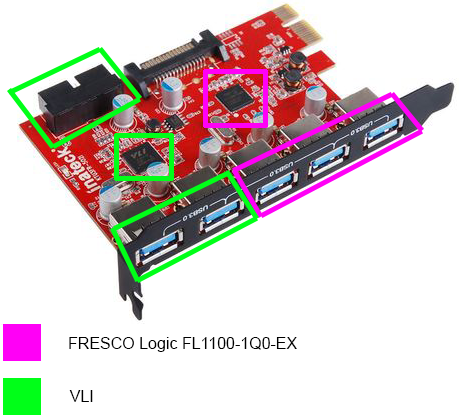
In my opinion Inateck is one of the brands that builds quality and cheap usb cards, its fresco chipset is one of the best. In newer cards to be able to have more usb ports they use also the vli chipset. Take into account that compatibility/incompatibility is not only based on the chipset, the card needs also a firmware (software) which is stored in an additional chip, and if the firmware is crap it wont work at all or it wont work as expected. Moreover, I don't think they were using the same chipset: the kt5001 has 2 chipsets: the fresco FL1100 and the VL812. Since you are saying that the "old" Orico card has 4 ports I'm quite sure it has only a single usb controller chipset, with no hub, probably a VL805 usb controller chipset. The vl812 chipset is not a usb controller but a usb hub, so this is attached to the fl1100 controller (and that's why this card is compatible with mac os, because it's based on the fl1100 controller, which works out of the box, and the additional ports are that of a hub provided by the vl812, attached to this controller). FL1100 can provide 4 usb ports, one of these is used by the vl812, which gives other 4 ports, so you have a total of 7 ports. It doesn't have 5 ports, but 7; probably you didn't consider the internal header on the back of the card, which gives other 2 ports.
-
Remove this if you want to add boot order line: <boot dev='hd'/>
-
That is becoming difficult without any data to compare..taking also into account that I know nothing about both windows core and hyper-v First thing to do should be to check the settings in hyper-v and create the same (or near the same) layout in libvirt. Some optimization in the vm settings may be needed (cpu isolation, cpu pinning, machine type) and maybe also on the host side: recently for example, my kali linux vm, the only one I have on a vdisk (and also on a hdd) became unusable, very slaggish, and only changing vm.dirty_ratio and vm.dirty_background_ratio fixed it. Did you try to assign 1 cpu / 2 Gb of ram?If the vm is misconfigured assigning more ram/cpus could get things worse. Note that if you change something in the gui your custom config to the xml (like the network type) will be lost and you will need to apply them again manually.
-
modify it manually instead of with the gui. Switch to xml view on your vm settings (top right), find the network block, here an example: <interface type='bridge'> <mac address='aa:aa:aa:aa:aa:aa'/> <source bridge='br1'/> <model type='virtio'/> <address type='pci' domain='0x0000' bus='0x00' slot='0x03' function='0x0'/> </interface> Change model type from virtio or virtio-net to e1000-82545em, save and boot the vm. Post your diagnostics if you have issues.
-
it seems ok to me, no conflicts. If you tried both usb controllers I have no idea why it lags... You could try latencymon software and see if you have latencies somewhere..
-
https://forums.unraid.net/topic/76035-help-struggling-with-nvidia-audio-passthrough/?do=findComment&comment=1076592 Use v3 and run it as admin
-
Virtio drivers are needed if you use them. If you use "legacy devices", like sata for vdisk controller, e1000 for network, etc. and you delete all the relevant devices using virtio, your windows core should boot as usual once converted to img or qcow2 to be run on qemu. Then, if you want to switch to virtio devices (virtio disk controller for vdisk, virtio network, etc) for whatever reason, you can install drivers later, from the link I provided it seems with the pnputil command line, taking drivers from a mounted virtio iso.
-
Have a read at this (it's in spanish, use a translator if needed): https://www.sysadminsdecuba.com/2021/01/instalacion-de-drivers-virtio-en-windows-server-core/ It seems virtio drivers are installed after windows is installed, so configure your vm as "legacy" (no virtio devices), boot, install drivers, change vm settings to use virtio.
-
This means attaching a mouse/keyboard to a usb controller passed through to the vm. But this is valid if you are using your vm as a bare installation, meaning you have a monitor attached to a passed through gpu to the vm, and you are sit in front of it, so your vm is like a real pc. If you are using vnc or any other remote desktop solution obviously your passed through mouse/keyboard are useless, because you are using the mouse/keyboard of the host. Mouse lagging could be related to hardware acceleration, try to search on google about this and see if there is some solutions for rdp/spashtop.
-
Check for irq conflicts with the msi util v.3 (was shared here in the forum also). Make also sure to disable usb power savings in windows settings.
-
https://forums.unraid.net/topic/123300-vm-bios-change/
-
You should try: pci=noaer in your kernel arguments, modify the 'append' line of your syslinux configuration, reboot unraid and try.
-
With qemu-img: qemu-img resize /mnt/user/domains/Hassos/hassos_ova-5.13.qcow2 +10G this will increase the disk size from 32 to 42 Gb (+10). However, the +10Gb space will be unallocated. So you need to mount this virtual disk and resize the partition to use this unallocated space. You can create a new virtual machine which boots a gparted live iso with the hassos_ova-5.13.qcow2 disk attached to it.
-
Check if your vdisk is full with command: qemu-img info /path/to/vdisk.img
-
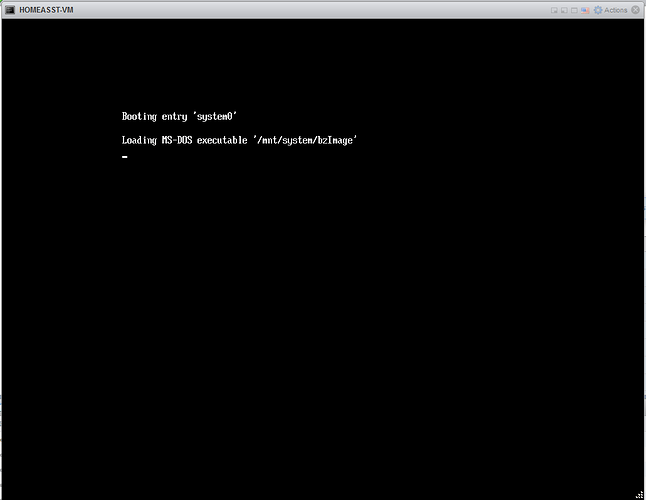
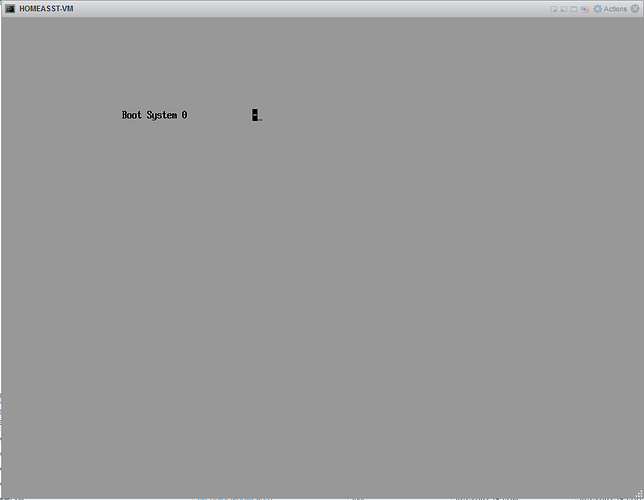
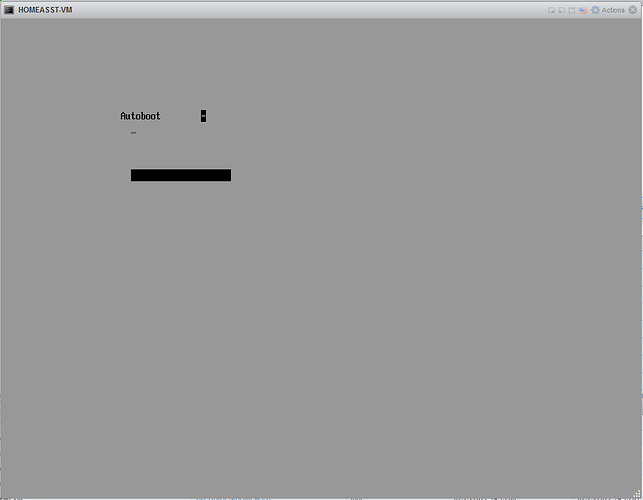
It seems the vm didn't shutdown properly/gracefully. One user is reporting the following steps to work: 1. At the “Autoboot” screen, draw focus to your vm and press the number “2” on the keyboard 2. When the next screen is displayed, press the “Enter/Return” key: 3. Once this next screen appears, the HA vm will start normally: From there, by shutting down and/or restarting the HA vm properly/gracefully, the vm should boot again without any issues from then on out. Credits to Mark Bielech (mbielech5): https://community.home-assistant.io/t/vm-stuck-at-auto-boot/376886/14
-
It wont work, that is part of a pcie riser, it wont boot your pendrive because it doesn't have a usb controller chip on it. You need a pcie card with a usb controller. Like this (this is only an example): https://www.ebay.com.au/itm/192208998631?epid=15028857647&hash=item2cc08c90e7:g:-ZoAAOSwMD1gIK6J That has 2 external usb 3 port + internal header for other 2 ports.
-
Nice, for better compatibility with the drivers I suggest to change the target as multifunction, replace: <hostdev mode='subsystem' type='pci' managed='yes'> <driver name='vfio'/> <source> <address domain='0x0000' bus='0x08' slot='0x00' function='0x0'/> </source> <alias name='hostdev0'/> <address type='pci' domain='0x0000' bus='0x04' slot='0x00' function='0x0'/> </hostdev> <hostdev mode='subsystem' type='pci' managed='yes'> <driver name='vfio'/> <source> <address domain='0x0000' bus='0x08' slot='0x00' function='0x1'/> </source> <alias name='hostdev1'/> <address type='pci' domain='0x0000' bus='0x05' slot='0x00' function='0x0'/> </hostdev> With: <hostdev mode='subsystem' type='pci' managed='yes'> <driver name='vfio'/> <source> <address domain='0x0000' bus='0x08' slot='0x00' function='0x0'/> </source> <alias name='hostdev0'/> <address type='pci' domain='0x0000' bus='0x04' slot='0x00' function='0x0' multifunction='on'/> </hostdev> <hostdev mode='subsystem' type='pci' managed='yes'> <driver name='vfio'/> <source> <address domain='0x0000' bus='0x08' slot='0x00' function='0x1'/> </source> <alias name='hostdev1'/> <address type='pci' domain='0x0000' bus='0x04' slot='0x00' function='0x1'/> </hostdev>
-
Which vm?you have several. Anyway...make sure the qxl video device is attached always at bus 0x00 otherwise you will get the guest has not initialized the display yet. If it's not at bus 0x00 set it manually and find the first slot available to not have a dublicate address error when you run the vm. Always set the dgpu as a multifunction device. Install a remote desktop inside the vm so that you can see if the vm effectively boots or if it hangs before for other reasons.
-
no, it doesn't



