






yayitazale
Members
-
Joined
-
Last visited
Everything posted by yayitazale
-
First of all, this is not the forum where you complain about how the project is implemented. This forum is only to resolve any question regarding the docker container deployment under unraid. Second, if you have any complain of a FOSS you are always welcome to participate on the development doing PRs on the github. You are not buying a software so please don't ask for help in the same way you will ask it to a company (don't be rude), and ALWAYS READ THE DOCS before asking for help. By the way, in this particular project the documentation very complente, with plenty of information and examples. This is just not true. You only need a proper config file to start using the system. If you have doubts about your file, read the docs, see the logs and then if you don't see what are you doing wrong then you can come here and post a proper question indicating how is your container deployed and attaching your config file.
-
Are you sure this is a frigate timestamp and not camera's one?
-
As you can read on the docs, you can define whatever path you want to the DB: # Optional: Database configuration database: # The path to store the SQLite DB (default: shown below) path: /media/frigate/frigate.db So in this case you can point to the config folder that I assume you have with cache prefer like so: database: # The path to store the SQLite DB (default: shown below) path: /config/frigate.db
-
Did you delete the locatime entry of the docker container?

-
You have to add those variables to the Grafana Docker Container in unraid:

-
First of all, I suggest you to uninstall that frigate APP as it has been changed for a new one on the APP store. As I see, you are using Intel/AMD hardware acceleration but you are not defining any FFMPEG arguments so please check out this part of the docs: https://docs.frigate.video/configuration/hardware_acceleration Other than that, I don't see anything wrong in your setup, so I don't see why is your system behaving like that. Maybe you can open a issue at github: https://github.com/blakeblackshear/frigate/issues
-
I can't help you with no information about the configuration of your container and frigate instance.
-
Did the plugin stop the MQTT container? If yes, maybe this is making to stop to frigate.
-
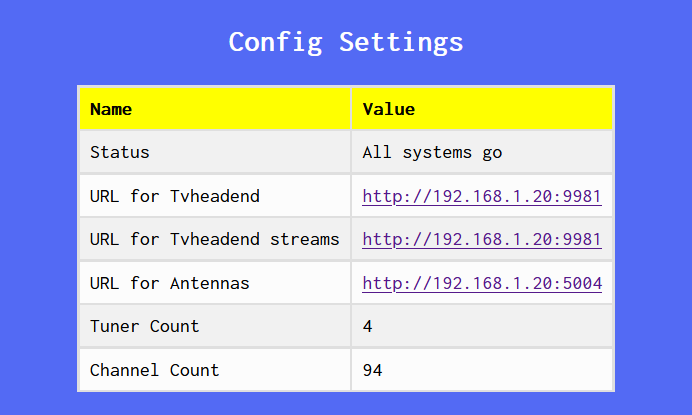
I suspect that you have a problem with the IP assignment or the network, as you are not getting valid endpoints. You must see something like this in the WebUI:
-
I think the problem is the port, you have to declare it below the IP with the entry "port: 1884" (or just not declare it as you are using the default port), but maybe you have more things to fix. I suggest you for a easier start at the beginning to use the complete example config.yml example of the docs as a template: https://docs.frigate.video/configuration/index
-
Can you post the image of how are you configuring the container?
-
Witch status do you have on the webui?
-
As I assume that most of the people is using coral TPUs yes, it is a necessary concession. https://github.com/blakeblackshear/frigate/issues/165 https://github.com/blakeblackshear/frigate/issues/171 https://github.com/blakeblackshear/frigate/issues/325 I changed the template to not privileged mode as default in the past but most of the people complained about their TPUs not working and they are not use to change the docker deploy gui to advanced mode.
-
Enter to the containers console Install nano with "sudo apt install nano" Edit the jupyter_notebook_config.json file with "sudo nano /home/jupyter/.jupyter/jupyter_notebook_config.json" Add this entry to the file using a only numbers and letters token: "token": "YOUR_TOKEN" Save the file and restart the container In any case, I'm no t sure if this change will be preserved if I update the container.
-
Hi, I need help with Matomo container. I recently have some permission issues with unraid so I have launched the tools>new permissions under whole unraid. I have updated Matomo but now is unable to start and I'm getting this errors like: "rsync: [generator] chgrp "/bitnami/matomo/plugins/Widgetize/config/config.php" failed: Operation not permitted (1)" I tried to eliminate the container and copy the files to another folder to restart it with a fresh folder and then copy the config file but it doesn't start. Any clue how to chmod the folder? Thanks
-
As I see you are not using nvidia, so can you delete the extra parameter --gpus=all switching to the advanced view mode in there.I was asking for a image of the container itself like so:
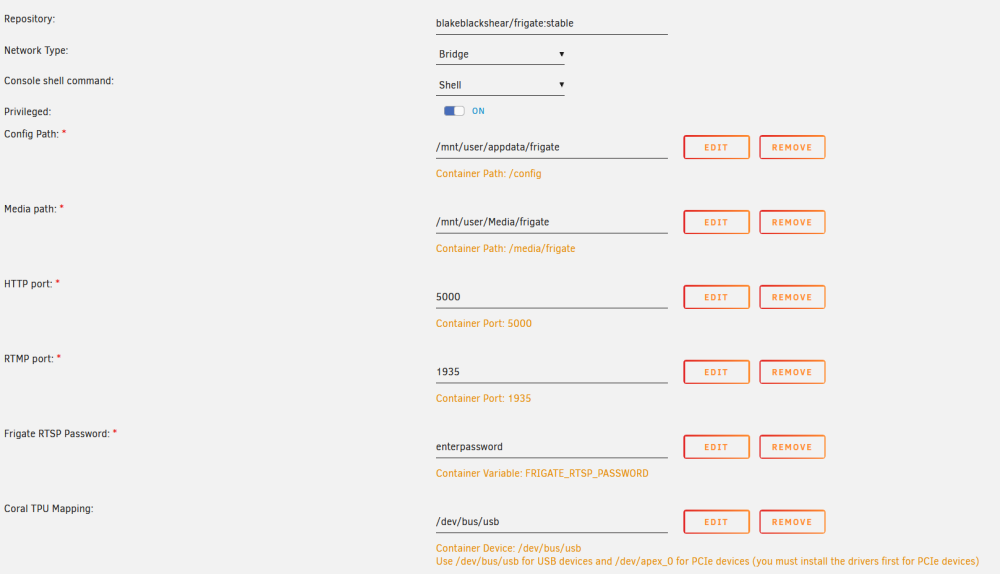 Ok I will change the template for not nvidia users and point it in the docsCan you post your container config image?Maybe you are having a issue related with this breaking change:Are you pointing to the right path of config file? Are your port not allocated in another container?Can you try to run it deleting the --gpus=all entry on extra parameters?You just need to delete the intel gpu enviroment, the nvidia gpus are now added from extra parameters and it's already in. Anyway, if you want to passtrought a specific GPU, you can delete the extra parameter --gpus all And add the enviroment entrys following this stepsv11.0 has been released and the new template uploaded. Remember, you must uninstall the old APP what ever your flavor was (standard or nvidia) and install the new unified APP from CA store.





