Everything posted by UnraidSecretaryOffice
-
The vacuum cleaner is always the boss. Glad it's back. Just run the scrub on the pool and reset the error counters afterwards; if the scrub reports 0 errors, you're done.
-
Both NVMe devices of that pool dropped off the PCIe bus at the same time; the read error is only the consequence. From your syslog: at 12:48:30 nvme1 (the KIOXIA) reports "controller is down; will reset: CSTS=0xffffffff", "Unable to change power state from D3cold to D0, device inaccessible", "Disabling device after reset failure", and four seconds later nvme0 (the WD SN770) does exactly the same. From then on both devices are gone (SMART can't be read either). At 14:41 the first write hits the pool, btrfs aborts the transaction and switches the pool to read-only; that is the 1 error per device you see, and the Fix Common Problems warning. Two different SSDs failing in the same second points to a shared cause rather than the SSDs. They sit on adjacent PCI buses (be:00.0 and bf:00.0, while your other NVMe are behind VMD), so my guess is they share an adapter card or slot, and that link went into a power state it didn't come back from. The kernel says as much in the log: "Does your device have a faulty power saving mode enabled? Try nvme_core.default_ps_max_latency_us=0 pcie_aspm=off pcie_port_pm=off". Good news: this pool is only a write cache (your shares are mostly "Cache: yes") and had about 5 MiB on it; appdata, system and domains live on cacheappdata, which is fine. So nothing is lost, writes to those shares just fail right now. What I'd do: 1. Reboot cleanly from the GUI. The devices should come back and the pool should mount. 2. Run a scrub on the pool (Main → click Cache → Scrub); expect 0 errors. The error counters can then be reset on the same page. 3. What might stop it recurring is the kernel's own suggestion (I couldn't test this, it is a guess based on that log line): add to the append line in Main → Flash → Syslinux Configuration nvme_core.default_ps_max_latency_us=0 pcie_aspm=offand check the BIOS for ASPM / PCIe power management settings; reseating the card or drives doesn't hurt either. Before editing syslinux, take a flash backup (Main → Flash → Flash Backup). If the server doesn't boot properly with those parameters, pick another entry in the boot menu or remove them from syslinux.cfg on another computer. 4. Where are those two NVMe installed (adapter card, which slot)? Has this happened before? If the drives don't come back after the reboot, post new diagnostics.
-
Unraid isn't just made up of hard drives. And the question of array size is always a matter of individual preference; some people will certainly end up with petabyte-sized arrays using 100 TB hard drives. Or, instead of a two-drive array, you could set up a mirror pool.
-
My reading of your diagnostics (a hypothesis, but I reproduced it on a 7.3.2 test server): 7.0.1 imports those disks with start 64 and the size from super.dat, and md1p1 gets exactly that size, so your data sits at sector 64. 7.3.3 is the first version that reads the partition table of a known disk on every start, and on those seven disks the GPT says the partition starts at 2048 with a non-standard end. Start and size don't match super.dat, so md flags the slot "wrong". That is a safety net: with the 2048 partition, md1p1 would begin 1 MiB after your file system. Unraid doesn't write such a layout itself, so something else probably rewrote those tables at some point. Please don't run New Config on 7.3.3, don't accept a disk as a replacement, and don't format anything. Verify on 7.0.1 (read-only) for one wrong disk and one good one: sgdisk -p /dev/sdX dd if=/dev/sdX bs=512 skip=64 count=1 2>/dev/null | od -c | head -1Expected on a wrong disk: partition at 2048, but "X F S B" at sector 64. Please post the outputs. If that matches, the fix is to rewrite only the partition table, with the array stopped, per affected disk (only the seven flagged "wrong"; check the serial behind each sdX on Main first, never the cache SSDs or the flash drive): sgdisk -o -a 8 -n 1:32K:0 /dev/sdXThat is the command emhttpd itself uses for disks over 2 TB (partition from sector 64 to the last usable sector). It doesn't touch anything from sector 64 onwards, and for your 20 TB disks the resulting size is 19531825100, exactly what super.dat holds. Then start the array on 7.0.1, run a parity check, and upgrade. On my test server this brought the disk back with unchanged checksums and 0 parity errors. Backups first, as always.
-
You most likely don't need GParted at all. Your root is an LVM volume (ubuntu-vg/ubuntu-lv), and the Ubuntu Server installer by default only gives that volume part of the disk; the rest stays unused inside the volume group. Check with: sudo vgsIf the VFree column shows a few GB, you can grow the root file system right now, while the VM is running: sudo lvextend -r -l +100%FREE /dev/ubuntu-vg/ubuntu-lv df -h /That's it; -r resizes the file system together with the volume. I just tried this on a fresh Ubuntu 24.04 VM on Unraid with the same layout as yours (root 9.8G): VFree was 7.3G, and after the command / was 17G, no reboot. If VFree is 0 (or you wan more space than that), grow the virtual disk first and then extend inside the VM: 1. Shut down the VM. On the VMs tab, click the VM name to expand it; in the disk row the CAPACITY value is clickable ("Click to increase Disk Size"). Enter the new size, e.g. 40G, and confirm. Start the VM. 2. In the VM (vda3 is the LVM partition on your screenshot; lsblk shows it): sudo growpart /dev/vda 3 sudo pvresize /dev/vda3 sudo lvextend -r -l +100%FREE /dev/ubuntu-vg/ubuntu-lv df -h /Both variants tested on Unraid 7.3.3 with Ubuntu 24.04. No ISO and no boot order changes needed.
-
Hallo Simon, die Zahlen, die du gesehen hast, sind vermutlich nur die Fehlerzähler, die btrfs pro Gerät führt (Write-, Read-, Flush-Fehler). Sie zählen, wie oft der Kernel einen Schreib- bzw. Flush-Befehl an diese NVMe nicht loswurde. Wenn Write- und Flush-Fehler gleichzeitig und in dieser Menge auf einem Gerät hochgehen, hat die NVMe in dem Moment typischerweise für eine Weile gar nicht mehr geantwortet (kurzer Aussetzer/Reset des Laufwerks), es sind vermutlich keine einzelnen kaputten Sektoren. Bei dir ist das genau während des Umbaus auf RAID1 passiert, also unter Dauerlast. Weil der Pool ein RAID1 ist, hat btrfs in der Zeit einfach auf die andere NVMe weitergeschrieben. Verloren ist dadurch vermutlich nichts, aber die Kopie auf nvme0n1 kann für diesen Zeitraum unvollständig sein. Das Zurücksetzen der Zähler ändert daran nichts, es löscht nur die Anzeige. Darum zwei Dinge: 1. Scrub laufen lassen: Main → auf "Cache" klicken → Abschnitt "Scrub Status" → Scrub. Das geht bei laufendem Array. Der Scrub liest beide Kopien, vergleicht sie über die Prüfsummen und repariert eine veraltete Kopie von der guten Seite. Am Ende steht im Status, ob Fehler gefunden und korrigiert wurden. "no errors found" heisst: beide Seiten sind identisch, alles gut. 2. Ursache finden: Tools → Diagnostics und das ZIP hier anhängen. Falls du seit dem Vorfall neu gestartet hast, ist der Syslog von damals leider weg (er liegt im RAM). Dann stell bitte Settings → Syslog Server → "Mirror syslog to boot drive" auf Yes, damit beim nächsten Mal etwas da ist. Schau ausserdem bei der betroffenen NVMe unter Main → Gerät anklicken → Attributes nach "Media and Data Integrity Errors", "Error Information Log Entries", "Unsafe Shutdowns" und "Warning Comp. Temperature Time". Stehen die alle auf 0, ist die NVMe selbst vermutlich in Ordnung, und der Aussetzer kam eher von der Verbindung (M.2-Slot, Stromsparzustand des Laufwerks) als vom Chip. Weiterlaufen lassen kannst du den Pool, wenn der Scrub ohne Fehler durch ist. Kommen die Zähler wieder hoch, dann mit dem gespiegelten Syslog melden, dann sieht man, was die NVMe in dem Moment gemeldet hat.
-
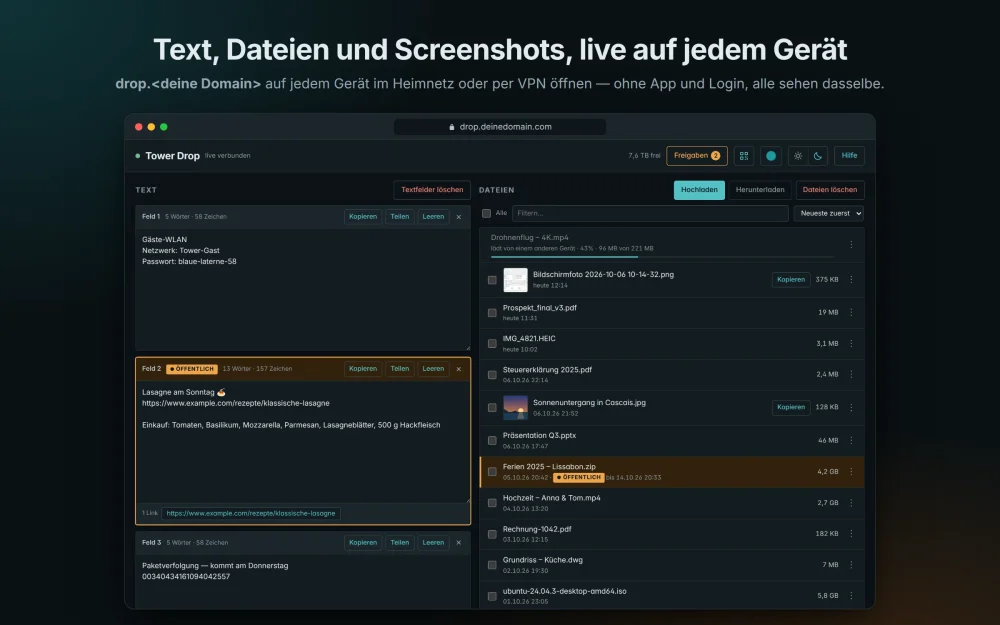
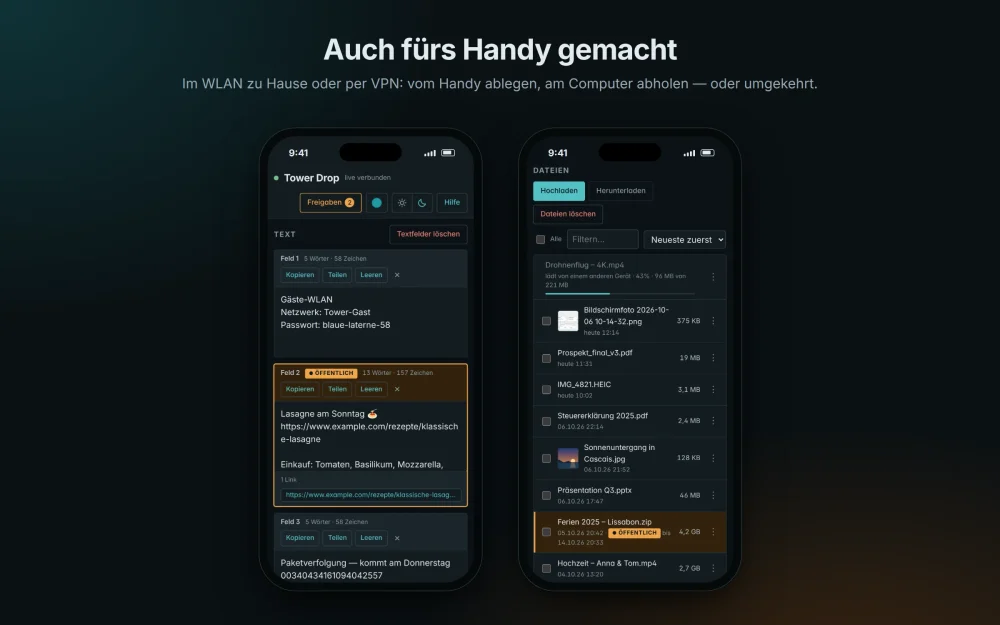
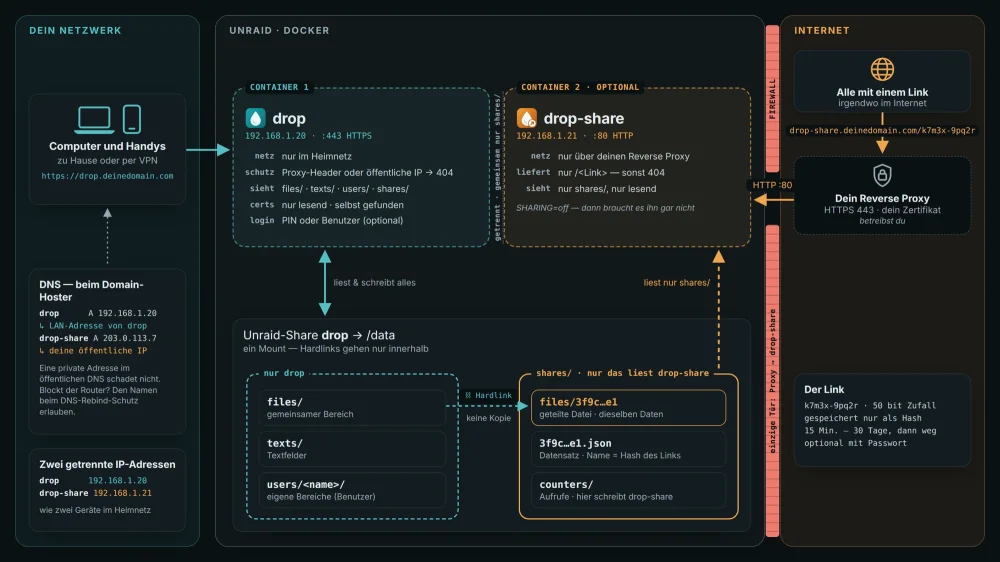
Hallo zusammen Nach dem USO Sekretariat möchte ich euch meine zweite App vorstellen: Drop — Instant-Share fürs Heimnetz, wie AirDrop, nur für jedes Gerät. Einen Text oder eine Datei vom Handy auf den PC bringen, von Windows zum Mac, von Android zum iPhone: eine Webseite öffnen, hineinziehen, und es ist sofort auf jedem anderen Gerät. Ohne App, ohne Login, ohne Cloud — alles bleibt auf deinem Unraid-Server. Für sein eigenes LAN zuhause gedacht. Auf deinen Geräten heisst es einfach Drop — die Seite nennt sich nach deinem Server «Servername Drop». Alles auf einen Blick, mit Bildern: https://dropnook.dropnook.app/de/ — Galerie: https://dropnook.dropnook.app/gallery/?lang=de Was es kann Textfelder, die Neuladen und Verbindungsabbrüche überstehen; Uploads jeder Grösse, fortsetzbar, mit Fortschritt für alle sichtbar. Screenshots direkt aus der Zwischenablage mit Strg+V; Bilder mit Vorschau, Grossansicht und Kopieren in die Zwischenablage eines anderen Computers. Live-Video-Raum: Video oder nur Ton für bis zu 10 Personen im Heimnetz — ein Klick, und man ist dabei, kein Klingeln. Bild und Ton gehen direkt von Gerät zu Gerät; nichts verlässt dein Netz. Diese Funktion braucht HTTPS und ist nur für dein privates LAN gedacht. Teilen ins Internet: einzelne Dateien oder Texte über einen Link, der von selbst abläuft (15 Minuten bis 30 Tage), auf Wunsch mit Passwort. Ausgeliefert von einem zweiten, abgeschotteten Container — Drop selbst ist aus dem Internet nie erreichbar. Diese Funktion ist optional und braucht den Compose-Stack. Benutzer, wenn du willst: bis zu fünf, jeder mit PIN, eigenem Bereich neben dem gemeinsamen und eigener Farbe. 17 Sprachen, fünf Farb-Layouts hell und dunkel, QR-Code fürs Handy, als App auf dem Startbildschirm (auf Android auch im Teilen-Menü). Zwei Wege, dasselbe Image — nimm, was du brauchst Community Applications — nur im Heimnetz. Docker Apps → Dropnook suchen → Install. Compose-Stack — mit Teilen ins Internet. Zwei Container, drop und drop-share, jeder mit eigener LAN-Adresse, eingerichtet mit dem Plugin Compose Manager Plus: Docker → Compose → Add New Stack → compose.yaml und .env aus dem Repo einfügen, zwei freie Adressen eintragen, Compose Up. Dein eigener Reverse Proxy zeigt nur auf drop-share; Drop findet dein vorhandenes Zertifikat (der Ordner von Nginx Proxy Manager ist voreingestellt) und läuft auch im Heimnetz mit HTTPS. Schritt für Schritt: https://github.com/dropnook/dropnook.app/blob/main/README.de.md#installation Was Drop bewusst nicht kann: keine Ordner (vorher zippen), kein Papierkorb, keine Uploads von aussen, kein Live-Raum von ausserhalb des Heimnetzes. Updates: Das Image ghcr.io/dropnook/dropnook:2 folgt jeder 2.x-Version; nach einem Update lädt sich jede offene Drop-Seite von selbst neu. Aktuell: 2.3.2. Support Fragen auf Deutsch gerne hier. Fehler und Wünsche auch als GitHub-Issue: https://github.com/dropnook/dropnook.app/issues — wer mag: https://paypal.me/dropnook Ich nutze Unraid seit Jahren — und Drop ist das Werkzeug, das mir fürs eigene Heimnetz immer gefehlt hat. Vielleicht hilft es auch jemandem von euch. unGrüsse Benj
-
Neu ab der Version 1.63: Jack Streamer und Frau Moverelli teilen sich den Pool intelligent auf 🎬📦 Jack Streamer (MediaCache für Emby, Jellifin, Plex) arbeitet mit einem GB-Budget insgesamt und pro Person. Anzahl anstehende Folgen und angefangene Filme pro User sind die Vorgabe innerhalb dieses Budgets. So können die Festplatten im Array während der Prime Time schlafen bleiben und Plex, Emby oder Jellifin können sofort abspielen weil die Festplatten nicht erst aufwachen müssen. Frau Moverelli kennt deine gewünschte % Grenze. Liegt der Pool Füllstand darüber, schiebt sie die ältesten Dateien der anderen Cache-Shares aufs Array (und behält aber die neusten im schnellen Cache), bis der Pool wieder freie Kapazitäten hat. Jack Streamers Platz für den Emby, Plex oder Jellifin Cache regelt sie auch gleich mit. Wird es eng, sagt sie es. Alles transparent: Auf Frau Moverellis Seite läuft dazu eine Grafik mit: der Pool vorher, die Prognose danach, das Array daneben.
-
Good, that's the main thing done: your data is there and your containers run. The warning icon on the shares just means the files aren't parity-protected yet; it disappears when the parity sync has finished. The cache error on Main is the old half-pool, we clean that up now. Order: Check Main → Array Operation: if the parity sync is still paused, click Resume or Start. Let it finish before any reboot; the progress is shown there. Meanwhile you can already format the empty data-NVMe partition: under Array Operation it says "Unmountable disk present: Bootynvme". Tick the "Yes, I want to do this" box next to Format and press Format. Only that empty partition gets formatted; Disk 1–3 and Cache are mounted and not affected. Cache clean-up, also possible while the sync runs. Terminal (the >_ icon): btrfs balance start -f -dconvert=single -mconvert=single /mnt/cache btrfs device remove missing /mnt/cacheBoth finish in seconds on an empty pool. After the parity sync is finished: Main → Stop. Click "Cache", set Slots to 1, and make sure …647ACC sits in Device 1 (if it jumped to "unassigned", pick it in the Device 1 dropdown). Main → Start. The Cache pool should now show ONLINE without the DEGRADED warning and the error is gone. Finally Settings → Disk Settings → "Enable auto start" = Yes, and run Fix Common Problems once more (Settings → User Utilities). If it still lists something, post a screenshot. Then you’re back to normal. To be clear about what you end up with: Unraid boots from the first NVMe (…67B6D2), whose remaining space is the pool “Bootynvme”; the second NVMe (…647ACC) is the pool “Cache”. Nothing is mirrored, neither the boot nor the pools, so each NVMe is on its own. If your original goal was a mirrored boot on both NVMes, that is possible in 7.3 as a second step (the second NVMe would be wiped and added to the boot pool as a mirror). Let’s get the current state clean first; if you want the mirror, say so and we go through it separately (maybe after your backup-run....).
-
That all looks as expected, nothing new is broken: Disk 1, 2 and 3 are mounted with your data (9.69 TB, 6.51 TB, 6.51 TB used), …ZVT8EY4P can being rebuilt as parity, “Cache” is mounted in degraded mode with only 5.91 MB on it, and “Bootynvme” is unmountable because the wizard wiped that NVMe and created a new, still unformatted data partition on it. Now let’s check that everything you care about is back before we tidy up: Open the Shares tab: are all your shares listed, and when you open one (the folder icon on the right) are your files there? Settings → Docker → “Enable Docker” = Yes → Apply, then open the Docker tab: do your containers show up and start? Open one or two of them (e.g. your media server) and check they work. Tell me how far you come. If something is missing, don’t change anything, just post it. After that, we solve the issues in Main.
-
Please don’t start yet. Your lsblk output doesn’t settle it: the parity drive is the XOR of the three data disks, and with three xfs disks the xfs signature survives that, so parity shows “xfs” too (I reproduced that on a test server). Let’s find the parity drive the simple way instead: start the array once without parity. Settings → Docker → “Enable Docker” = No → Apply (so nothing starts on its own; we turn it back on at the end). Terminal (the >_ icon top right): mv /boot/config/pools/new.cfg /boot/config/pools/new.bakthen Main → Reboot. The “New” pool is gone afterwards and the Start button is usable again. On Main, set the Parity slot to “unassigned”, and assign that drive (…ZVT8EY4P) to Disk 4. Disk 1–3 stay as they are. Now all four drives are data disks and nothing can be overwritten. Main → Start. Then look at the four disks (Main shows Used/Free per disk; the shares or /mnt/disk1 … /mnt/disk4 show the files etc.). Three of them contain your data. The fourth either shows “Unmountable” or mounts but shows no sensible content: that one is your parity drive. Don’t format anything, just note which serial it is. And its a good Point to check if all your share are live again. Main → Stop. Tools → New Config → “Preserve current assignments”: All → tick the box → Apply. Back on Main, set the Disk slot of the drive from step 4 to “unassigned” and assign that drive to Parity (the other three stay where they are, the pools stay too), then Start. Parity rebuilds in the background, your shares are available meanwhile. Then as in my earlier post: “Bootynvme” (and maybe “Cache”) show as unmountable; when the unmountable list contains only those pool names and no Disk 1/2/3, tick the box next to Format and format them. Finally turn Docker back on and set “Enable auto start” to Yes. If anything looks different from what I describe, post a screenshot before clicking on.
-
Thanks for the diagnostics, they answer the important questions. 1. Your array assignment looks right, but let’s make it certain before starting. SMART keeps a lifetime write counter per drive. The drive now in the Parity slot (…ZVT8EY4P) has written about 157 billion sectors; the other three about 45, 50 and 60 billion. Those three add up to 155.6 billion, almost exactly the parity drive’s number. That is what you’d expect from Unraid parity, because every write to a data disk is also written to parity. So …ZVT8EY4P was very likely your parity drive all along. To make it certain, run this in the terminal (the >_ icon top right) and post the output: lsblk -o NAME,SIZE,FSTYPE,SERIALThe three data disks should show a file system (xfs or btrfs) on their partition line (sdX1); the parity drive’s partition should show nothing in the FSTYPE column. If that matches, a parity rebuild is harmless for your Parity-Disk because there ist no filesystem an terefore no data... If the Parity drive shows xfs or any filesystem-type, don’t start the array; post the output first. 2. The cache pool almost certainly held nothing. The surviving NVMe (…647ACC) has written 11.7 MB in total in its entire life (12,000 power-on hours), and six of your seven shares are set to “Use cache: no” (appdata, domains, isos and your media shares all live on the array). The diagnostics don’t record the cache setting of the “system” share, but with 11.7 MB ever written to that NVMe, your Docker image probably cannot have lived there. So the NVMe the wizard wiped very likely took no data with it - i hope. 3. Clean-up, in this order: Settings → Disk Settings → “Enable auto start” = No (it already is; just leave it NO). Also, so that nothing starts on its own while we sort this out: Settings → Docker → “Enable Docker” = No → Apply, and Settings → VM Manager → “Enable VMs” = No (your diagnostics show VMs are already off, Docker is still on). We switch them back on at the end. Then in your Terminal: mv /boot/config/pools/new.cfg /boot/config/pools/new.bakthen Main → Reboot. After the reboot the “New” pool shoud be gone; “Cache” and “Bootynvme” stay. Only after the lsblk check in step 1 looked right: Main → Start (Maintenance mode unticked, no other boxes). Unraid will mount your three data disks right away, so your shares are back immediately. In the background it starts rebuilding parity, which takes many hours for 20 TB; you can use the server normally while that runs (if later anything is on board like appdata system domains isos etc.). After the start, “Bootynvme” will be listed as “Unmountable: unsupported or no file system”: that is the empty / destroyd data part of your boot NVMe. “Cache” (…647ACC) will either mount in degraded mode (it still carries half of the old two-drive pool) or also show as unmountable, depending on how the old pool was set up. Either way there is nothing on it. When the unmountable list contains only these pool names and never Disk 1/2/3, you can tick the “Yes, I want to do this” box that sits next to the Format button and press Format (or post Screenshot hier first if you'r unsure, but first check if all our shares are on stage). Once parity has finished, set the shares you want on the SSD (e.g. appdata, system) to use a pool, and turn auto start back on. One thing to avoid: never tick “Yes, I want to do this” next to Start will remove the missing pool disk while the old pool is still listed; on a 7.3.3 test server in your situation that made the array start hang until a reboot. With new.cfg moved away, that option should doesn’t appear anymore.
-
Hi FlunkyBob, first the good news, then what I think happened, then what I'd do next. 1. Your media is not in immediate danger. The red "All existing data on this device will be OVERWRITTEN" line in your first screenshot is only on the Parity slot (sdb), not on Disk 1/2/3. Parity holds no files, it is only the checksum drive. That message means Unraid intends to (re)build parity when the array starts. Your three data disks do not carry that warning, and Unraid never formats a data disk unless you tick the format box yourself. But please do not start the array yet. Your four drives are the same model (ST20000NT001, 20 TB). The parity warning usually means the array configuration was reset ("new array" Tools->NewConfig?). If the drive that is now in the Parity slot used to be one of your data disks, starting the array would overwrite it with parity. Your diagnostics will show whether the slots still match the original assignment. Until then, leave the array stopped and don't click Format or Erase anywhere. 2. What the internal boot wizard did probaly to the NVMe. When you pick a drive in the wizard, Unraid wipes it completely and writes a new partition table (BIOS boot + EFI + a ZFS boot partition that now holds your /boot configuration + a data partition for the new pool). The wizard shows "All selected devices will be formatted." before it runs. So whatever was on the NVMe ending in …67B6D2 is gone, and that is the drive your server now boots from (that's why it still comes up with the USB stick removed). The second NVMe (…647ACC) is maybe still in its old state: Unassigned Devices shows it with an intact btrfs partition. If your cache pool was a two-drive btrfs pool with Unraid's default RAID1 profile, each drive held a full copy, so your appdata/docker/VM data is very likely still on that drive. If the pool was a single drive or RAID0, the part that lived on …67B6D2 is lost. 3. Why the "Boot Pool" section looks like that. Your second screenshot shows two boot pools, "Bootnvme" (1 slot) and "New" (2 slots), and every member says "no device / Missing". That means the config still remembers the serial numbers, but the slots are empty. The two pool names suggest the wizard was run twice (once with one drive, once with both). The leftover pool definitions (/boot/config/pools/bootnvme.cfg and new.cfg) are what is blocking things. I'd rather look at your diagnostics first. 4. What to post / check now. Tools → Diagnostics → download the zip and attach it here (do this before changing anything else). What was the cache pool called before, and did it have both NVMes in it? Did you run the wizard more than once, and did you change any array assignments yourself after the reboot? Do you have any older backups at all, for example a copy of the USB stick, an Unraid Connect flash backup, or a backup of appdata and domains? Not needed to fix the array, but good to know what we can fall back on. Keep the USB stick plugged in: it still holds your licence and a copy of the configuration from the moment the wizard ran, so it is your fallback (you can boot from it via the BIOS boot menu if needed). With the diagnostics maybe we can go through it in a safe order: fix the pool config, get the surviving NVMe mounted again, confirm the array slots, then start the array and let parity rebuild.
-
Do you happen to have any snapshots or backups? Two quick questions first, so we know which way to go: When you say you deleted the passphrase, do you mean your own note of it (a text file or similar), or did you delete something in the Docker/appdata folders? The second case would be a different story. Is the nextcloud-aio-mastercontainer still running? If it was just your note and the container is still running, the passphrase is not in the logs but in the mastercontainer’s config file, in plain text. Open the Unraid terminal and run: docker exec nextcloud-aio-mastercontainer grep -w password /mnt/docker-aio-config/data/configuration.jsonYou get a line like this: "password": "coroner poet sureness conjoined hypertext unglazed blinks virtuous",The eight words are your passphrase. Just tested it on a fresh AIO install on Unraid 7.3.2. If the container is stopped, maybe this works instead: docker run --rm -v nextcloud_aio_mastercontainer:/mnt/docker-aio-config:ro alpine grep -w password /mnt/docker-aio-config/data/configuration.json
-
Had a look at both diagnostics. The useful one is the 10/10 set, taken 3h20 after reboot with everything running. The September set was taken while the array was already stopping (VM force-killed and containers stopped about a minute before), so it isn't a baseline for normal operation. Facts from 10/10: - 32 GB RAM, no swap. 29 GB used, 2.1 GB available. - Windows10 VM: 12 GB configured, 12.3 GB resident, started within seconds of libvirt coming up. - rootfs (lives in RAM, 16 GB max) is at 11 GB; Shmem 11.7 GB. In September it was 2.2 GB, but see the caveat above. - A /tmp/Transcode directory exists (also present in September). - php-fpm children killed with SIGKILL: at least 13 between 14:44 and 14:56 (the log collapses repeats), with nginx 502 errors on the GUI at 14:45. The September log has 21 of the same kills on Sep 12, 21:18-21:27. - No kernel "Out of memory" line in either local syslog, so I can't prove it's the OOM killer. It does fit a box with 2 GB free and no swap. - Both boots start with "unclean shutdown detected". SMART passes on all array and pool drives (one external USB drive reports no SMART data). No MCE lines. What I'd check: 1. du -xsh /tmp/* /var/lib/* 2>/dev/null | sort -h | tail If /tmp/Transcode is your Plex transcode dir, it competes with the VM and containers for the same RAM and can grow to 16 GB. Move it to the plex pool/cache or mount a dedicated tmpfs with size=4G. 2. Synology syslog for Oct 10, 07:00-07:13: look for "Out of memory", "oom-kill", "Killed process" or any kernel trace. That decides it. 3. Per the September libvirt log the VM is started every Saturday 09:00 UTC and stopped Monday 09:00 UTC. Oct 10 was a Saturday, so if that schedule is still active the VM was running at 07:13 local. 4. Dynamix File Integrity (bunker) verified all 7 disks, overlapping, from 07:00 on Sep 2. Same time window as your hang. Could be coincidence, but easy to stagger or pause for a test. 5. Until the memory picture is clear: VM to 8 GB, and --memory limits on the big containers (Nextcloud AIO, immich, Postgres). 6. docker.img shows 861 btrfs write errors ("BTRFS info (device loop2): errs: wr 861"). The counter is unchanged since August, so historical, but worth recreating the image at some point. 7. For a RAM test, boot memtest86+ rather than using the in-OS Live Memory Tester plugin - with 2 GB free a userspace test only adds to the pressure. Minor: r8169/RTL8125 dropped link twice on Aug 27 and once on Aug 28.
-
The simplest way to add the key so it stays: in the webGUI go to Users → root, paste the public key into SSH authorized keys, and click Apply. That writes it to /boot/config/ssh/root/authorized_keys on the flash (probably).
-
Have you checked that all power-related BIOS settings are really disabled? In particular: Wake on LAN etc. ErP Ready (Deep S5) S3 / Suspend to RAM (or any other sleep-state option) No idea if it helps, but I always disable these power/wake features (WoL, ErP, S3, etc.) on my Unraid servers BIOS's anyway.
-
How could you do the software update and the hardware change at the same time? That is physically not possible 😜
-
Sorry, but unfortunately I have no experience with HBA cards. For hard drives I only use SATA, and my Silverstone SST-ECS06 PCI-E Card an my NVMe-SATA adapter with MB585 chipset runs stable under 7.33 and uses less power than an HBA card.
-
Yes, I understand that. Going from 6.x to 7.x is also a big jump. But I think you can’t get around it if you want to use the Core Ultra on your new Mainboard with Plex. So first the backup, then I’ll help you further here :-) Regarding parity: yes, but parity is not a backup. What gets deleted is gone from the parity as well, and if your house burns down (hopefully never), parity doesn’t help either. You know that, but sometimes one forgets it again :-) (after update to 7.3.3, migrate to btrfs or zfs disk by disk, after that you have the ability for snapshots (also no backup but bit better then nothing)) Your new board takes the new Core Ultra, right? You shouldn’t do that without the latest kernel. Without a new kernel, Plex can’t do hardware transcoding on the Core Ultra, because your old kernel doesn’t know the new iGPU architecture, and the new Core Ultra CPU is poorly supported in general on your old kernel in Unraid 6.x.
-
First important questions: Is your current cache pool a ZFS mirror (Probably not on Unraid 6.x. or RAID 1)? Because then, after the update to 7.3.3 or newer, you can simply replace one SSD, let Mirror/Raid1 rebuild, and then swap the second one. The most critical point is probably the update to 7.3.3 or newer. If your filesystems get upgraded in the process and somethings go wrong, the array may no longer start with a flash backup of 6.x. So my question is: why are you waiting with the update to 7.3.3? The hardware swap is probably the smaller problem and mit 7.3.3 easy going (new kernel - new hardware). And the third question is the most important of all: do you have a backup of everything important? Something can always go wrong, except when you have a backup.
-
Hi Max, welcome to Unraid! Out of curiosity, and I may be missing something: why do you consider /boot/extra risky? Unraid itself handles that folder (if I'm not mistaken). For Vim it works fine. Here's the sequence, run as root in the Unraid shell (tested on 7.3.3). File names match the mirror as of today; if curl returns a 404, check the directory listing for the current version. 1. Create the folder and fetch the packages mkdir -p /boot/extra && cd /boot/extra curl -LO https://mirrors.slackware.com/slackware/slackware64-current/slackware64/ap/vim-9.2.1167-x86_64-1.txz curl -LO https://mirrors.slackware.com/slackware/slackware64-current/slackware64/l/libsodium-1.0.22-x86_64-2.txz ls -la /boot/extra You should see both files, libsodium is the only library Vim needs that Unraid doesn't ship. 2. Install right away upgradepkg --install-new /boot/extra/libsodium-1.0.22-x86_64-2.txz /boot/extra/vim-9.2.1167-x86_64-1.txz 3. Verify ldd /usr/bin/vim | grep "not found" || echo "all libraries present" vim --version | head -2 echo hello > /tmp/t.txt && vim -es -c '%s/hello/world/' -c wq /tmp/t.txt && cat /tmp/t.txt Two rules keep this safe: never drop in libraries Unraid already ships, and re-check the packages after each Unraid upgrade since the base follows slackware-current. Have a good weekend!
-
Hallo zusammen Ich möchte euch mein Plugin vorstellen: das Unraid Secretary Office (USO) — ein kleines Sekretariat direkt in Unraids Weboberfläche. Alle virtuellen Mitarbeitenden kümmern sich um einen Teil des Servers, sagen dir, was auffällt, und zeigen dir vor jeder Änderung genau, was passieren wird. Alles auf einen Blick, mit Bildern: https://uso.dropnook.app/de/ Bereit für Unraid 7.4 — das ganze Team ist auf der 7.4-Beta getestet, auch mit dem neuen Mover. Das Team Die Werkzeuge von helmi1987 (MediaCache, Ordner zusammenführen, SmartMover) stecken in Jack Streamer und Frau Moverelli — danke für die Mithilfe an Helmi1987! Zwei Server, ein Team Zwei Unraid-Server mit dem Sekretariat bewahren gegenseitig Kopien ihrer Backups auf — nach jedem Backup gehen nur die Änderungen hinüber. Jedes Backup trägt auch die Konfigurationen selbst mit (XML, UEFI, TPM, Template, Dump …). Fällt ein Server aus, kann der Partner-Server die bei ihm verfügbaren Backups wiederherstellen. Installation Unraid 7.3.3 oder neuer, getestet auch auf Unraid 7.4. Plugins → Install Plugin, diese Adresse einfügen: https://github.com/dropnook/UnraidSecretaryOffice/releases/latest/download/unraid-secretary-office.plg (Der Eintrag in den Community Applications ist in Prüfung.) Dann «Sekretariat» in der Menüleiste öffnen, die vorgeschlagenen Mitarbeiter einstellen und loslegen. Falls du das Plugin über das Terminal installieren willst: plugin install https://github.com/dropnook/UnraidSecretaryOffice/releases/latest/download/unraid-secretary-office.plg Support Fragen auf Deutsch gerne hier. Ein englischer Support-Thread folgt, sobald das Plugin in den Community Applications ist. Fehler, Wünsche und Fragen können auch anonym direkt aus dem Sekretariat übermittelt werden (⋯ → «Problem oder Wunsch melden…»): Manche finden die Namen der Mitarbeiter und die ganze Büro-Idee vielleicht albern — für mich passt es: Ich liebe Unraid seit Jahren, und etwas Spass war schon immer mit dabei. unGrüsse Benj


-
Does anyone with the Core Ultra 7 265k / 9 285k also have the problem that with Plex (Docker) the hw-transcoding is about 4 times slower than when the CPU without igpu does the transcoding? With Unraid 7.1-beta-3. It even leads to jerks during demanding transcoding when hw-transcoding is switched on.
-
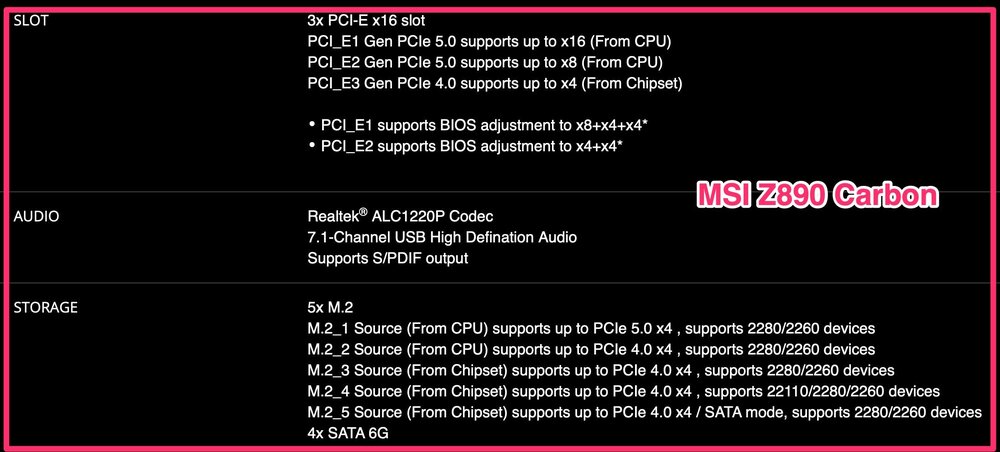
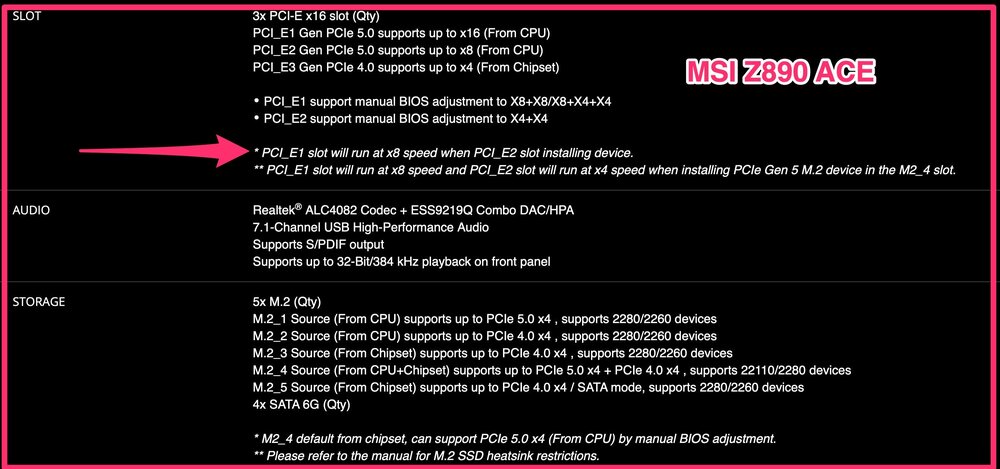
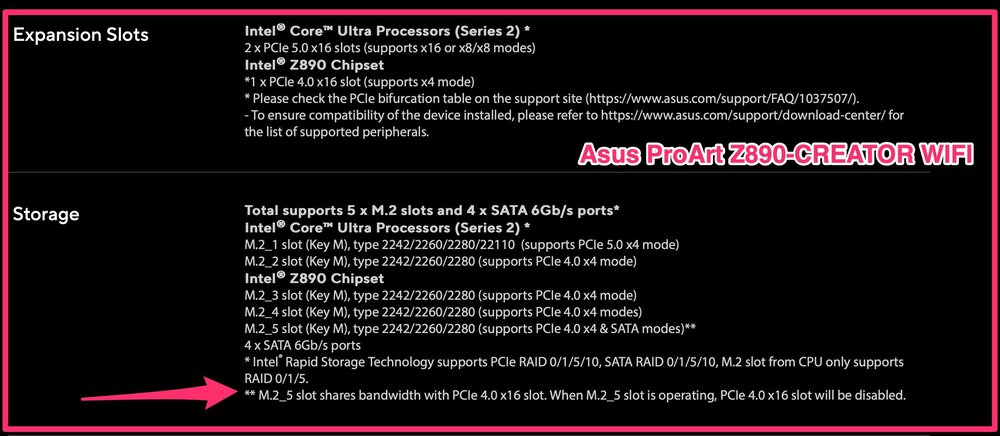
At first I wanted to buy the MSI Z890 ACE motherboard because of the 10 Gbits port. However, the ACE has line sharing for the PCIe card slots, i.e. if all slots are occupied, the lanes in slot 1 are halved (if I have understood this correctly). That's why I've decided in favour of the MSI Z890 Carbon, because there are apparently no restrictions with a full PCIe card configuration (if the official MSI specifications are correct...). But now I still need a solution for the 10 Gbits connection, without a PCIe card and it will probably be this one (should consume little power): IOCREST USB4 Single Port 10G Ethernet Adapter. By the way, the PCIe line sharing on the Asus ProArt Z890-CREATOR Wifi is even worse, an entire x16 card slot becomes unusable when an SSD is inserted in the M.2_5.