SimonF
Community Developer
-
Joined
-
Last visited
Everything posted by SimonF
-
Have you cleared browser cookies?
-
Does the vnc window open and show anything i.e. errors?
-
These are the current supported values.
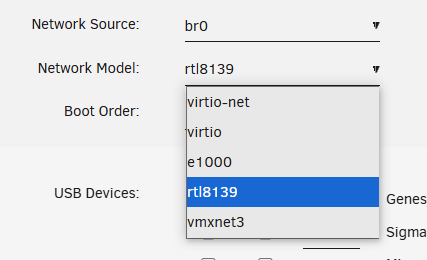
-
Which nic do you mean e1000e?
-
What version of the plugin are you running?
-
Can you provide a screen print, you using chrome browser?
-
Kernel support for arc is not in 6.12.x you need will to run 7.
-
tate RELATED,ESTABLISHED 0 0 REJECT all -- * virbr0 0.0.0.0/0 0.0.0.0/0 reject-with icmp-port-unreachable Chain LIBVIRT_FWO (1 references) pkts bytes target prot opt in out source destination 0 0 ACCEPT all -- virbr0 * 192.168.122.0/24 0.0.0.0/0 0 0 REJECT all -- virbr0 * 0.0.0.0/0 0.0.0.0/0 reject-with icmp-port-unreachable Chain LIBVIRT_FWX (1 references) pkts bytes target prot opt in out source destination 0 0 ACCEPT all -- virbr0 virbr0 0.0.0.0/0 0.0.0.0/0 Chain LIBVIRT_INP (1 references) pkts bytes target prot opt in out source destination 0 0 ACCEPT udp -- virbr0 * 0.0.0.0/0 0.0.0.0/0 udp dpt:53 0 0 ACCEPT tcp -- virbr0 * 0.0.0.0/0 0.0.0.0/0 tcp dpt:53 0 0 ACCEPT udp -- virbr0 * 0.0.0.0/0 0.0.0.0/0 udp dpt:67 0 0 ACCEPT tcp -- virbr0 * 0.0.0.0/0 0.0.0.0/0 tcp dpt:67 Chain LIBVIRT_OUT (1 references) pkts bytes target prot opt in out source destination 0 0 ACCEPT udp -- * virbr0 0.0.0.0/0 0.0.0.0/0 udp dpt:53 0 0 ACCEPT tcp -- * virbr0 0.0.0.0/0 0.0.0.0/0 tcp dpt:53 0 0 ACCEPT udp -- * virbr0 0.0.0.0/0 0.0.0.0/0 udp dpt:68 0 0 ACCEPT tcp -- * virbr0 0.0.0.0/0 0.0.0.0/0 tcp dpt:68 These are the IP tables but they are created by libvirt.
-
Scroll down to the intel top timers and change to .7 1.3
-
No that will be in 7.
-
You should not need the Nvidia drivers if passing to a VM. If not bound to vfio it tries to do and it will remove from nv driver which may be the issue.
-
Have you bound GPU to vfio?
-
What plugins do you have?
-
Would you be able to provide this output? Blank out serial number dmidecode -qt2 Base Board Information Manufacturer: Supermicro Product Name: X9DR3-F Version: 0123456789 Serial Number: xxxxxxx Asset Tag: To be filled by O.E.M. Features: Board is a hosting board Board is replaceable Location In Chassis: To be filled by O.E.M. Type: Motherboard
-
Can you provide output of nvidia-smi -q -x
-
That looks like intel GPU top is not working do you have the latest version
-
does this provide any output? timeout -k .7 1.3 intel_gpu_top -J -s 1000 -d pci:slot="0000:00:02.0" assuming that is the pci of your GPU, lspci | grep VGA
-
Means it is connected outside of the plugin, i.e. in the VM template
-
Did you change the settings to be To clarify this a bit. If you are on an Intel iGPU and running into the "Vendor command returned unparseable data." error. Go to "Settings > GPU Statistics" and change the "UI Automatic Refresh / Interval" to the new lowest value of "2000" and change the "Intel_top_command_timeout:" from the old default of ".500 .600" to the new value of ".7 1.3"
-
You may need to blacklist the AMD driver.
-
Which GPU do you have and does the GPU command provide any output?
-
I could look to add to the ipmi plugin, but uses freeimpi rather than ipmitool.
-
What was the plugin that caused issues
-
Run diagnostics in cli
-
Will look to see if I can build a new package.