SimonF
Community Developer
-
Joined
-
Last visited
Everything posted by SimonF
-
Press the trash can or you can delete the file in /boot/config/modprobe.d called i915.confg
-
I suspect 7 will release with kernel 6.6 but may change. I would expect 6.12 in the next release You maybe be able to get a custom kernel one 7 is stable.
-
Yes beta had kernel 6.8 and went eol so was changed to 6.6 lts
-
Kernel was downgraded so this XE driver is not in the current rcs
-
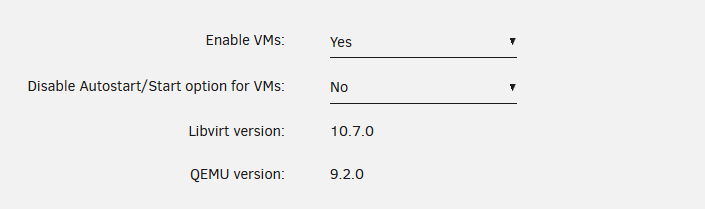
Looks like one of the host controllers is being removed are you passing into a VM? I would disable the usbip options if not using.You set IGD in the bios as primary displayAs you have USBM the logs would show any changes. cat /var/log/syslog | grep -i usb_managerCPU has integrated graphics. Vfio is configured by the system devices if you are passing through to a VM(may not be relevant in your case) May output if via the hdmi on the motherboard.Is the 3050 primary GPU Nd then gets bound to vfio? IO Ports & Initial Display Output Specifies the first initiation of the monitor display from the installed PCI Express graphics card or the onboard graphics. IGD Video (Note) Sets the onboard graphics as the first display. PCIe 1 Slot Sets the graphics card on the PCIEX16 slot as the first display. & Integrated Graphics (Note) Enables or disables the onboard graphics function. Auto The BIOS will automatically enable or disable the onboard graphics depending on the graphics card being installed. Forces Enables the onboard graphics. Disabled Disables the onboard graphics.You should only pass thru a device in this manner if the disk is unassigned. The drive is mounted to the host hence you cannot see the partitions.Is the drive in the array?I think you need to add a pscsi rather than block. The gui does not support a this time but you can do a manual entry. pscsi backstore Create a pscsi storage object if your storage object supports direct pass-through of SCSI commands. For creating a pscsi backstore, see Creating a pscsi storage object. https://www.smetana.name/blog/2014/10/20/sharing-dvd-drive-over-iscsi/Try stopping docker. Restart libvirt then restart docker.The timeout command is to do the ctlr c as intel_gpu_top loops for ever. Not sure why that does not work for you. This works fine on my systems timeout -k .500 .400 intel_gpu_top -J -s 250So you don't get this output? root@computenode:~# timeout Try 'timeout --help' for more information. root@computenode:~# Seems timeout is not working on your system.That looks fine, can you provide cat /boot/config/plugins/gpustat/gpustat.cfg and cat /tmp/gpujson Does running timeout provide any output? Also are you running a different shell to bash?Yes run intel_gpu_top -J to see if that creates output and intel_gpu_top -Lroot@computenode:~# timeout -k .500 .400 intel_gpu_top -J -s 250 [ { "period": { "duration": 5.788810, "unit": "ms" }, "frequency": { "requested": 0.000000, "actual": 0.000000, "unit": "MHz" }, "interrupts": { "count": 0.000000, "unit": "irq/s" }, "rc6": { "value": 100.000000, "unit": "%" }, "engines": { "Render/3D": { "busy": 0.000000, "sema": 0.000000, "wait": 0.000000, "unit": "%" }, "Blitter": { "busy": 0.000000, "sema": 0.000000, "wait": 0.000000, "unit": "%" }, "Video": { "busy": 0.000000, "sema": 0.000000, "wait": 0.000000, "unit": "%" }, "VideoEnhance": { "busy": 0.000000, "sema": 0.000000, "wait": 0.000000, "unit": "%" }, "Compute": { "busy": 0.000000, "sema": 0.000000, "wait": 0.000000, "unit": "%" } }, "clients": { "4294953169": { "name": "Xorg", "pid": "14127", "engine-classes": { "Render/3D": { "busy": "0.000000", "unit": "%" }, "Blitter": { "busy": "0.000000", "unit": "%" }, "Video": { "busy": "0.000000", "unit": "%" }, "VideoEnhance": { "busy": "0.000000", "unit": "%" }, "Compute": { "busy": "0.000000", "unit": "%" } } } } }, { "period": { "duration": 255.575599, "unit": "ms" }, "frequency": { "requested": 0.000000, "actual": 0.000000, "unit": "MHz" }, "interrupts": { "count": 0.000000, "unit": "irq/s" }, "rc6": { "value": 99.999635, "unit": "%" }, "engines": { "Render/3D": { "busy": 0.000000, "sema": 0.000000, "wait": 0.000000, "unit": "%" }, "Blitter": { "busy": 0.000000, "sema": 0.000000, "wait": 0.000000, "unit": "%" }, "Video": { "busy": 0.000000, "sema": 0.000000, "wait": 0.000000, "unit": "%" }, "VideoEnhance": { "busy": 0.000000, "sema": 0.000000, "wait": 0.000000, "unit": "%" }, "Compute": { "busy": 0.000000, "sema": 0.000000, "wait": 0.000000, "unit": "%" } }, "clients": { "4294953169": { "name": "Xorg", "pid": "14127", "engine-classes": { "Render/3D": { "busy": "0.000000", "unit": "%" }, "Blitter": { "busy": "0.000000", "unit": "%" }, "Video": { "busy": "0.000000", "unit": "%" }, "VideoEnhance": { "busy": "0.000000", "unit": "%" }, "Compute": { "busy": "0.000000", "unit": "%" } } } } }root@computenode:~#No these are the only ones that can be added with the current version.If I refresh that page show 7.0.0rc1 it then show 6.12.14 for me.Does more options not provide any other options?Here are the packages if you would like to try on a TEST system. This would need to be on unraid 7rc1. If you have any issue you can reboot to return to stock. Copy to your system and run installpkg for each of them. VM Settings should show vers 9.2.0 You will have to do a manual edit for the xml You should not change the existing spice or VNC graphics section. Add this after the spice/VNC one. Change the PCI ID to match your GPU. You will need to have the drivers loaded on the host. <graphics type='egl-headless'> <gl rendernode='/dev/dri/by-path/pci-0000:03:00.0-render'/> </graphics> In the video section add the accel3d line. <video> <model type='virtio' heads='1' primary='yes'> <acceleration accel3d='yes'/> </model> </video> mesa-24.3.0-x86_64-2.txz qemu-9.2.0-x86_64-1cf_LT.txz virglrenderer-1.1.0-x86_64-1_SFo.tgz
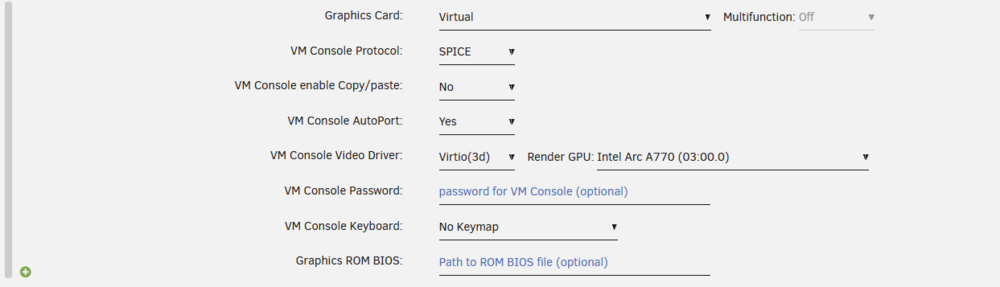
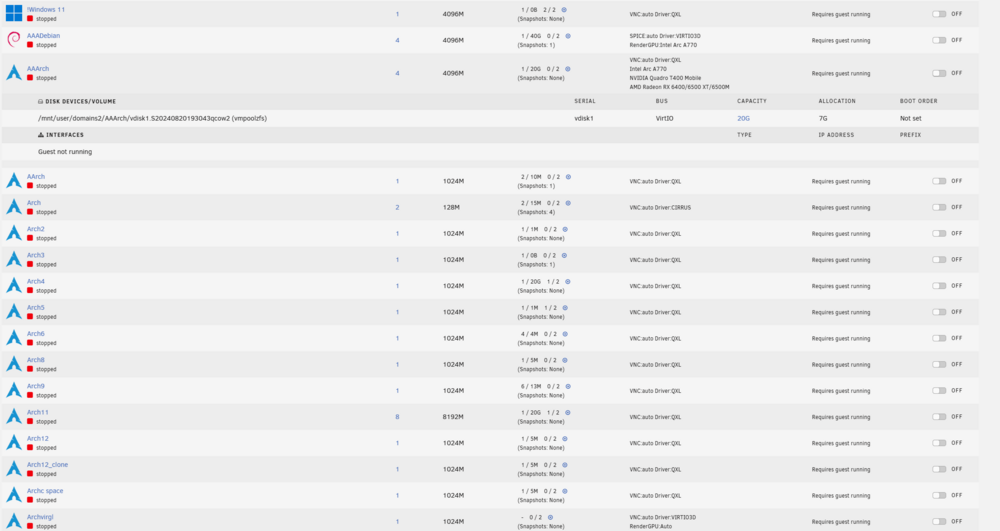
 I have working GUI changes and have been testing with two VMs to the same GPU(ARC770) Only support currently in Linux VMs. Glmark2 results for VM with the GPU passed thru and via virgl. Passthru ======================================================= glmark2 2021.02 ======================================================= OpenGL Information GL_VENDOR: AMD GL_RENDERER: AMD Radeon RX 6400 (radeonsi, navi24, LLVM 15.0.7, DRM 3.57, 6.8.0-49-generic) GL_VERSION: 4.6 (Compatibility Profile) Mesa 24.3.0-devel (git-9fc8668b66) ======================================================= ======================================================= glmark2 Score: 14334 ======================================================= Virgl ======================================================= glmark2 2021.02 ======================================================= OpenGL Information GL_VENDOR: Mesa GL_RENDERER: virgl (AMD Radeon Graphics (radeonsi, navi24, LLVM 19.1.5, ...) GL_VERSION: 4.3 (Compatibility Profile) Mesa 24.3.0-devel (git-9fc8668b66) ======================================================= ======================================================= glmark2 Score: 542 ======================================================= I don't have any time scales for inclusion into the OS but will not be in 7.0 likely 7.1 or 7.2 I would be happy to include packages required to make it work in this thread and instructions for the xml if any one is interested. Note this is experimental, my test qemu package is 9.2.0 which is greater than stock 9.1.0 GUI Changes. Example XML <graphics type='spice' autoport='yes' listen='0.0.0.0'> <listen type='address' address='0.0.0.0'/> </graphics> <graphics type='egl-headless'> <gl rendernode='/dev/dri/by-path/pci-0000:03:00.0-render'/> </graphics> <audio id='1' type='none'/> <video> <model type='virtio' heads='1' primary='yes'> <acceleration accel3d='yes'/> </model> <address type='pci' domain='0x0000' bus='0x00' slot='0x1e' function='0x0'/> </video> <graphics type='vnc' port='-1' autoport='yes' websocket='-1' listen='0.0.0.0' sharePolicy='ignore'> <listen type='address' address='0.0.0.0'/> </graphics> <graphics type='egl-headless'> <gl rendernode='/dev/dri/by-path/pci-0000:00:02.0'/> </graphics> <audio id='1' type='none'/> <video> <model type='virtio' heads='1' primary='yes'> <acceleration accel3d='yes'/> </model> <address type='pci' domain='0x0000' bus='0x00' slot='0x1e' function='0x0'/> </video> Drivers and RenderGPU added to VM View.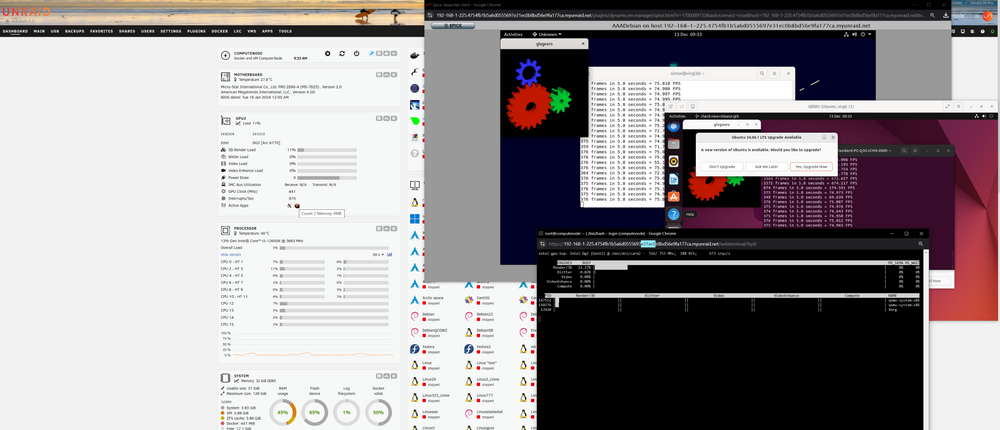
 In system devices select check box for the NVME, mine are not allowed due to being used in a pool. Then in the VM Template it should show here.