





bastl
Members
-
Joined
-
Last visited
Everything posted by bastl
-
Not 100% sure how Unraid handles it. Maybe it depends on the template you have choosen during the VM setup or the cores you selected. In general I manual adjust it for the cores I have selected.
-
@dnLL the "topology" section basically does this in the xml. 1 core with HT: <topology sockets='1' cores='1' threads='2'/> 2 cores without HT: <topology sockets='1' cores='2' threads='1'/>
-
Not actual sure what you mean by that. You can define a core topology in the xml to "emulate" different kind of CPU models and core topolgies. For example you can emulate a 2 socket CPU with let's say 2 cores each or specific CPU features. Good start if you wanna dive deeper into the topic is the RedHat documentation. https://access.redhat.com/documentation/en-us/red_hat_enterprise_linux/7/html/virtualization_deployment_and_administration_guide/sect-manipulating_the_domain_xml-cpu_model_and_topology
-
@dnLL Keep in mind, if a VM fully utilises let's say a HT core, the performance of that physical core is also affected. If you don't have such high workloads you might be fine and won't see any issues but in general it's the best idea to use the physical and the ht core at the same time in a VM. Also core 0 is always used by unraid itself. If you fully utilise this core you kinda affecting all other VMs. All the IO load, networking and storage access for example is handled by unraid and can kinda easily reduce your overall system performance in this way. 10 VMs running on 8 threads sooner or later you will have some issues.
-
@Cerros Try Q35 as machine type
-
@tll002 The reason is because of the space in the name of your Unifi VM. Edit: Rename your VM to "Unifi_Video" and in the script and it should work. Btw what is the "\n" part at the end of the name for? Might be also the cause of your issue.
-
@tll002 The xxx-efi.fd files are the specific BIOS files of each VM and you can find an entry in each xml of each VM.
-
@Ricin Report back if it works or if you run into any issues. If it works there might be a script lets say for pfsense a great idea for people who don't want the ports be opened all the time, only for cert renew. Some sort of check when the certificate expires, if it expires next day, open port and recheck ever hour or so if the cert is renewed, after that, close port again. Just an idea and I have no glue how to create something like that. 🤔
-
If you have free PCIE slots, there is a chance switching the cards between can help. For example, my second slot, anything I put in there can't be passed through if the first slot is populated. If I leave the first slot empty, the second can be passed through. For the normal user the "auto" setting for the PCIE slot configuration works fine. Sometimes it could help to set them manual to a specific link speed.
-
@Ricin As far as I know, you have to open ports to have LetsEncrypt authenticate and create new certificates every 90 days for your "bitwarden domain".
-
@L0rdRaiden v16 didn't showed up for me yet. I'am still running 15.0.7 stable.
-
The PCI Root Port Patch only works on Q35 VMs on newer builds starting with 6.7_RC5. You need to insert the following QEMU arguments at the end of the xml. <qemu:commandline> <qemu:arg value='-global'/> <qemu:arg value='pcie-root-port.speed=8'/> <qemu:arg value='-global'/> <qemu:arg value='pcie-root-port.width=16'/> </qemu:commandline> </domain> For me with this change the Nvidia system settings are reporting the correct PCI link speeds and benchmarks like 3DMark are working now. Without this I always had issues with system freezes when 3DMark starts up and checking for system information, GPUZ reporting wrong speeds and I guess there is a couple other software out there having problems.
-
@fluisterben Check if this works for you I had no issues setting this up in a Mint VM. XML looks like the following <filesystem type='mount' accessmode='passthrough'> <source dir='/mnt/user/downloads/dl'/> <target dir='dl'/> <address type='pci' domain='0x0000' bus='0x01' slot='0x00' function='0x0'/> </filesystem> <interface type='bridge'> <mac address='52:54:00:e0:e7:31'/> <source bridge='br0'/> <model type='virtio'/> <address type='pci' domain='0x0000' bus='0x02' slot='0x00' function='0x0'/> </interface>
-
@fluisterben Try to create a fresh VM and point it at your existing vdisk.
-
@fluisterben If you have custom edits inside the xml for your network lets say changing the model of the emulated device, these changes will be lost if you change something else in the VM settings. Keep that in mind. As stated from itimpi increasing the vdisk size in the webui doesn't change the filesystem size inside the VM. You have to expand the partion inside the VM by yourself. Also to be mentioned and been documented in Unraids wiki, never decrease the vdisk size or you will break your VM if sectors of the vdisk are used by the VM and you cut them off.
-
Maybe it's a Vega issue. As i wrote earlier, I'am still surprised about the fact that you don't have the reset issue when restaring the VM. If you have another card to test with, might be a thing you can try.
-
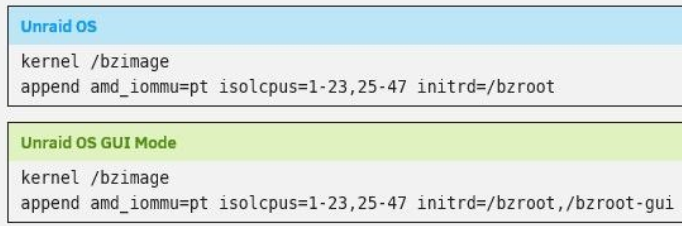
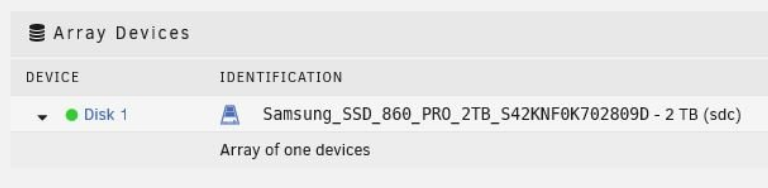
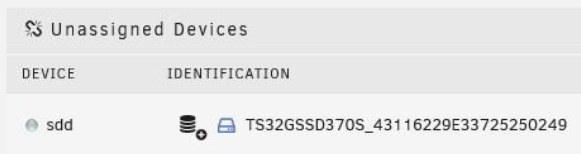
First of all, is there a reason why you isolate all of your cores except of the first one? If you have any dockers on your server or any tasks running in the backround, lets say for syncing your server or for backups, all these task will only run on the left over cores, in your case 0 and 24. Better solution is to only isolate the cores you wanna use for a VM and let the rest unisolated to be handled by Unraid itself. Second thing, as far as I know it's not adviced to have a SSD/NVME as one of your array drives. For testing this might be ok but for long term use this isn't the best solution. Trim isn't supported on array drives, your SSD will become noticeably slow over time and as far as I understand it the way parity works on Unraid this won't be a feature in the near future of Unraid. Next thing, the SSD you passthrough to the VM is a 32GB Transcend SSD, right? I don't know how old that thing is, but if it's one of the first gen SSDs and was used a lot over the past years that might be the reason why you see some stuttering. Also 32GB isn't that much for a Windows install. Running a SSD close to it's max capacity can also cause a decrease in performance. You have defined your disk as virtio. Usual for a vdisk file thats ok, but you wanna squeeze out a bit more performance and reduce the IO on the host, SCSI is the better choice. Before you switch to SCSI you first have to install the driver in the VM, otherwise Windows won't be able to boot. First add a small dummy SCSI vdisk via the unraid ui lets say only 1G, start your VM and go to device manager to install the SCSI driver from the virtio iso. Shutdown the VM and now switch from virtio to SCSI for your main disk of the VM. The dummy vdisk isn't needed anymore. The part in the xml should look something like this. Adjust it so it matches your config. <disk type='block' device='disk'> <driver name='qemu' type='raw' cache='none' io='threads' discard='unmap'/> <source dev='/dev/disk/by-id/ata-Samsung_SSD_850_EVO_1TB_S2RFNX0J606029L'/> <backingStore/> <target dev='hdd' bus='scsi'/> <alias name='scsi0-0-0-3'/> <address type='drive' controller='0' bus='0' target='0' unit='3'/> </disk> If you have by any chance a spinning hdd laying around, use that as array drive and use the Samsung SSD as cache drive. There you have a lot of space for a couple vdisks for VMs and can benefit of trim. Next thing, try to reduce your emulator pins to only 2. I don't think more than 2 is useful. Select "6,30" and you should be ok. For the next thing I'am not exactly sure if a "exact" CPU definition is needed for an EPYC CPU. Usual this part is used for Threadripper CPUs to report the correct amount of cache of the CPU to the guest OS. <cpu mode='custom' match='exact' check='full'> <model fallback='forbid'>EPYC</model> <topology sockets='1' cores='12' threads='1'/> <feature policy='require' name='topoext'/> <feature policy='disable' name='monitor'/> <feature policy='require' name='hypervisor'/> <feature policy='disable' name='svm'/> <feature policy='disable' name='x2apic'/> <numa> <cell id='0' cpus='6-11' memory='8388608' unit='KiB'/> </numa> </cpu> Another thing you can try to reduce the stutter that my can be caused by disk IO, is to specify one "iothread" and pin it to 2 cores like in my example. With this i got slightly better latency on disk access. The cores "8,24" are on the same die as the rest of the cores in my example and not included in the passed through cores. In your case use the cores "6,30", remove them from the VM and only set them as emulatorpins and iothreads. <vcpu placement='static'>14</vcpu> <iothreads>1</iothreads> <cputune> <vcpupin vcpu='0' cpuset='9'/> <vcpupin vcpu='1' cpuset='25'/> <vcpupin vcpu='2' cpuset='10'/> <vcpupin vcpu='3' cpuset='26'/> <vcpupin vcpu='4' cpuset='11'/> <vcpupin vcpu='5' cpuset='27'/> <vcpupin vcpu='6' cpuset='12'/> <vcpupin vcpu='7' cpuset='28'/> <vcpupin vcpu='8' cpuset='13'/> <vcpupin vcpu='9' cpuset='29'/> <vcpupin vcpu='10' cpuset='14'/> <vcpupin vcpu='11' cpuset='30'/> <vcpupin vcpu='12' cpuset='15'/> <vcpupin vcpu='13' cpuset='31'/> <emulatorpin cpuset='8,24'/> <iothreadpin iothread='1' cpuset='8,24'/> </cputune>


-
Could you please also attach your XML of that VM?
-
Short question, is the Vega card working after you reboot the VM which uses it? Usually the Vega cards have a reset bug where you can't restart a VM to pick it up again. Usually you have to restart the whole server. I would be surprised if it's working for you. Are you sure your card is picked up correctly by the VM and shows no errors in the device manager?
-
What are your system specs?
-
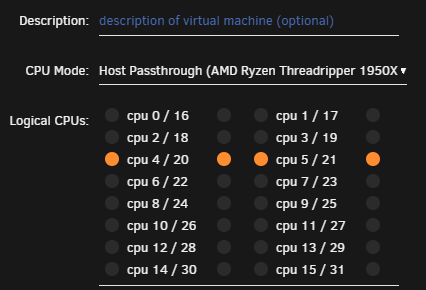
Not exactly sure what you mean by that? Most video are done with an older Unraid version. The UI slightly changed over time. You have a 4 core 8 thread CPU. Cores 0-3 are the main cores and the other 4 are the logical cores/hyperthreads. If you select a specific core for a VM it's adviced to also select the HT core. CPU 0/4 is the first core pair (always used by Unraid itself), CPU 1/5 is the second pair and so on. In the example below you can see I've given core pair 5 (cpu 4/20) and 6 (cpu 5/21) to a VM. In this case CPU 4 and 5 are the physical cores, 20 and 21 the logical cores.
-
@IamSpartacus You can't really tell from outside the docker if an encoding process is currently running if the script kicks in. This above lines will shutdown the docker, no matter what it's doin inside. Maybe there is an schedule you can setup in the handbrake settings itself to prevent shuting down during a encoding process. Not sure.
-
2 basic Scripts with a custom schedule configured should work. @IamSpartacusLets say docker start handbrake at 9:30 30 9 * * * and docker stop handbrake at 12:30 30 12 * * *
-
I completly missed that part in the libvirt documentation. Thanks again @ken-ji Custom virbr is up and running and survived a server restart.
-
Thx for the explanation. Fingers crossed that you'll find a solution, maybe somehow your own independent user management for your app.

