Everything posted by Frank1940
-
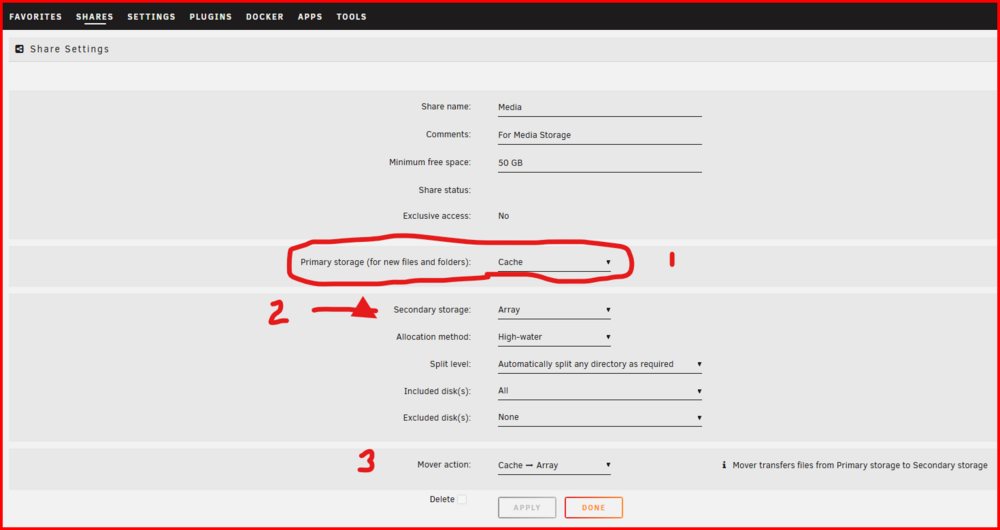
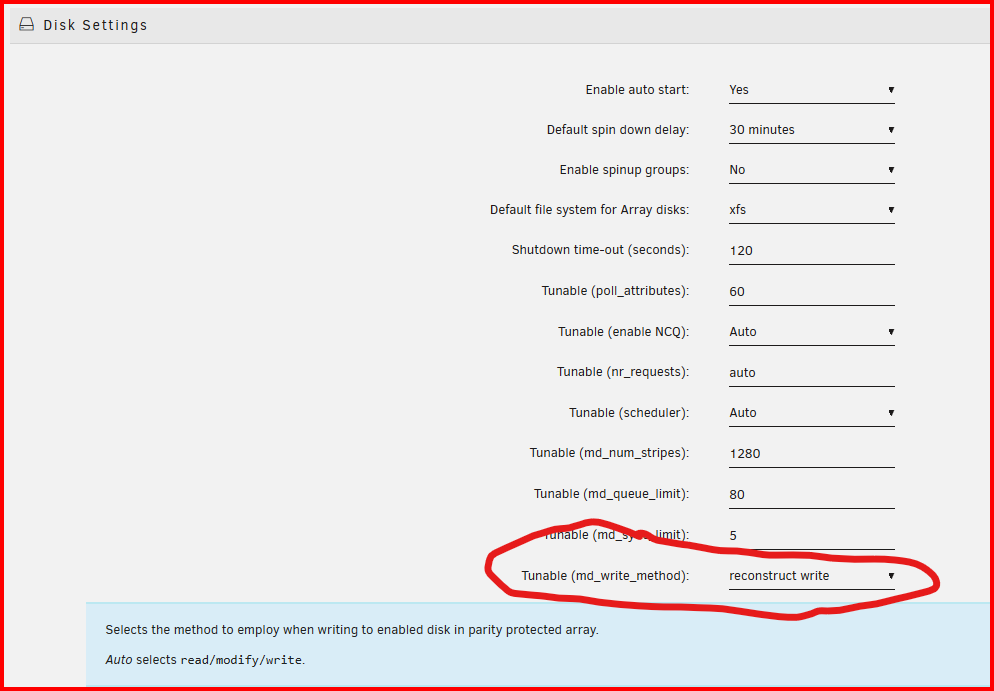
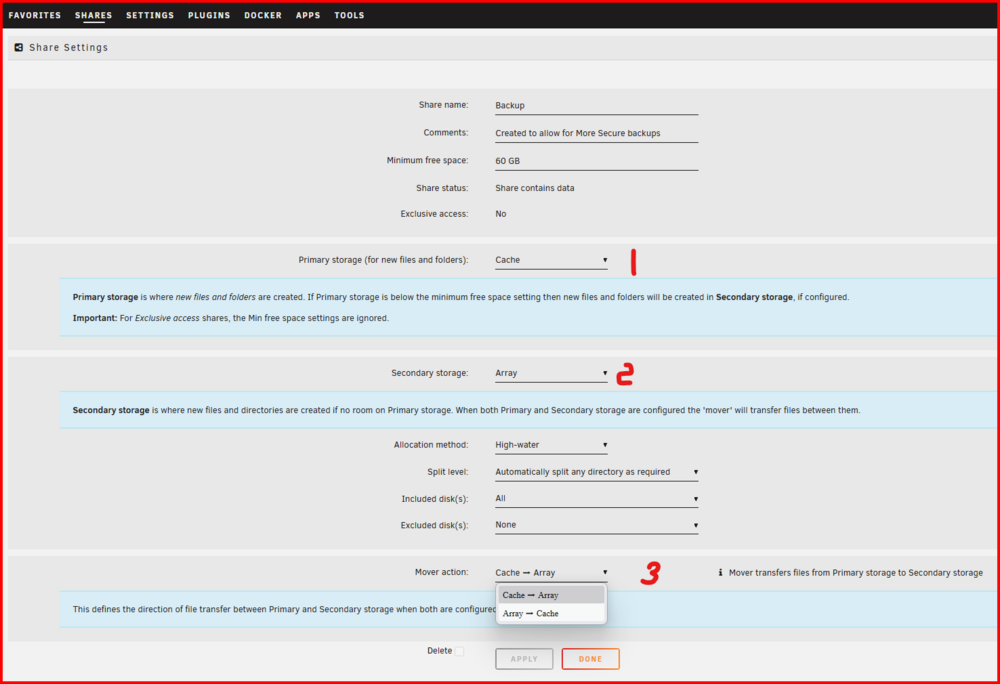
If upload a lot of data that you overflow the cache, Don't assign cache as primary (1) until the array has its initial load. Then make Array secondary. (2) And set up mover to move future data from cache to array. (3) As soon as you assign a parity drive that will drop in about half! You can recover a good part of the by changing the following setting to 'Reconstruct write'. This will spin up all drives during 'wriite' operations. (it is trade-off, speed vs power saving issue..)
-
As I remember, A 'Cache' drive is considered in the 'new' setup to be a 'Pool'. I think when you name the pool, you can call it 'Cache' and assign only one device to it. (If you assign two devices, you can have a parity protected 'Pool' but you are restricted as to the formatting options.) Let me ping @JorgeB as he is a real expert on pools.
-
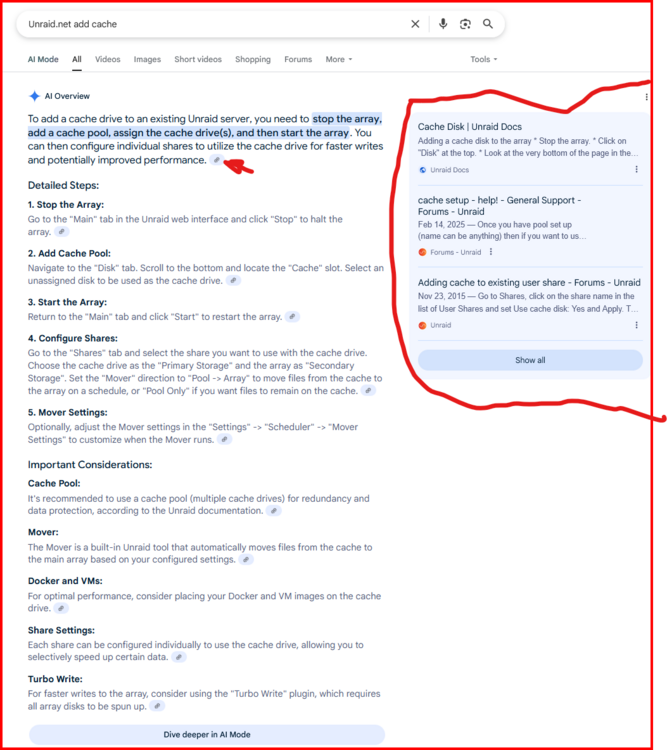
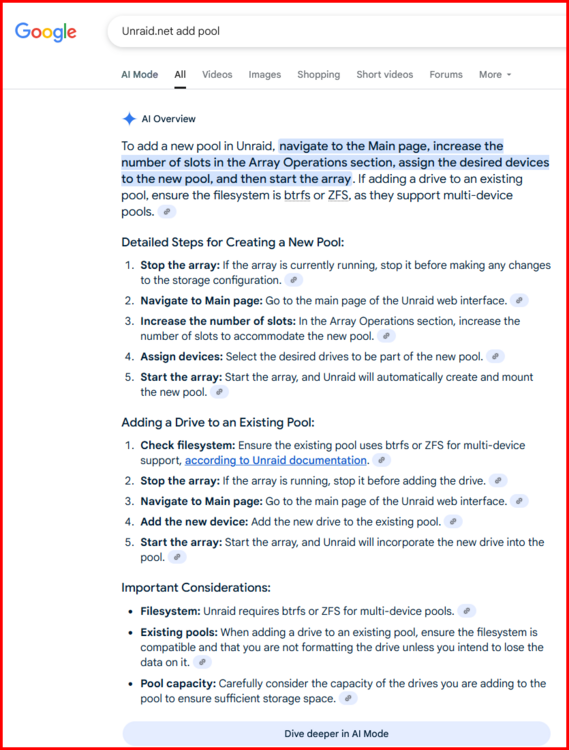
Google is my goto option when look for something about Unraid. This is an example of what their new AI search does: The box on the right contains links from the 'arrowed' link symbol. I am not real sure what the defaults are on a new install of Unraid regarding pool vs cache. IF 'cache' is not showing up, you may have to add it by clicking on 'Add pool' and so naming it. Search terms are important with Google:
-
Start here: https://forums.unraid.net/topic/146155-confused-with-primary-and-secondary-storage/ And this screenshot may help. I have not used cache pools and I have only a single cache drive so there are only two choices for Mover action: As I understand it, there are more options if you have more pools. My Unraid setups are still mostly NAS oriented. I use ony one working Docker container at this point-- mysql for the centralized KODI database. Hope this helps some.
-
The serial number as reported by Unraid does not match what is on that paper label! (Remember that anyone can print a label!!!!)
-
Read this post and the two in this thread: https://forums.unraid.net/topic/191221-smb-and-samba-and-unraid-and-windows/#findComment-1561581
-
Reserved
-
See this post: https://forums.unraid.net/topic/137806-creat-a-user-share-containing-a-portion-of-another-user-share/#comment-1251067 Be sure to read the last post in the thread and follow that link...
-
Very interesting. I can see how this approach works. I do have couple of questions. Can you set up different credentials for each server name (unserver, different, etc.) in credential manager and have credential manager handle the login when you decide to use a different name? And, if you are using it for elevation of privileges, how do you turn it off (or logoff) when you are done? I use this practice also. But I get write permission by going to my Unraid server and changing the permission for my Share Access user to read-write for the session when I am working on the file system. When I am done, I change it back to read-only. (I have Share Access Login name that I use only for my PC. A super SMB user account in its own way. All the other PC's on the network use a second Share Access user login name that has read-only privileges. The other advantage to my scheme is that I only have to change the particular Share that I need to work on to have read-write access. All the other shares are still read only.)
-
Reserved
-
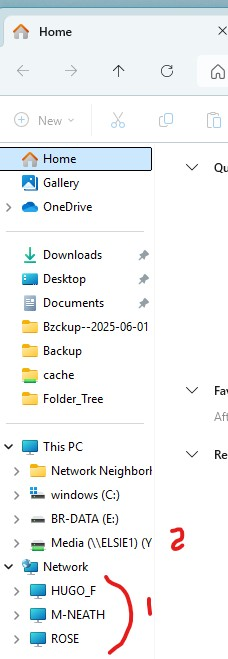
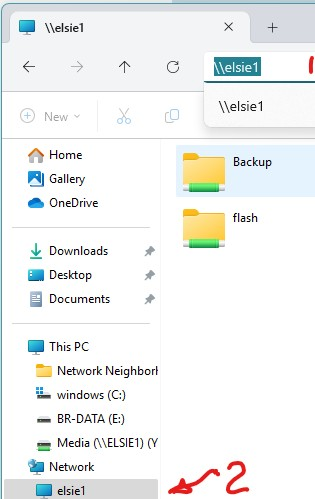
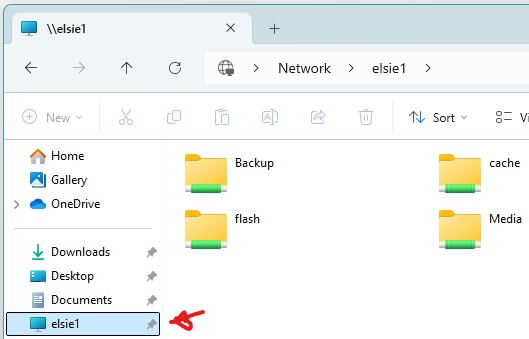
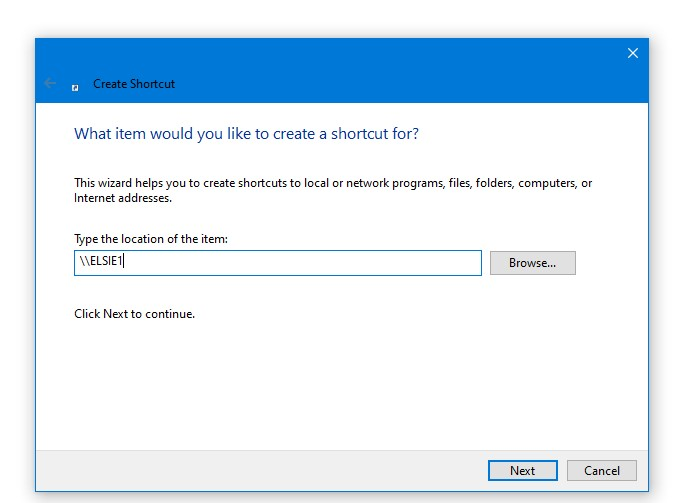
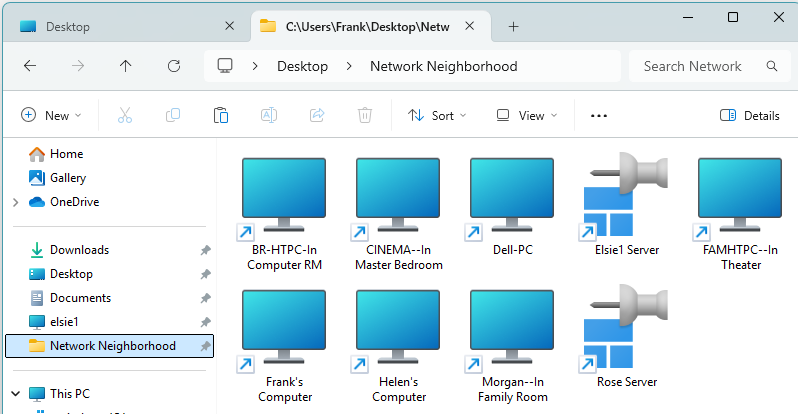
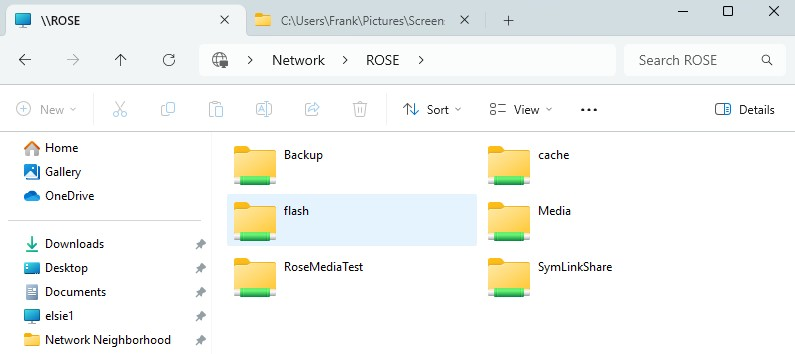
SMB Shares won´t show up in Windows ‘Network’ (anymore -- maybe)This is one of the most infuriating things about Windows and SMB. The screenshot below illustrates the problem: Notice under ‘Network’ (Identified by #1) there are three servers shown-- Two Windows 11 computers set up for peer-to-peer (HUGO_F and M-NEATH) and one Unraid Server (ROSE). However, I also have a second Unraid server. Look at #2, this is a mapped drive to my second Unraid server (ELSIE1)! It is not showing up under ‘Network’. This only illustrates what is the tip of the problem. It seems that what ends up listed under ‘Network’ is selection of a random series of possibilities on the various PC’s on my Network (and from the number of posts about this type of issue, I am not the only one with this problem). This is not a new problem. I have experienced it for years. It is not confined to a Windows-Unraid networking setup. I have used a Windows peer-to-peer network for years and I can tell you it exists there also! I know that there are Unraid users who are attempting to solve this issue by looking at the Samba/Unraid side of things. I hope they have success. However, I feel that a good part of the problem is on the SMB/Windows side of the equation. As best I can recall, the problem began about the time that SMBv1 was being displaced from managing SMB networking in favor of the Active Directory approach. I am waiting a solution from Microsoft but I don’t expect one any time soon. In the mean time, there are a couple of other solutions (/work-arounds). Let’s look at them. The Simple Solution Approach If you have only one or two dedicated servers on your network there is a simple approach that can be used. (The terms “File Explorer” and “File Manager” seem to be interchangeably used by many folks but a Google query determined that MS prefers “Windows File Explorer”, so for clarity I will refer to it as File Explorer.) This approach was tested primarily on Windows 11 but a quick check on an old Windows 10 laptop showed that it worked there. Open up Windows File Explorer. Then type \\server-name (the ip-address will also work) in the address bar (#1 in the figure below): Then the server will open up and the server name will now magically appear under ‘Network’ (#2 in the figure above. Then right click on that name under ‘Network’ and pick “Pin to Quick access” from the drop-down list. You will now find a shortcut to your server as shown in the screenshot below and clicking (as also shown), you will see the SMB shares on that server in the right pane. Then the server will open up and the server name will now magically appear under ‘Network’ (#2 in the figure above. Then right click on that name under ‘Network’ and pick “Pin to Quick access” from the drop-down list. You will now find a shortcut to your server as shown in the screenshot below and clicking (as also shown), you will see the SMB shares on that server in the right pane. An Approach for the more Complex Network I have six different Windows computers and two Unraid servers on my home network. To add to the complexity, these six Windows computers are set up to be peer-to-peer client/servers. This large number of Windows peer-to-peer client/servers requires what I call the “Network Neighborhood” approach. First step is to make a paper list of all the network names of the Computers that are used as servers on your network. Second step is to right-click on a blank spot on your Windows Desktop. From the drop down menu, pick New and then Folder. Rename this folder to Network Neighborhood. Now double-click on this new folder and it will open in Windows Explorer. Now right-click in the right pane of the folder, select New from the drop down menu and Shortcut from the next menu. You enter the name of the first computer. Note the double backslashes before the computer name. After you click Next, you can rename the Shortcut. One advantage to this procedure is that you can rename the shortcut to accurately describe the Computer that it points to. (See the next figure for an example of this renaming) Click on ‘Finish’ and you will have your first entry in the Network Neighborhood. Repeat until you have added all of the other computers to this folder. Then click on View on the Toolbar for Window Explorer and change it to Large icons or whatever type of display that you would like to use. Now the next step is to integrate it into Windows File Explorer. Right Click on the Network Neighborhood folder that is on your desktop and select Properties. Now select “Pin to Quick Access” from the drop-down list. When you open up Windows File Explorer, you will see ‘Network Neighborhood’ in the ‘Quick access’ section. After clicking on the Quick access link to Network Neighborhood, you can now see all of the servers that I have set up on my network. I can now access any one of them by clicking on the shortcut on the right pane. Clicking on ‘Rose Server’ brings up this: You only have to do the setup for the Network Neighborhood folder one time for your entire network. Then just copy that folder onto the Desktop of any other Windows Computer you may have and pin it to the Quick access menu. (If you don’t want the folder on the Desktop, copy it to any location on the Windows’ file system and do the pinning from that point.) You may wonder why you might want to share file systems of all of your Windows computers on your LAN. I have an example for you. I use KODI as my media player. When a new version of KODI is released, I download it once to my PC. I install it on my PC and make sure that it works as expected. Then I go to each of the PC’s on the network, open a link to my PC’s download directory on each of them and install the new version from there.
-
Execute Bit set for 'owner' on files Here is something that you may run across if you look at your SMB/Samba files as saved on your Unraid server: Notice that the ‘execute’ bit is set on the ‘owner’ permissions these files. These files were written to my Unraid server during a backup of every file in my Windows Documents folder. After an investigation, it appears that the SMB/Samba software work together to map the ‘archive bit’ of Windows file system onto the owner’s ‘execute bit’ of the Linux file system. This little slight-of-hand might not cause any issue if one always considers that these are Windows files being stored on a Linux computer as data and not actual Linux OS files! After all, attempting to execute a Windows Excel file as a command in a BASH shell is not going very far. But attempting a .exe file might be a bigger issue. But the real question might be why would any intelligent person while in the Linux command line environment be doing in a collection of Windows files trying to execute a random file anyway? In any case, the Samba Gurus decided it was acceptable risk and it is now the default. You can turn this off adding this line to your SMB Extras: map archive = no Apparently, this mapping causes the biggest problems with files that are accessed from both Linux and Windows. One example would be source code files that are being shared between Linux and Windows systems.

-
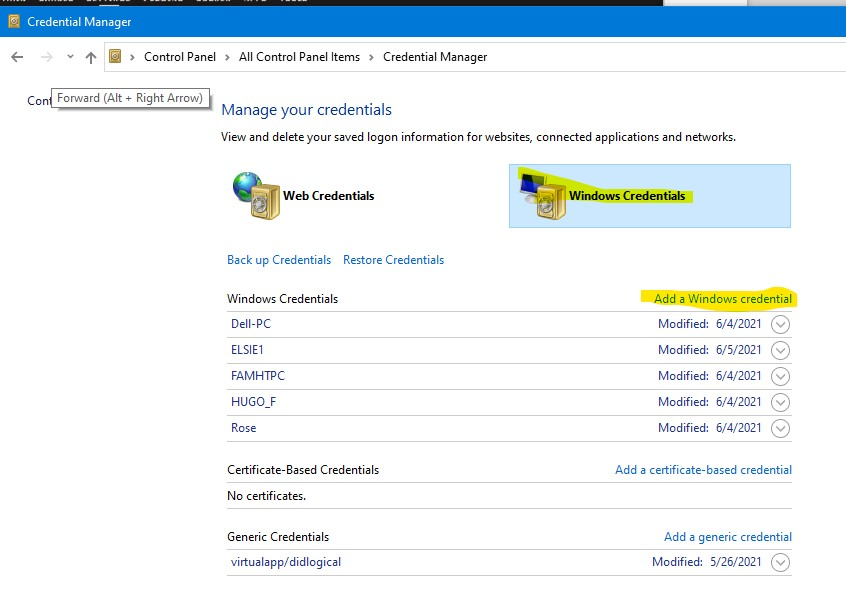
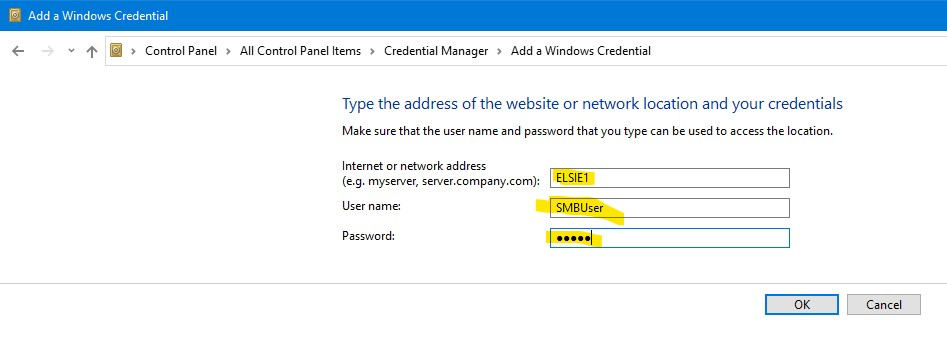
Adding a Windows Credential The guide will add a Windows Credential to a Windows computer to automatically log that Computer onto your Unraid server. The User name of the Unraid share that will be added is SMBUser. (This user and password should also be added to the Unraid server) We will be using the Credential Manager which is found by using the Search window on the Taskbar. Just start typing ‘Credential Manager’ on your Windows computer and it will popup in the results after the first few letters. Click on the results to get started. Now click on the Windows Credentials and any Credentials stored there will popup. Check to see if there are any for your Unraid server. If there are, click on the dropdown arrow and then remove the credential. Now click on the ‘Add a Windows credential’ link and the following screen will open. Now enter the information required. The Internet or Network Address is the name of your server. The User name is the one you choose for the Share Access user, and then its password. Click on the OK button. EDIT: 2025-06-20 Please observe this restriction imposed by Unraid when creating a User name! (Windows would allow this but it may be troublesome in Linux..

-
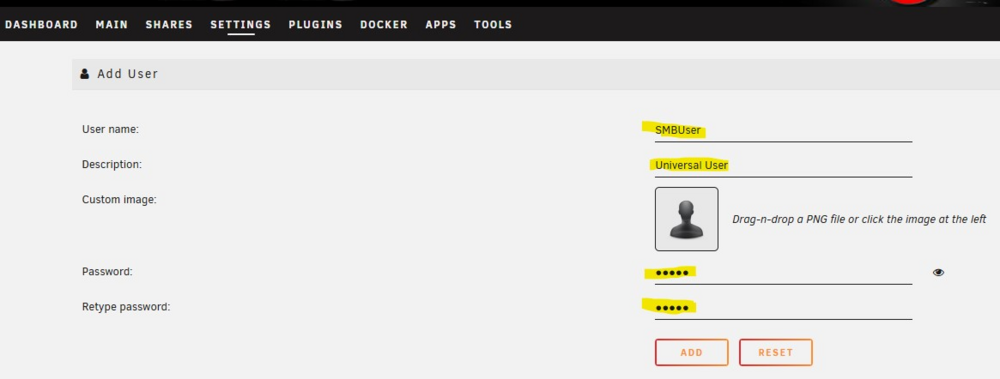
Adding a SMB User to Unraid This Guide will show you how to add a User to your Unraid Server. Now find the Add Users Page in the Unraid GUI. It will either be a tab (Users) on the Toolbar or under the Settings Tab. Once there, click the ADD USER button. And you will see this screen: Fill in the required blanks. Pick a user name (see 'EDIT:' note below for restrictions ) and a password of your choice for this computer. Be sure that you record the password that you assign to this User. You will need it later. Click the ADD button when done. EDIT: 2025-06-20 Please observe this restriction when creating a User name! The name should be--- smbuser

-
Set Proper Network Type on the Windows Client Before we do anything else, let’s make sure that the Network type is set correctly on your Windows computer. It should be set as 'Private'. (I suspect that the default for WiFi will be ‘Public’.) Some folks have reported that they can’t ‘see’ their Unraid server if it is not set to ‘Private’. With older computers, the defaults for ‘Public’ may have been looser or some versions of Windows may have stricter restrictions on what is allowed using a ‘Public’ connection. For Windows 10 Open up Settings Pick Network & Internet In right panel, click on Properties button In the Network Properties, select the 'Private' radio button. For Windows 11 Open up Settings In left panel, pick Network & Internet In the Right Panel at the top, click on Properties Under Network Profile type, click on the 'Private network' radio button
-
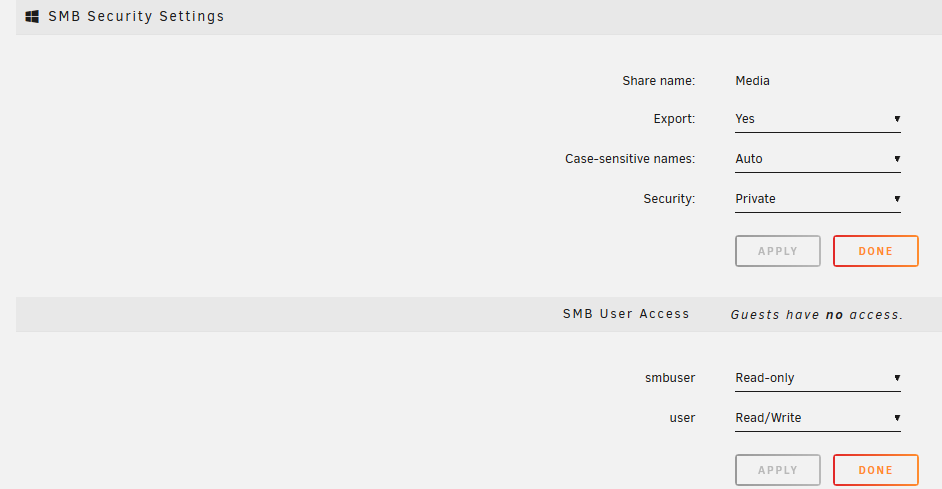
An Explanation of how Unraid SMB Works Let's begin that I acknowledge that the SMB configuration that LimeTech is using is not really a standard configuration. I would never recommend it for a large business environment. It might even not be suitable for a small business situation. It lacks too many administration tools. It has some serious security holes that are unacceptable in the business environment. (Most of these can be ‘plugged’ but the Unraid server administrator has to do it.) I have never tried it in an AD environment but I do know that there are folks (few?/many?, I know don't know!!!) who are using Unraid in the AD environment and there are some issues and gotchas. But to be fair, Unraid initially was never intended to be a secure environment. In fact, the biggest headache for those of us who are attempting to assist in solving SMB issues for the Unraid users who still want to use SMB using 'guest' access and SMBv1. (This was typical of all LAN network setups in the early 2010 era.) Today, things are much, much different. MS wants to prevent any insecure connections from any Windows client computer to any other computer by requiring that clients be logged into the other computers and to use SMB Signing for any connection-- No more ‘Guest’ access to another computer. By default, SMBv1 is now turned off on all Windows client computers because of serious security issues with that entire protocol! With MS attempting to close all security holes, there is a whack-a-mole battle ongoing between many Unraid users and MS. (It be fair to LimeTech, some of these security issues are addressed in new installs of Unraid. Telnet, SSH and SMBv1 are turned off. I believe SMB, NFS and FTP services are off by default. However, if you update from an old version of Unraid to the latest release, the required changes will be considered to be grandfathered-in by the updating process and will not be applied to your setup as the upgrade is done.) In the remainder of this thread, I will provide a method to set up any Windows 7,8, 10 or 11 computer with a virgin Windows OS install to work with Unraid. (If you have modified your Windows computer, these instructions will probably work and fix any access problems but you may not have quite a secure Windows client as MS would like.) You may be asking, “Why do I have to set my SMB network in a secure fashion to make things work with Unraid? Why not just change a few settings in Windows and be done with it” Let’s have a quick look at the Windows environment. There are at least four different Windows releases still in wide usage Windows 7, 8, 10 and 11. There are at least four different versions of Windows offered for sale-- Home, Professional, Enterprise and Educational. Within these combinations there are Version Updates (22H2, 23H2 and 24H2 as examples). There are slight differences in the way that SMB and networking are setup in each of these that prevent a single simple general cookbook solution to be guaranteed to work for your particular Windows setup. A further monkey wrench in the works, is that MS has been known to actually make changes in these settings back to their MS defaults during the monthly security updates. (MS does not always respect ‘Grandfathering’!) If your Windows computers do automatic updates, you wake up one morning and suddenly find out you don’t have access to your server! How does Unraid SMB access work? A while back, I did a forensic analysis over several days and played around with a number of scenarios. Below are my observations: I have two users profiles for SMB on my Unraid system-- smbuser and user with 'user' intended have superuser privilege of read/write when required. (I do occasionally turn on read/write for smbuser when it is needed...) All of my shares are Private and this is a screenshot of permissions, owner and group for some files on my Unraid server: Notice that the owner is the client computer that wrote the file initially. (The file with the owner nobody was created before I set up a more secure environment.) Through that previously mentioned forensic analysis, I have determined that most Unraid access actually comes through the group permissions and that is why the group file permissions have to be rw- rather than the standard Linux r--. (Every Share Access User created via the USER tab is automatically a member of the users group!) I can assure you that both Share Access users can access any of these files consistent with the permissions granted them through the SMB Security settings for each share as shown below: It is fairly easy to set up for the average Unraid user and provides all the security that most of us require. By contrast, setting up things using Windows side is a complicated task and most businesses end up hiring an IT professional with MS certification to do the job and maintain the system. (While you are looking at this screenshot, notice that Export: is set to “Yes” and Security: i s set to Private”. In addition, SMB User access permissions have been set for each user. You have to explicitly set these for each Share Access user to have any access as the default is “None”!) (If you are tempted to try to set permissions on Unraid files via Windows, you should be looking at the AD environment which means you have to install one of the Windows Server products.) You may have also noted that I have only two Share Access users setup on my Unraid servers. In the inner workings of the SMB networking protocol, the actual name for any SMB client is a combination of the network name of the client computer and the user name that the client is logged into. Thus if the network name of a Windows client computer is MOTHERSHIP and the Share Access User Name on the Unraid server is user, The actual full SMB user name is: MOTHERSHIP\user It turns out that to this full SMB name is totally unique because any Linux server will only accept one login from a client computer named MOTHERSHIP with a user name of user and there can only be one computer on the LAN network with the name of MOTHERSHIP! (If two computers do exist with the same name, chaos will result with more things than SMB!) As you look at this, you should be able to realize that more than one client computer can simultaneously logged into an Unraid server using the same Share Access user login name. (After all, a login name for a Share Access user can be consider to be nothing but a set of rules which spell out what access and privileges to each share that a client computer will have.) Thus, if you want every Windows computer on your network to have unrestricted access to all shares and files, you can have one Share Access user, set all of the shares to ‘Private’, and grant that user read-write access to every share. You will have the best of both worlds--- Giving unrestricted access to the files on your Local Network to everyone who should have access and blocking all those who should not. (With everyone having a smart device these days, many folks give visitors WiFi login credentials. Having your shares secure from easy access will give you peace of mind--- Do you really want your shady brother-in-law to have free-and-easy access to the backups of your financial records?) As a complete aside, I have six Window client computers that log on to my two Unraid servers using smbuser login! The PC that I use logs into both servers as user. This allows me to configure that login as a ‘super user’ for managing the shared resources without elevating the permissions on the other six computers.

-
What are SMB and Samba and How Do They Differ There have been issues with making connections to Unraid servers from Windows computers for the past several years. These problems are the results of a couple of different factors. The first one is that many Unraid users want a very simple and hassle-free way to connect the Windows computers to their Unraid server. A plug-and-play solution if you like. The second factor is that Microsoft is determined to see that Windows client computers will only permit single connection to any other computer/server and that this connection will be completely secure. It can be seen that these two factors are diametrically opposites. (Connections to multiple servers is allowed but only one connection to each one of those servers.) Let’s begin by looking at what SMB is all about. Rather than my attempting to explain what it is and how it works, let’s look at an article that does that. https://en.wikipedia.org/wiki/Server_Message_Block You should have gained a couple of things from your reading. First, SMB (and sometimes called Common Internet File System-- CIFS) is both the name of a protocol and a collection of software programs for the Windows Operating System to implement that protocol. Second, that both the protocol and the software are the propriety property of Microsoft (MS)! https://en.wikipedia.org/wiki/Samba_(software) From this you should have gain the insight that Samba is a reversed-engineered piece of software to implement the SMB protocol on UNIX-like systems. Of course, Linux is one of ‘those’, so it uses Samba to provide SMB/Windows file access using Microsoft’s SMB protocol. Samba is very highly configurable and there are many parameters that can be ‘adjusted’ from their default configuration. The following link contains information for all of the Samba settings for those who might want or need to fine tune things. https://www.samba.org/samba/docs/current/man-html/smb.conf.5.html
-
Peer-to-Peer vs Active Directory (AD) Let’s address this right from the beginning. Most Unraid users will be setting up a Peer-to-Peer network. Active Directory is “a directory service developed by Microsoft for Windows domain networks. Windows Server operating systems include it as a set of processes and services. Originally, only centralized domain management used Active Directory. However, it ultimately became an umbrella title for various directory-based identity-related services”. It can accommodate the organization and administration of thousands of client computers and hundreds of servers over a wide geographical area and perform any necessary tasks involving those computers. This is the domain of the IT professional. If you use AD, you can opt to have your Unraid server become a part of an AD network. Most of us will use a Peer-to-Peer Network. (Unraid refers to this mode as ‘Workgroup’.) All of the server(s) and clients will be contained within our Local Area Network (LAN). (Although, Wireguard will permit access from the Wide Area Network (WAN--- also called the Internet), one can consider that you are permitting a computer on the WAN access through your router’s firewall and treat it as though it were on your LAN.) Microsoft seems to treat Peer-to-Peer networking as the ‘ugly step-child’ that should be seldom seen and never heard from. When changes are made affecting how SMB works, the ‘number-one sons’ (AD) wishes are always going to be met. Once you understand this, you are on your way to understanding why MS forces security features onto your Windows computers that you don’t think that you need or want. Microsoft’s first goal is to make SMB secure for their Corporate and Government customers! You can fight it or live with it. If you choose to fight, you will be fighting a series of battles in your own personal gorilla war with MS. Remember there are no rules in gorilla warfare so no guidebook is possible for what is required in your situation. A further consideration for going with the secure approach is that the Unraid Development Team should be verifying the Unraid Samba settings and Windows OS default SMB settings work smoothly together. So if MS does do something screwy, they and the Samba team should be able to make the changes required to Samba to accommodate it. Hopefully, it would be a non-event for most Unraid users. (Plus, I really doubt that MS is going anything so radical to SMB that it completely breaks Samba as that would probably also break many of the servers running older versions of the Windows server software as well as the UNIX/Linux Samba servers in commercial world!) I have chosen to live with it. These posts will show you how to follow this path also.
-
The posts in this thread are a series of information posts about SMB, Samba, Unraid, and the Windows OS. These posts try to tie together how each of these four items interact together, and with each other, to allow sharing of files using the SMB protocol. It is a rather complex subject and I don’t claim to have all of the answers but I wished to share some of my insights into how things appear to work. It also pulls together a lot of information into one thread that is scattered all over the Forum. I am NOT a certified IT Professional. Most of my knowledge comes observing the behavior of Local Area Networking in the real world Windows/Unraid environment. Please do not post up inquiries about any problems or issues that you have with SMB/Samba in this thread. This is NOT a troubleshooting thread! Make a new Topic/Thread for your problem in either this Sub-forum or in the ‘General Support’ Sub-forum. If you have an insight into how SMB/Samba/Unraid/Windows works, by all means, share it in this thread. Your thoughtful post would be welcome. I do grant permission to anyone who want to copy any or all this material into the Unraid WIKI or Unraid Manual to do so. I will not get bent out of shape if you do!
-
A note of caution about using a Symbolic Linked Share: https://forums.unraid.net/topic/190727-creating-shares-within-existing-shares-directory-structures-in-the-array-subtle-issue/#findComment-1561195
-
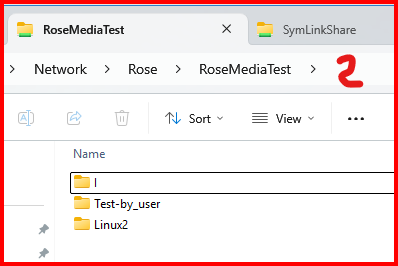
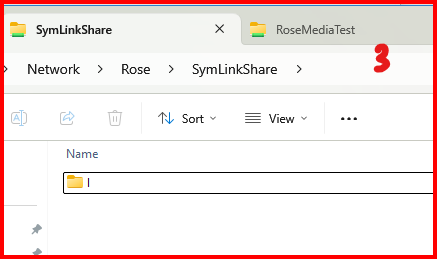
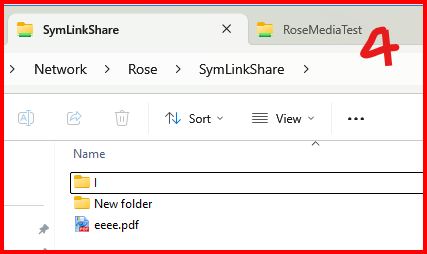
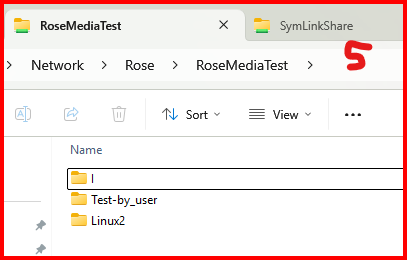
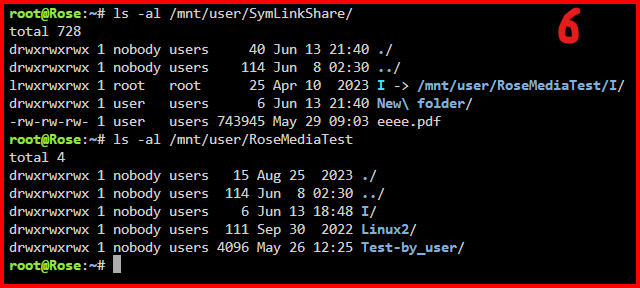
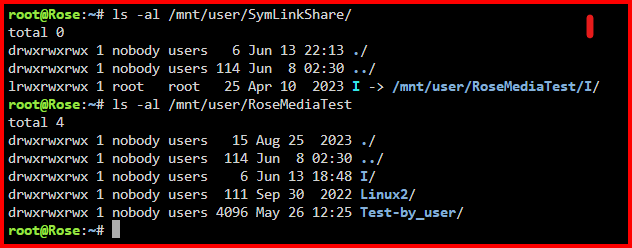
I decided to so a bit of playing around this evening. Let's start with this screenshot: It shows both paths to the root directory of my Symbolic Linked Share--- SymLinkShare. This is what these paths looks like from Windows: Uploading Attachment... Now I am going to copy a file and add a folder to the Symbolic Linked Share using Windows Manager. Notice that the new File and added Folder are not showing up in the screenshot to the right. The "I" directory in both screenshots are the same directory!!! Now let's look at it from the Linux file system: Notice that the added file and new directory is not showing up. This basically means that they are not be stored on a physical device. If this is true, then they must be stored in RAM memory. This means they will disappear when the server is rebooted and the available storage space is limited to the amount of free RAM you have available! The point being made is that you must never store anything new in the root of any Symbolic Linked Share. Everything has to be stored inside of the directory that the Symbolic Link is pointing to.
-
I vaguely remember when looking through Windows Properties that somewhere deep down in permissions there is a separate setting for 'delete'. The reason I remember it is that I thought it strange that you could deny 'delete' privileges when you still had read-write privileges! (After all, you could just delete the entire contents of the file but you could not delete the file pointer to what was then an empty file!)
-
I just tried and I could delete files. (Did not try a directory.) I even completely turned off access for the Share Access user for the root share for the Link. I tried two different Share Access users. I deleted old files and I deleted new files that I uploaded today. I created an empty folder (Directory) and deleted it. All of this was done using Windows 11 PRO (24H2) File Manager. Not sure what is going on... EDIT: I did not try a mapped drive. I did everything starting from the server down to the SMB shares.
-
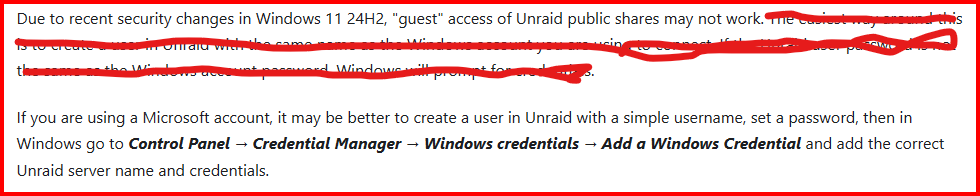
Try this from the release notes of ver6,12,15:
-
Have you consider having rsync run in the 'quiet' mode and add a command (after rsync finishes) to the shell script that sends the current time to std out? (It has been so long since I last work with BASH that I forget what it would be...) EDIT: