sonic6
Members
-
Joined
-
Last visited
Everything posted by sonic6
-
Okay danke. Ist zwar ne wd black und meine hat die Stromsparmodi, aber vielleicht habe ich einfach nur ne neuere Firmware.
-
Hast du dazu was näheres? Ich hatte vorher zwei Transcend PCIe M.2 SSDs drinne, die ca 5W mehr machten, als zwei SN700 sorry für den off-topic
-
@scolcipitato if you add this, you should add a notice about that: you can just download icons, put it into a folder on your server and use it: /mnt/cache0_vm/appdata/dockerfoldericons/0_startup.png keep it simple

-
same on 6.12.4 RC7
-
just open the Docker-Tab and type "D E B U G" then the debuglog file will be downloaded.
-
did you try this: if this will not help, maybe a debug-log will be helpfull for @scolcipitato
-
Because Squid that "the wheel must be reinventing though":
-
Changelog/Anpassungen: v1.0 - release v1.1 - fix für einen Fehler beim löschen der Backup, Hinweis auf RAM Nutzung. v1.2 - Anpassungen für Plugin v2023.07.30
-
Ein Kurzes simples Skript um (stark) komprimierte Backups der LXC Container zu erstellen. Da @ich777 mit der Version 2023.07.30 eine Backup eingeführt hat, ist mein Skript in der ursprünglichen Form "überflüssig" geworden. Nähere Informationen erhält man mit Folgenden Befehlen im Terminal: lxc-autobackup -h lxc-autosnapshot -h Dahingehend habe ich mein Skript angepasst um mehre Container nacheinander zu Sichern: Als Anfänger kann man sich grob an meiner Anleitung für das Pi Image Backup langhangeln. Folgende Dinge sind vorab zu beachten: -Backup Share oder Unterordner (falls gewünscht) im Share erstellen. -Bitte nur die Variablen Anpassen: LCX_CONT_NAMES: Alle zu sichernden Container durch Kommata getrennt eintragen BACKUP_PATCH: Pfad zum Backup Share. Der Ordner muss vorher angelegt werden. Unterordner mit dem Namen des Containers werden automatisch erstellt. COM_LVL: Stärker der Kompression. 0 = niedrig, bis 9 = hoch. !!ACHTUNG!!! 7 bis 9 benötigt bis zu 12GB RAM!! BACKUP_COUNT: Anzahl der zu erhaltenen Backups. Das älteste wird gelöscht. CPU_THREADS: Anzahl der genutzten CPU Threads (nicht Kerne). Wer hier nicht weiß, was er tut, lässt den Wert auf "default" stehen. Bei "default" werden 50% der System-Threads genutzt. USE_SNAPS: 0 = Es wird eine Sicherung des Containerimage OHNE Snapshots gemacht. Der Container ist während des kompletten Sicherungsvorgang offline/gestoppt. 1 = Der Container wird zur Erstellung einen Snapshots gestoppt. Danach wird der Container gestartet und der Snapshot wird gesichert. Das KANN den Vorteil haben, dass der Container schneller wieder gestartet wird/online geht. !!ACHTUNG!! Die Verwendung des Kompressions-Levels von 7 - 9 kann in einer hohen RAM Auslastung von bis zu 12GB resultieren! Bitte mit Vorsicht nutzen! #!/bin/bash ###LXC Container Backup### ###V1.2 ###https://forums.unraid.net/topic/142807-anleitung-lxc-backup-per-user-script/ ########################## #variables LXC_CONT_NAMES="CONTAINER1,CONTAINER2,CONTAINER3" #Name der zu sichernden Container getrennt durch ein Komma ohne Leerzeichen BACKUP_PATH="/mnt/user/YOUR-BACKUP-SHARE" #Pfad zum Backup Share BACKUP_COUNT="5" #Anzahl der zu erhaltenen Backups COMP_LVL="6" #Compressions Level (0 - 9 ACHTUNG! 7-9 benötigt bis zu 12GB RAM) CPU_THREADS="default" #Anzahl der zu nutzenden CPU Threads (0 = ALLE / default = haelfte) USE_SNAP="1" #Snapshot verwenden (1 = aktiviert, 0 = deaktiviert) #splitt Containernames IFS=',' read -ra CONTAINERS <<< "$LXC_CONT_NAMES" #backup for container in "${CONTAINERS[@]}"; do if [ "$USE_SNAP" -eq 1 ]; then if [ "$CPU_THREADS" = "default" ]; then lxc-autobackup -s -n="$container" -p="$BACKUP_PATH" -b="$BACKUP_COUNT" -c="$COMP_LVL" else lxc-autobackup -s -n="$container" -p="$BACKUP_PATH" -b="$BACKUP_COUNT" -c="$COMP_LVL" -t="$CPU_THREADS" fi else if [ "$CPU_THREADS" = "default" ]; then lxc-autobackup -n="$container" -p="$BACKUP_PATH" -b="$BACKUP_COUNT" -c="$COMP_LVL" else lxc-autobackup -n="$container" -p="$BACKUP_PATH" -b="$BACKUP_COUNT" -c="$COMP_LVL" -t="$CPU_THREADS" fi fi done Ursprüngliches Skript: Backup wiederherstellen: Öffne das Terminal und nutze folgenden Befehl um die autoback Funktion aufzulisten. lxc-autobackup -h Hier werden die Möglichkeiten und Beispiele für die Wiederherstellung angezeigt. Danke an @ich777 für das LXC Plugin, Inspiration, Code-Schnipsel und Hilfe! Bitte berücksichtig, dass ich selbst sehr wenig Erfahrung habe, daher bin ich für Feedback und Ergänzungen sehr dankbar!
-
mit der v1.6 soll es wohl wieder laufen.
-
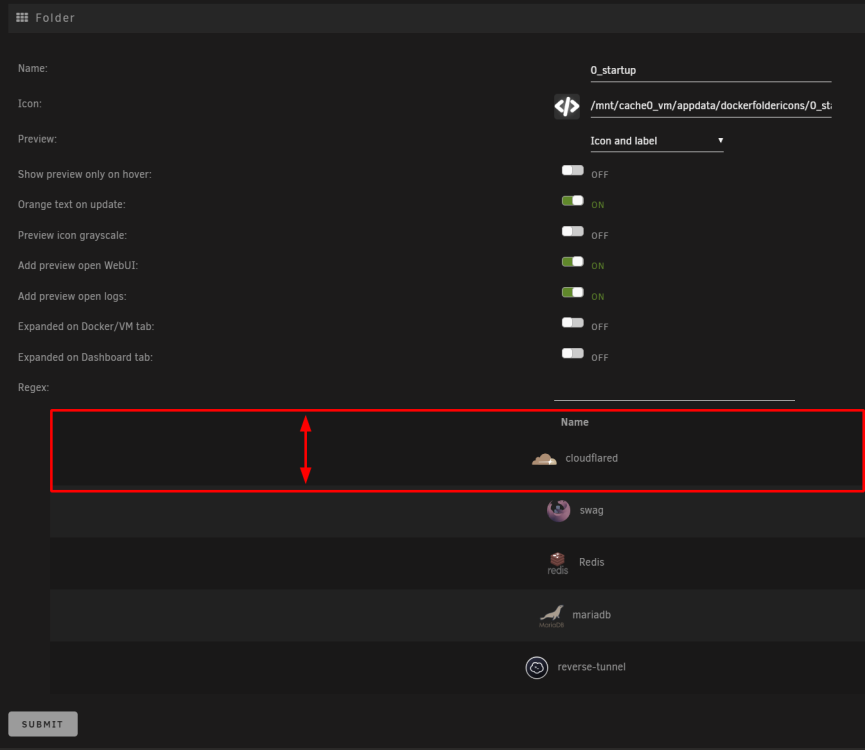
create or edit a folder, scroll a bit down, then hold swipe the container, you want to change the position.
-
maybe better changing it to this one: https://raw.githubusercontent.com/scolcipitato/folder.view/main/folder.view.plg when i try installing it: plugin: installing: folder.view.plg plugin: downloading: folder.view-2023.07.28.txz ... done plugin: bad file MD5: /boot/config/plugins/folder.view/folder.view-2023.07.28.txz Executing hook script: gui_search_post_hook.sh Executing hook script: post_plugin_checks It also supports data:image/{type};base64, format (Convert image to data strings) what is the benefit of this? i just downloaded *.png and put it into a seperate folder in my appdata on my cache drive.
-
Is this script also useable for other system, which is using docker? long story short: i am using docker with portainer inside a LXC container (in unraid) to prevent the MACVLAN traces.
-
to be fair, two NIC's aren't mandatory for using Docker. You just need it, when using the "workaround" for the MACVLAN problem and you aren't able to use IPVLAN. If you can use IPVLAN, you system should run fine without the "workaround".
-
don't do that. just change the Container Port back to 8080 and the Hostport to a free one.
-
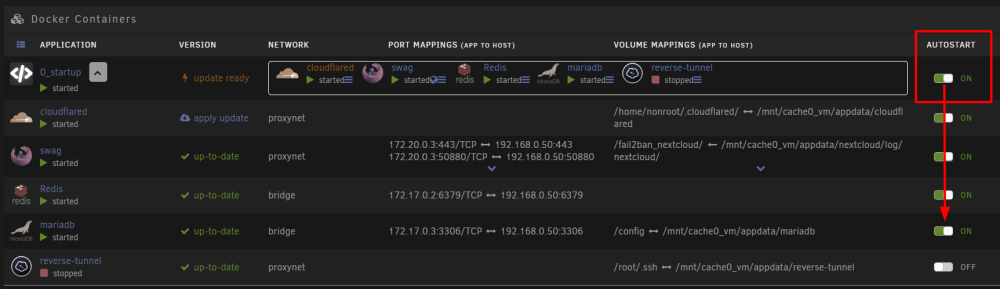
isn't this the same, like it was before and unraid works by default? all containers starting by their position in order from top to bottom?
-
I wouldn't recommend putting "Docker" or so in the Name. Maybe you will add LXC support, or something else in the futur. But a Name with "Folders" inside should be necessary. How about "App Folders" or "Unraid Folders"? ("Apps" because of Community"Apps", what the Folders are most for)
-
just a side info: this cause a higher CPU load / RAM usage to your sever, even when the webgui isn't open. it is the same with the "adavned view"... you don't want to use that, it just wasting a lot power.
-
isn't this present for you?
-
First, backup you settings from the old Plugin. Like do some Screenshots,... then unistall the old one.
-
i would recommend contacting the Dev Team. there a some deprecate plugins from the past and they know, how to handle that case.
-
@scolcipitato do you plan to release it on the CA? maybe it would be better starting a new thread and let the Dev Team deprecate the old thread and plugin?
-
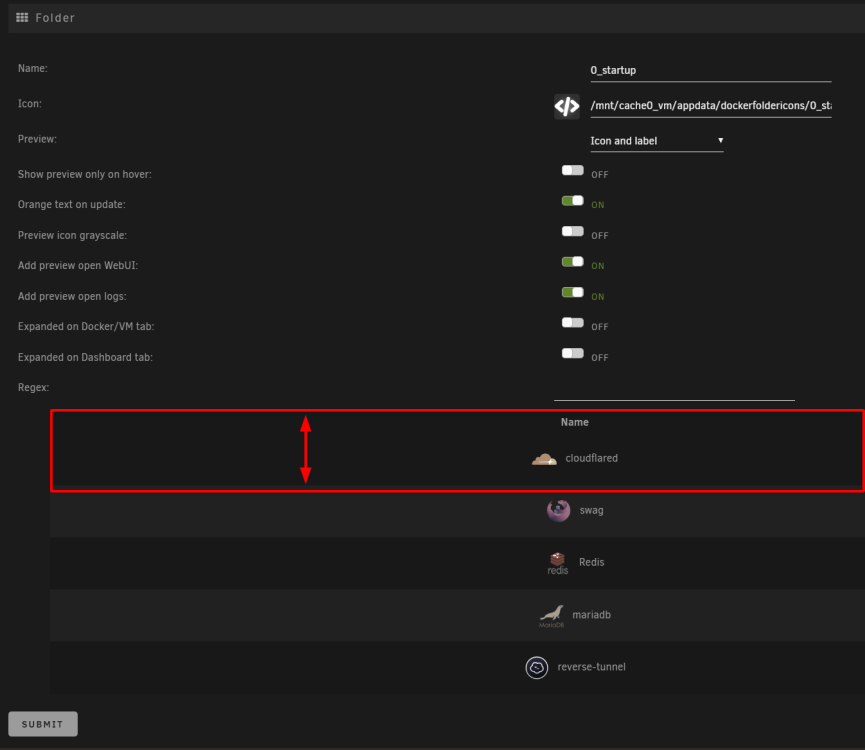
you have to do it here: create or edit a folder, scroll a bit down, then hold swipe the container, you want to change the position. @scolcipitato maybe you have to add an icon, or something that indicates how and were to move the container position inside a folder?
-
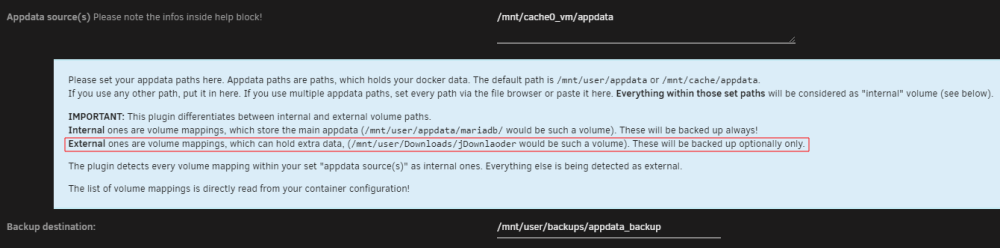
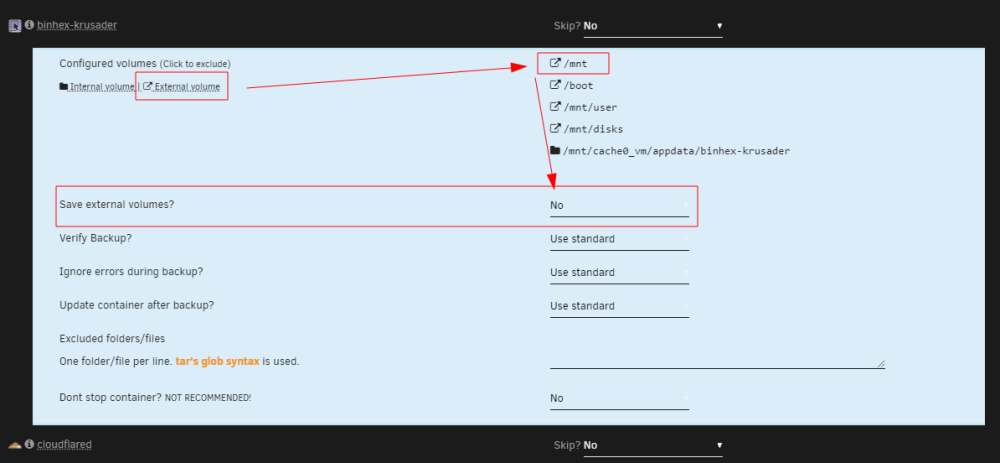
no, because of this:
-
is it normal, that the pop-up is missing when choosing the "small" footer style?